


 Continue with Google
What Privacy Mode does
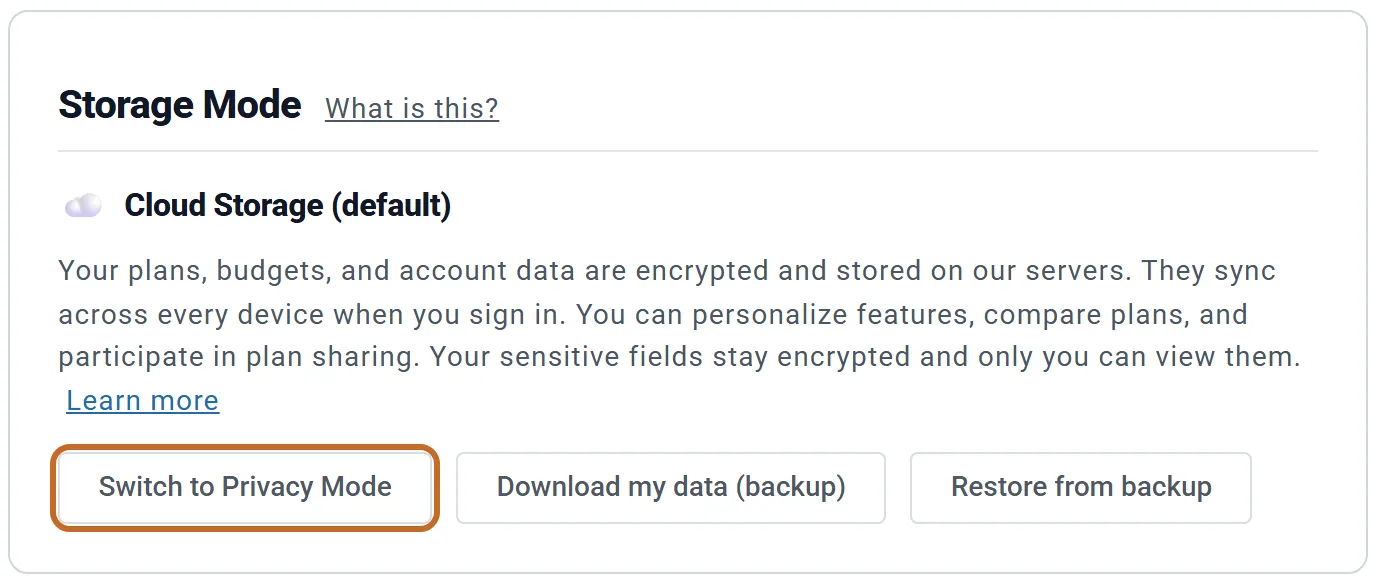
Every account starts in Cloud Storage: your plans, your budgets and your Accounts & Assets data are kept on our servers, encrypted, and are the same on every computer you sign in on.
In Privacy Mode those same things are kept only in the browser you are using, in the browser's own storage on your computer. While it is on, our servers refuse to store plan data, so nothing of your plan can reach them by accident, from an old tab or another computer. When we tested it, editing a plan in Privacy Mode sent nothing to our servers.
- What is kept in your browser: your Master Plan and every named plan, your Master Budget and named budgets, and your Accounts & Assets data (with your net worth history). Custom presets and estate beneficiaries you set up while in Privacy Mode are kept there too.
- What stays with us in either mode: your account itself (name, email, password and subscription), your Community nickname, the Coach suggestions you dismissed, and the date of your last backup download.
- One switch covers the whole account: every plan, every budget, and both people's accounts on a plan for a couple.
- The calculations are the same. They run in your browser in both modes; Privacy Mode changes only where your plan is saved.
Is Privacy Mode right for you?
Any account can use it, Preview and Planner+ alike, in every country. Advisers can use it for their own plans. An adviser's client cannot (see Advisers and their clients).
| A good fit if you | Not a good fit if you |
|---|---|
| Plan on one computer, in one browser | Plan on more than one computer or browser |
| Want your plan kept off our servers | Want to share a plan or be counted on Community |
| Are happy to download a backup now and then | Work with a financial adviser through ReadyAimRetire |
Privacy Mode is not offered at sign-up. A new account starts in Cloud Storage, and signing up saves the plan you built as a guest to your account. If you want none of it left on our servers, switch with Delete immediately (see Turn on Privacy Mode). Before you sign up, a guest's plan is already kept only in that browser.
Turn on Privacy Mode
- Open the menu under your name (top right) and choose Manage Account. The Account & Billing page opens on its Account tab; scroll to Storage Mode.
- Choose Switch to Privacy Mode. The window compares the two modes and lists what is off in Privacy Mode.
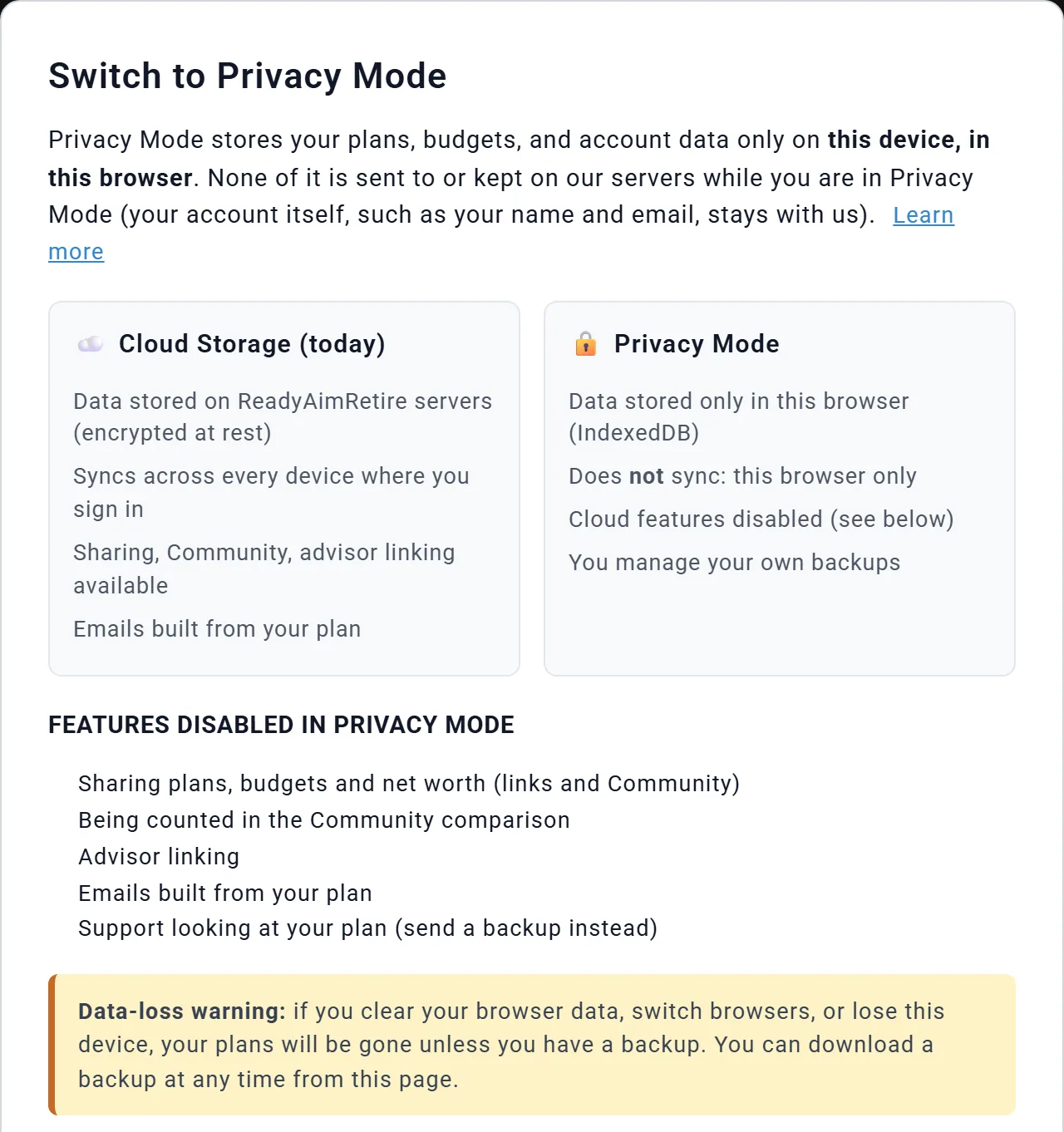
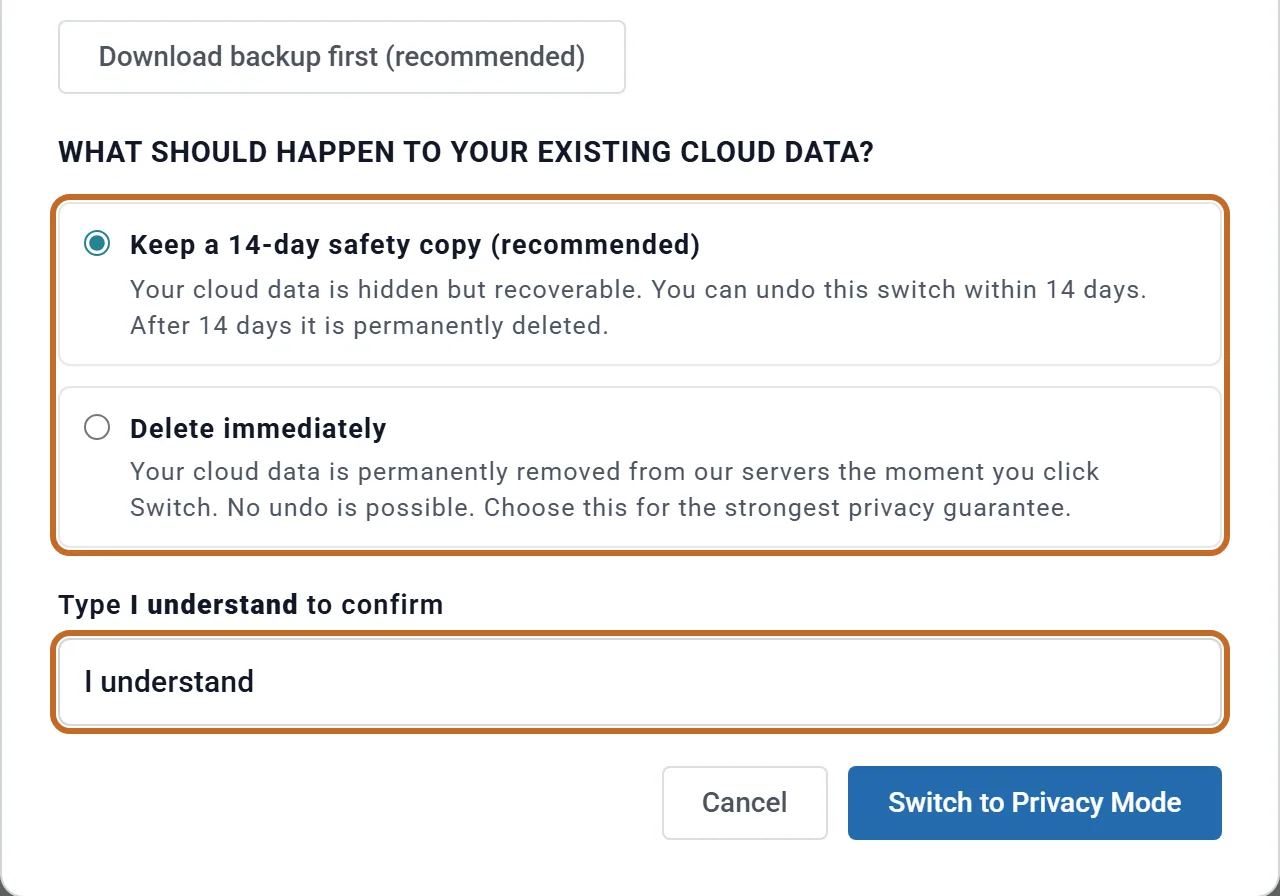
- Choose Download backup first (recommended) to save a copy of your plans before anything changes ("Backup downloaded." appears beside it).
- Under "What should happen to your existing cloud data?", pick one:
- Keep a 14-day safety copy (recommended) (already selected): your cloud copy is hidden, and for 14 days you can undo the switch and get it back. After 14 days it is deleted.
- Delete immediately: your cloud copy is removed at once. There is no undo.
- Type I understand in the box, exactly like that, then choose Switch to Privacy Mode. The button reads "Switching…" while your plans are copied into this browser, then the page reloads in Privacy Mode.
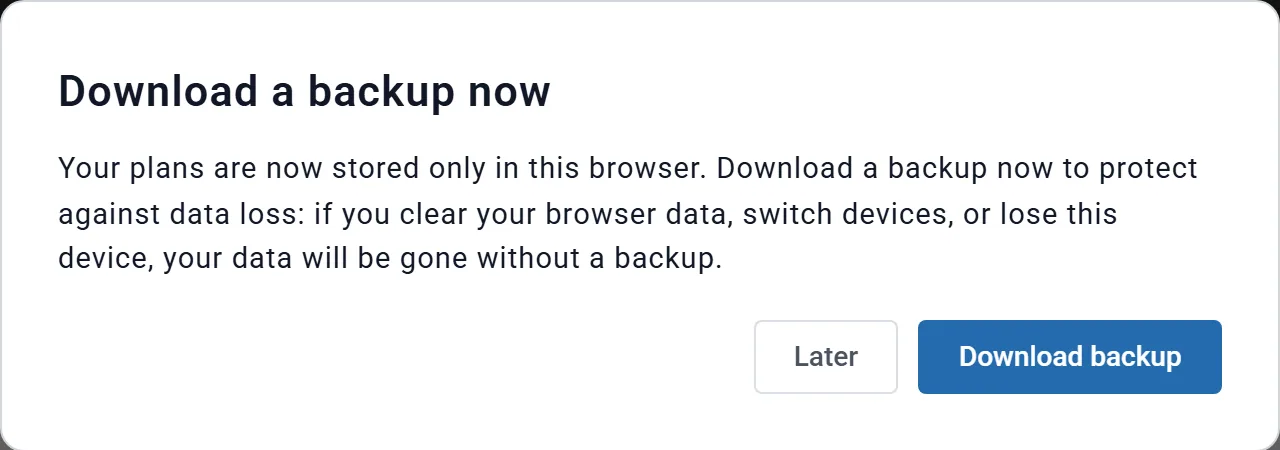
If you skipped the backup in step 3, the reloaded page asks you to Download a backup now, with Later and Download backup. Take the backup: it is the only copy that is not in this browser.
- Other tabs of your account that were open stop saving and show Changes Not Saved: "Privacy Mode was turned on in another window. Reload to continue in Privacy Mode." Choose Reload Now.
- If the switch fails you see "Switch failed (status N). Your data is still safely in the cloud. Please try again." Nothing has changed.
What changes while it is on
Building and saving plans works as before: named plans and switching between them, budgets, Compare Plans, notes on plans, and every chart and tab. These change:
- A padlock in the top bar, beside the menu under your name, on every page. Hover over it: "Privacy Mode is on: your data is stored only in this browser. Click to manage." A click opens the Storage Mode card on your Account page.
- A backup reminder across the top of the page until you download a backup (see Back up and restore).

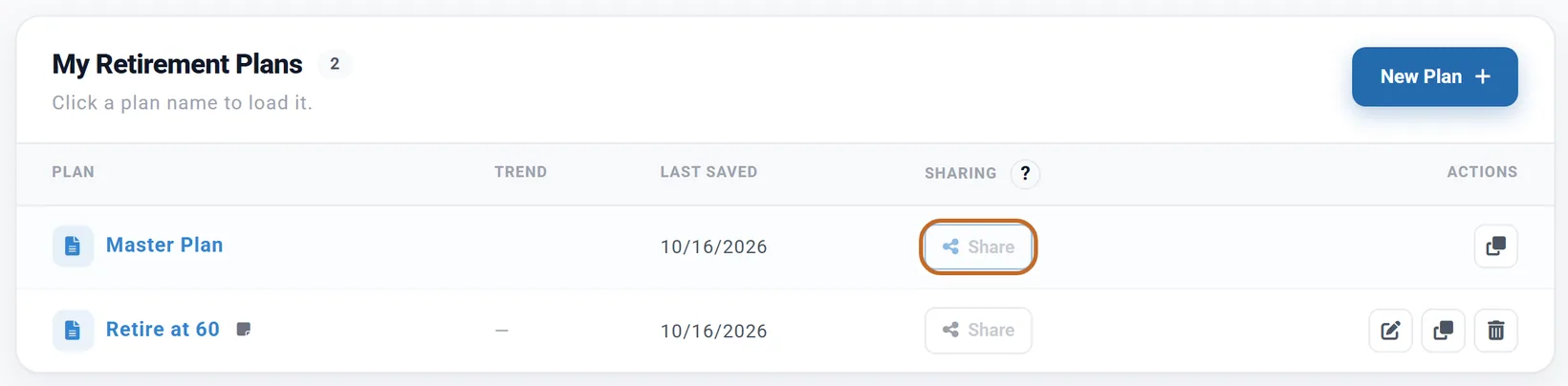
- Sharing is off. In My Plans every plan's Share button is greyed out, and so are Share this Budget and the net worth Share button on Accounts & Assets. Hover over one: "Plan sharing requires cloud storage. Switch to Cloud Storage on your Account page to use it." Click one and a message says the same, with a Go to Account page button.
- Plans you shared before switching leave Community, and their links stop working.
- Community is view-only. You can browse other people's shared plans, but your plan is not counted in the comparison. A note at the top of Community says so each time you open it.

- Emails built from your plan stop. Emails about your account (password resets, receipts) still arrive.
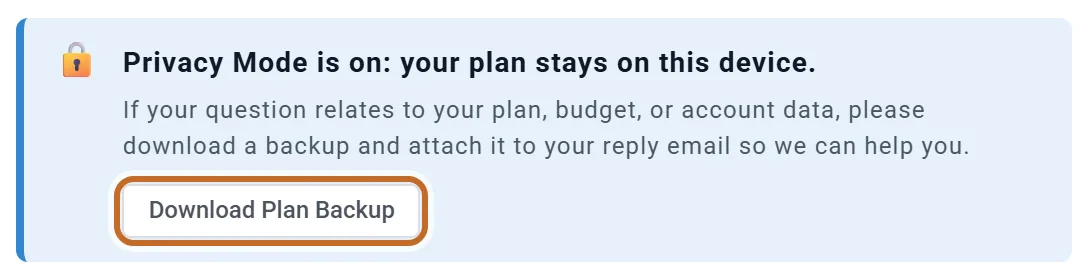
- Support cannot see your plan. The Support form shows a note with Download Plan Backup: if your question is about your plan, attach the backup to your reply email.
- Advisers cannot link to your account (see Advisers and their clients).
- Custom presets you saved in Cloud Storage (for returns, allocation or the Spending Smile) are not shown in Privacy Mode. Ones you save in Privacy Mode join your account when you switch back.
Back up and restore
In Privacy Mode a backup is the only copy of your plans outside this browser. Download one now and then: once a month, and always before you clear your browser data or move to another computer.
Download a backup
On your Account page, choose Download my data (backup) (it works in either mode). It saves one
file, rar-backup-YYYY-MM-DD.json, named with the date in UTC. Back up your data on the
reminder, Download backup after a switch and Download Plan Backup on the Support
form save the same file.
- In the file: your Master Plan, every named plan (with its note), your Master Budget and named budgets, and your Accounts & Assets data with its net worth history.
- Not in the file: custom presets and estate beneficiaries.
- Afterwards the Storage Mode card reads "Your last backup was downloaded on" and the date. That is the last download for your account from any browser. Before your first one it warns: "You have never downloaded a backup."

The reminder shows in Privacy Mode until you have a backup, and again once your last one is 30 days old. Dismiss hides it until your next page; after three dismissals it stops showing in that browser. Back up your data downloads a backup and starts the count again.
Restore a backup
- On your Account page, choose Restore from backup.
- Choose Choose backup file… and pick a
rar-backup-…jsonfile. - Choose what happens when a named plan or budget in the backup has the same name as one you have:
- Rename on conflict (recommended): the backup's copy is saved as "Name (imported)" beside yours.
- Overwrite existing: the backup's copy replaces yours.
- Skip conflicts: yours stays and the backup's is left out.
- Choose Restore backup. You see "Restored N plans and M budgets." (named ones), then the page reloads.
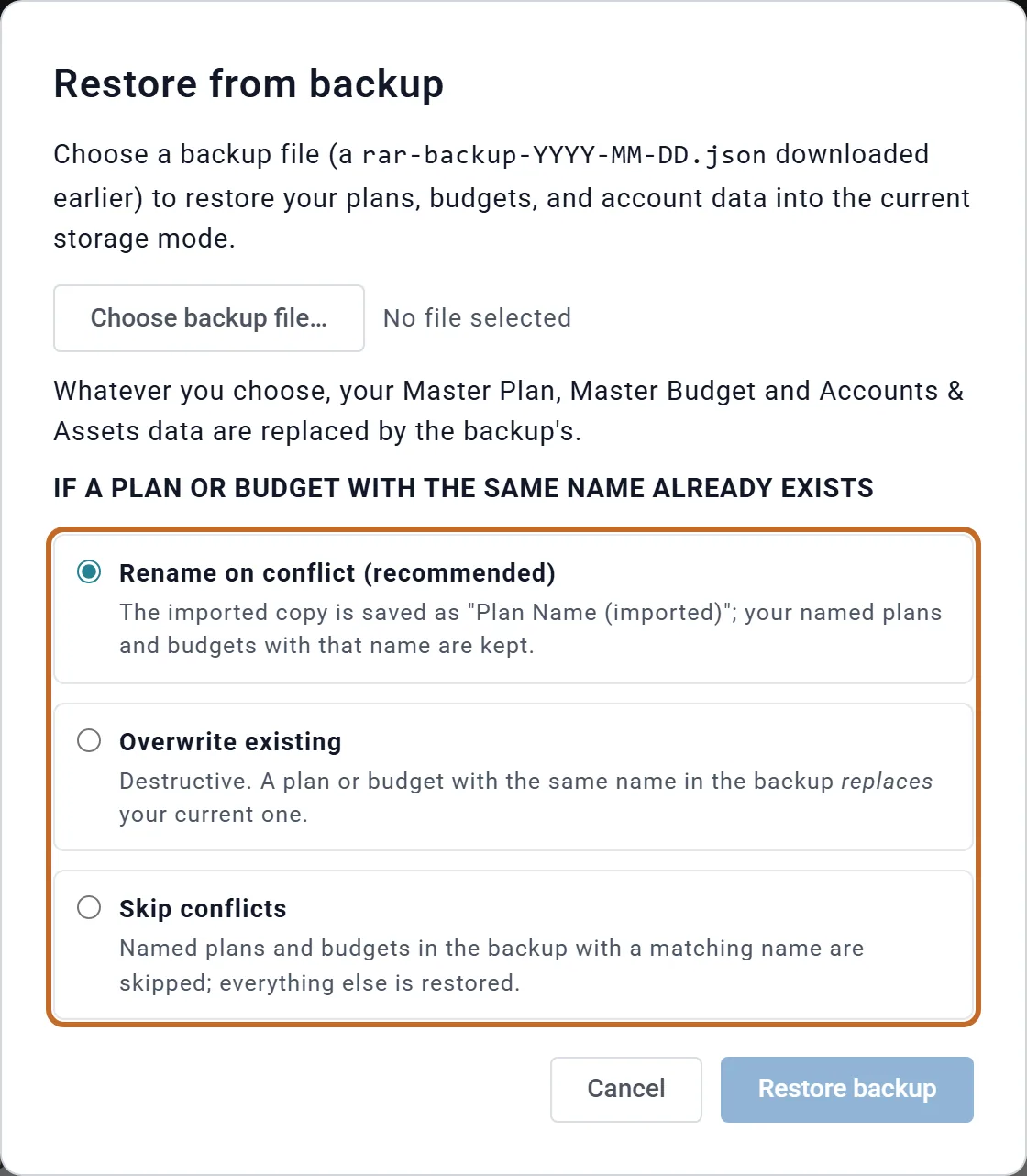
Whichever you choose, your Master Plan, Master Budget and Accounts & Assets data are replaced by the backup's. Download a fresh backup first if you might want today's versions back.
A restore goes into the mode you are in: restored in Cloud Storage, the backup goes onto our servers. You can restore a backup on another computer or browser, in either mode.
Other browsers, other computers, clearing browser data
- Another computer or browser: Privacy Mode belongs to your account, so when you sign in somewhere else you are in Privacy Mode there too (the padlock and the reminder show), but your plans are not there. You start from a blank plan. To work there, restore a backup. From then on the two copies are separate: changes in one never reach the other.
- Clearing browser data: clearing cookies and site data for ReadyAimRetire deletes your Privacy Mode copy from that browser.
- A private or incognito window forgets everything when you close it. Anything you do there in Privacy Mode is lost unless you download a backup first.
- Each browser and each browser profile (Chrome, Edge, Firefox, Safari, a second Chrome profile) has its own storage.
- Logging out leaves your copy in the browser; it is there when you sign in again. If two people share a computer, each with their own account, each account keeps its own copy and neither sees the other's.
- Deleting your account in Privacy Mode leaves the browser copy unless you tick Also clear the plan data saved in this browser. Ticking it clears everything ReadyAimRetire keeps in that browser, including another account's Privacy Mode copy.
Turn Privacy Mode off
- Use the browser that holds your plans. On your Account page (Manage Account in the menu under your name), choose Switch to Cloud Storage.
- The window lists what will be uploaded (saved plans, named budgets, your working plan and budget, your accounts). Choose Download backup first (optional) if you want a copy.
- Choose Switch to Cloud Storage. There is nothing to type.
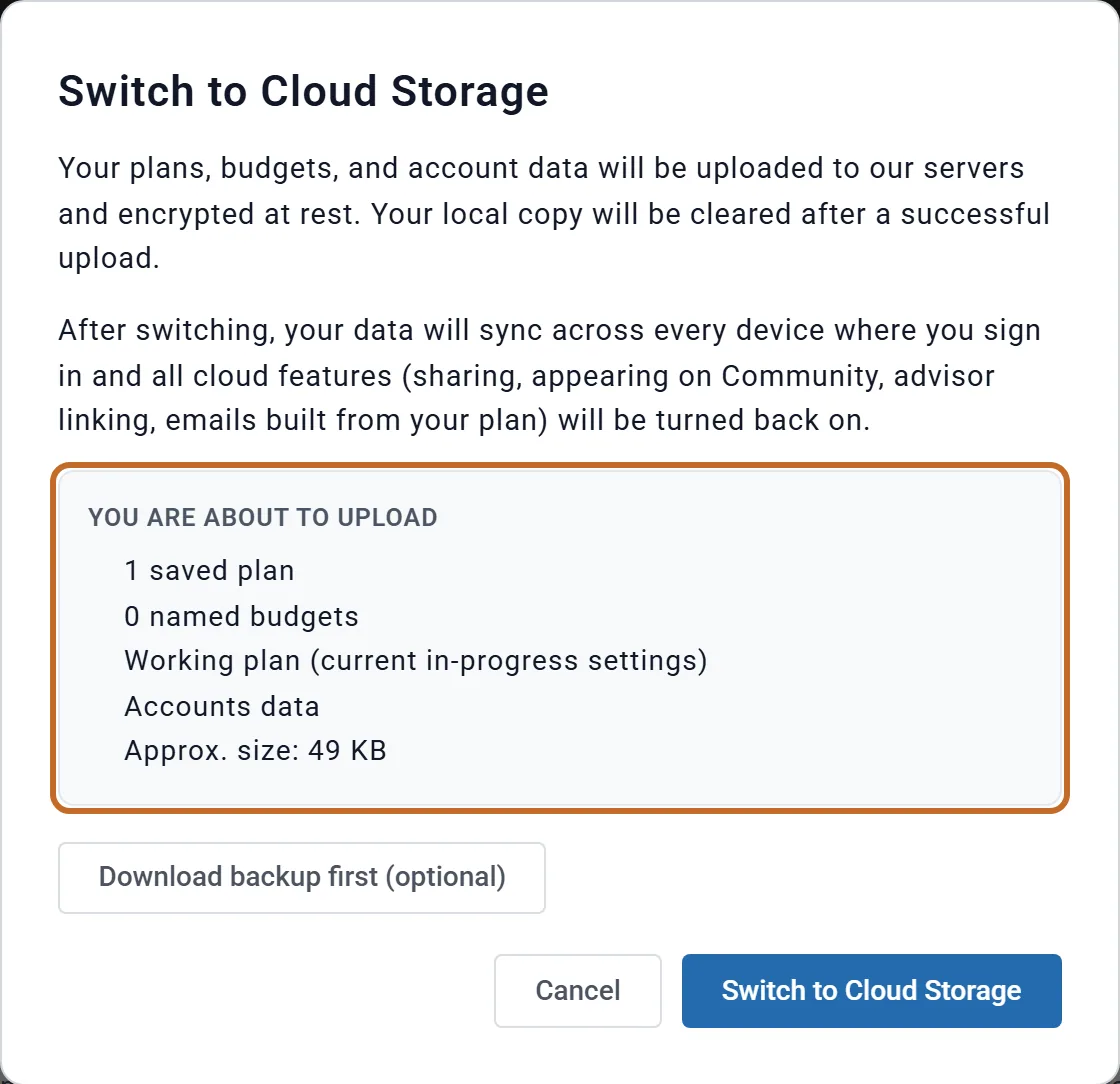
Your plans are uploaded and encrypted, the copy in this browser is cleared, and the page reloads in Cloud Storage. Sharing, Community, adviser links and emails built from your plan come back. If the upload fails, nothing is cleared: "Switch failed (status N). Your data is still safely stored locally. Please try again."
- What you upload becomes your cloud copy. A plan or budget with the same name as one in a 14-day safety copy replaces it; the safety copy's others are not brought back.
- Notes on your plans, custom presets and estate beneficiaries come with you.
Undo the switch in the first 14 days
If you chose Keep a 14-day safety copy (recommended), the Storage Mode card shows Undo switch with the days left. It is not there if you chose Delete immediately: there is nothing to bring back.
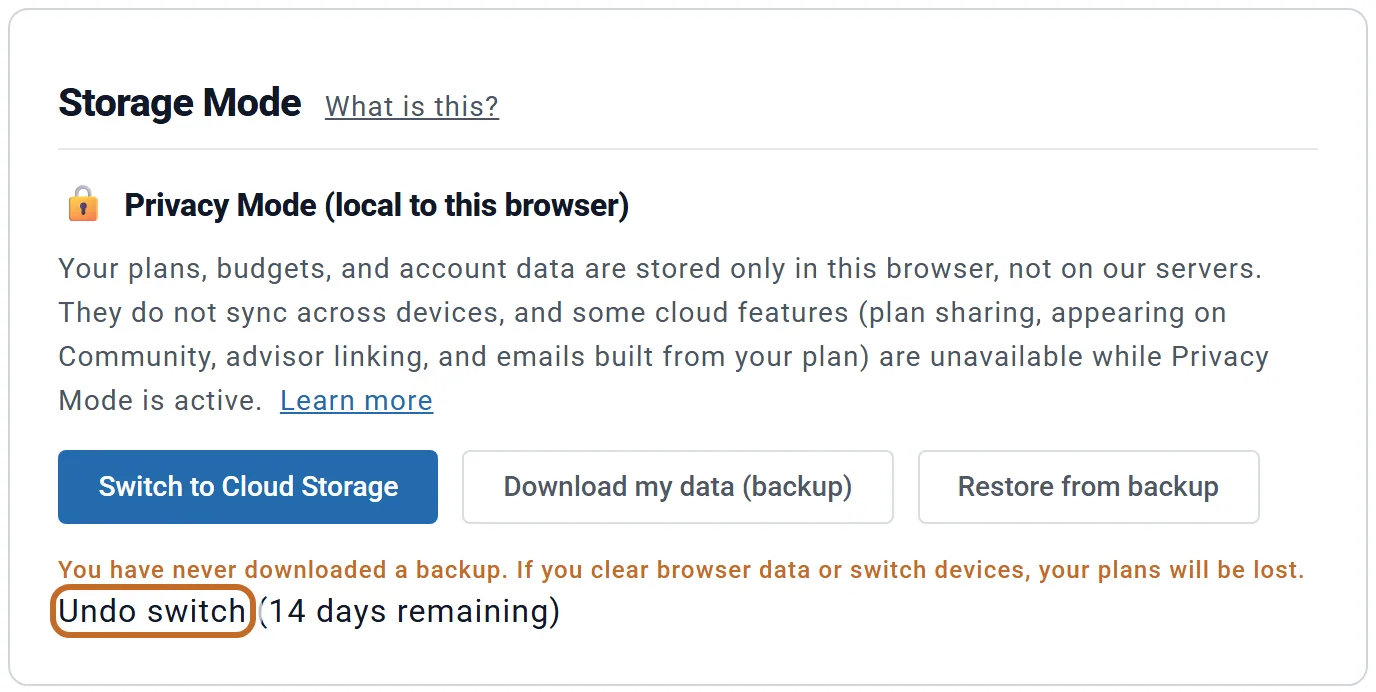
Choosing Undo switch opens "Cancel your switch to Privacy Mode?" with two choices:
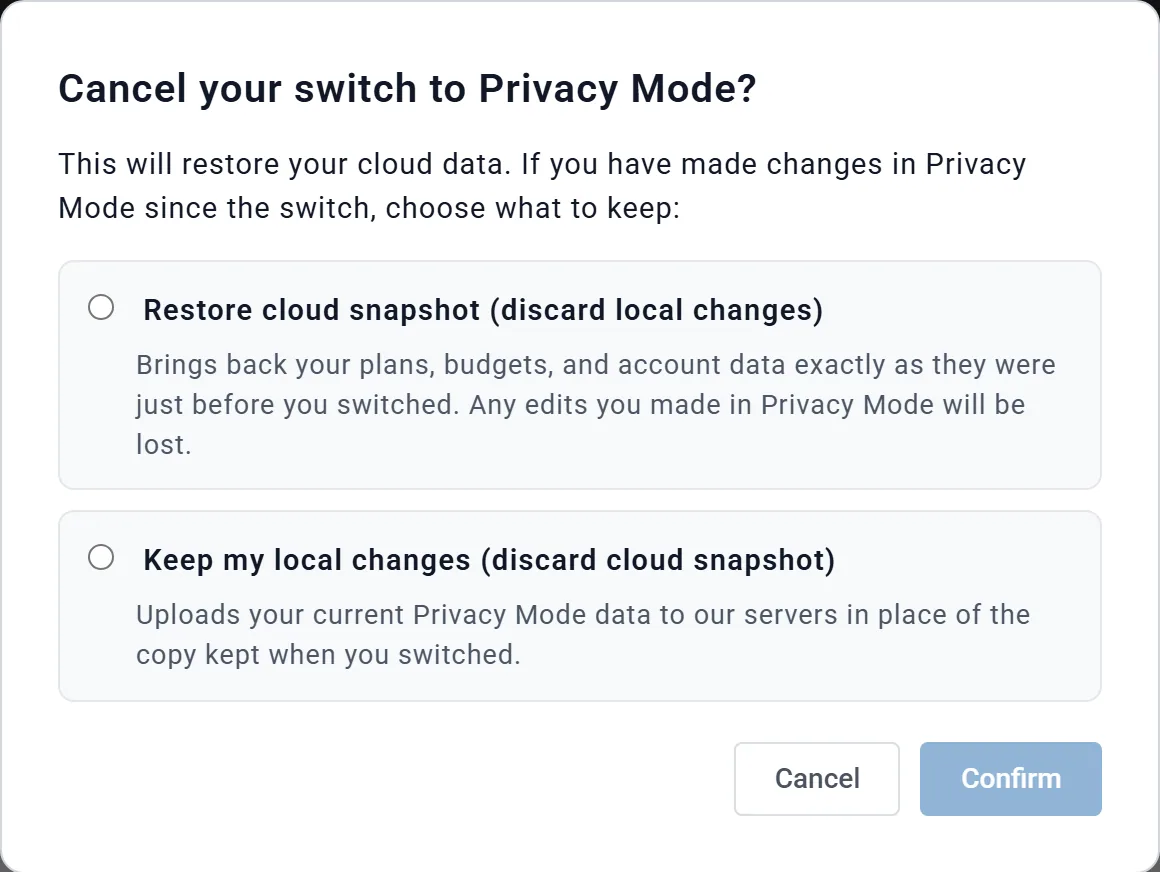
- Restore cloud snapshot (discard local changes): your plans come back exactly as they were when you switched, and the browser copy is cleared. Changes you made in Privacy Mode are lost.
- Keep my local changes (discard cloud snapshot): the browser copy is uploaded in place of the safety copy, the same as Switch to Cloud Storage.
Pick one, then Confirm. Restoring the cloud snapshot works from any browser you sign in on; keeping your local changes uploads the copy in the browser you are using, so use the one that holds your plans. After 14 days the link is gone; use Switch to Cloud Storage instead.
If your plans are missing
Try these in order:
- Check where you are. Use the same computer, browser, browser profile and account you planned in, in a normal window (not private or incognito).
- Within 14 days of switching, if you kept the safety copy: choose Undo switch, then Restore cloud snapshot (discard local changes). Your plans come back as they were when you switched.
- With a backup file: Restore from backup (see Restore a backup).
- Otherwise, write to us through Support. Without a backup or a safety copy we may not be able to get your plans back.
Advisers and their clients
- A client account (one an adviser created, or one linked to an adviser) cannot use Privacy Mode: the adviser needs your plans on our servers to work on them. The card shows a greyed-out Privacy Mode (unavailable for client accounts) button. Talk to your adviser if you have questions.
- An adviser can use Privacy Mode for their own plans. Their clients' plans stay in Cloud Storage and are not affected.
- If an adviser asks to link to you while you are in Privacy Mode, accepting opens Advisor Link Blocked. Switch to Cloud Storage (Go to Storage Settings takes you there), then choose the Accept link in the email again. A request stays open for 7 days after it was sent.
Messages you might see
| Message | What it means |
|---|---|
| Changes Not Saved: "Privacy Mode was turned on in another window. Reload to continue in Privacy Mode." | You switched in another tab. Choose Reload Now. |
| Changes Not Saved: "Privacy Mode was turned off in another window, so your data is now saved to your account. …" | You switched back in another tab. Reload this one. |
| "Plan sharing requires cloud storage. …" (on a greyed button) | Sharing needs Cloud Storage (see What changes while it is on). |
| "Restore failed: Unsupported import schema version: …" | The file is not a ReadyAimRetire backup. Choose a rar-backup-…json file. |
| "Restore failed: … invalid JSON …" or "… is not valid JSON …" | The file was changed or cut short. Choose a backup you have not edited. |
| "… so the restore stopped. Already restored: …; nothing else was changed. Reload this page and try again." | A save failed part-way. The message names what was restored; reload and run the restore again. |
| "Could not build your backup: …" | The download failed. Reload the page and try again. |
| "Switch failed (status N). Your data is still safely in the cloud. Please try again." | Turning Privacy Mode on did not work. Nothing changed. |
| "Switch failed (status N). Your data is still safely stored locally. Please try again." | Turning it off did not work. Your browser copy is untouched. |
| "There is no cloud copy to restore: it was deleted when you switched. …" | Undo was tried after Delete immediately. Nothing changed; use Switch to Cloud Storage to move your plans back. |
| "Privacy Mode is not available for client accounts. …" | Your account is linked to an adviser (see Advisers and their clients). |