


 Continue with Google
Is my plan saved? The label beside the logo
Most problems have a simple cause and a quick fix. This page starts with saving, then covers what to do when something is missing, the page will not load, or you need to tell us about a problem.
Your plan saves itself as you go. Each time it saves, a label appears beside the ReadyAimRetire logo at the top left:


- Saving… then Saved: your change is stored. The label fades after a moment.
- Not saved, retrying: the save did not get through, usually because the connection dropped. Your change is kept on the page and sent again automatically, including when your connection comes back. Keep the page open until the label says Saved. Point at the label to see the reason.
- Not saved on its own: that change was not stored. Point at the label for the reason, and make the change again.
As a guest you see no label: your plan is kept in this browser, not saved to an account (see Saving and coming back).
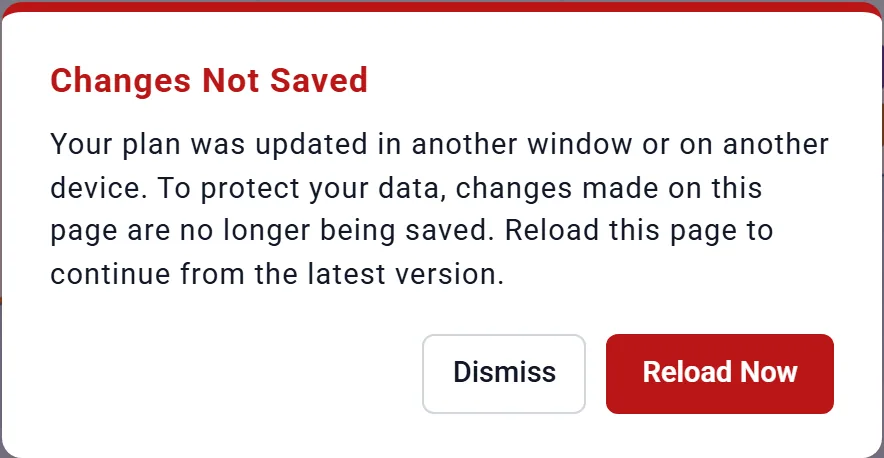
"Changes Not Saved"
When saving from this page could overwrite something newer, the planner stops saving and says so, in a red box titled Changes Not Saved. This protects the newer version.
- Reload Now reloads the page with the latest version. Changes made on this page since the message are not kept: note anything you want to redo first.
- Dismiss hides the box, but nothing is saved, and the box comes back the next time the page tries to save.
| The message starts | What happened |
|---|---|
| "Your plan was updated in another window or on another device." | The same plan is open in two places, and the other one saved first. Work in one window at a time, and reload a window you come back to. |
| "This plan was renamed or deleted in another window." | You renamed or deleted the plan on My Plan & Budgets in another tab. Reload, then open the plan by its new name. |
| "This budget was renamed or deleted in another window." or "Your budget was changed in another window or on another device." | The same, for the budget you are editing. |
| "You were signed out ..." | You logged out in another tab, or your session ended. Note your recent changes, reload, sign in again and redo them. |
| "You are now signed in as a different account in another window." | Someone signed in to another account in this browser. The page stops saving so neither account's plan is mixed into the other. |
| "We could not load your saved plan ..." | The page opened without reaching your saved plan (often a dropped connection), so it shows a starting plan. Nothing is saved, so your own plan is safe. Reload once you are back online. |
| "Privacy Mode was turned on (or off) in another window." | See Privacy Mode: messages you might see. |
A change I made is not there
- The label said Not saved. Point at it for the reason. "Not saved: a plan was loaded before your last change was saved" means the change was made while another plan was opening: open the plan again and redo it. (Switching plans in the plan bar saves your last change first.)
- You made it in another window that showed Changes Not Saved: see above.
- It shows in every plan, not just one. That is by design for accounts, your home and loans: they are shared by all your plans. See What belongs to you, and what belongs to a plan.
- You are on another browser or computer in Privacy Mode. Privacy Mode keeps your plan in one browser only. See Other browsers, other computers.
- As a guest, your changes stay in this browser for 7 days after your last visit. Create an account to keep them.
My plan is gone, or I see the example plan
- Check that you are signed in. When you are not, the top right shows Log In and Create an Account, and the planner shows the example plan.
- Check which plan is open. The plan bar at the top of the settings panel names it. Your other plans are on My Plan & Budgets (see Switching plans).
- "We could not load your saved plan": reload once you are back online (see above). Your plan is not overwritten while the message is showing.
- A brand new account starts with example numbers on purpose, so the charts have something to show (see Before you start).
A tab, chart or setting is missing
- The tabs under the Dashboard chart for shaping a setting by age (Spending Smile, the equity returns and allocation adjusters, the salary adjuster) need a window at least 1200 pixels wide and 800 high. Make the window larger, or zoom the page out (Ctrl and minus; on a Mac, Cmd and minus), and they appear. On a smaller screen, use the button in the box instead, such as Open Spending Smile Adjuster.
- A chart is not in More: most charts appear only while your plan has what they draw. See Why a chart is missing from More.
- The chart's choices are not above the chart: on a narrower window they sit under Display at the chart's top right (see The controls above each chart).
- A setting is greyed out: another setting has taken over. For example, a linked budget greys Desired Monthly Spending (see Link your budget to your plan).
- A setting shows a Planner+ note: on a Preview account some settings are locked (see Preview accounts and Planner+).
- A number looks wrong: see Numbers that look wrong and Reading your results.
The page will not load, or seems stuck
- Check that you are online, then reload the page.
- If the label says Not saved, retrying, wait for Saved before you reload or close the page.
- Close other tabs that have the planner open, so only one window is saving.
- Try another up-to-date browser.
On a phone you see a short welcome page instead of the planner: it needs the larger screen of a laptop or desktop (see Can I use it on my phone?).
Telling us about a problem
Choose Support at the bottom of the left menu, or email support@readyaimretire.com. A person answers. It helps us to know:
- what you did, what you expected, and what you saw, word for word if there was a message;
- which plan was open, and which tab or box you were in;
- your browser, and whether it happens again after a reload;
- a screenshot, if you can: send it in a reply to our email.
In Privacy Mode your plan stays on your computer, so if the question is about your plan the form offers Download Plan Backup: attach the file to your reply. More ways to reach us: Getting help.