


 Continue with Google
Share a plan
- Click My Plan & Budgets in the plan bar, or My Plans in the left menu.
- On the My Saved Plans tab, under My Retirement Plans, find the plan.
- In its Sharing column, click Share. Planner+
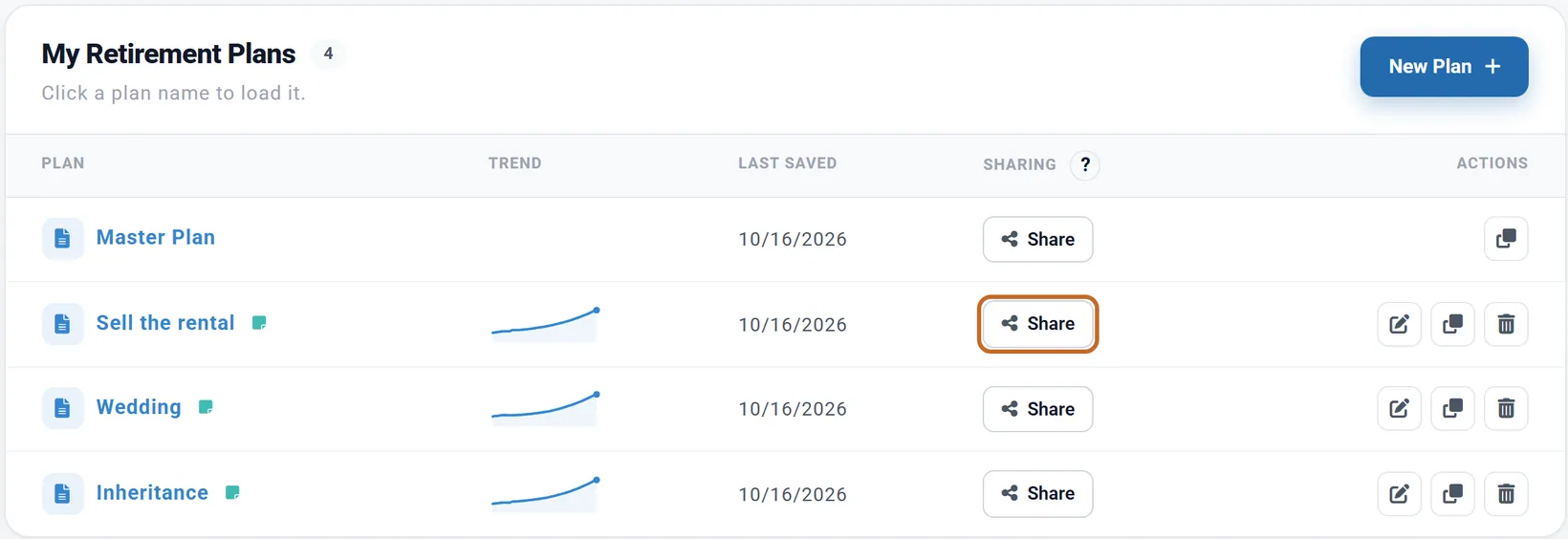
You can share your Master Plan, any named plan, or both. Each gets its own link. A shared Master Plan shows to others as "Master Plan".
The first time: choose a nickname
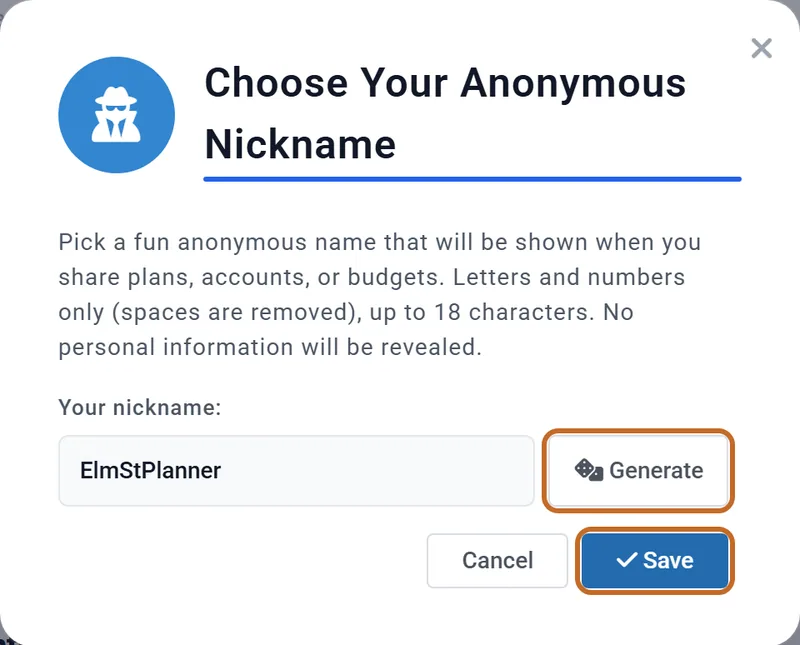
The first time you share anything, Choose Your Anonymous Nickname opens. Your nickname is what other people see instead of your name.
- Type one, or click Generate for a random one. Letters and numbers only, up to 18 characters (see Your Community nickname).
- Click Save. Cancel shares nothing.
- Once you have a nickname, this step is skipped.
Your link
Plan Shared Successfully! shows your link: the site's address, then ?plan= and a
short code.
- Copy URL copies it (the button reads "Copied!"). Paste it into an email or a message.
- "Sharing as:" shows your nickname. Its Change link changes your account's nickname (see Your Community nickname).
- The window stays open until you click Close.
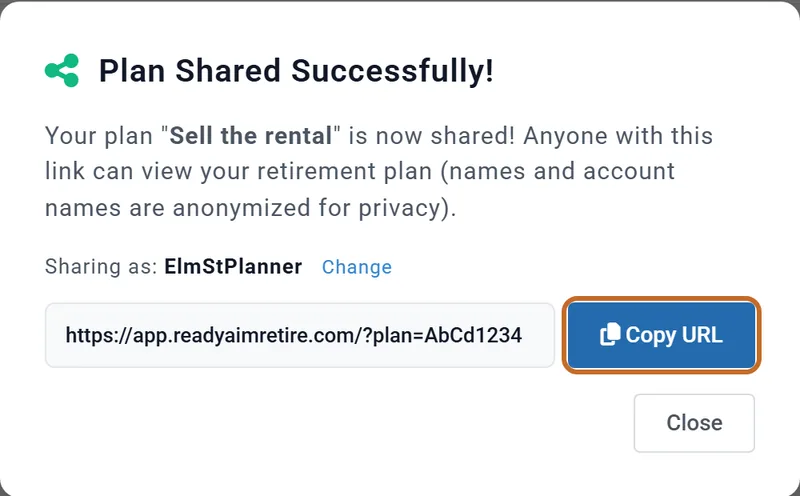
The plan's name goes with it. It heads the plan's line on Community Shared Plans, and a link to a named plan pasted into a chat or social site previews as "Sell the rental - Retirement Plan". Name a plan you share with that in mind.
Copy the link again, or stop sharing
A shared plan's row shows a green Live pill, Copy URL and Unshare. The card at the top of the page counts your shared plans, here "1 shared live" (budgets are not counted).

- Copy URL opens your link again, in a window titled Share URL.
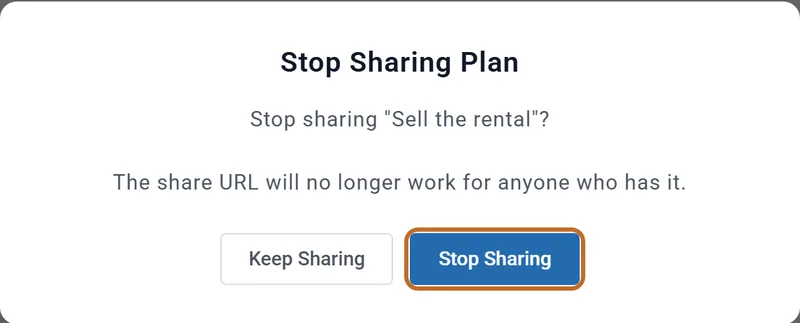
- Unshare asks first: Stop Sharing Plan, "The share URL will no longer work for anyone who has it." Click Stop Sharing, or Keep Sharing to change your mind. You then see "Plan sharing disabled." and the plan leaves Community.
- Anyone who opens the link after that sees Plan Not Available, and the planner opens with its default plan instead.
After you share
- The link is live. It always shows the plan as last saved, so your changes reach viewers as the plan saves.
- To share a version that does not change, duplicate the plan (the copy button in its row) and share the copy. A copy starts unshared.
- Sharing again later brings back the same link, so an old copy of the link works again.
- Renaming a shared plan keeps its link. Community shows the new name.
- Deleting a shared plan asks Confirm Delete Shared Plan first. After that, the link shows Shared Plan Unavailable. A new plan with the same name gets a new link.
- Your Master Plan cannot be renamed or deleted, so its link lasts until you Unshare it.
What people see when they open your link
Your link opens the planner on your plan, read-only. A blue bar across the top says "Viewing Shared Plan (Read-Only) · Changes won't be saved", and a card over the chart says "Viewing ElmStPlanner's Retirement Plan" with your nickname. The card can be closed.
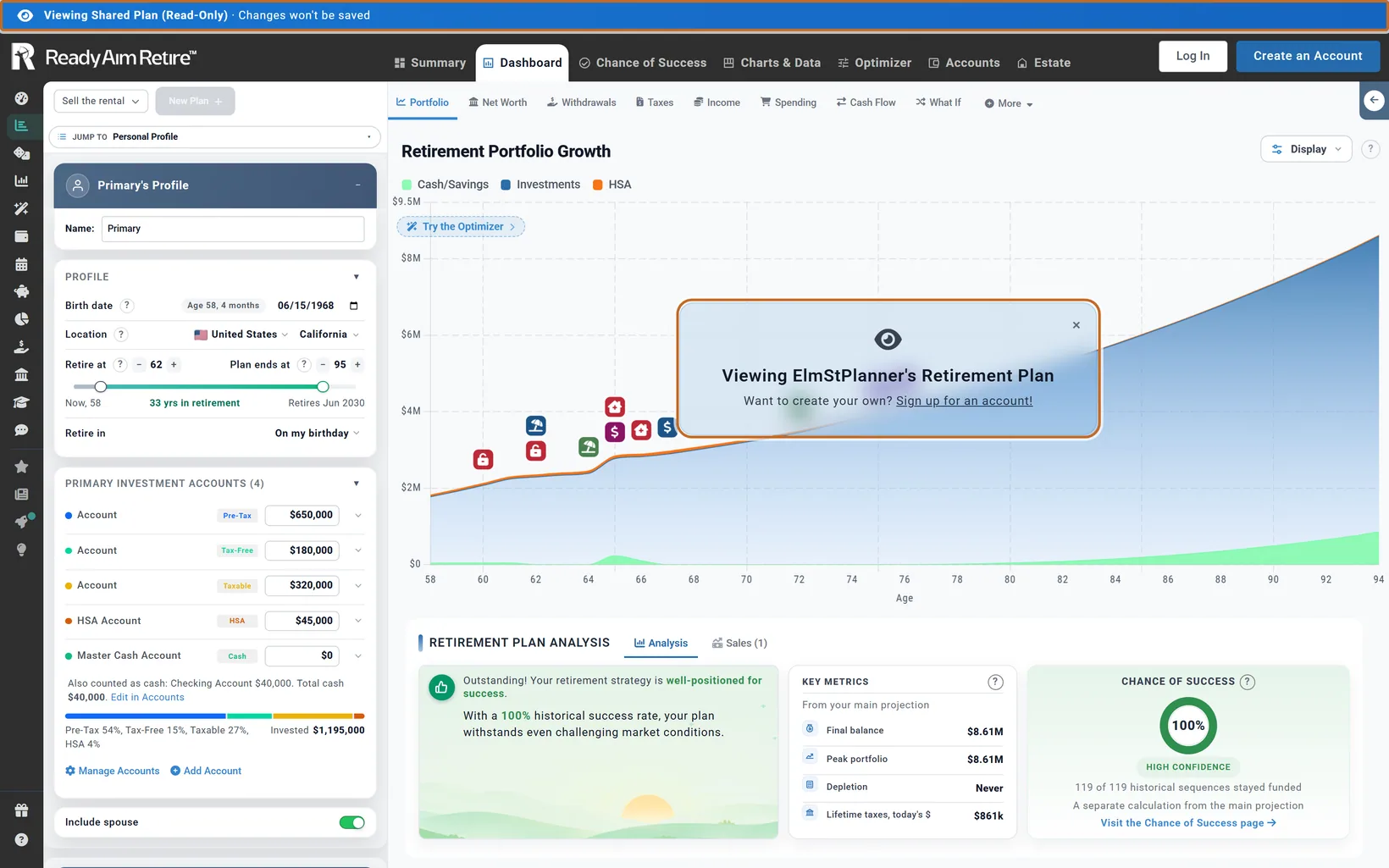
- Visitors can move sliders and open tabs to explore. Nothing they do is saved, to their plan or to yours.
- The page looks signed out, even to a member. Progress, My Plans, Budget and Community are hidden, and it opens on the Dashboard.
- Which charts they can read depends on their own account: a Planner+ member sees every chart. Anyone else sees the Portfolio chart, with the other charts locked, as on their own plan.
- The plan bar shows your plan's name, and New Plan is off.
What is changed, and what is not
- The names you typed for yourself and your spouse become "Primary" and "Spouse".
- Your accounts keep their type, balance and settings, but get a plain name such as "Account", "HSA Account" or "Checking Account". Notes, institutions, addresses, lenders and account numbers are removed.
- Your plan's notes are never shared.
- If the plan uses a budget (Use Budget), visitors run it on your budget, so their numbers match yours. Its rows are renamed "Expense 1", "Expense 2" and so on, without notes; amounts and timing stay.
- Kept as you typed it: the plan's name, the linked budget's name, your nickname, and any other text you typed into the plan, for example a milestone's name or an Extra Withdrawals card named "Emma's wedding". Your birth dates, your location and every setting go with the plan too.
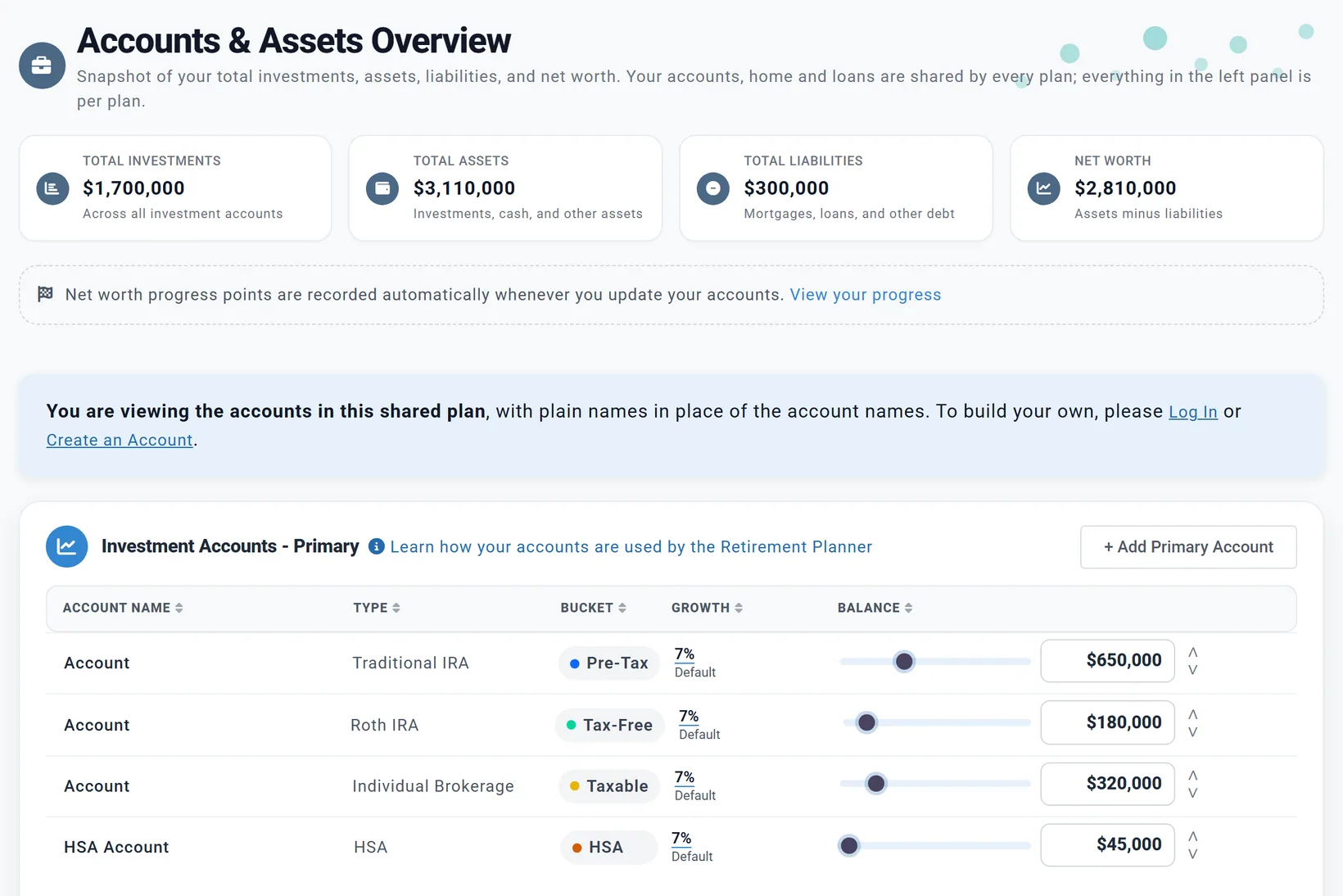
The Accounts page tells a visitor these are the accounts in your shared plan, with plain names; the balances are yours.
A plan opened from Community (View on Community Shared Plans, or View This Plan) opens in a new tab, with "Viewing Community Plan (Read-Only)" across the top and a Close Tab button.
Share a budget
Only a named budget can be shared. To share your Master Budget, save it as a named budget first: on the Budget tab, click New Budget.
- Click My Plan & Budgets. On the My Saved Plans tab, scroll to My Monthly Budgets.
- In the budget's row, click Share this Budget. Planner+
- Choose a nickname if you have none. Budget Shared Successfully! shows the link
(
?budget=and a code), with Copy URL and Close.

- Live, Copy URL and Unshare work as for a plan. Unshare asks Stop Sharing Budget, then says "Budget sharing disabled."
- A shared budget is listed on the Community Shared Budgets tab of My Plan & Budgets, with its name, monthly total, number of categories and the date shared, for anyone to open.
- A shared budget is not anonymized. Its name and every row's name, amount, category and timing are shown, and the notes on its rows go with it. (Only a plan's linked budget is anonymized.)
- Someone who opens your link lands on the Budget tab, read-only, with a card "Viewing ElmStPlanner's Budget" and the bar "Viewing Shared Budget (Read-Only)". Opened from Community, the bar reads "Viewing Community Budget (Read-Only)", with a Close Tab button. Their own budget picker and plan notes are hidden.
- After you Unshare, the link shows Budget Not Available.
Share your net worth
This puts your net worth on Community's Net Worth chart. It makes no link, and any signed-in account can do it.
- Open Accounts in the left menu.
- Under the four totals, find "Share my Net Worth on Community". Click Preview to see how your entry will look, then Share.

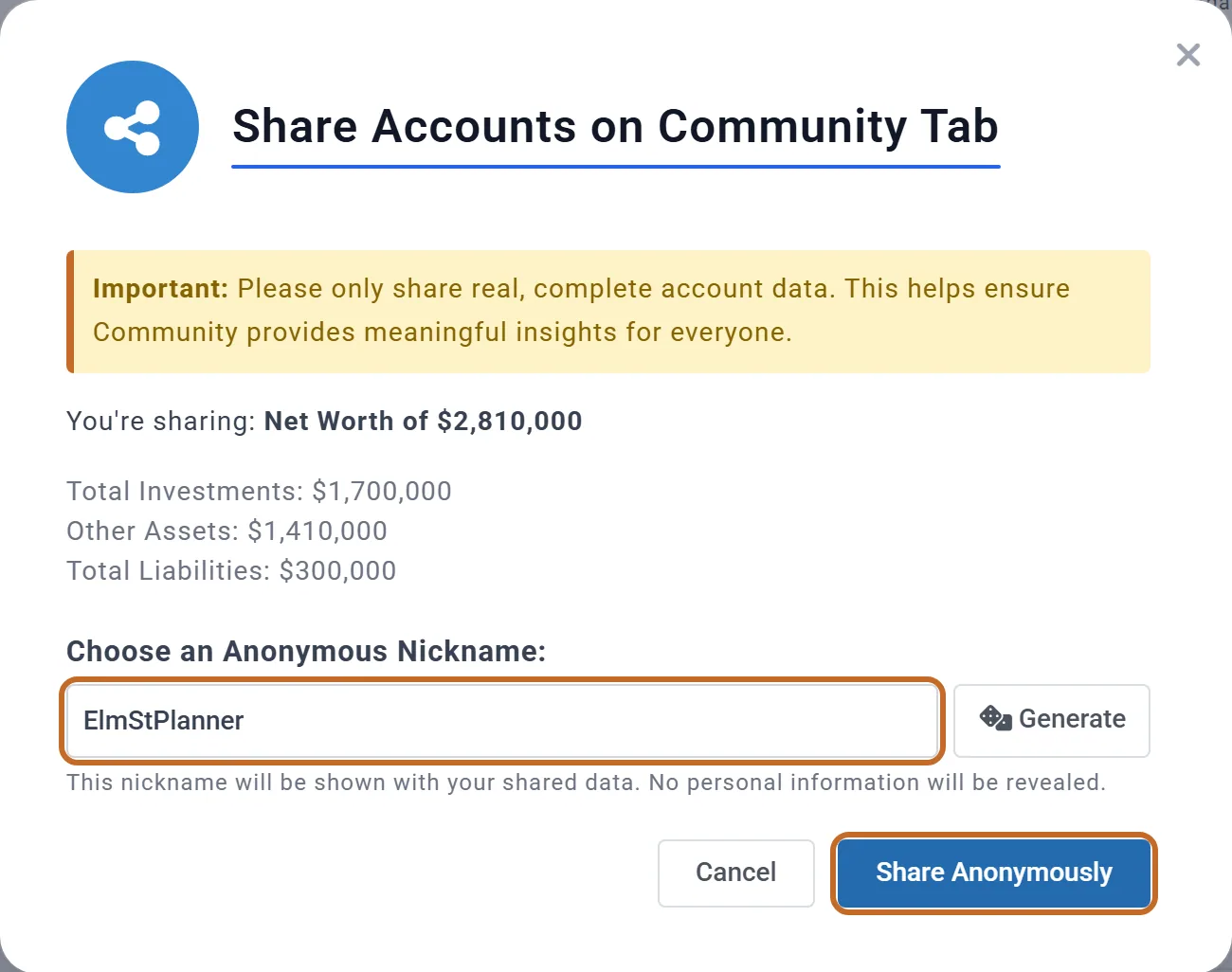
- Share Accounts on Community Tab shows what you are sharing, and your nickname (click Generate for another).
- Click Share Anonymously.
A Success! message offers View on Community, which opens Community. The button then reads Shared as "ElmStPlanner", and Unshare appears beside it.
- Others see your nickname, your age, and each account's type and balance (investments, cash, real estate, other assets and loans) with the totals. No account names and no addresses.
- The entry is live: it always shows your current balances.
- To stop, click Unshare, or click the Shared as button and confirm Unshare Net Worth.
Community shows the same net worth as Accounts & Assets: your investments, cash, real estate and other assets, less what you owe ($2,810,000 for Chris and Jamie). Your entry sits on the chart at your age, taken from your most recently saved plan.
Your Community nickname
Your nickname is shown instead of your name on everything you share. A new account has none: you choose one the first time you share, or here:
- Open the menu under your name (top right) and choose Manage Account.
- In Community Nickname, type a Nickname, or click Suggest.
- Click Save Nickname: "Nickname saved successfully."
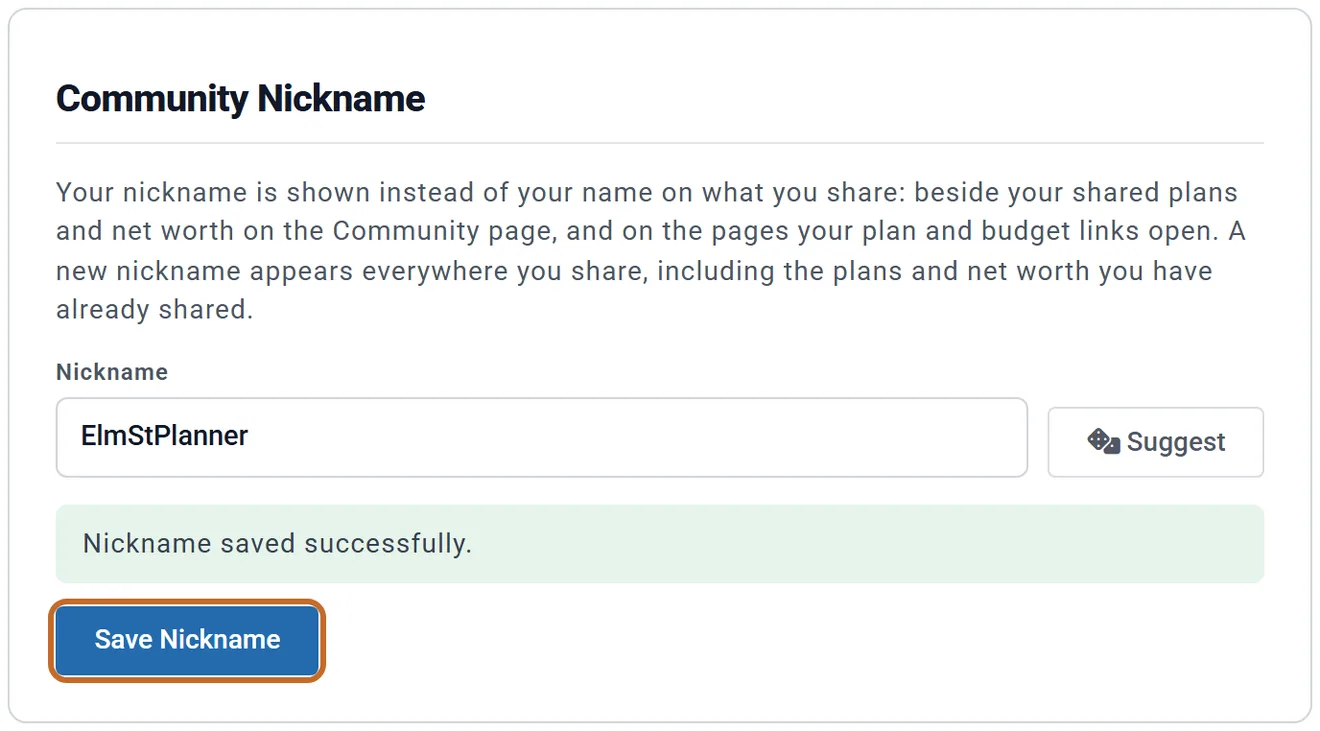
- Letters and numbers only, no spaces, up to 18 characters.
- A nickname is refused if a word on a blocked list appears anywhere inside it, so some ordinary names are refused (Michelle1 is): "That nickname contains inappropriate language. Please choose another." Pick another, or click Suggest.
- Save Nickname changes the nickname on everything you have already shared, too: your shared plans and net worth on Community (the dots, Similar to You, the plan details and the Net Worth chart) and your links show the new one straight away.
- The Change link in a share window changes this same account nickname. It does not rename what is already on Community.
- The nickname you type when you share your net worth becomes your account's nickname too.
The Community page
Community shows where your plan sits among other members' plans. Open Community in the left menu. The Learning Library article Community Plans opens the same page. Anyone can look at it, signed in or not, and you do not need to share anything to see it.
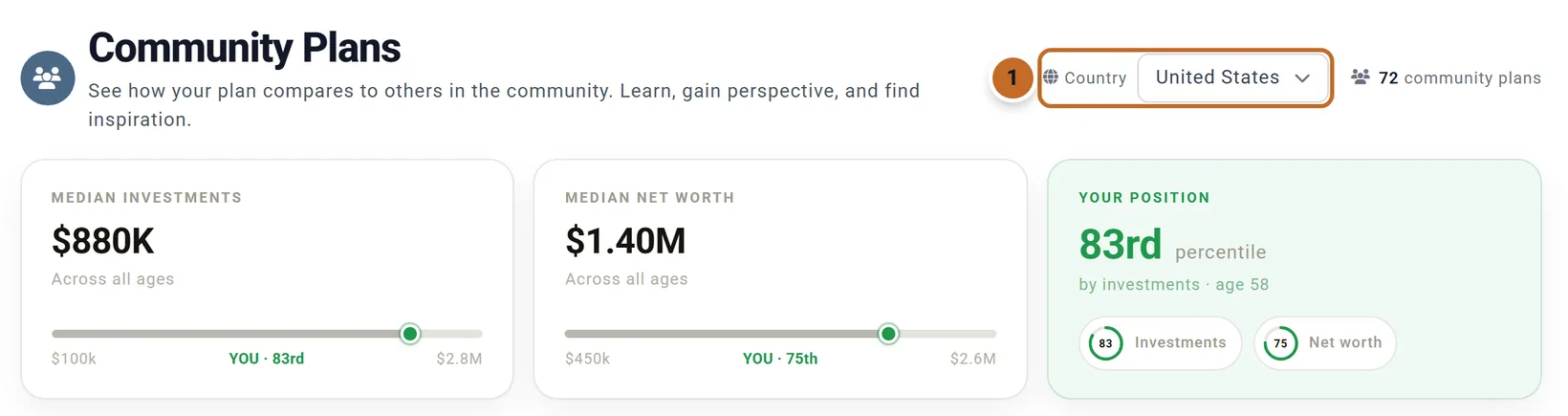
- Country: United States, Canada, United Kingdom, Australia, Germany, Netherlands or Ireland. It starts on the country you last picked in this browser, else your plan's country, and everything on the page follows it. Beside it, "72 community plans" counts every saved plan in that country, shared or not. Plans with over $10 million of investments are left out.
The three cards: Median Investments (every plan), Median Net Worth (shared net worths only) and Your Position, your percentile by investments among every plan, with rings for Investments and Net worth.
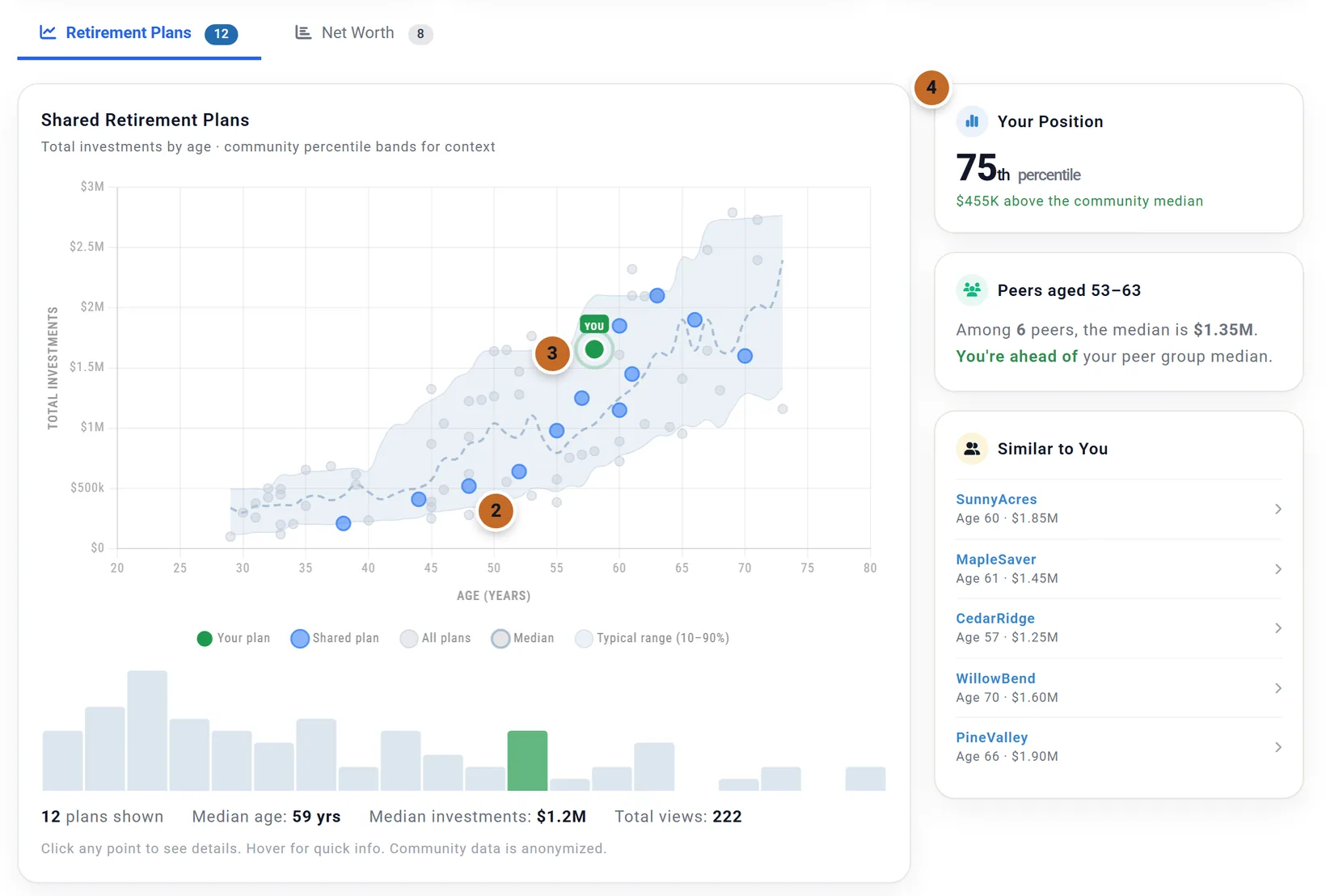
- A blue dot is a shared plan: hover for its nickname, click for its details. Grey dots are other saved plans: no names, and they cannot be opened.
- The green dot marked YOU is the plan on your screen now. It moves as you change your plan.
- The side cards compare you with shared plans only: Your Position (shown when you are above the 40th percentile), "Peers aged" (plans within 5 years of your age) and Similar to You (the five closest shared plans; click one for its details).
- Because the side card counts shared plans only, the two "Your Position" figures can differ (83rd and 75th here).
- "Total investments" are your pre-tax, Roth and taxable investment accounts, both of you. Cash, HSAs, your home and other assets are left out: Chris and Jamie's green dot sits at $1,655,000, their $1,700,000 of investments less their $45,000 HSA.
- The Typical range (10–90%) band and the Median line need at least 6 plans. The bars under the chart show how many plans sit at each level, yours in green.
- The Net Worth tab shows shared net worths only (see Share your net worth), each at its owner's age. Your green dot there uses your investments.
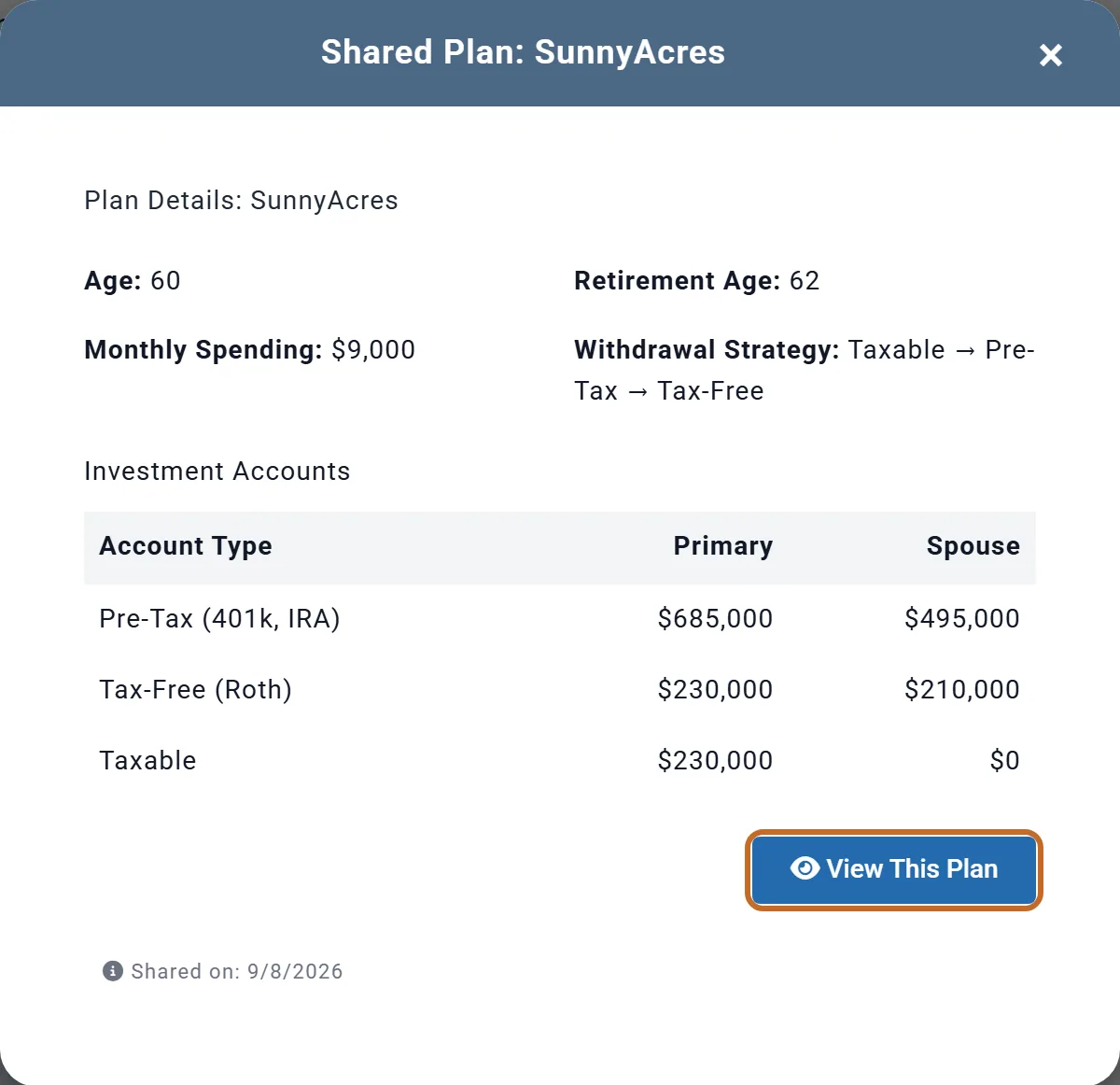
Click a blue dot or a Similar to You name for Shared Plan and the nickname: age, retirement age, monthly spending, withdrawal strategy, and investments by type for the Primary and the spouse. View This Plan opens the whole plan, read-only, in a new tab.
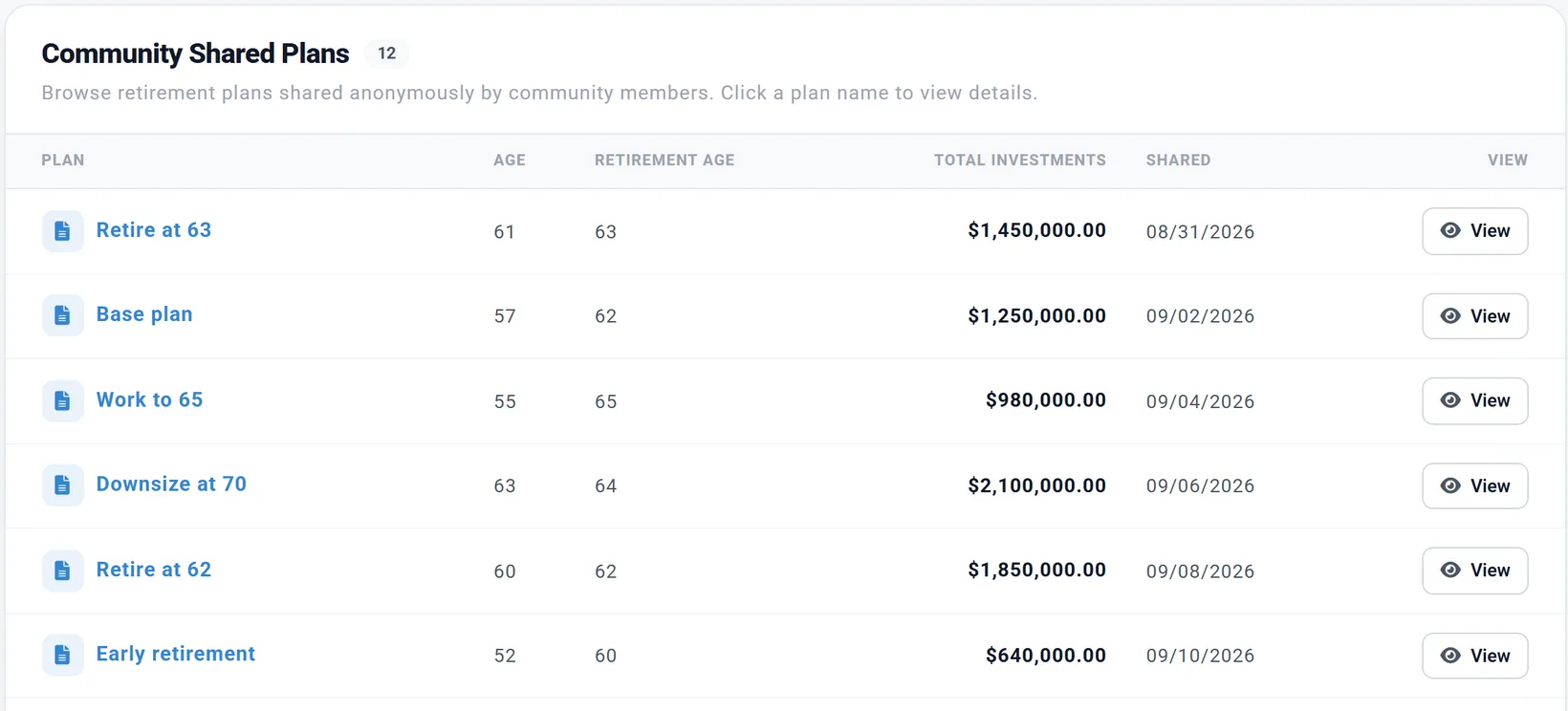
My Plan & Budgets lists the same shared plans and budgets on its Community Shared Plans and Community Shared Budgets tabs, every country together. Each plan's name is shown there. The Learning Library article Community Plans compares your plan with the ones shared there.
What is shared, and what stays private
| Item | A shared plan | A shared budget | Your shared net worth | Every saved plan (a Community dot) |
|---|---|---|---|---|
| Your nickname | Shown | Shown | Shown | Not shown |
| Your real name, email or username | Never | Never | Never | Never |
| Names you typed for yourself and your spouse | Shown as "Primary" and "Spouse" | n/a | n/a | Not shown |
| Plan or budget name | Shown | Shown | n/a | Not shown |
| Your plan's notes | Never | n/a | n/a | Not shown |
| Account names, institutions, account notes | Replaced or removed | n/a | Type only | Not shown |
| Balances and account settings | Shown | n/a | Type and balance | Total investments only |
| Budget rows | Renamed "Expense 1" and so on, no notes | As you typed them, with notes | n/a | Not shown |
| Other text you typed, birth dates, location, settings | Shown | n/a | n/a | Not shown |
| Age | The Primary's | n/a | Shown as 45 | The Primary's |
Every saved plan is counted
Shared or not, your Master Plan and each named plan are counted on Community: each is a grey dot, with no name, at your Primary's age and your total investments, and counts in the medians and percentiles. Nothing else from them is shown, and they cannot be opened. There is no setting to leave this pool: only Privacy Mode keeps your plans out of it.
Not the same as Compare Plans or "How you compare"
Three features compare things, and only Community uses other members' plans:
| Feature | Compares | Where |
|---|---|---|
| Compare Plans Planner+ | Up to three of your own plans, side by side. Nothing is shared. | A tab on My Plan & Budgets. See Compare plans side by side. |
| How you compare US | Your household's net worth today (your home included) with US households in the Primary's age group, from the Federal Reserve's Survey of Consumer Finances (2022, in today's dollars). For Chris and Jamie: "Wealthier than 88%". No Community data. | A card on the Summary; See how you compare → opens the Learning Library article How Do You Stack Up?. See the Summary and Coach page. |
| Community | Your plan with other members' saved and shared plans. | The left menu. See The Community page. |