



 Continue with Google
If a number looks wrong, check these first
Most numbers that look wrong are right, and are shown in a way that is easy to misread. Before you change your plan or write to us, run through this list.
- Which dollars? Charts start in future dollars, with inflation in, while you type amounts in today's dollars. A chart in today's dollars says so at the end of its title. More
- Is it a short year? The first and last bars of a chart can cover only a few months, so they look low. More
- Whose age? Bars follow the Primary's birthdays, so your spouse's birthday falls part-way through a bar. More
- A month or a year? Check whether the chart shows Yearly or Monthly. More
- What is in the Total? A Total can already include cash, or include property tax and Medicare. More
- Which number? The Dashboard shows one projection; Chance of Success replays market history. They can disagree. More
- Which plan? Check the plan bar: you may be looking at a different plan from the one you changed. Something switched off for this plan also leaves the charts; the Dashboard then shows a note such as "1 item not counted".
Still looks wrong? Use Support in the left menu, and tell us which chart, which choices under Display, and which year.
Today's dollars and future dollars
Every amount in the results can be shown two ways:
- Future dollars (the starting view): what you will actually see in that year, with inflation in. Later years look large.
- Today's dollars: the same amount, shown as what it would buy today. The title of the chart gains "(Today's Dollars)".
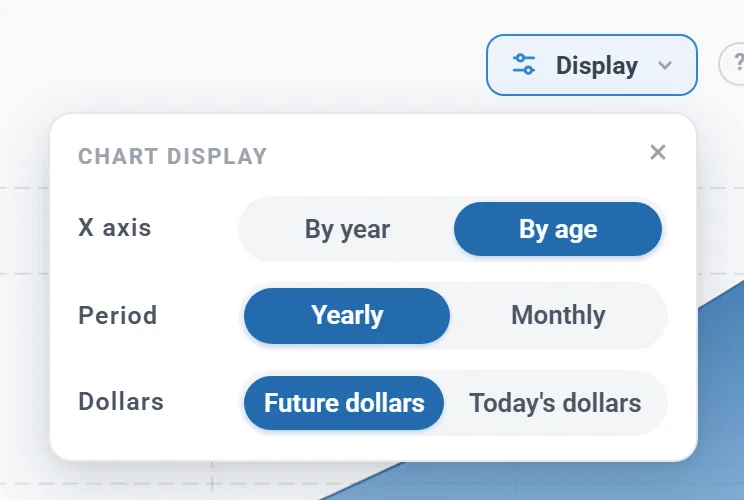
The choice sits above the chart with its other choices; in a narrower window they fold into a Display button. It is one setting for the whole app: the Dashboard, Charts & Data, the Summary, Your Taxes and the summary panel all follow it. It changes only how the numbers are shown, never the plan.
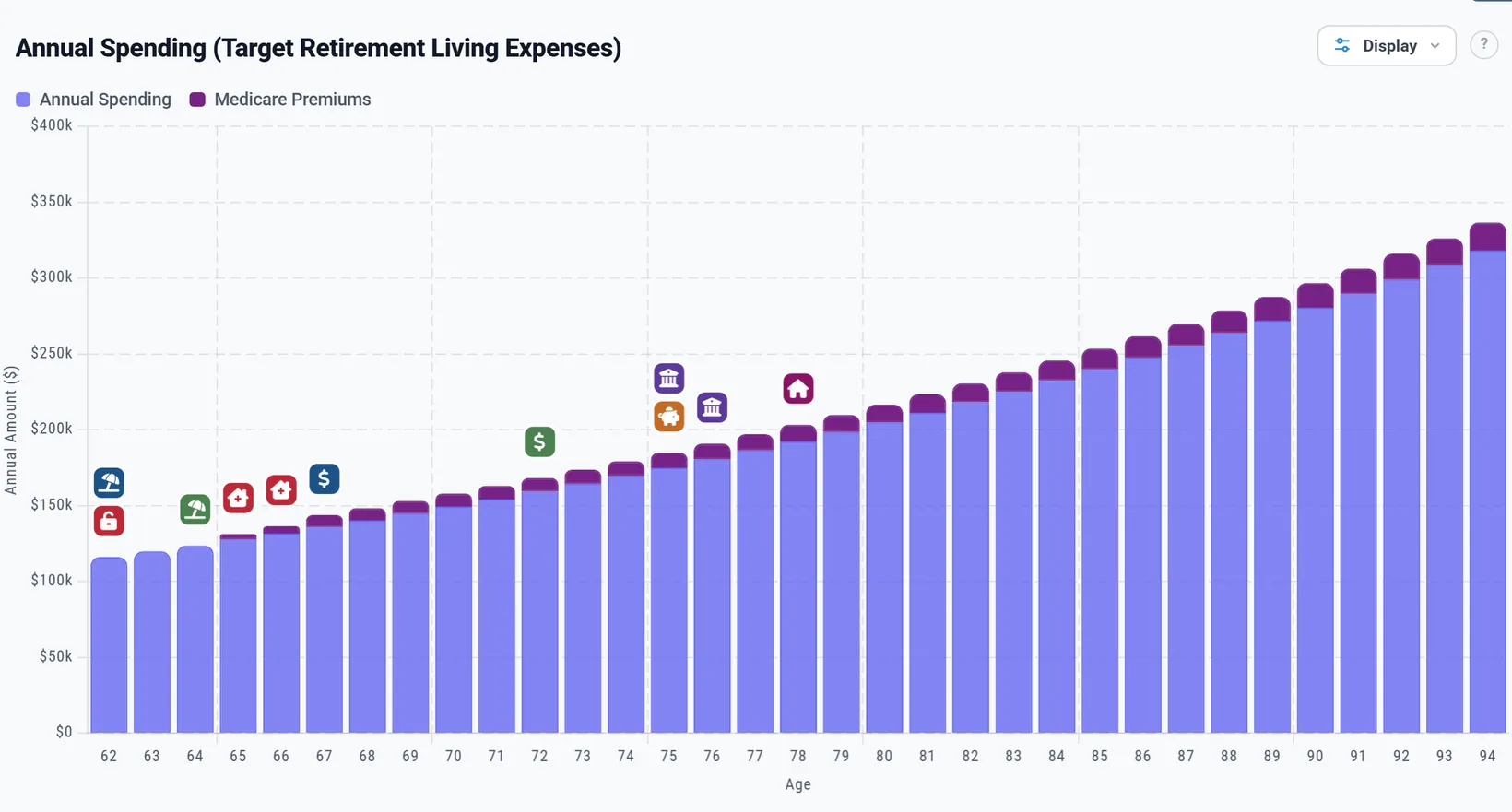
Chris and Jamie plan to spend $8,500 a month. In future dollars their spending grows every year with inflation, from $116,157 in the year Chris turns 62. In today's dollars it is $102,000 every year: 12 times the $8,500 they typed.
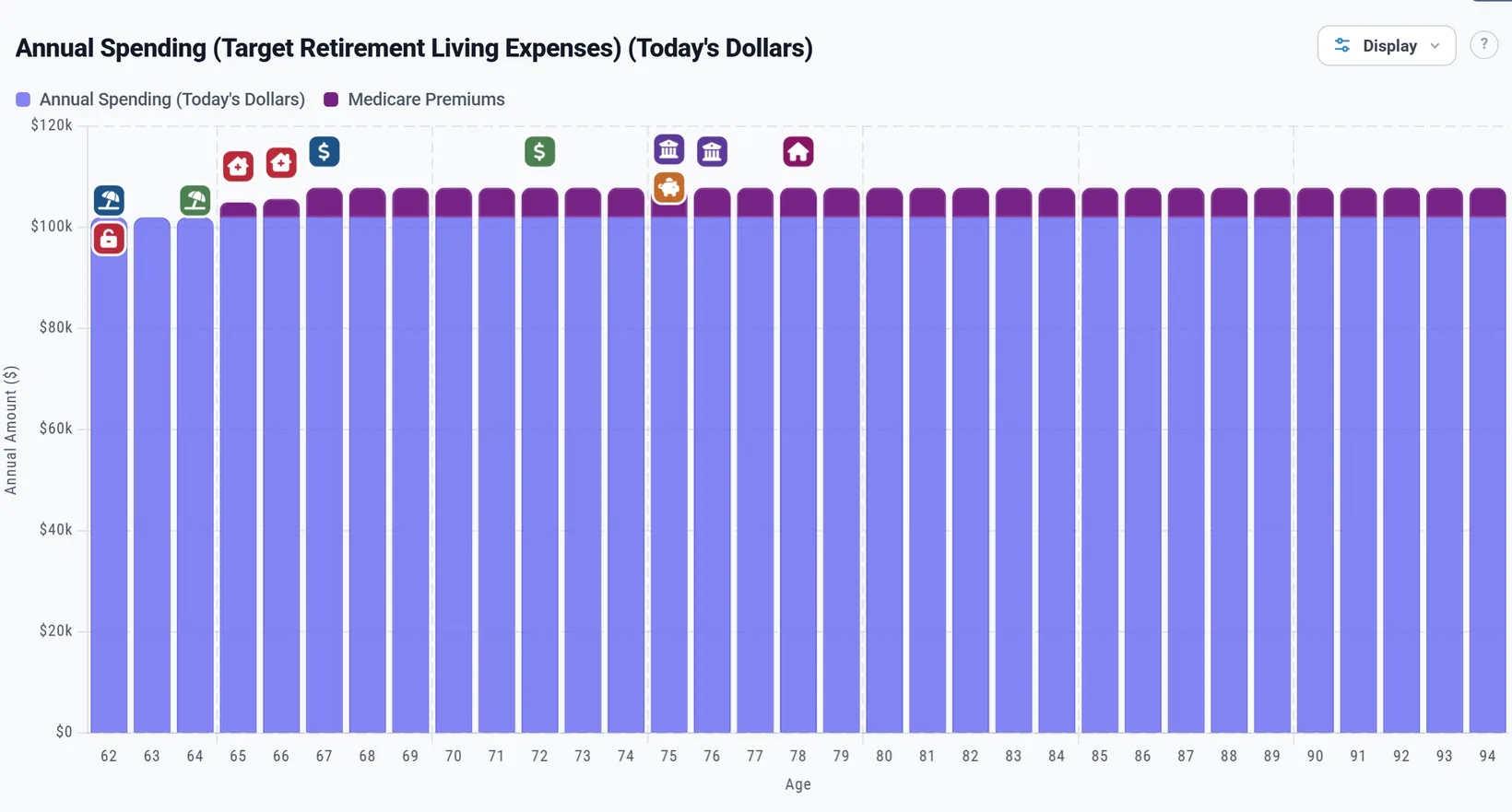
So anything that grows more slowly than inflation goes down in today's dollars, even while it grows. A home gaining 1% a year, in a plan with 3.2% inflation, falls about 2% a year in today's dollars. A fixed amount far in the future also looks small: $120,000 a year at 85 is worth less than half of that in today's dollars.
Years run from birthday to birthday
In the yearly view each bar is one year of age: from a birthday to the month before the next. Most of a plan is set by age (when you retire, Medicare at 65, required distributions), so the bars follow ages too.
- The ages are the Primary's. Your spouse's birthday falls part-way through each bar.
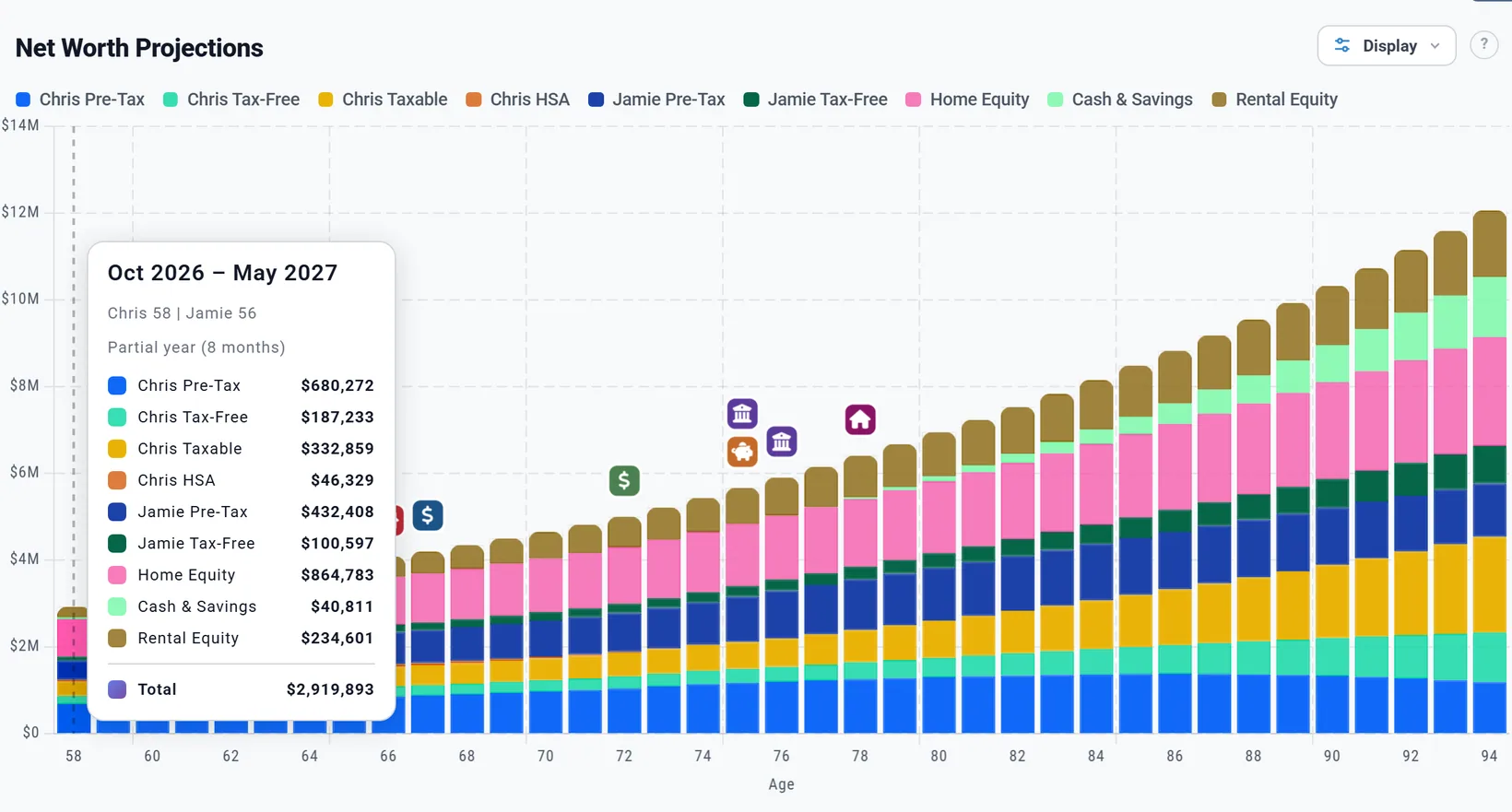
- The first bar is usually short. The plan starts this month, so the first bar runs only to the Primary's next birthday. For Chris, born in June, the first bar runs from October to May: 8 months. A bar of money moving in or out (income, spending, withdrawals) is lower for it.
- A balance is the balance at the end of the bar's year, not the start.
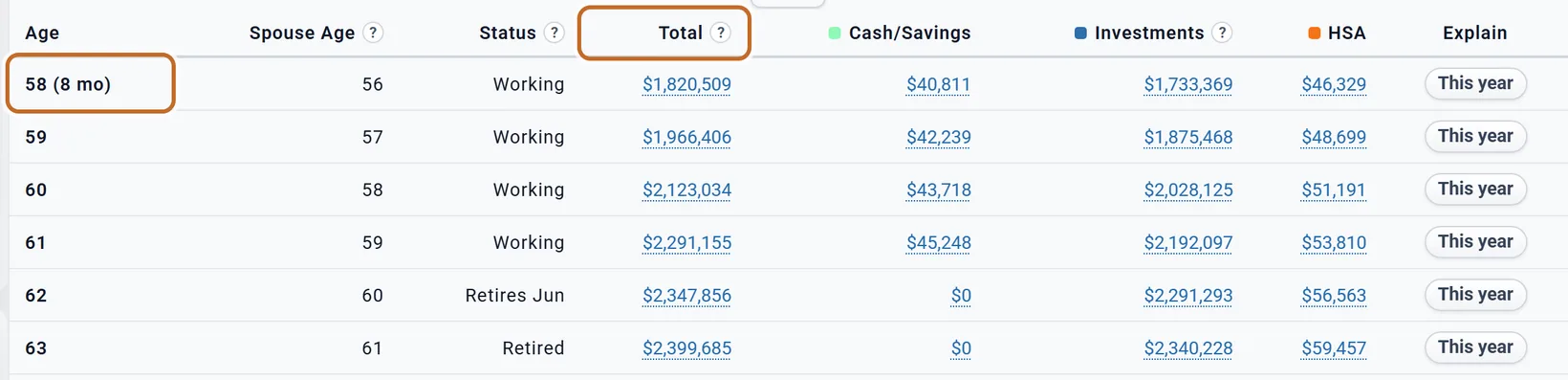
Point at a short bar and its label says so: "Partial year (8 months)". On Charts & Data, a short row reads "58 (8 mo)".
By age or By year
To match calendar years instead, for example to compare with your tax returns, choose By year above the chart (in a narrower window, under Display). Bars are then labelled with the year, January to December, and the axis reads Year. Your Taxes has the same choice, called By tax year; changing it in either place changes both.
- Calendar years have short years too: for Chris and Jamie, 2026 has 3 months (October to December) and the last year, 2063, has 5.
- On the tax charts and Your Taxes, a year is the tax year: January to December in the US and Canada, 6 April to 5 April in the UK (labelled like 2031/32).
- In the monthly view the X axis row is greyed out: it applies to yearly bars.
Monthly or yearly
The choice above the chart (in a narrower window, under Display) switches between Yearly (the starting view) and Monthly.
- In Monthly, each bar or point is one month's amount.
- In Yearly, a bar adds up the months for money moving in or out, and shows the year-end figure for a balance.
- A few charts always work in years. On Charts & Data their monthly table keeps one row per year and says it is showing that year's monthly average.
See one year in detail
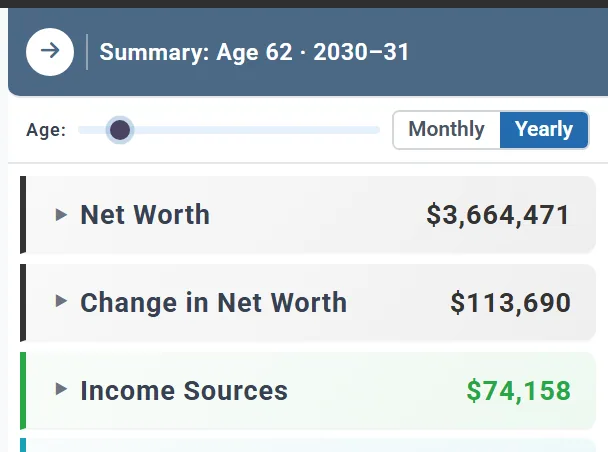
The summary panel on the right of the Dashboard chart shows every number for one year: net worth, income, contributions and growth, withdrawals, taxes.
- If the panel is closed, open it with the arrow at the top right of the chart (Show Summary Data).
- Click any bar on the chart. The panel shows that year, for example "Summary: Age 62 · 2030–31".
- Click a section's arrow to open its lines. Use the Age slider to move year by year, and Monthly or Yearly to change the period.
Clicking a bar fills the panel but does not open it if it is closed.
What a Total includes
A Total adds up the parts shown in its chart. Some include more than you might expect:
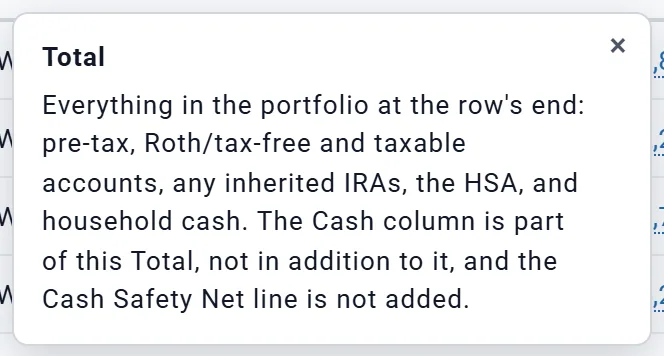
- Portfolio: your pre-tax, Roth and taxable accounts, any inherited IRAs, the HSA and household cash. Cash is part of the Total, not extra.
- Net Worth: everything in the portfolio, plus the equity in your home and rentals and your other assets, less other debts. So net worth can keep rising after your savings run low.
- Taxes: income taxes and payroll tax, plus property tax and, in the US, Medicare and IRMAA premiums. In Chris's year at 62, $17,025 of the $20,668 Total is property tax.
- Spending: your spending plus the costs beside it, including Medicare premiums from 65.
- Withdrawals: everything taken from cash and accounts. Roth conversions are not counted.
On Charts & Data, the ? beside Total says exactly what that chart's Total adds up.
The projection and Chance of Success
The Dashboard, Charts & Data and Your Taxes show one projection: your plan month by month, at the returns and inflation you set in Returns and Allocations.
Chance of Success asks a different question. It replays your plan through every starting year of market history since 1871, with each era's real returns and real inflation, and counts how often the money lasted. A plan long enough to need 37 years of history can start in about 119 different years.

So the two can disagree. A plan can show Depletion "Never" in the projection and still run out in some historical sequences, because a market fall early in retirement does more harm than the same average return spread evenly. The projection shows the shape of your plan; Chance of Success shows how sturdy it is.
Charts & Data: the numbers behind each chart
Charts & Data (a tab at the top, and in the left menu) shows the same charts as the Dashboard, each with its table of numbers underneath. Planner+

- Pick a chart in the first dropdown. The table always matches the chart: the same dollars, years and months, and the same series. Hiding one in the legend hides it on the chart only; the table and the export keep it.
- A short year is marked in its first column, such as "58 (8 mo)". For a couple, Spouse Age and Status show each row's spouse age and whether the Primary is working, retiring or retired.
- The ? on a column heading says what the column means. This year in the Explain column shows the year's money in and out.
- Export CSV downloads the table as it is, for a spreadsheet: amounts as whole numbers, without the dollar sign.
Tax Details: how one year's tax was worked out
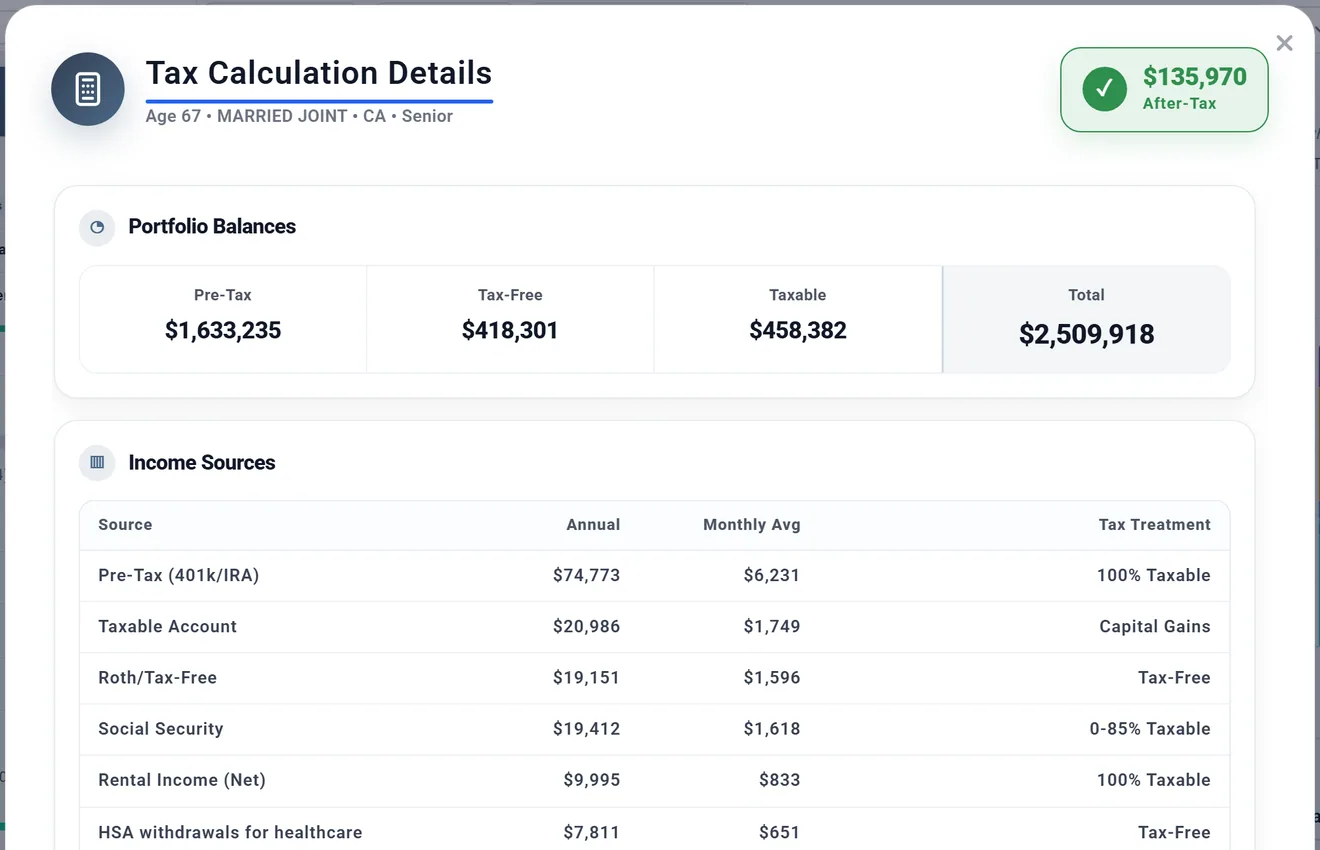
The Taxes, AGI Tracker, IRMAA and Taxable Income tables on Charts & Data have a Tax Details button on each row. It opens Tax Calculation Details for that year: the balances, each source of income and how it is taxed, the deductions and brackets, and the after-tax income. Planner+
- It follows the dollars and By age / By year choices of the table you opened it from.
- A short first or last year says so at the top, with the number of months.
- Working years have a button only when Employment Income is on. Chris and Jamie's buttons start at 62.
- The same details are inside Your Taxes on the Summary.
Which display choices are remembered
- By age or By year is kept in this browser, for every plan.
- The dollars choice, Yearly or Monthly, and whether the summary panel is open are kept with your plan the next time it saves after a change. Switching them alone does not save the plan, and opening another plan can bring that plan's own choices.
- The chart you last opened on Charts & Data is kept in this browser.
Questions people have asked
| What they saw | Why |
|---|---|
| "My projections slope down." | Today's dollars: anything growing slower than inflation falls. See above. |
| "My home goes down, although I set it to grow 1% a year." | The same: 1% growth is below the plan's inflation. The full answer. |
| "$120,000 a year shows as $39,000." | Today's dollars, many years ahead. The full answer. |
| "My spouse's Social Security is not growing." | It grows with inflation, so in today's dollars it stays level. |
| "The first year is far too low." | It is a short year: from this month to the Primary's next birthday. See above. |
| "The portfolio Total does not match the accounts plus cash." | Cash is already in the Total. See above. |
| "I want calendar years, to match my tax returns." | Choose By year. See above. |
| "Can I get the numbers into a spreadsheet?" | Export CSV on Charts & Data. See above. |
| "The Dashboard says my money lasts, but Chance of Success is not 100%." | They answer different questions. See above. |