



 Continue with Google
What belongs to you, and what belongs to a plan
A plan is one version of your future. Make a few, change one thing in each, and compare them: retire a year later, sell the rental, spend a little more. This page shows how, with a worked example.
First, the one idea that makes plans easy to use. There are two layers.
- What you own is shared by every plan. Your accounts and their balances, your home, a rental, other assets and loans all live on Accounts & Assets. There is one set, and every plan uses it. Change a balance in one plan and it changes in all of them.
- What you plan to do belongs to each plan. Everything in the settings panel on the Dashboard is the plan's own: retirement ages, spending, Social Security, pensions, returns and inflation, and every box you add. Change it in one plan and no other plan moves.
- Budgets sit in between. A named budget belongs to you, so two plans can use the same one. Which budget a plan uses is the plan's own choice.
Your Master Plan is your baseline
Your first plan is called Master Plan. It cannot be renamed or deleted. Keep it as your best guess at what will really happen: the baseline every what-if is measured against.
The plan bar at the top of the settings panel shows which plan you are working on. It has three parts: the plan dropdown, New Plan, and My Plan & Budgets, which opens the page listing all your plans.

Make a what-if plan
- Get your Master Plan the way you want your baseline.
- Click New Plan in the plan bar.
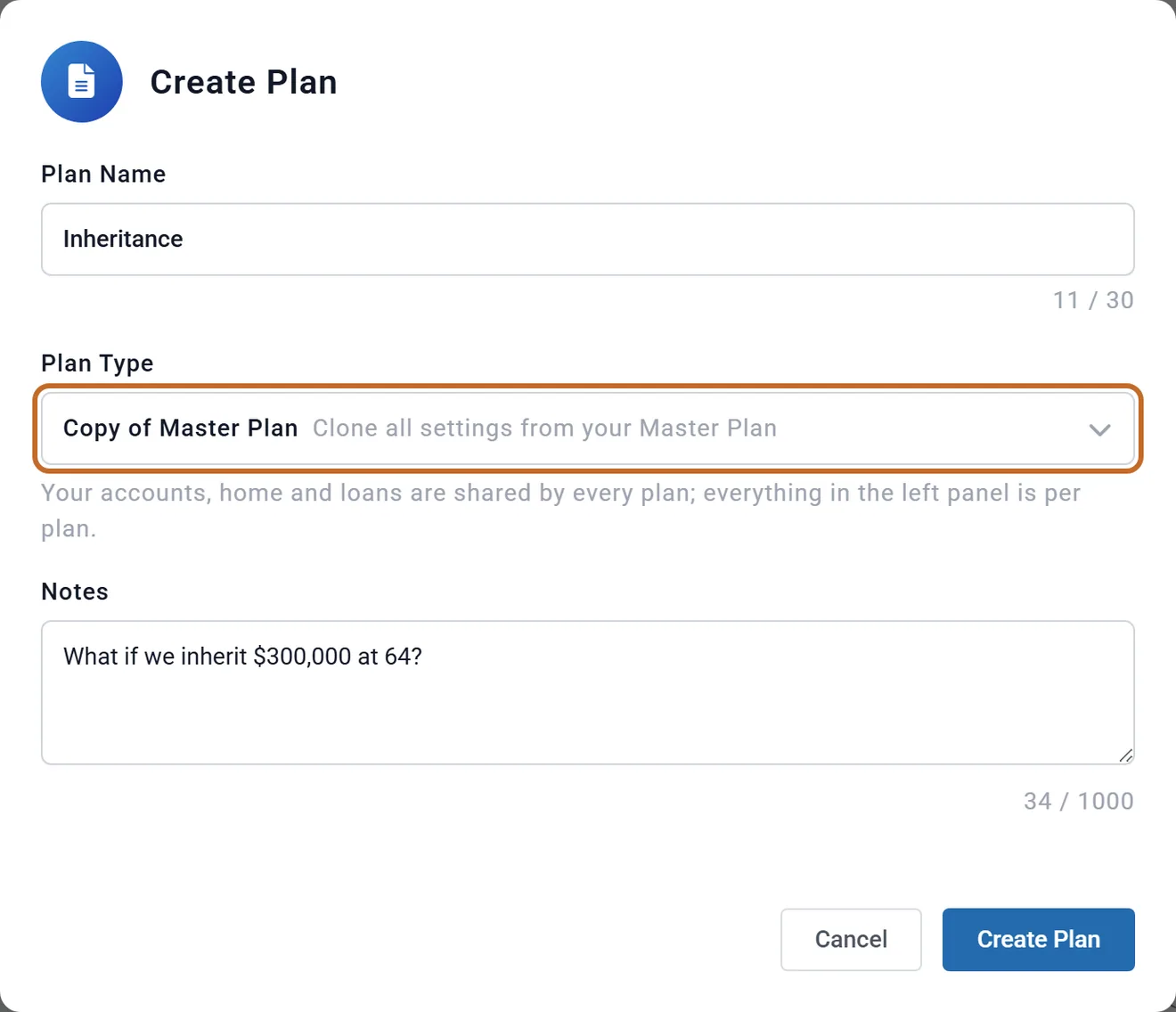
- Type a Plan Name that says what you are testing, up to 30 characters.
- Under Plan Type, choose Copy of Master Plan.
- Add Notes if you like: a line about what the plan tests. Compare Plans shows it under the plan's name.
- Click Create Plan. The new plan opens, ready to change.
Then change one thing. When a copy differs from the baseline in one way only, any difference in the results comes from that one change.
Copy, or start fresh?
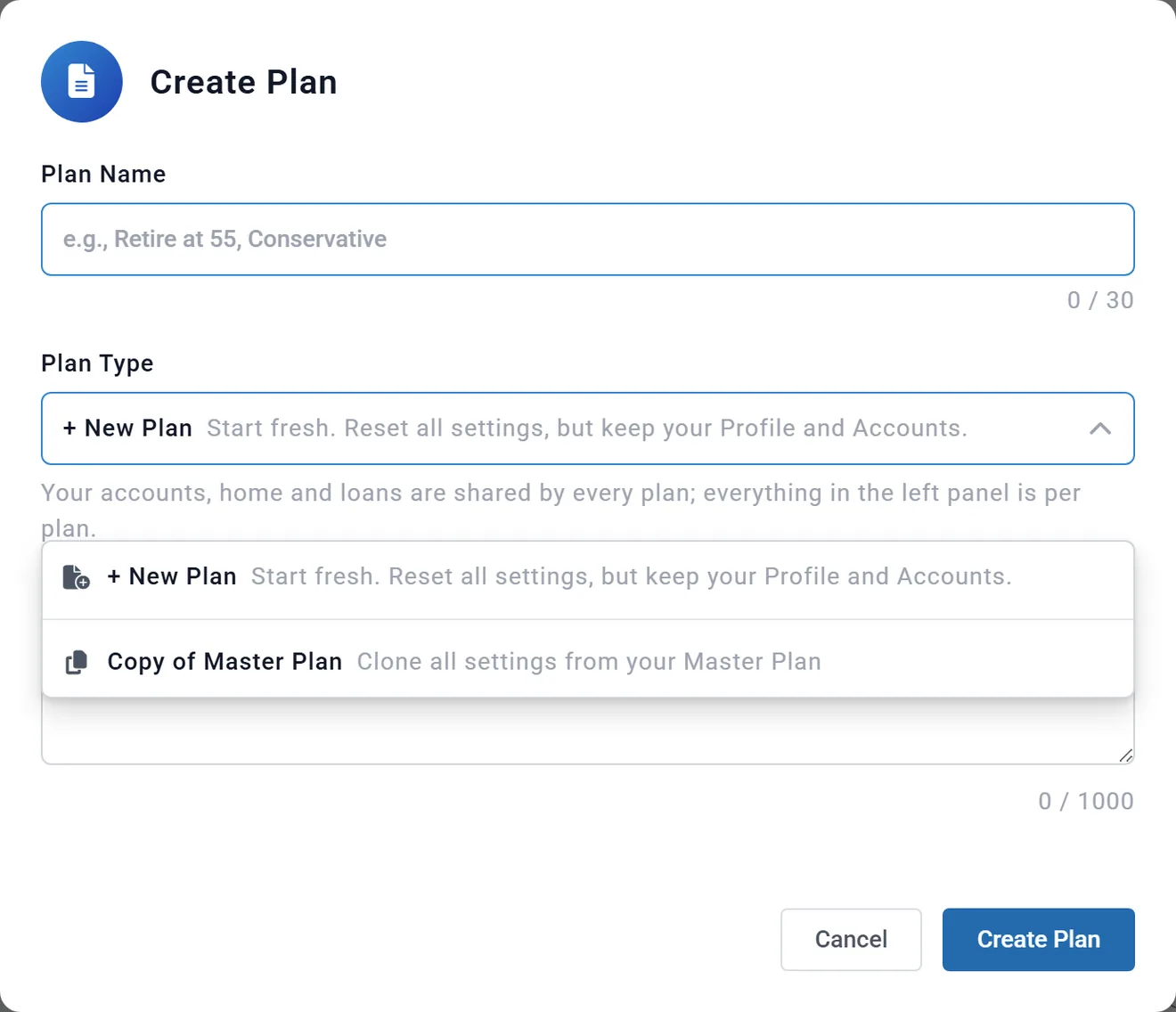
Plan Type offers two kinds of plan:
- Copy of Master Plan (or a copy of any other plan) carries over every setting. This is the one for a what-if.
- + New Plan starts fresh. It keeps your names, ages, retirement ages, spouse, filing status and location, and of course your accounts. Everything else goes back to the starting values: no boxes added, no budget linked, and the example spending of $5,800 a month. Use it to start over, not for a what-if.
Copy of Master Plan always copies your saved Master Plan, even when another plan is on screen.
Switch between plans
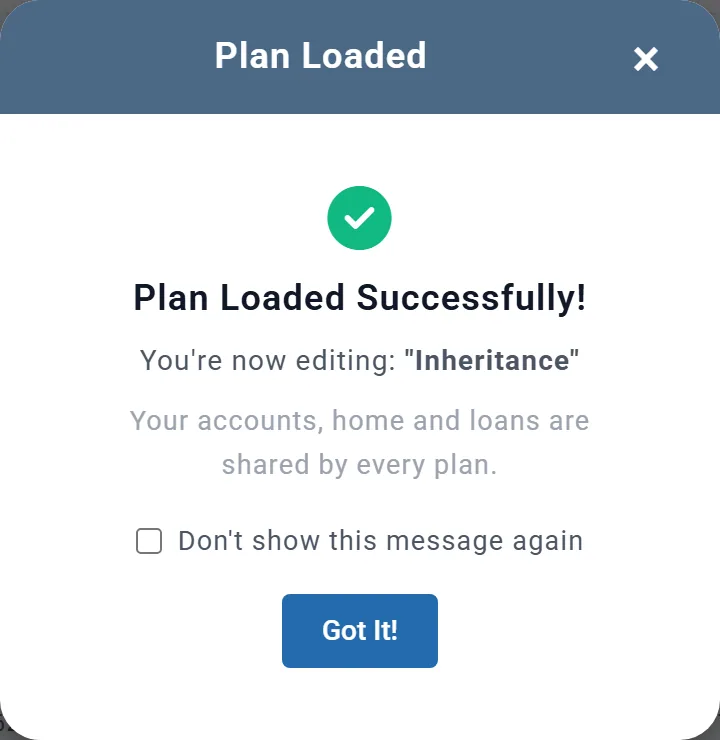
Choose a plan in the plan bar's dropdown. A message confirms which plan you are now editing. Any change you made to the plan you are leaving is saved first, and simply opening a plan never changes it.
When you come back another day, the planner opens the plan you were working on last. Glance at the plan bar before you change anything, so the change lands in the plan you meant.
A plan with something switched off says so in the dropdown, for example "Wedding (1 not counted)".
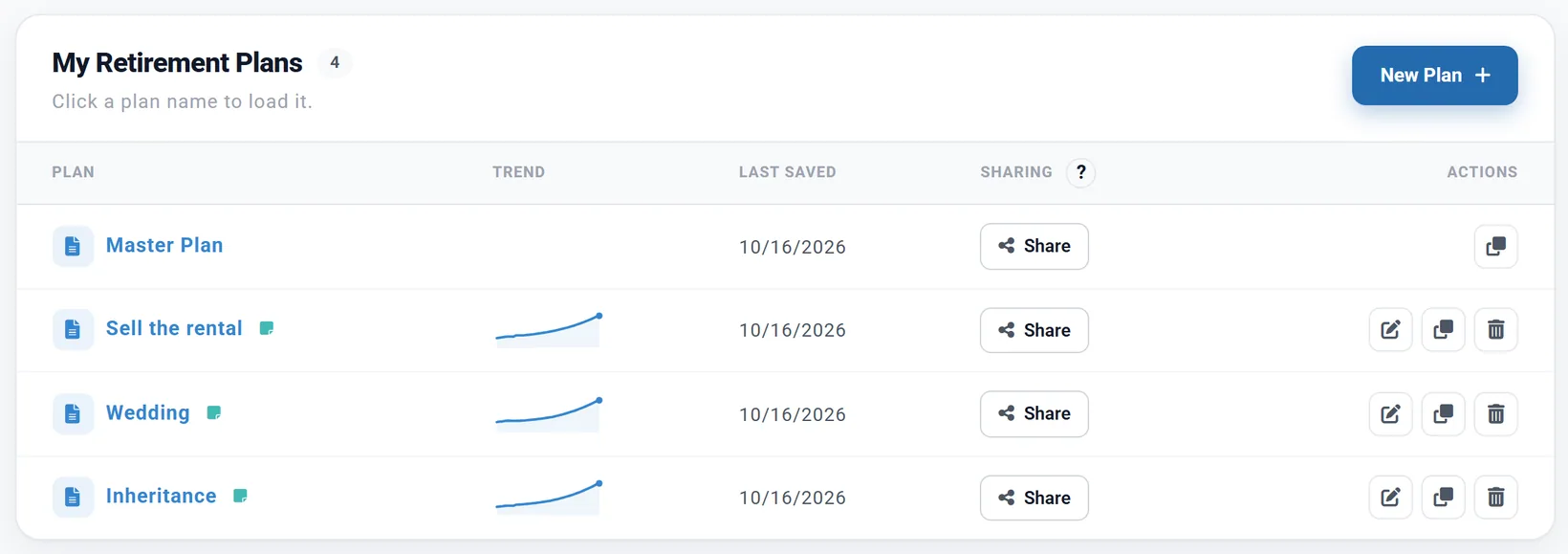
My Plan & Budgets lists every plan on its My Saved Plans tab. Click a plan's name to open it. The buttons on each row rename, duplicate or delete that plan. The Master Plan can only be duplicated. Delete the plan you are working on and the Master Plan opens in its place.
Leave something out of one plan
Sometimes a what-if is about taking something away: no pension, no rent from the rental, no sale. You do not have to delete anything. Switch it off for that plan, and it stays in place, ready to switch back on.
The What's Counted box
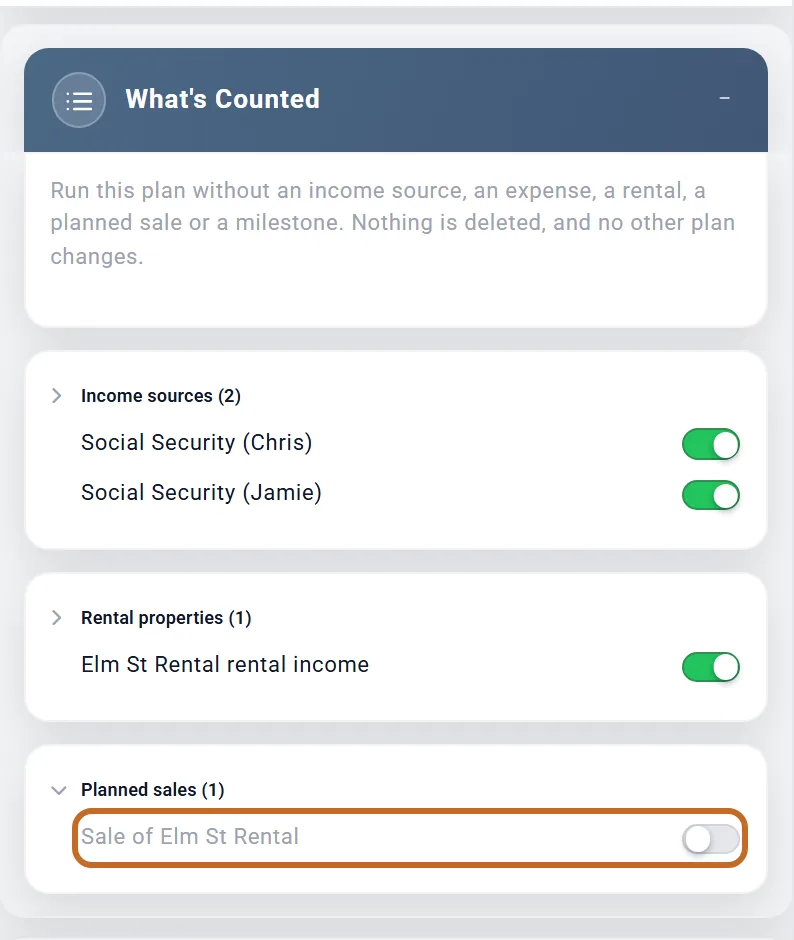
The What's Counted box sits just above the Add box in the settings panel. It lists everything a plan can do without, in groups: Income sources, Expenses, Rental properties, Planned sales and Milestones.
- Click a group to open it.
- Switch off the item you want to leave out.
The plan runs as if that item were not there. Nothing is deleted, and no other plan changes.
From a box's title bar
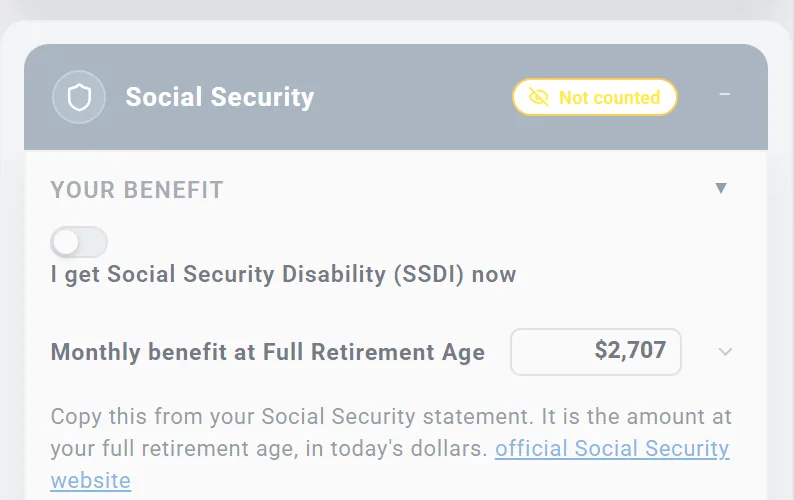
Point at the title bar of most income and expense boxes and Do not count appears. Click it to leave that box out of this plan.
The box dims and its title bar says Not counted. Click that to count it again.

Seeing what is left out
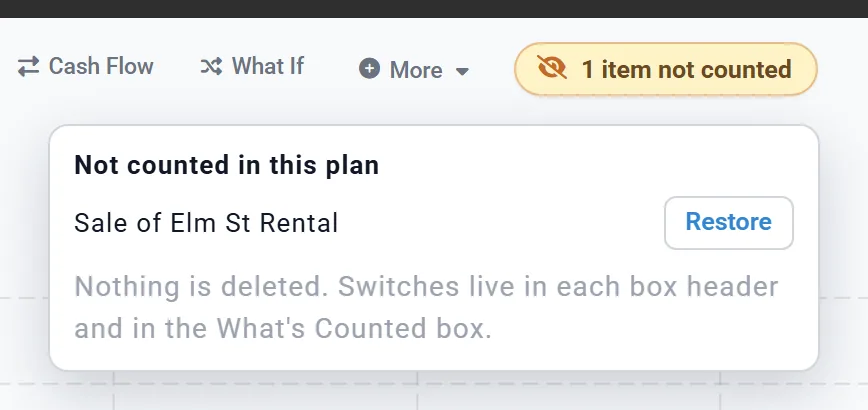
While anything is left out, the Dashboard shows a note above the chart, such as "1 item not counted". Click it for the list. Restore counts an item again.
Different spending in a what-if
If your plan uses Desired Monthly Spending in the Retirement Spending box, change the amount in the copy. That is all.
If your plan is linked to a budget, remember that the budget is shared. Change a row and every plan linked to that budget changes. To give one plan different spending:
- Open the Budget tab with the budget you use on screen.
- Click New Budget and give it a name. It starts as a copy of the budget on screen.
- Change the rows you are testing.
- Open your what-if plan. In its Retirement Spending box, choose the new budget in Use Budget. Planner+
Your other plans keep the budget they had.
Worked example: an inheritance, a wedding and selling a rental
Chris and Jamie, 58 and 56, want to know three things. What if they inherit $300,000? What does their daughter's wedding cost them? And should they sell their rental, Elm St Rental, at 65 or keep it? Their Master Plan keeps the rental and has no inheritance and no wedding. Each question gets its own copy.
Before copying: set up the sale
A sale is stored with the property, so set it up once:
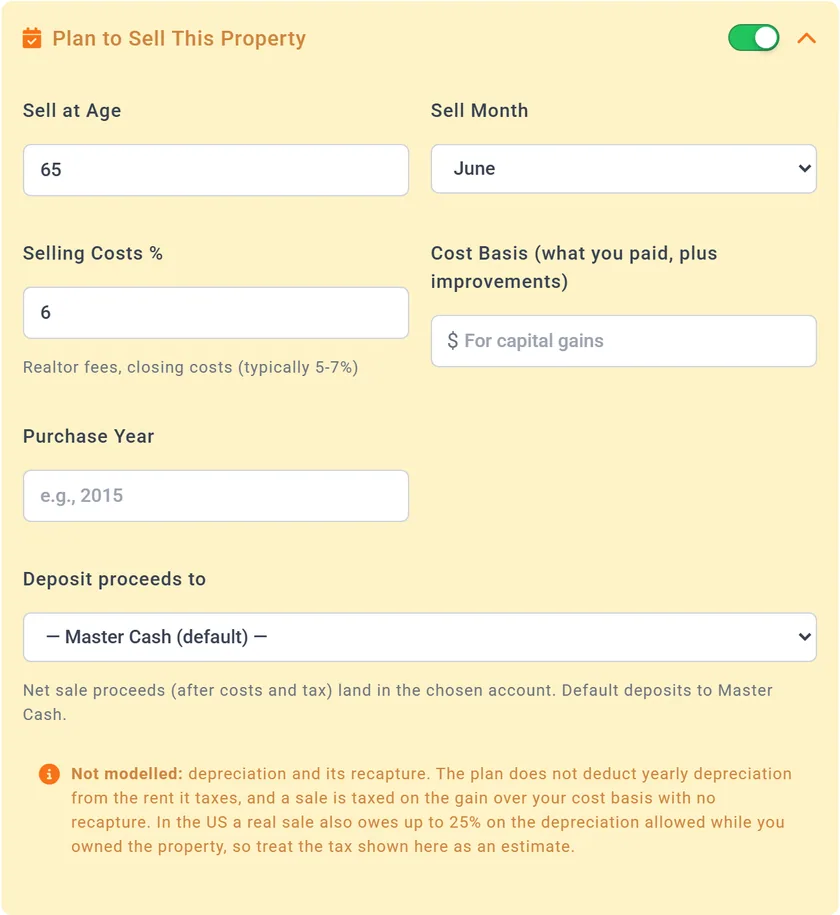
- On Accounts & Assets, edit the rental and switch on Plan to Sell This Property.
- Set Sell at Age to 65 and Sell Month to June. Leave the rest as it is, or add your cost basis for a better tax estimate.
- Click Save Changes. The sale now applies to every plan.
Chris and Jamie's baseline keeps the rental, so in the Master Plan they switch the sale off: in What's Counted, under Planned sales, they switch off Sale of Elm St Rental. On Accounts & Assets, the rental now says Sale off in this plan, and its row has the same switch.

Plan 1: Inheritance
- Make a Copy of Master Plan named Inheritance.
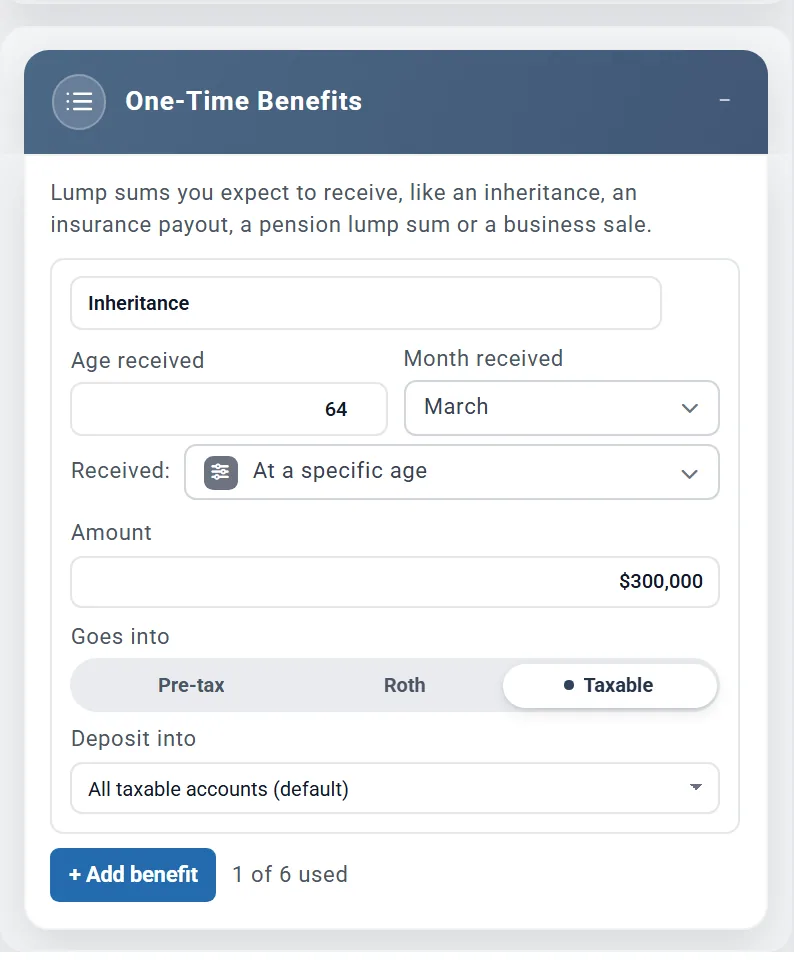
- In the Add box, under One-Time Events, switch on One-Time Benefits.
- Name the card Inheritance. Set Age received to 64 and Month received to March.
- Set Amount to $300,000 and, under Goes into, choose Taxable, the right home for cash or investments you inherit.
The money arrives in March, while Chris is 64, and goes into their taxable accounts. The age is the Primary's: here, Chris's.
The planner adds a One-Time Benefit without income tax, which is right for an inheritance of cash or investments. An inherited IRA is different, because what you take out of it is taxed.
Plan 2: Wedding
- Make a Copy of Master Plan named Wedding.
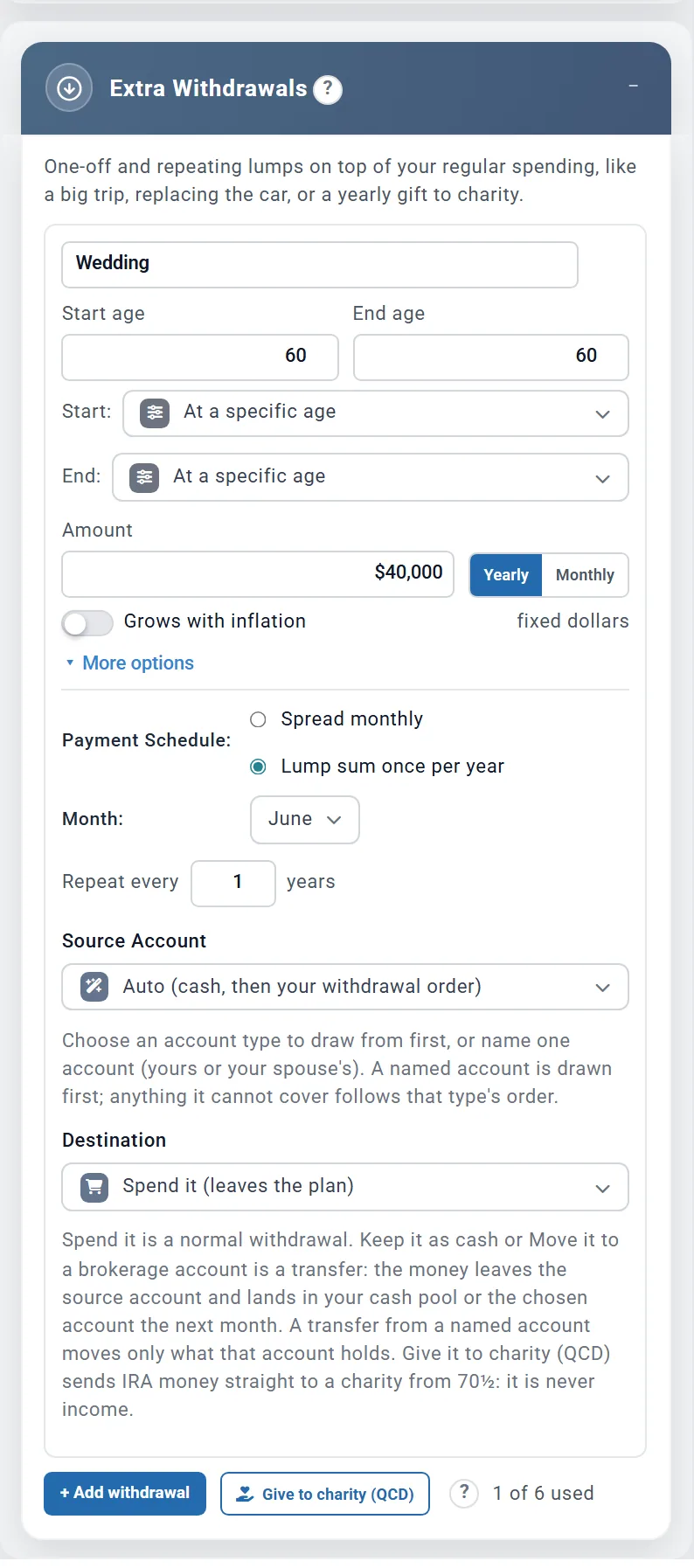
- In the Add box, under Expenses, switch on Extra Withdrawals.
- Name the card Wedding. Set Start age and End age both to 60, the year of the wedding.
- Set Amount to $40,000 and leave it on Yearly.
- Optional: open More options, choose Lump sum once per year and set Month to June, so the money goes out in the month of the wedding.
With Destination left on Spend it (leaves the plan), the plan takes $40,000 from savings in June, while Chris is 60, and spends it. With Source Account on Auto it uses cash above any minimum balance first, then the investment accounts in your withdrawal order. Chris and Jamie's strategy is Proportional, so that is in proportion to the accounts' balances.
Plan 3: Sell the rental
- Make a Copy of Master Plan named Sell the rental. Like the Master Plan, it starts with the sale switched off.
- In What's Counted, under Planned sales, switch Sale of Elm St Rental back on.
In this plan only, the rental is sold at 65 in June. Its mortgage is paid off from the price, and what is left after selling costs and tax goes to the account chosen in Deposit proceeds to.
Want both the inheritance and the wedding? Make a fourth copy with both. Each plan holds exactly the mix you are testing.
Compare plans side by side
Switching back and forth works, but Compare Plans puts up to three plans next to each other. Planner+
- Open the plan you want as your baseline (here, the Master Plan).
- Click My Plan & Budgets, then the Compare Plans tab.
- Tick up to three plans. The first choice is always the plan on screen, including any change you have just made. The Master Plan shows there as Master Plan (current).
- Click the Compare button.
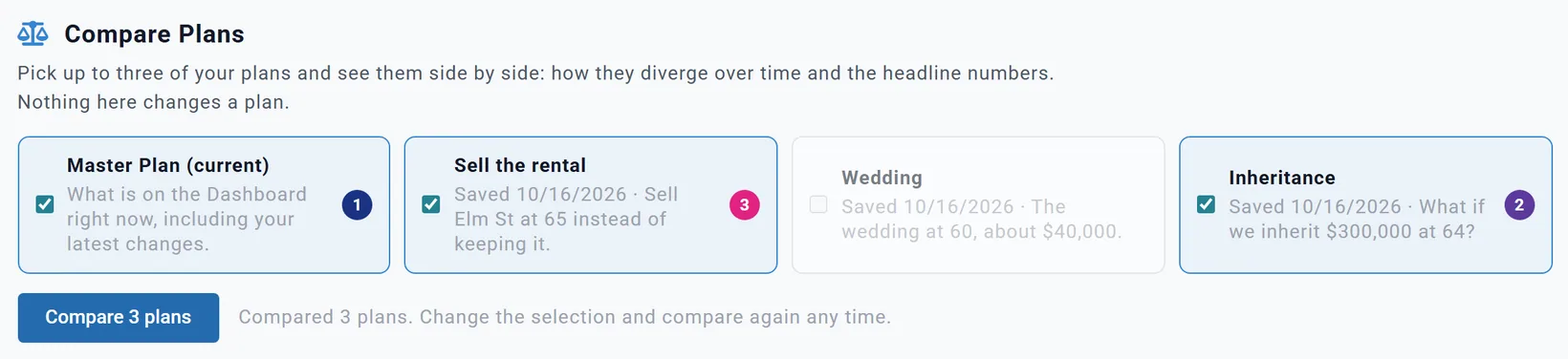
The first plan you tick is the baseline, and every other column shows its difference from it. A chart over time (Net worth, Portfolio, Withdrawals or Taxes) sits above a table of headline numbers. Use Today's dollars to read them in the value of money now.
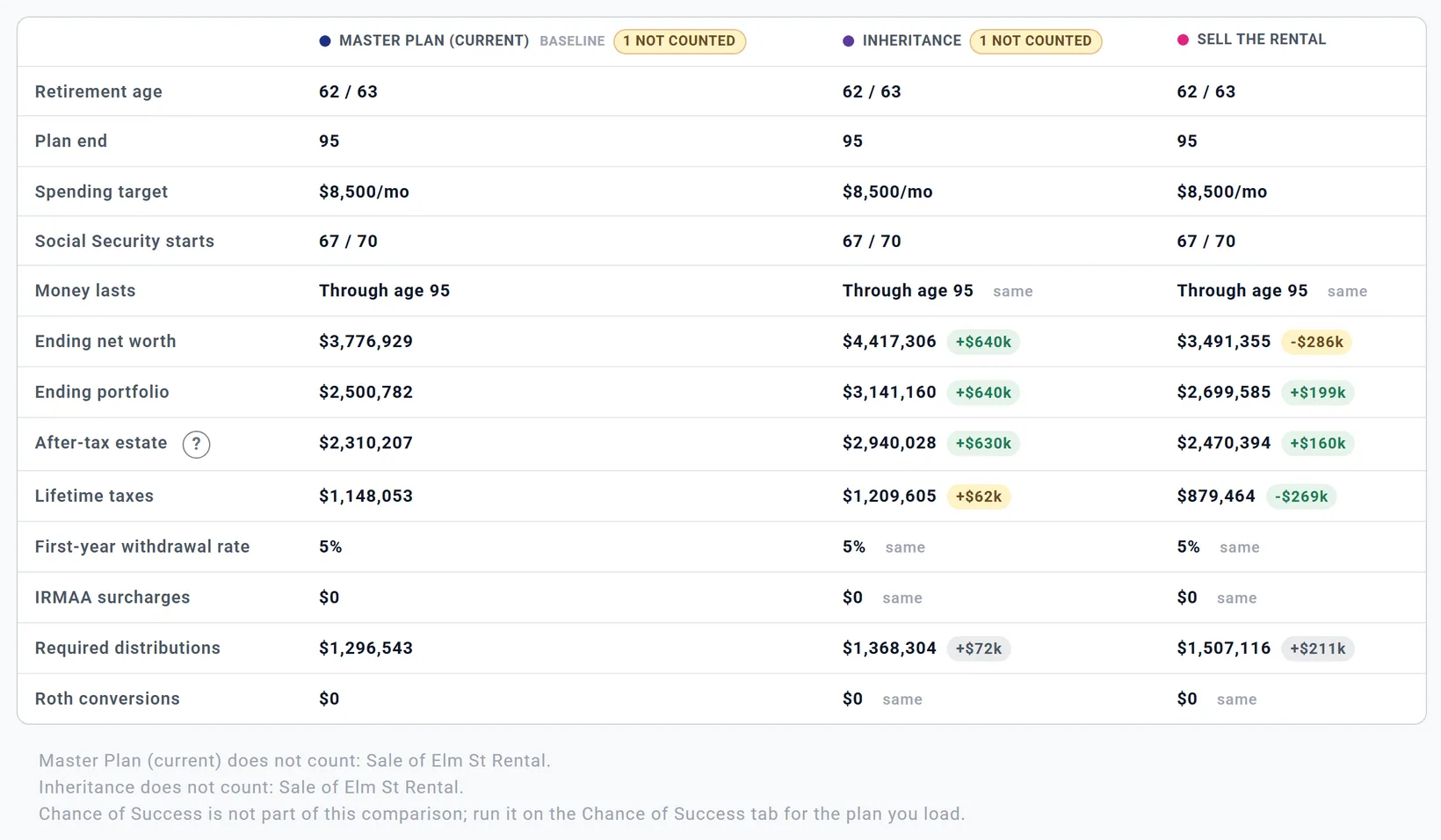
Here is what Chris and Jamie learn, in today's dollars:
- All four plans last to 95.
- Inheritance ends with $4,417,306 of net worth, $640,000 more than the baseline's $3,776,929.
- Wedding ends with $101,000 less.
- Sell the rental ends with $286,000 less net worth, but a larger portfolio (by $199,000) and $269,000 less tax over their lifetime. Selling trades a property for money they can spend.
The comparison changes nothing in any plan. Two more things to know:
- Every plan uses your current account balances, so the differences come from each plan's own settings.
- Chance of Success is not part of the comparison. Open each plan and look at its Chance of Success tab to see how sturdy it is.
Starting over
There is no single button that wipes everything. Three ways to get a clean slate:
- A fresh plan: New Plan with + New Plan as the type. It keeps who you are (names, ages, retirement ages, spouse, filing status, location) and resets the rest. You can make it your new baseline and compare everything against it.
- The Master Plan: it cannot be reset in one step. Set its boxes back by hand, or switch off the ones you no longer want in the Add box.
- Your accounts: they belong to every plan, so a new plan keeps them. To start them over, delete or change them on Accounts & Assets; that changes every plan.
To tidy up afterwards, delete the plans you no longer need on My Saved Plans.