



 Continue with Google
What two-step verification does
Two-step verification adds a second step when you sign in with your email and password. After your password, we ask for a 6-digit code from an authenticator app on your phone. The code changes every 30 seconds, so someone who learns your password still cannot get into your plans without your phone.
It is optional and off until you turn it on. It works with Google Authenticator, Microsoft Authenticator, 1Password, Authy and any other app that shows 6-digit codes.
Turn it on
- Open your Account page and find the Two-step verification card.
- Choose Turn on two-step verification and enter your password.
- Open your authenticator app, add a new account, and scan the QR code. If you can't scan it, type the key shown under it instead.
- Enter the 6-digit code the app shows and choose Confirm.
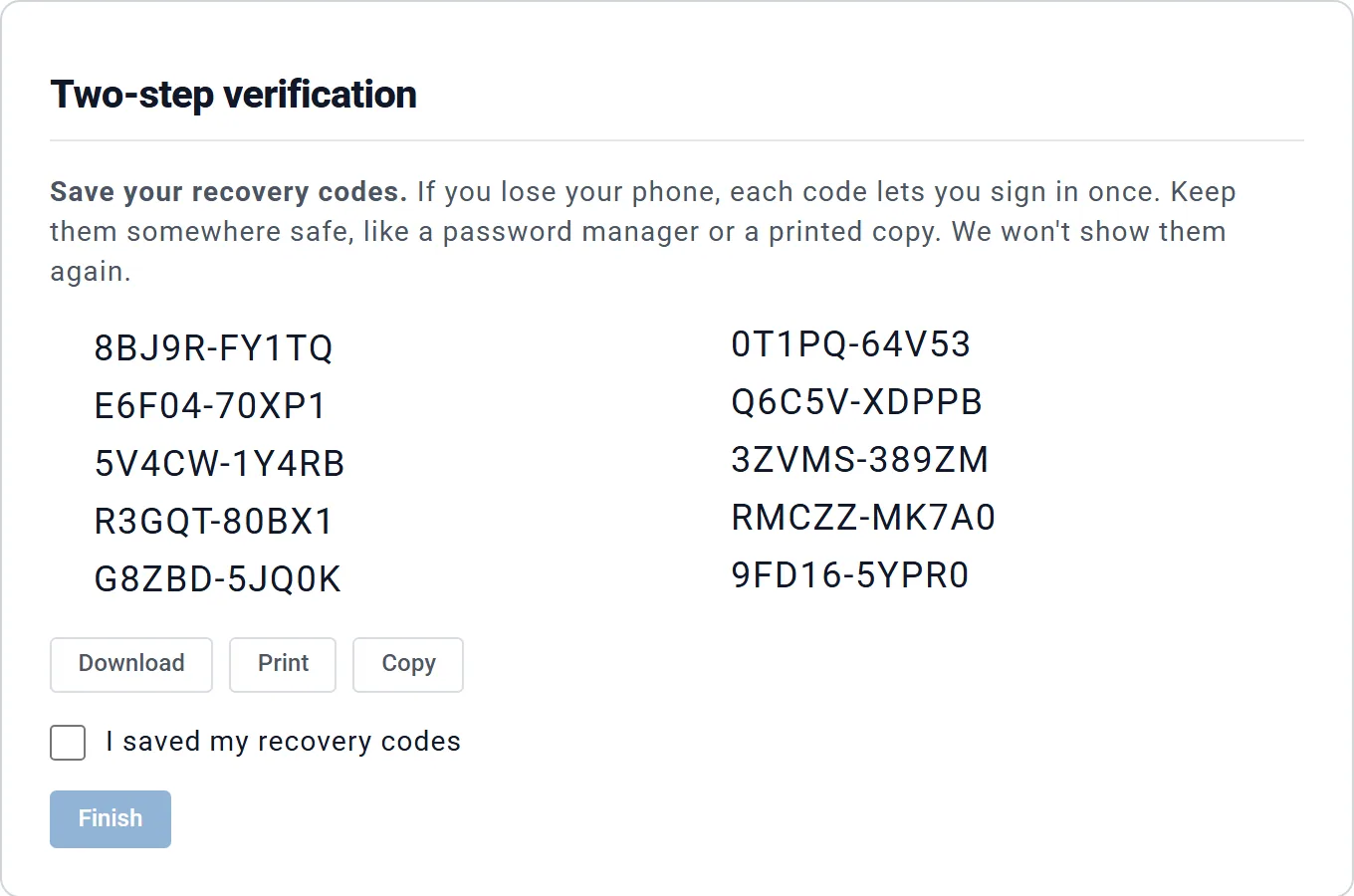
- Save your recovery codes (next section), tick I saved my recovery codes and choose Finish.
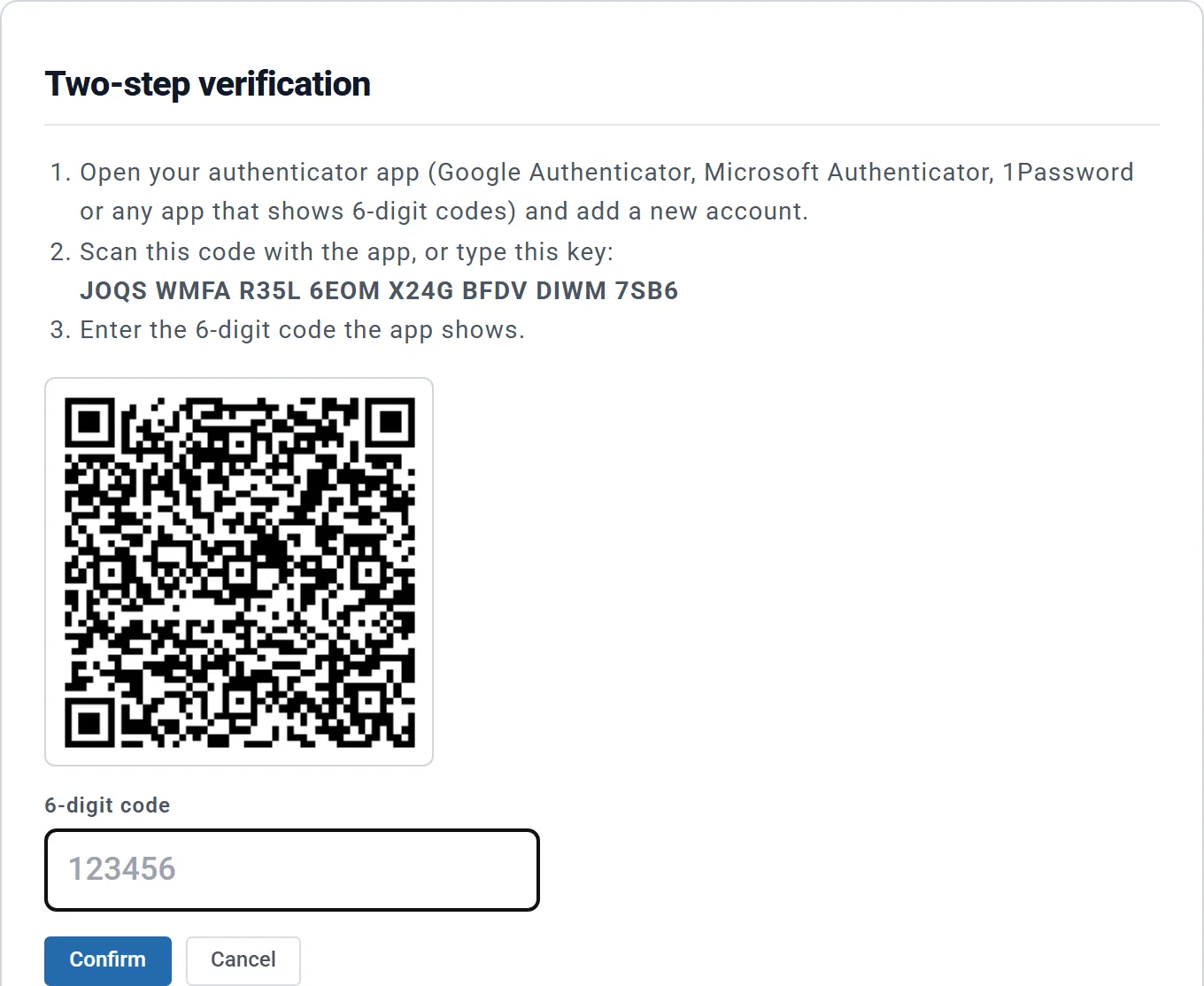
Until you confirm the first code, nothing changes when you sign in. Once it is on, any other computer or phone signed in to your account is signed out, and we email you to say two-step verification is on.
Open the Two-step verification cardRecovery codes
When you turn it on, you get 10 recovery codes. Each one lets you sign in once without your phone. Keep them somewhere safe, like a password manager or a printed copy, using Download, Print or Copy. We show them only once.
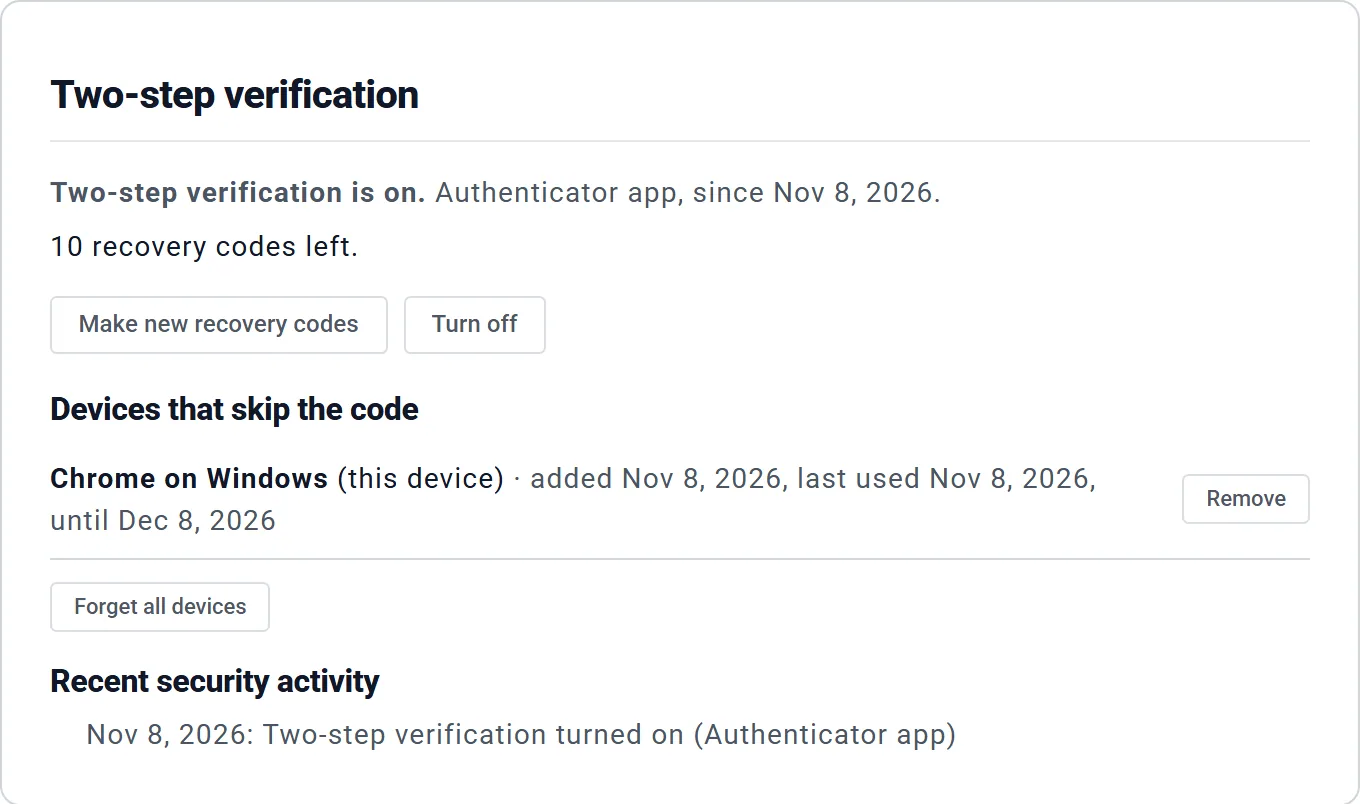
- The card shows how many codes you have left. With two or fewer left, it asks you to make new ones.
- Make new recovery codes asks for a current code from your app and gives you a new set of 10. Your old codes stop working.
- Each time a recovery code is used, we email you to say so.
Signing in
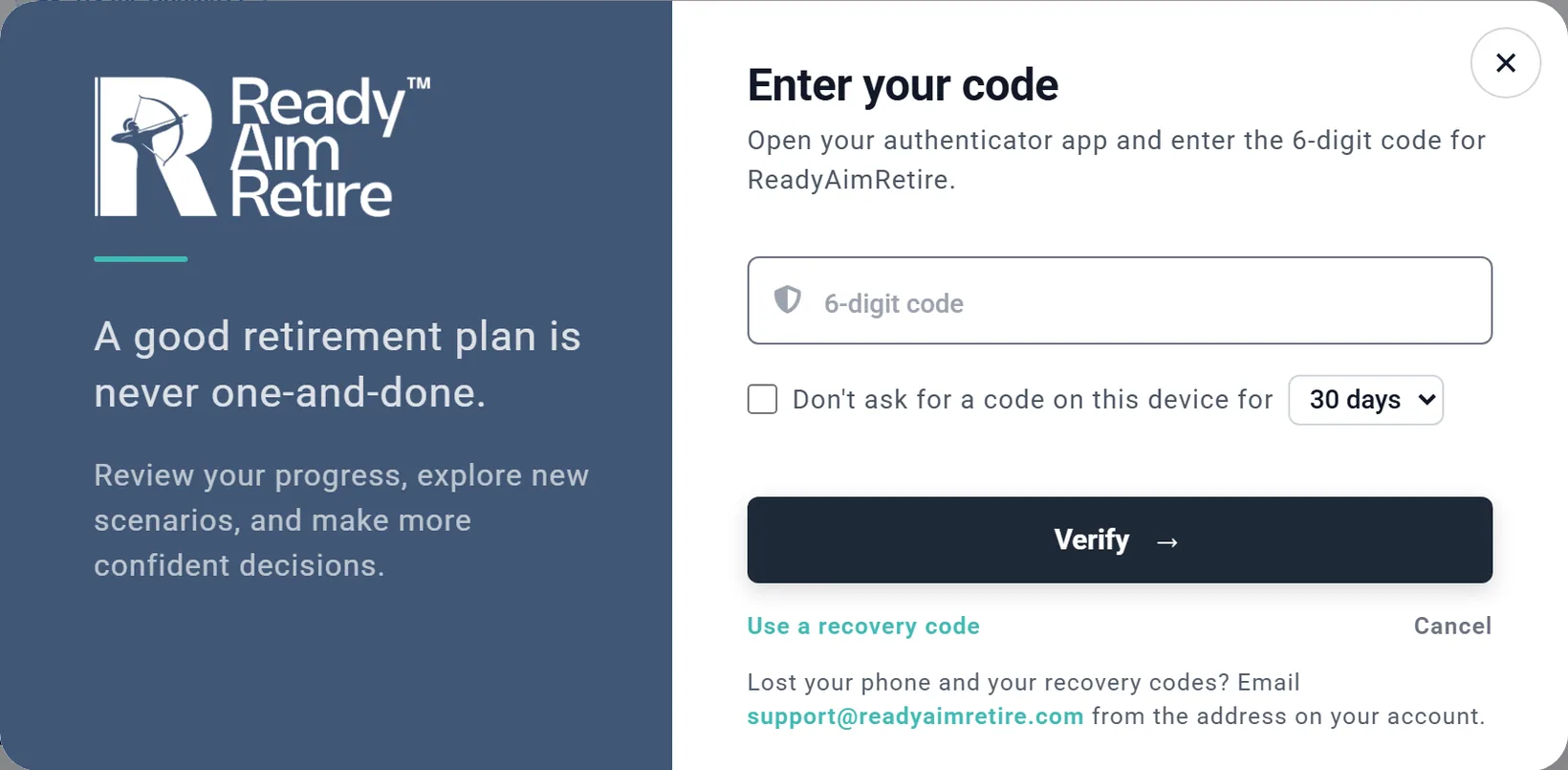
Sign in with your email and password as usual. You are then asked to Enter your code: open your authenticator app, type the 6-digit code for ReadyAimRetire and choose Verify. Your account is not signed in until the code is right.
- If a code doesn't work, try the newest one. A code works once, and only for about a minute and a half.
- After 5 wrong codes, you are asked to sign in again.
- After 10 wrong codes in an hour, code entry for your account is paused for an hour and we email you. That means someone has your password, so change it on your Account page.
- On a phone, the app and the sign-in page are on the same screen: switch to the app, note the code, and switch back.
Skip the code on your own computer
On the code page, tick Don't ask for a code on this device for and choose 7, 30 or 90 days. On that computer or phone, your password alone signs you in until the days are up. Leave it unticked on a shared or public computer.
- It only skips the code for your own account, in that one browser. Your password is still needed.
- The card lists each device that skips the code, when it was added and last used, with Remove, and Forget all devices for all of them.
- Every device is forgotten when you reset a forgotten password or turn two-step verification off. Changing your password, or Sign out of all other devices, forgets every device except the one you are using.
If you lose your phone
- On the code page, choose Use a recovery code and enter one of your saved codes. It signs you in once and tells you how many you have left.
- A computer you told to skip the code still signs in with your password until its days are up.
- Once you are in, set up your new phone: on your Account page, turn two-step verification off (with your password and another recovery code) and turn it on again with the new phone. You get a new set of recovery codes.
Turn it off
On the card, choose Turn off, then enter your password and a code from your app (or a recovery code). Your trusted devices are forgotten and we email you to confirm.
Sign out of all other devices
In the Security & Privacy card on your Account page, Sign out of all other devices ends every other session of your account, on any computer or phone. The browser you are using stays signed in. It works whether or not two-step verification is on, and whether you sign in with a password or with Google.
Changing your password does the same for your other devices, and resetting a forgotten password signs you out everywhere.
Support, advisers and Privacy Mode
- Support: when support opens your account to help you (unless you blocked that in the Security & Privacy card), no code is asked, and support can see whether two-step verification is on but cannot see your key or your codes, or change the setting while viewing your account.
- Advisers: an adviser managing your plans is not asked for your code either. Only you, or ReadyAimRetire support at your request, can turn it off. Advisers are asked to turn it on for their own accounts, since those open every client's plans.
- Privacy Mode: two-step verification protects your sign-in, not where your plans are kept, so it works the same in Cloud Storage and Privacy Mode. Signing out of other devices never deletes a plan kept in a browser.