



 Continue with Google
Before you start
ReadyAimRetire turns a few facts about you into a year-by-year picture of your retirement: what you will have, what you can spend, what you will pay in tax, and how likely your money is to last. This page walks you through your first plan, one box at a time. Most people finish in about 20 minutes.
Have these on hand
- Your birth date, and your spouse's if you are planning together.
- Each account's balance and what kind of account it is: a 401(k) or traditional IRA, a Roth IRA, a brokerage account, an HSA, savings.
- Roughly what you put into your accounts each year until you retire.
- What you expect to spend each month in retirement, after tax.
- Your Social Security estimate, from your statement at ssa.gov.
Rough numbers are fine. You can change anything later, and the plan updates as you type.
The screenshots on this page show a made-up couple, Chris and Jamie, 58 and 56, who hope to retire at 62 and 63. Your screens will look the same, with your own numbers.
Find your way around
When you sign in, you land on the Dashboard. The screen has five parts.
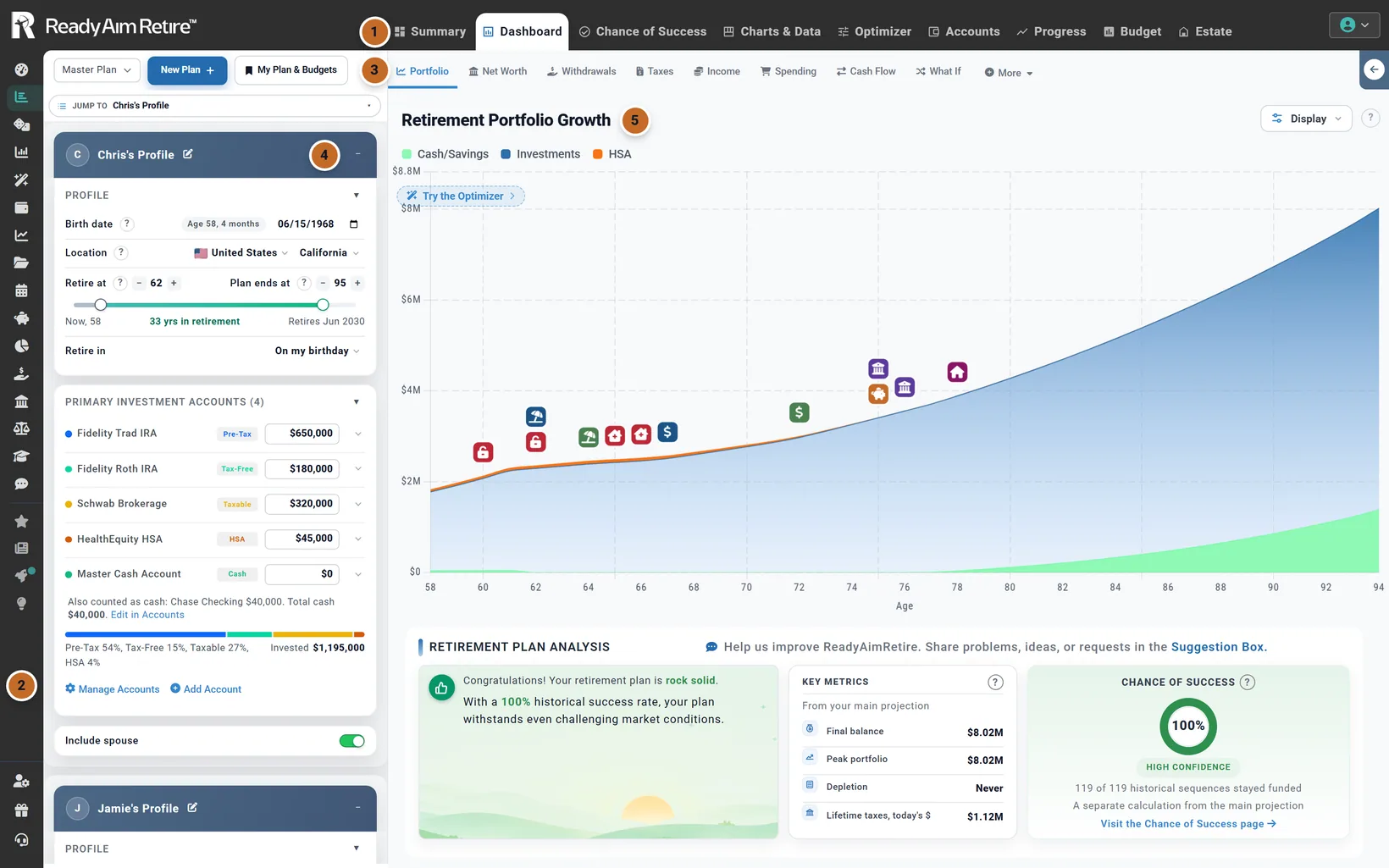
- 1The tabs across the top switch between the main views of your plan: Summary, Dashboard, Chance of Success, Charts & Data, Optimizer, Accounts & Assets (shown as Accounts on smaller screens), Progress, Budget and Estate.
- 2The menu on the far left has everything else, including the planners (Contributions, Allocation and Withdrawals), My Plans, the Learning Library and Support. Point at the menu to see the names.
- 3The plan bar shows which plan you are working on. Your first plan is called Master Plan.
- 4The settings panel is your plan. Everything you tell the planner goes into one of its boxes.
- 5The results fill the rest of the screen. They change the moment you change a setting.
How the settings work
The settings panel is a column of boxes. Each box covers one part of your plan: your profile, your spending, what you save, your taxes, and so on. Click a box's title bar to open or close it. Closing the boxes you have finished with keeps the column short.
Changing a number
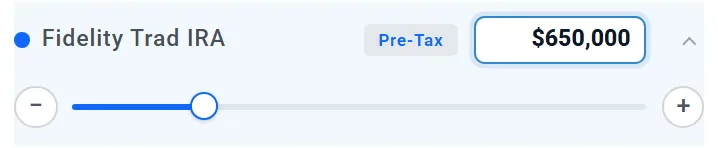
To keep the panel tidy, each setting rests as one line: its name and its value. Click the line to open it. A slider appears, with a minus button on one side and a plus button on the other.
Drag the slider, press the buttons, or click the value and type a new one. Press Esc, or click the line again, to close it.

Finding a box
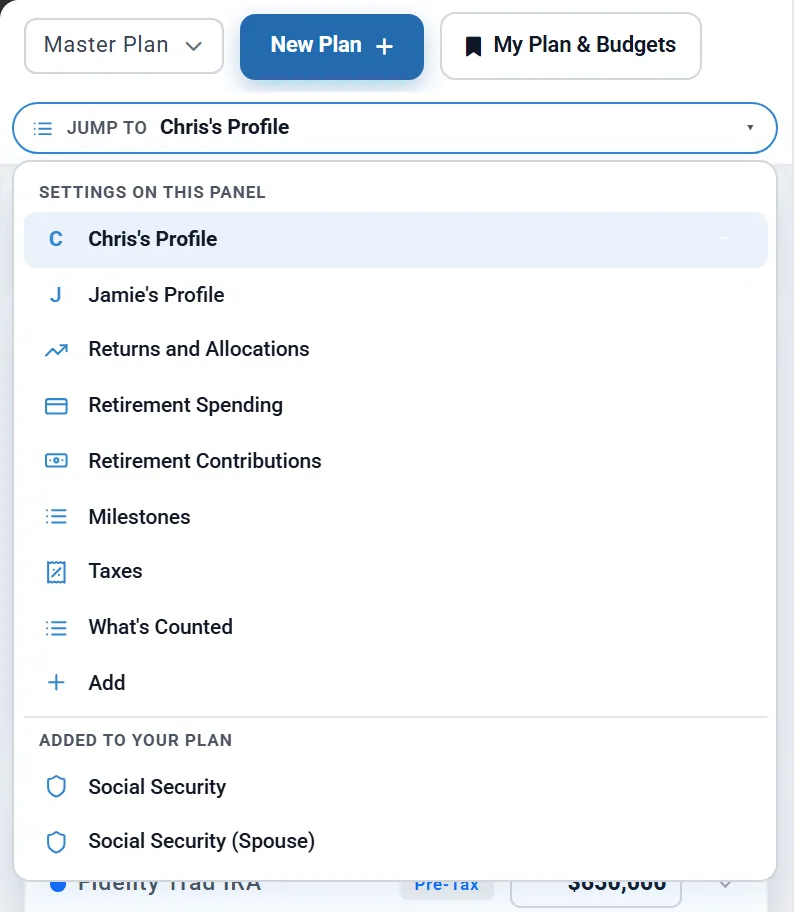
The Jump to bar at the top of the panel lists every box. Click it and choose a box to go straight there.
The boxes you add yourself (Step 5 shows how) are listed under Added to your plan. They appear near the bottom of the panel, so Jump to is the quickest way to reach them.
Help on any setting
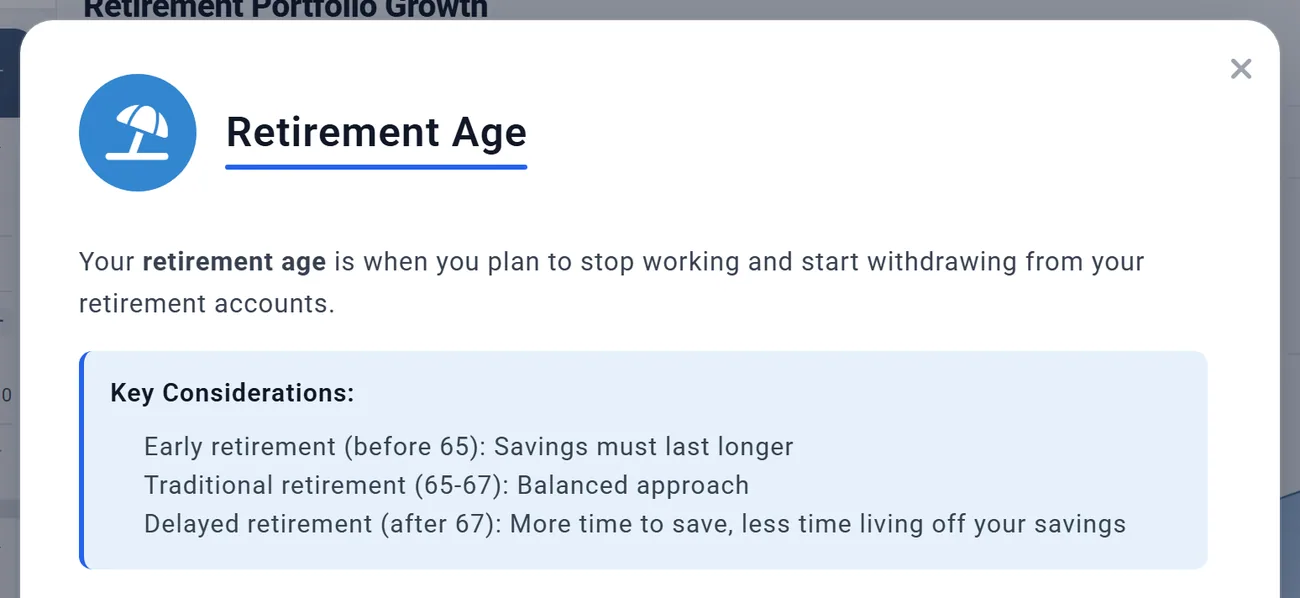
Most settings have a ? beside them. Click it to read what the setting means and how the planner uses it.
You and your spouse
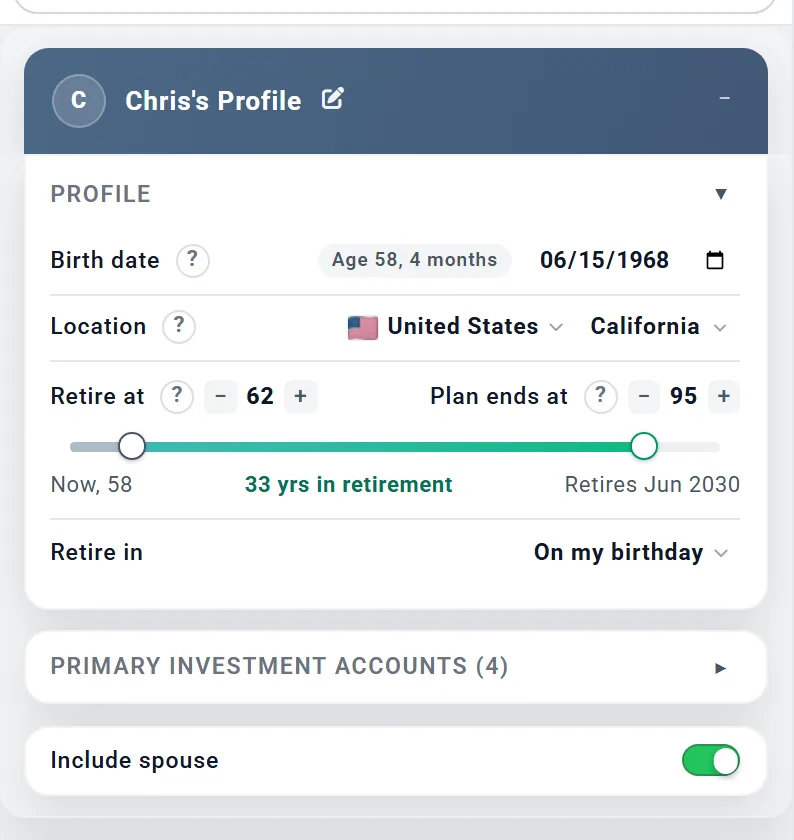
The first box in the panel is your profile. Almost everything else depends on it.
- Click the pencil beside the box's title and type your name.
- Birth date: type it, or pick it from the calendar. You do not need the exact day: the 1st of your birth month, or a nearby month, changes the results by only a few months.
- Location: your country and, in the US, your state. This tells the planner which taxes apply to you.
- Retire at: the age you plan to stop working. Plan ends at: the age your plan runs to. Pick an age you would be glad to reach; many people use 95. Already retired? Set Retire at to your age today. The "?" beside Plan ends at has a life expectancy estimator.
- Retire in: leave it on On my birthday, or choose the month you plan to retire.
- Planning as a couple? Switch on Include spouse at the bottom of the box. A second profile box appears below for your spouse. Fill it in the same way.
Your accounts
Your savings and investment accounts are entered on their own page. Click Accounts & Assets in the tabs at the top of the screen.
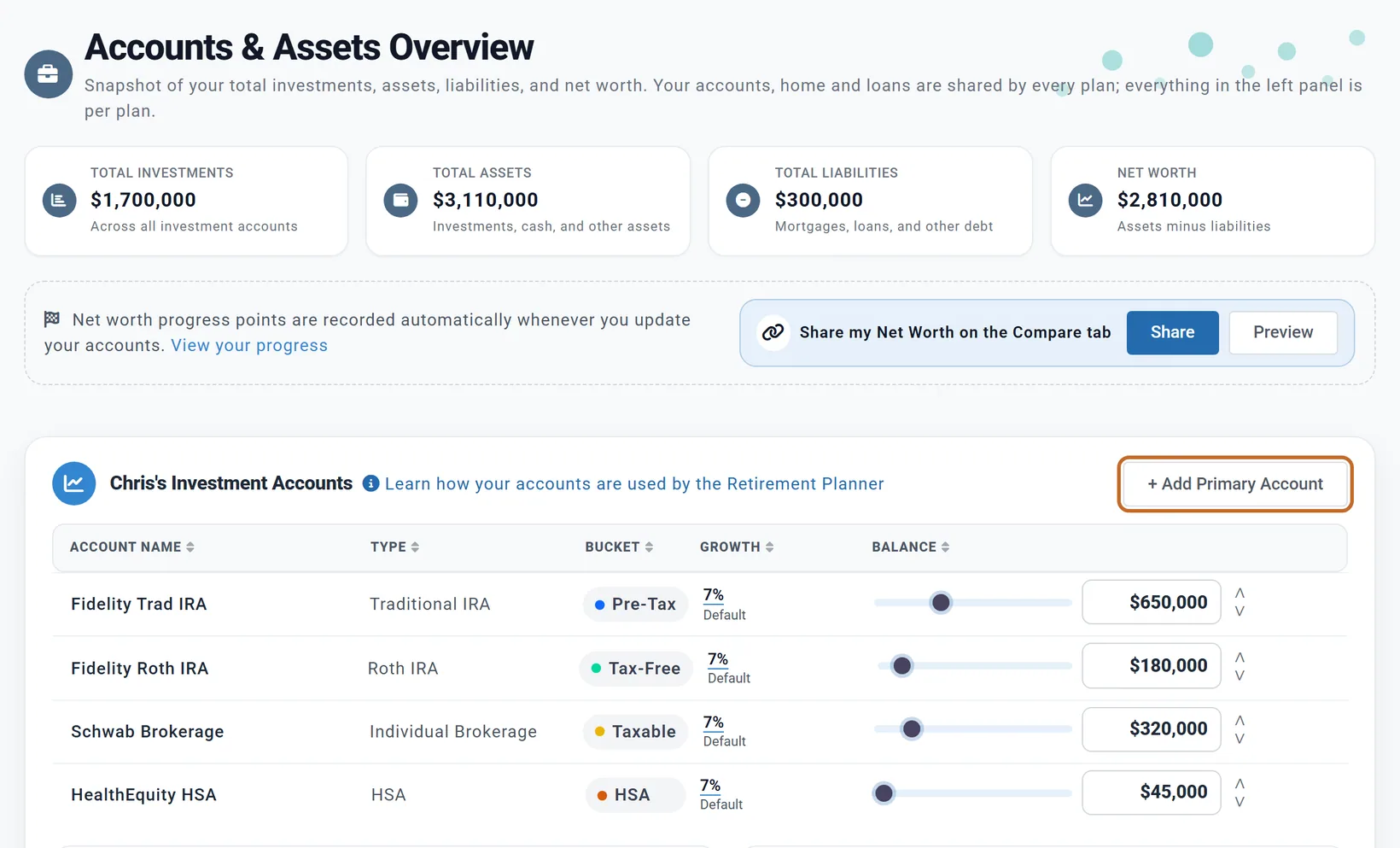
- Click + Add Primary Account. Your spouse's accounts have a card and an add button of their own.
- Choose the type of account. The type matters: it decides how withdrawals are taxed, when required minimum distributions start, and whether taking money out early costs a penalty.
- Enter the account's name and its balance today.
- Repeat for each account, including cash savings.
- Further down the page you can add your home, a mortgage, other property and any debts.
- Delete any example accounts that you do not have.
The planner sorts accounts by how they are taxed, and labels each one: Pre-Tax (a traditional 401(k) or IRA), Tax-Free (a Roth account), Taxable (a brokerage account), HSA and Cash.
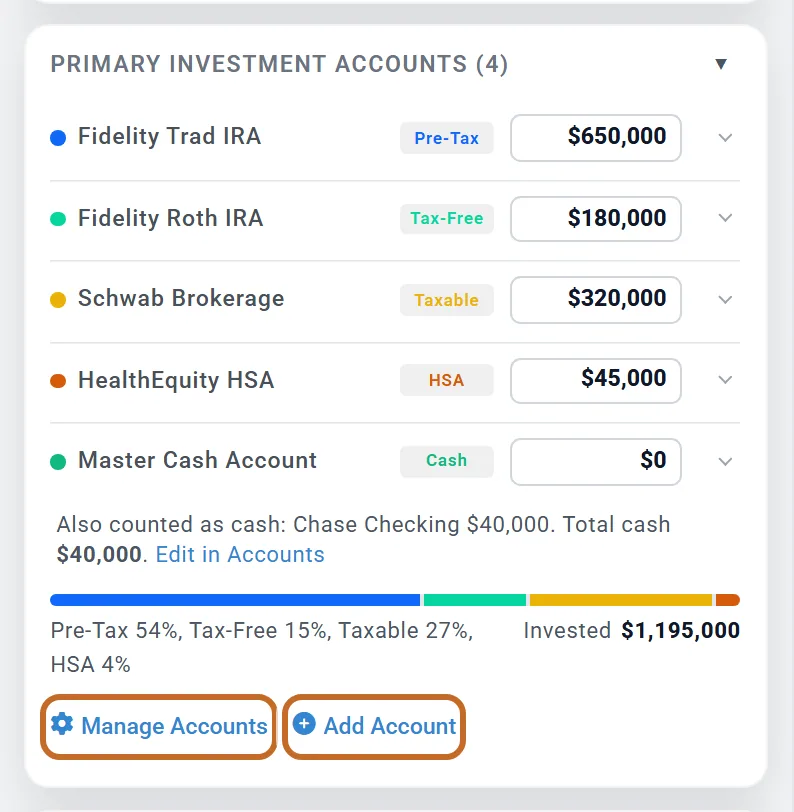
Your accounts in the settings panel
Back on the Dashboard, the same accounts appear inside your profile box, each with its balance. Click a row to change a balance quickly.
To add an account or change its type, use Manage Accounts or Add Account at the bottom of the list. Both take you to Accounts & Assets.
What you save
Still working? This step is for you. Already retired? Skip to Step 4.
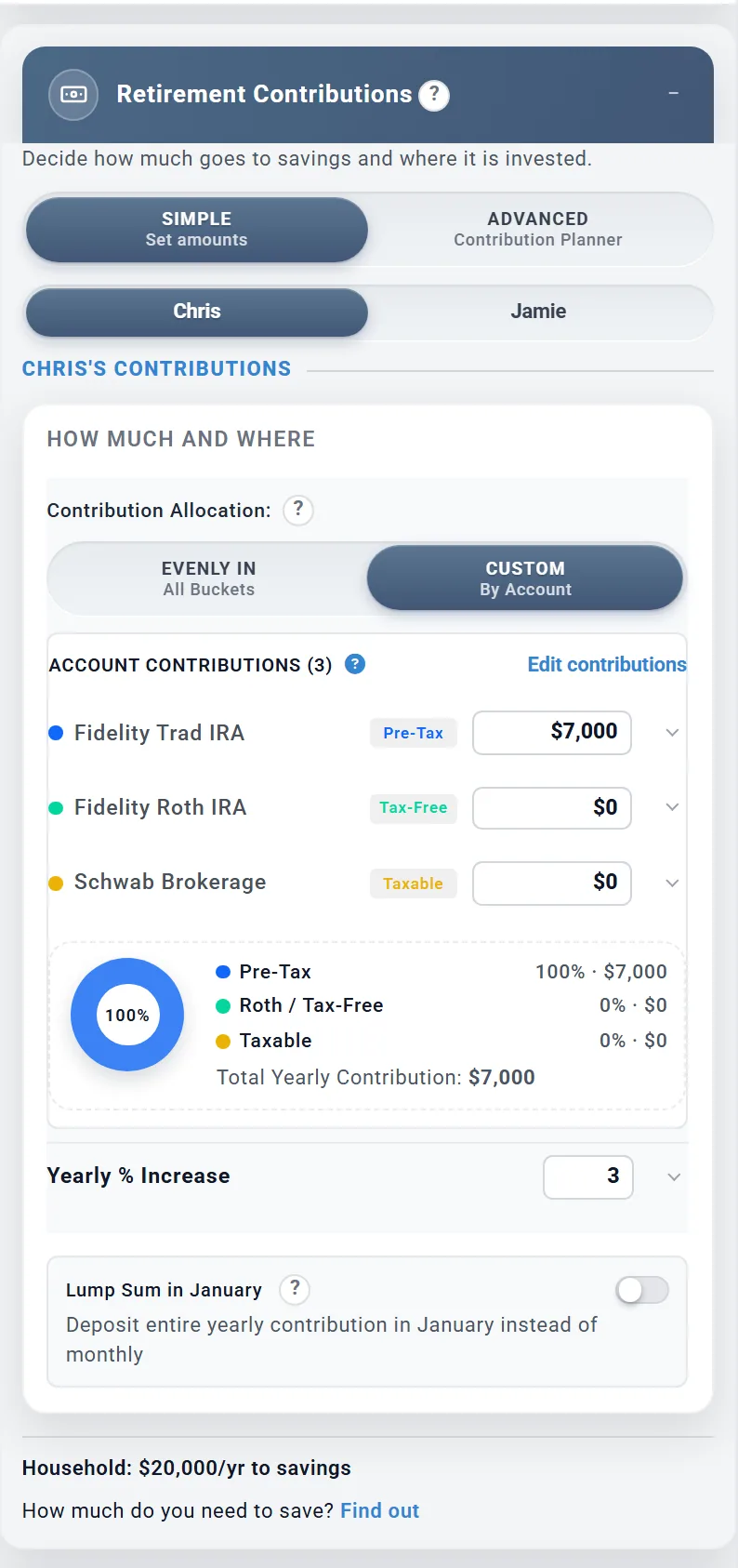
The Retirement Contributions box holds what goes into your accounts each year until you retire.
- Leave the box on Simple. It is the easiest way to start.
- Planning as a couple? Click each person's name in turn and fill in their part.
- Under Contribution Allocation, choose Evenly In to enter one yearly amount, or Custom to say how much goes into each account.
- Enter yearly amounts: everything that reaches your accounts in a year, your employer's contributions included. If you later set an employer match in Employment Income, take the employer's money out of these amounts: the planner then adds the match on top.
- Yearly % Increase raises the amount each year, for example as your pay goes up.
Not sure how much is enough? At the bottom of the box, How much do you need to save? Find out works it out for you.
What you will spend
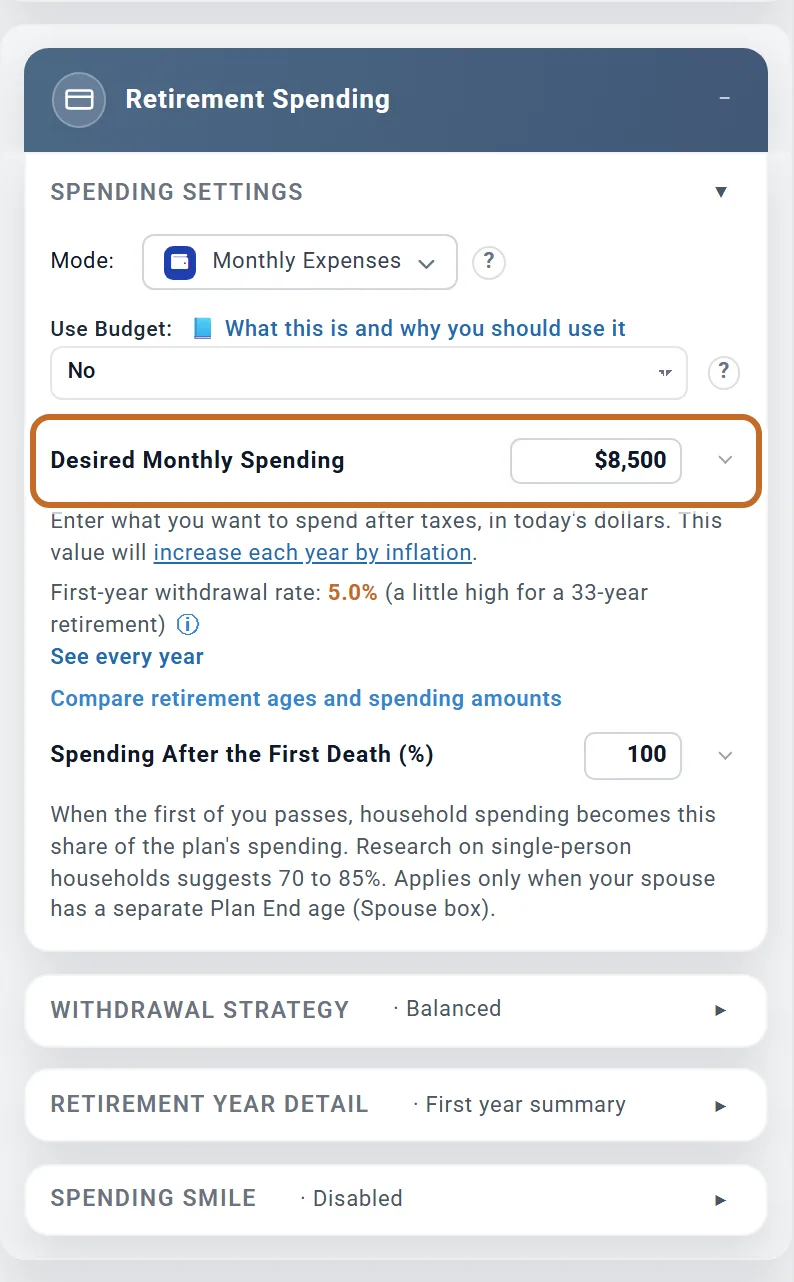
This is the most important number in your plan. In the Retirement Spending box:
- Leave Mode on Monthly Expenses.
- Enter Desired Monthly Spending: what you want to spend each month in retirement.
Enter it after taxes: the money you actually get to spend. The planner works out the tax on top.
Enter it in today's dollars: what the money would buy now. The planner raises it with inflation every year, so do not add inflation yourself.
Below the amount, the box shows your first-year withdrawal rate: how much of your savings the plan draws in its first year of retirement.
Social Security and other income
A new plan has no income switched on, so until you add it, the planner assumes you will get no Social Security. This is the step people most often miss.
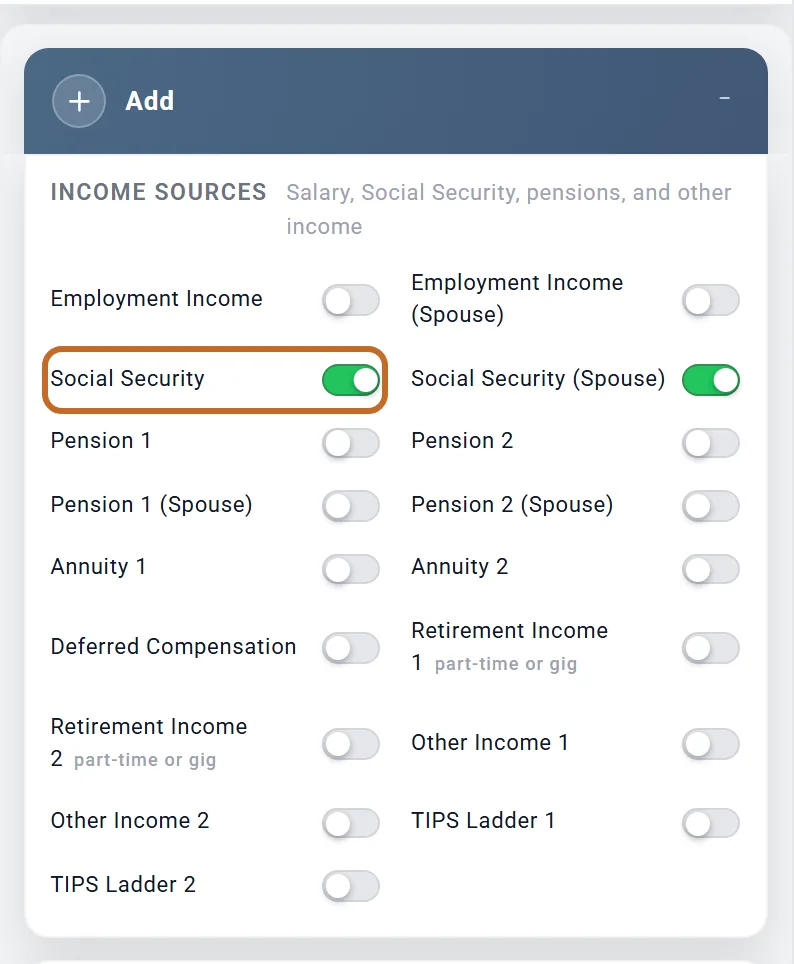
- Go to the Add box near the bottom of the panel (or choose Add in Jump to).
- Under Income Sources, switch on Social Security. For a couple, also switch on Social Security (Spouse).
- The new box appears below the Add box. Choose it in Jump to to go straight there.
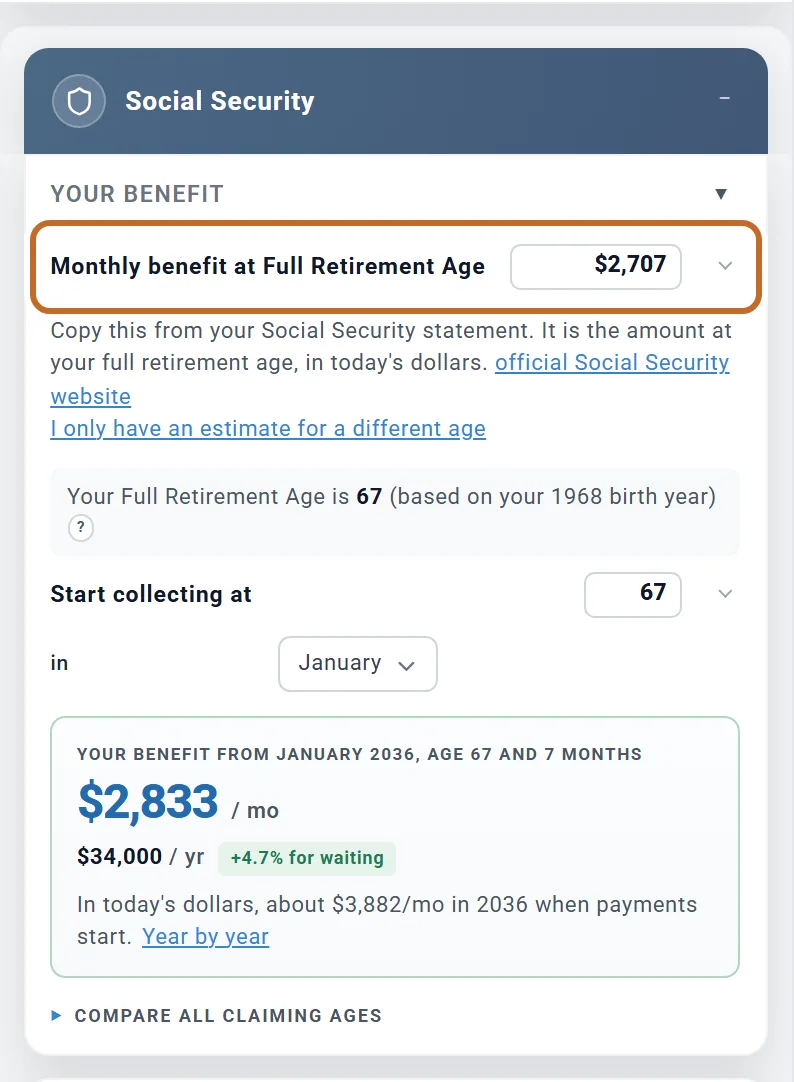
- Enter Monthly benefit at Full Retirement Age. Copy it from your Social Security statement (sign in at ssa.gov). Use the full retirement age amount even if you plan to claim earlier or later.
- Enter the age you plan to claim in Start collecting at, and the month. The planner lowers the benefit for claiming early, adds credits for waiting, and shows you the result.
Other income
The same Income Sources list switches on everything else that pays you:
- Employment Income: a salary before you retire.
- Pension 1 and Pension 2, and Annuity 1 and Annuity 2.
- Retirement Income 1 and Retirement Income 2: part-time or gig work in retirement.
- Other Income 1 and Other Income 2: any other regular income.
A one-time amount, such as an inheritance, goes under One-Time Events in the same box. Income from a rental property is entered with the property on Accounts & Assets.
Taxes and assumptions
Taxes
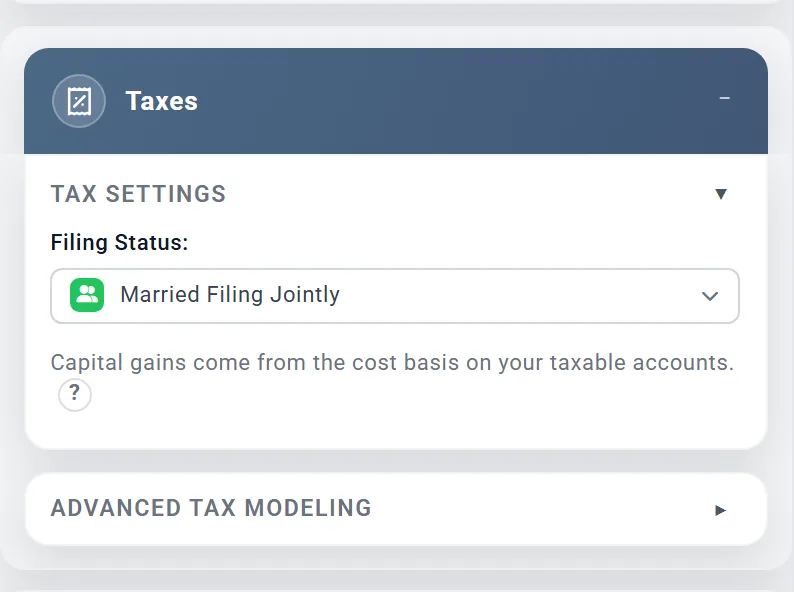
In the Taxes box, set Filing Status. A married couple planning together usually chooses Married Filing Jointly. Your state comes from Location in your profile.
The Advanced Tax Modeling section can stay closed for your first plan.
Returns and inflation
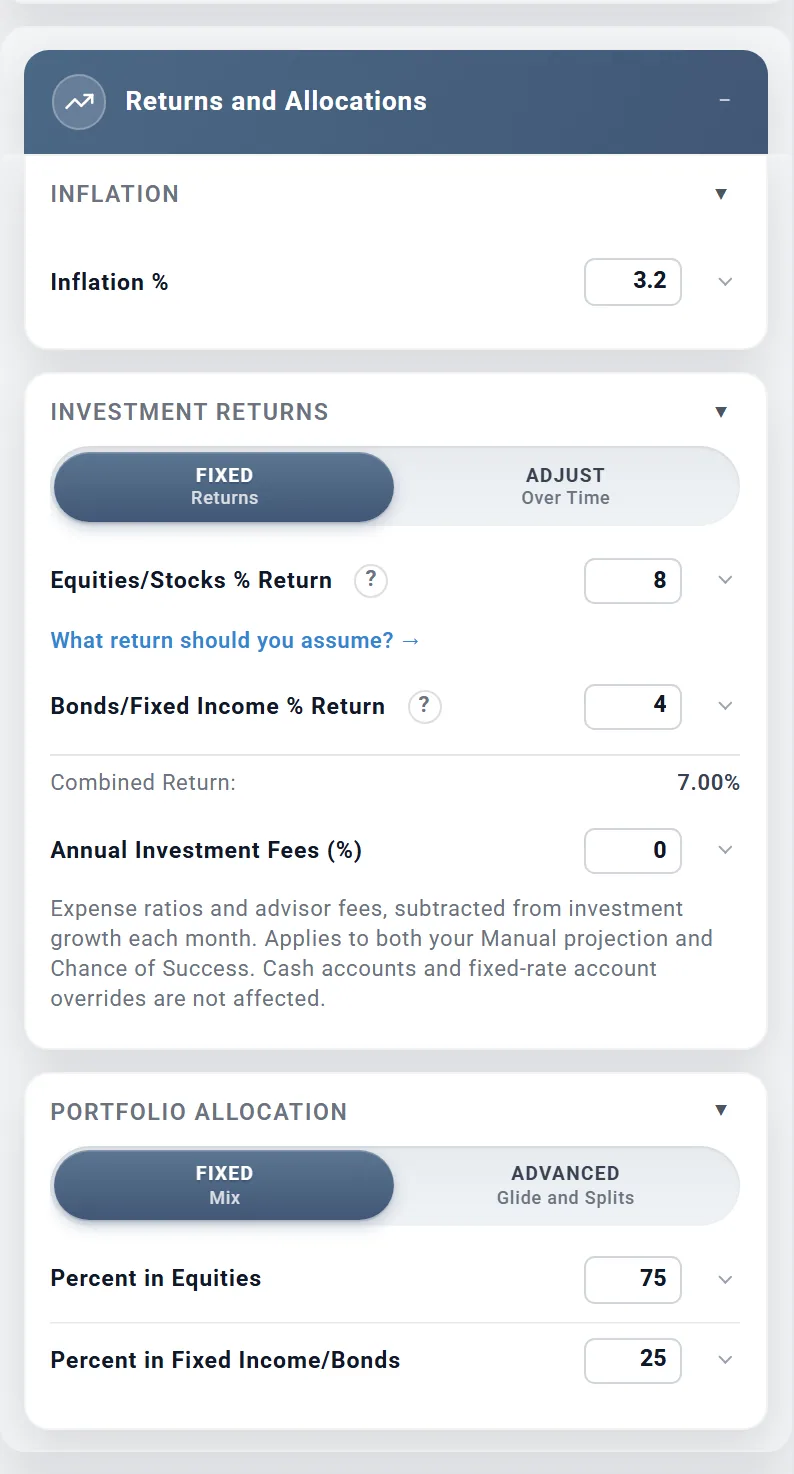
The Returns and Allocations box holds the planner's assumptions about the future:
- Inflation %: how fast prices rise each year.
- Equities/Stocks % Return and Bonds/Fixed Income % Return: how fast each kind of investment grows each year, before inflation is taken out.
- Percent in Equities: how much of your money is in stocks.
The starting values are reasonable. Look them over, and change them if you have a view. For help choosing, follow What return should you assume?, the link in the box, to the Learning Library article What Return Should You Assume? Every setting in the box is explained in Returns, inflation and your investment mix.
Read your results
With those six steps done, your plan describes you. Here is where to look, in order.
1. The Summary: a verdict on your plan
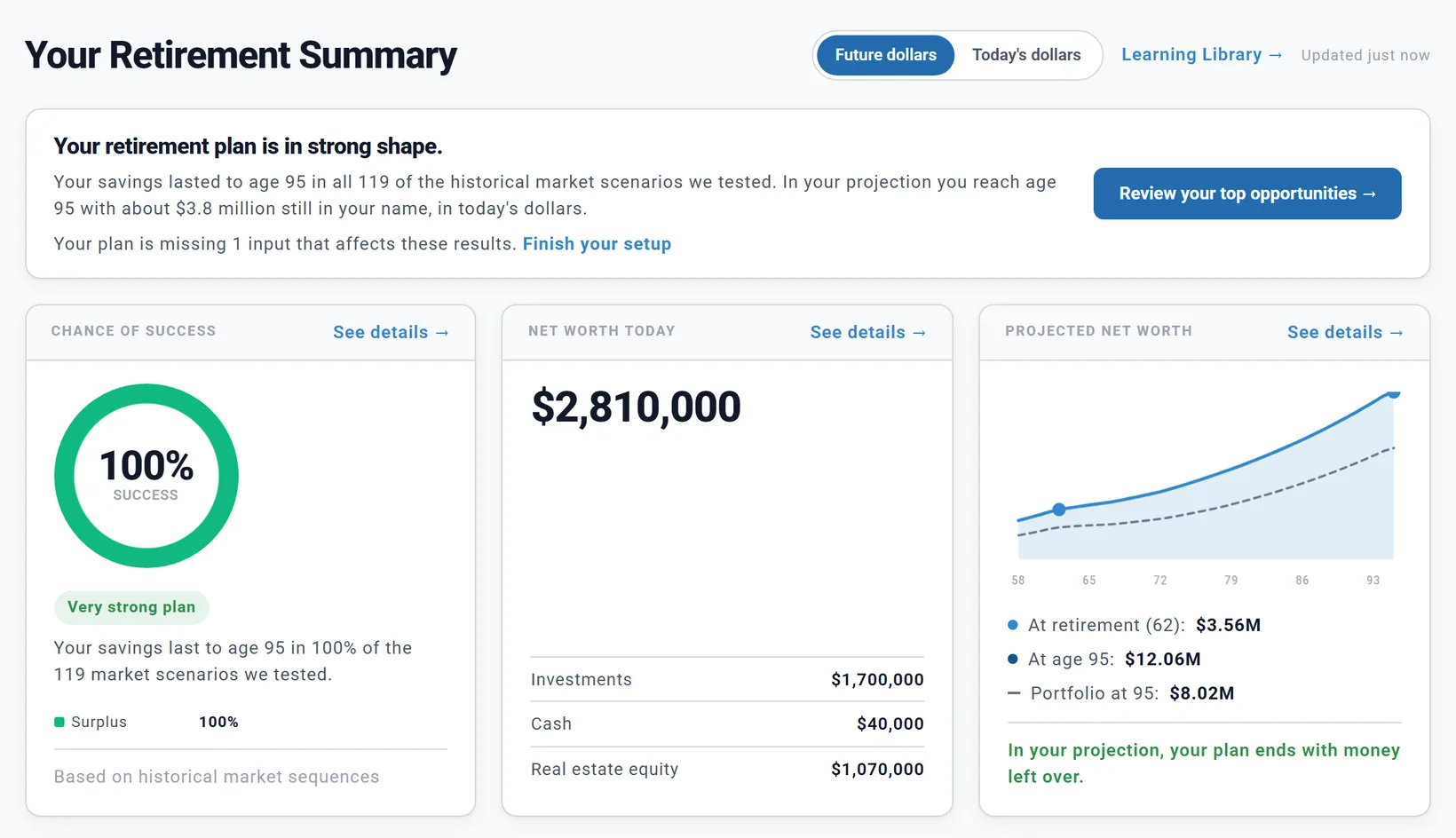
Click Summary in the tabs at the top. It opens with a plain-language verdict on your plan and the evidence behind it. If something important is still missing, it says so, and Finish your setup takes you there. The cards below answer the big questions: will the money last, what are you worth today, and what will you be worth later.
2. The Dashboard: your plan year by year
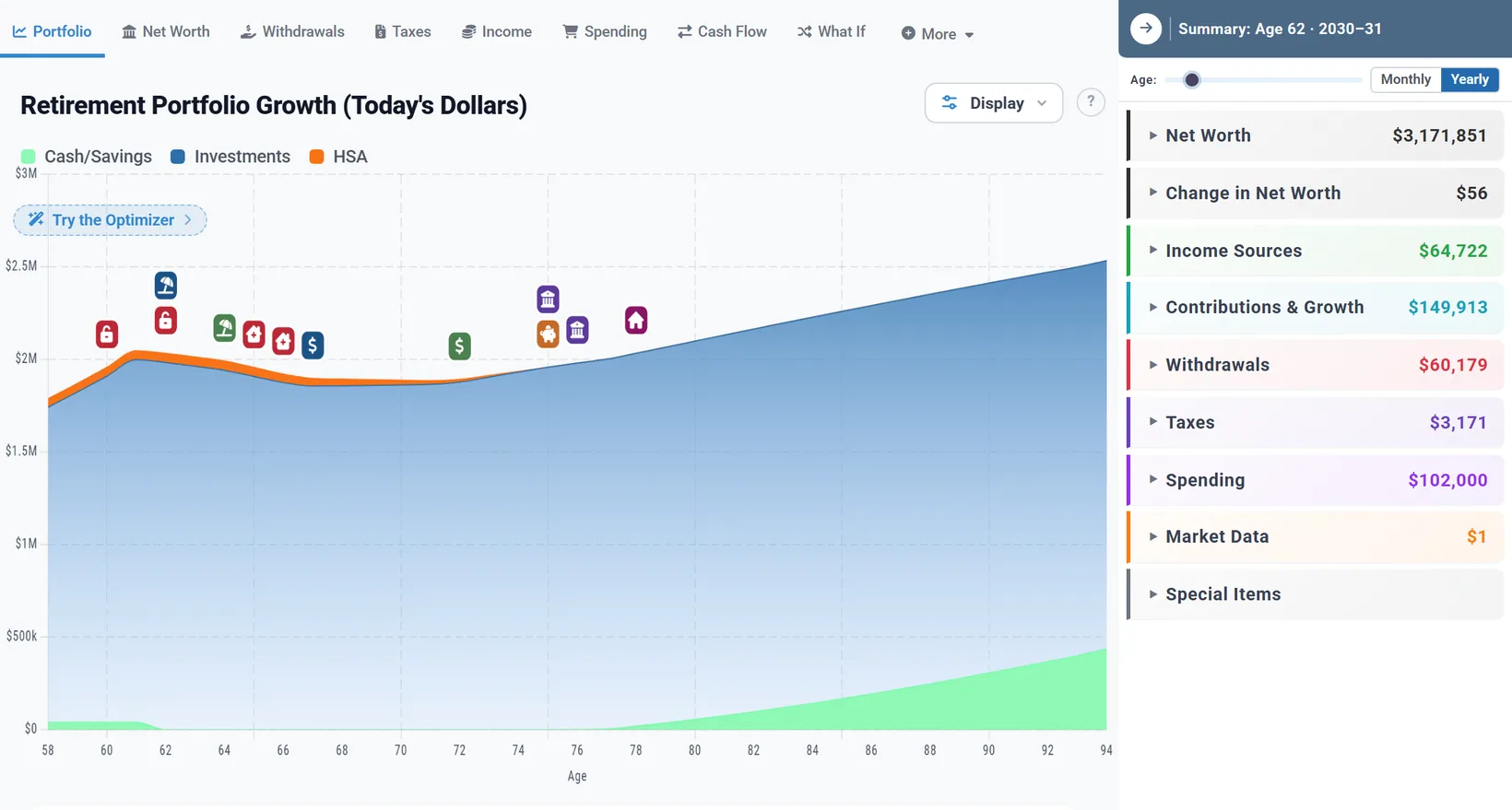
The Dashboard opens on the Portfolio chart: your savings at every age. Click any year on the chart to see that year's numbers in the panel on the right: income, withdrawals, taxes and spending. If the panel is closed, open it with the arrow at the top right of the chart. The other charts, such as Net Worth, Withdrawals and Taxes, are in the row of tabs above the chart.
Today's dollars or future dollars?
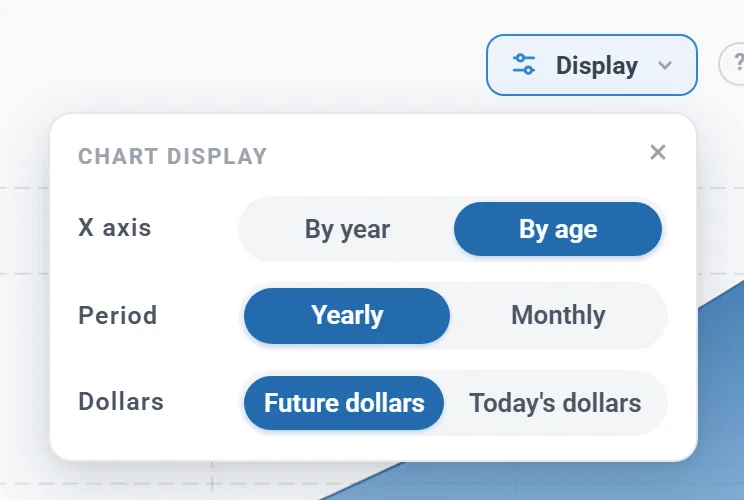
Charts start in Future dollars: the amounts you will actually see in each year, with inflation included. That makes later years look large.
To compare with the numbers you typed in, choose Today's dollars above the chart. Both show the same plan; only the measuring stick changes. The chart's choices sit in a row above it; in a narrower window they fold into a Display button at its top right.
3. Chance of Success: would your plan have lasted?
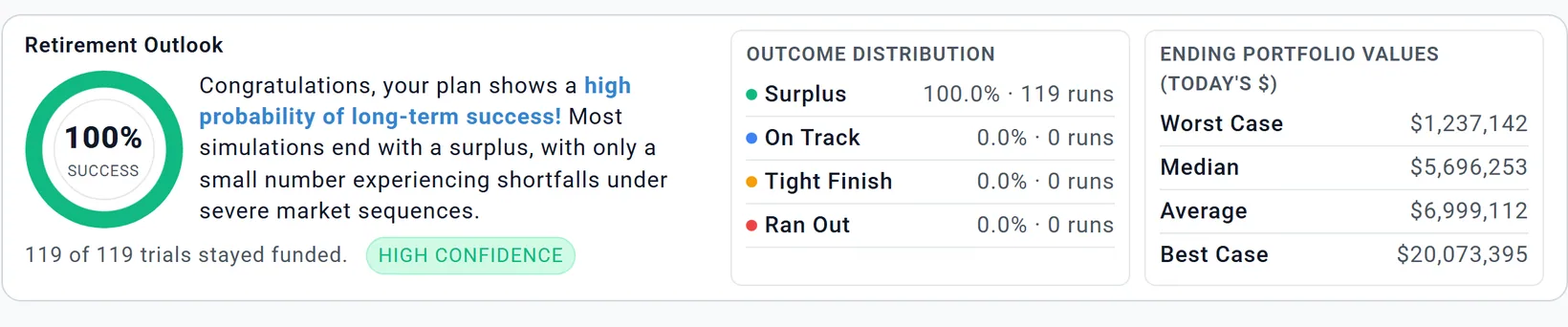
The Dashboard shows one projection, with the same return every year. Chance of Success tests your plan against real market history instead. It runs your plan through every stretch of history since 1871, good and bad, and counts how often the money lasted to the end.
So the two can differ. The Dashboard shows the shape of your plan; Chance of Success shows how sturdy it is.
Saving and coming back
- Your plan saves itself as you go. There is no Save button.
- Your first plan is called Master Plan. To try an idea without changing it, make another plan with New Plan in the plan bar, and switch between your plans there or with My Plan & Budgets. Planner+
- Your accounts are shared by all your plans (Step 2).
- Prefer to keep your plan off our servers? Privacy Mode keeps it in your browser instead.
Preview accounts and Planner+
When you sign up you get a Preview account. It lets you build a plan and see its main results: your profile and spending, simple contributions, taxes and assumptions, the Portfolio chart, your Chance of Success, and the Learning Library.
Planner+ adds the rest, including:
- Every chart, and the numbers behind them on Charts & Data.
- The Coach and Your Taxes on the Summary.
- Adding your own accounts, and entering your own Social Security and pension amounts.
- More than one plan, to compare ideas side by side.
- Linking a budget to your plan, the Contribution Planner's finer controls (amounts by year, fill to the limit, the order of your accounts), the Withdrawal Planner's finer controls (yearly cash amounts, a custom mix, the order of accounts within a bucket), and the Estate tab.
In the app, anything that needs Planner+ is blurred, or carries a Planner+ note.

Where to go next
Your first plan is built. When you are ready to go further:
Stuck? Questions people ask answers the common questions, and Getting help says how to reach us. Have an idea for the planner? Tell us in the Suggestion Box.