



 Continue with Google
The Summary at a glance
The Summary is one page that answers the big questions about your plan: will the money last, what are you worth, what will you pay in tax, and what to look at next. Open it with Summary, the first tab at the top (or Summary in the left menu). Signing in opens the Dashboard; a reload reopens the tab you were on.
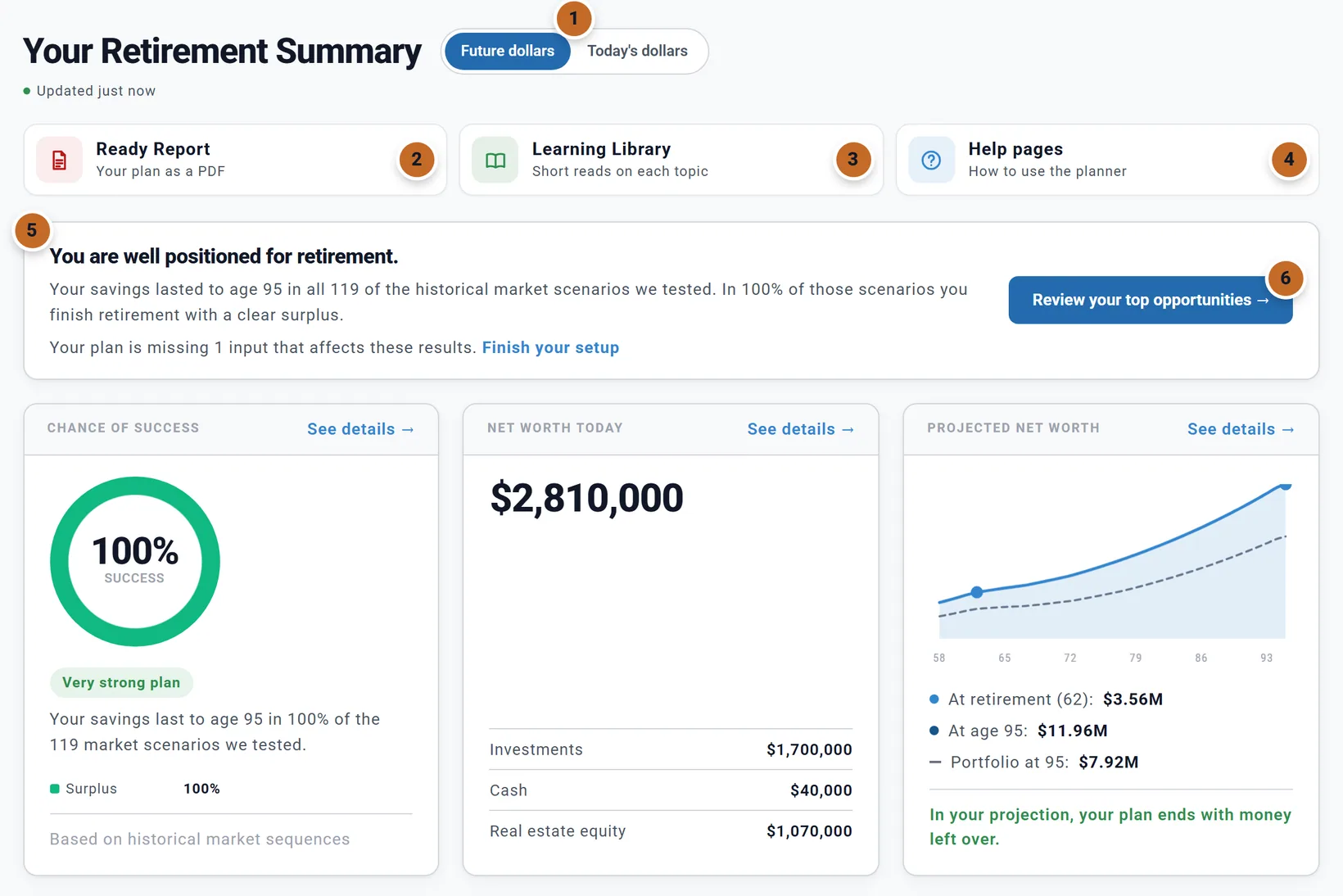
- The dollars switch, Future dollars or Today's dollars (see Future or today's dollars on the Summary).
- Ready Report opens a page inside the Summary where you make a PDF of your plan, or spreadsheets of its numbers, to print or share. Its Report for menu picks which of your plans; choosing one opens that plan and keeps you on the page. It shows when you are signed in.
- Learning Library opens the library inside the Summary.
- Help pages opens these help pages in a new browser tab, so your plan stays open.
- The verdict: your plan in a sentence or two (see The verdict at the top).
- Review your top opportunities → opens the Coach.
Under the title, "Updated just now" (or "Updated 5 min ago") says when the numbers were last worked out. The Summary refreshes itself after every change to your plan; there is nothing to save. Your plan's boxes stay in the left column beside it. On a wide screen the three tiles sit beside the title; on a narrower one they take a row of their own under it.
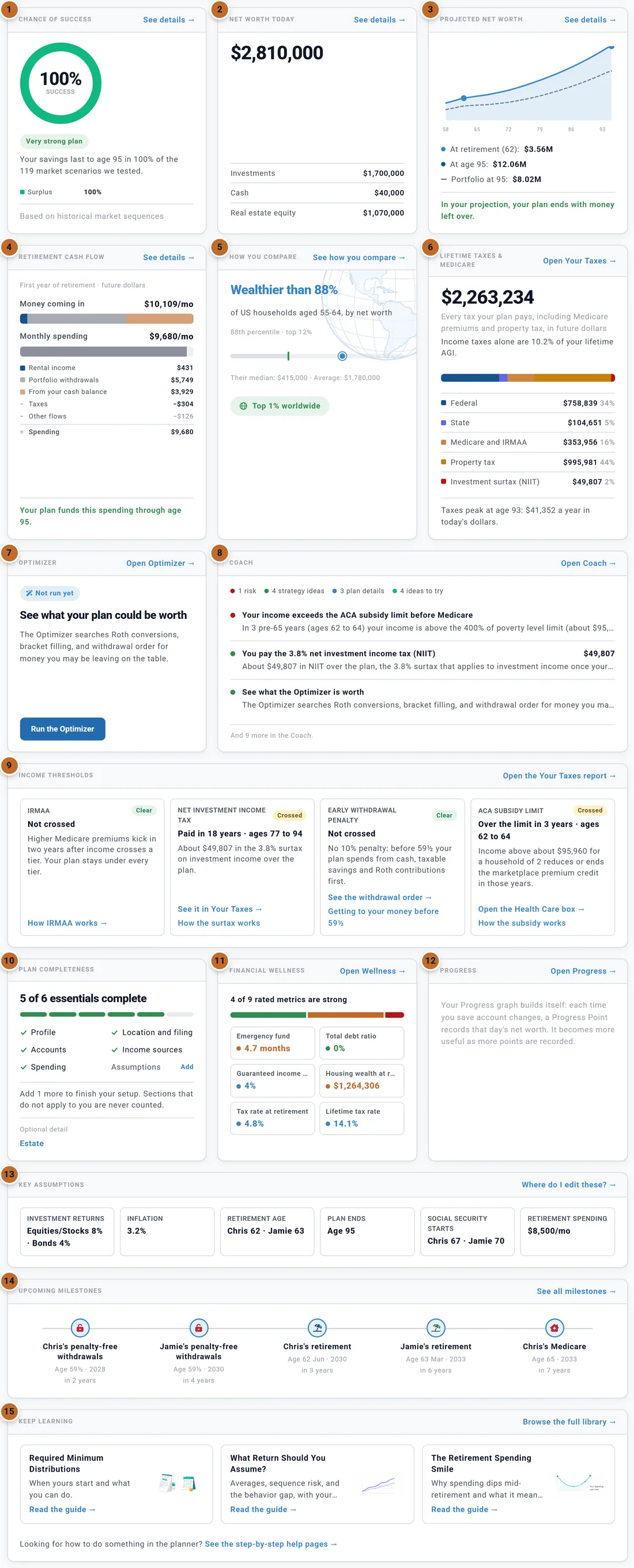
Under the verdict are 15 cards (13 outside the US), in this order:
- Chance of success
- Net worth today
- Projected net worth
- Retirement cash flow
- How you compare US
- Lifetime taxes & Medicare
- Optimizer
- Coach
- Income thresholds US
- Plan completeness
- Financial wellness
- Progress
- Key assumptions
- Upcoming milestones
- Keep learning
Most cards have a link in their top right corner that takes you to the full picture, such as See details →.
Opening the Coach, Financial Wellness, the Learning Library or Your Taxes replaces the cards with that view. To get the cards back, use ← Summary in the trail under the header, or go to another tab and come back.
The verdict at the top
The box at the top sums up your plan in a headline and a few sentences. The headline depends on your Chance of Success and on your projection:
| When | The headline reads like |
|---|---|
| Chance of Success 90% or more, and money left at the end | "Your plan is on track." |
| 90% or more, but your projection uses up the money in its last year | "Your plan is on track, with little to spare." |
| 60% to 89%, or a high rate while your projection runs out early | "Your plan is close. A few changes could secure it." |
| Under 60% | "Your plan needs attention." |
- The wording changes from week to week. Each level has three ways of saying the same thing: this week Chris and Jamie read "You are well positioned for retirement.", other weeks "Your retirement plan is in strong shape." or "Your plan is on track." The verdict itself only changes when your numbers do.
- The first sentence is the Chance of Success result: "Your savings lasted to age 95 in all 119 of the historical market scenarios we tested." Others pick facts from your plan: what is still in your name at the end (always in today's dollars), your first-year withdrawal rate, years until you retire, what the Optimizer found.
- While Chance of Success is still running, the box speaks about your projection only and says "Testing your plan against historical market scenarios...".
- When your projection runs out of money but most scenarios succeed, the box explains why the two differ: your projection assumes the same return every year, while the scenarios replay real market history. See Reading your results.
- A plan that needs attention also lists "Top concerns" from the Coach.
- "Your plan is missing 1 input that affects these results." means Plan completeness has something left. Finish your setup scrolls to that card and outlines it.
- The ages are the Primary's. When the spouse's own Plan End runs longer, the verdict names the longer life, for example "age 93 for Jamie".
Will the money last?
Chance of success
A ring with the share of historical market scenarios in which your savings last to the end of your plan, coloured by outcome (Surplus, On Track, Tight Finish, Ran Out). A chip rates it: "Very strong plan" (90% or more), "Strong plan" (75% to 89%), "Moderate" (60% to 74%), "Needs attention" (40% to 59%), "Needs work" (under 40%). "Mixed signal" means a high rate while your own projection runs out early.
- If no result exists for your current plan, the card runs Chance of Success itself in the background ("Running market scenarios..."), so the Chance of Success tab then opens at once.
- If any scenario ran out, the footer names the age it ran out in the worst one.
- See details → opens the Chance of Success tab. What the number means: Chance of Success and guardrails.
Projected net worth
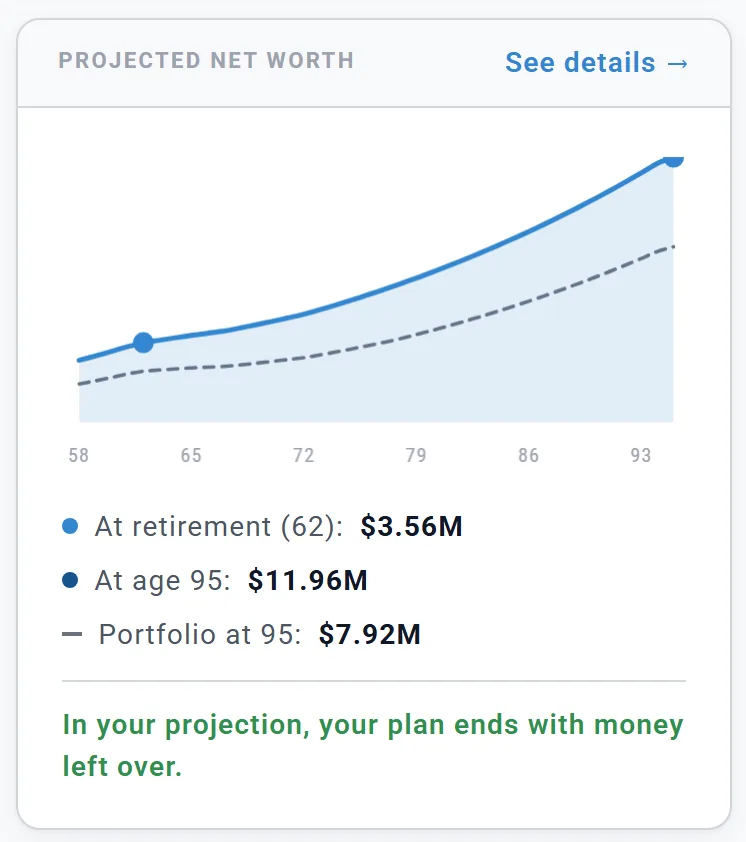
Your net worth each year from today to the end of your plan, by the Primary's age. Point at the line to read a year. The solid line is everything you own less what you owe; the dashed Portfolio line is your savings alone (it shows when you also own a home or other assets). Under the chart: your net worth at retirement and at the end, and your portfolio at the end. If your savings run out, an amber dot marks the age: net worth can keep rising after that, but it is home equity and other assets, not money you can spend.
See details → opens the Dashboard's Net Worth chart: the same projection, year by year, account by account. Planner+
Retirement cash flow
Your first 12 months after the Primary retires, as a monthly average: Money coming in against Monthly spending, then the rows that add up to your spending: each income source, portfolio withdrawals, money from your cash balance, less taxes and "Other flows" (such as premiums or costs paid beside your spending).
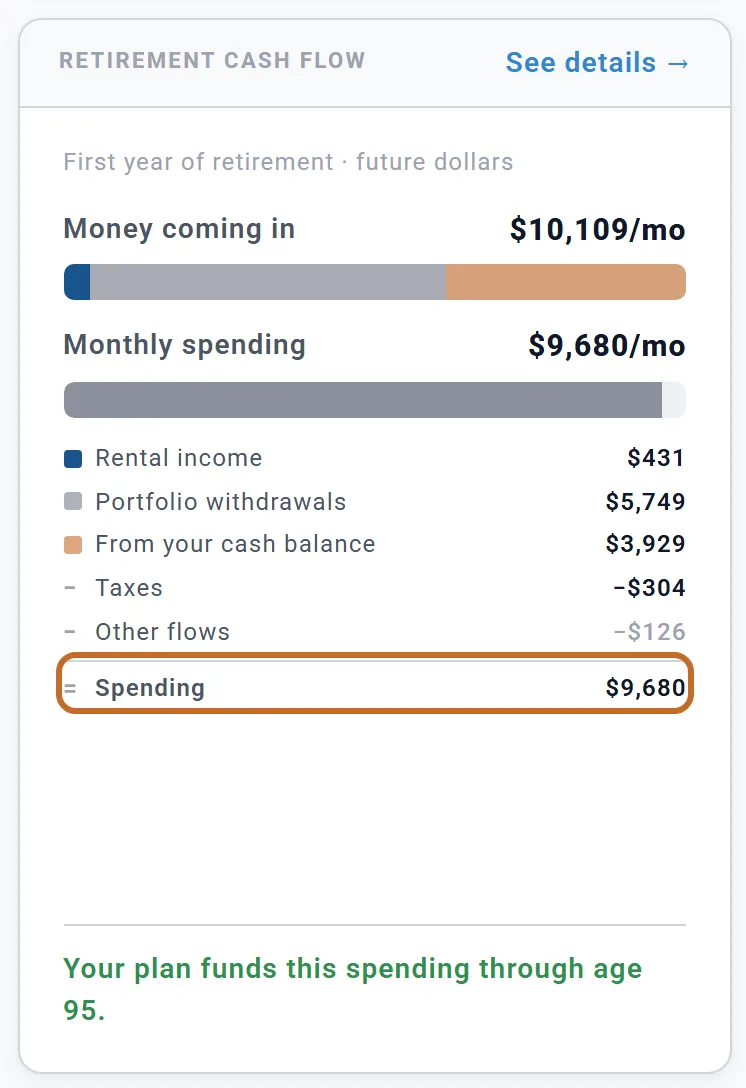
- "Salary (still working)" appears when one of you still has Employment Income in that first year.
- With no retirement spending set, the card says "Add your retirement spending to make this comparison accurate."
- See details → opens the Dashboard's Income chart. Planner+
What you have now
Net worth today
Today's net worth and the rows that add up to it: Investments, Cash, Real estate equity (home and rental values less their linked mortgages), and when you have them, other assets, annuity contracts, deferred compensation and other debts. The figures are your account balances, so they are the same in future and today's dollars. Chris and Jamie: $2,810,000.
- Once you have a Progress Point from an earlier day, a chip shows the change since the latest one ("since your Oct 16 Progress Point"). With two or more points, a small chart and Net Worth Progress → appear.
- See details → opens Accounts & Assets.
Progress Planner+
How your recorded net worth has grown since your first Progress Point, with a small chart. A Progress Point is recorded on each day you change your accounts (see Progress points). Until you have a few, the card explains how it builds itself. If your balances have not been updated for over 30 days, it says so, with a link to update them. Open Progress → opens the Progress tab.
The two growth figures differ on purpose: Net worth today compares with your latest earlier point, Progress with your first.
How you compare US
Your household's net worth ranked against US households in the Primary's age group (from the Federal Reserve's Survey of Consumer Finances 2022, in today's dollars), with their median and average. Chris and Jamie read "Wealthier than 88%" "of US households aged 55-64, by net worth". Click the card, or See how you compare →, for the Learning Library guide How Do You Stack Up?
Taxes
Lifetime taxes & Medicare Planner+
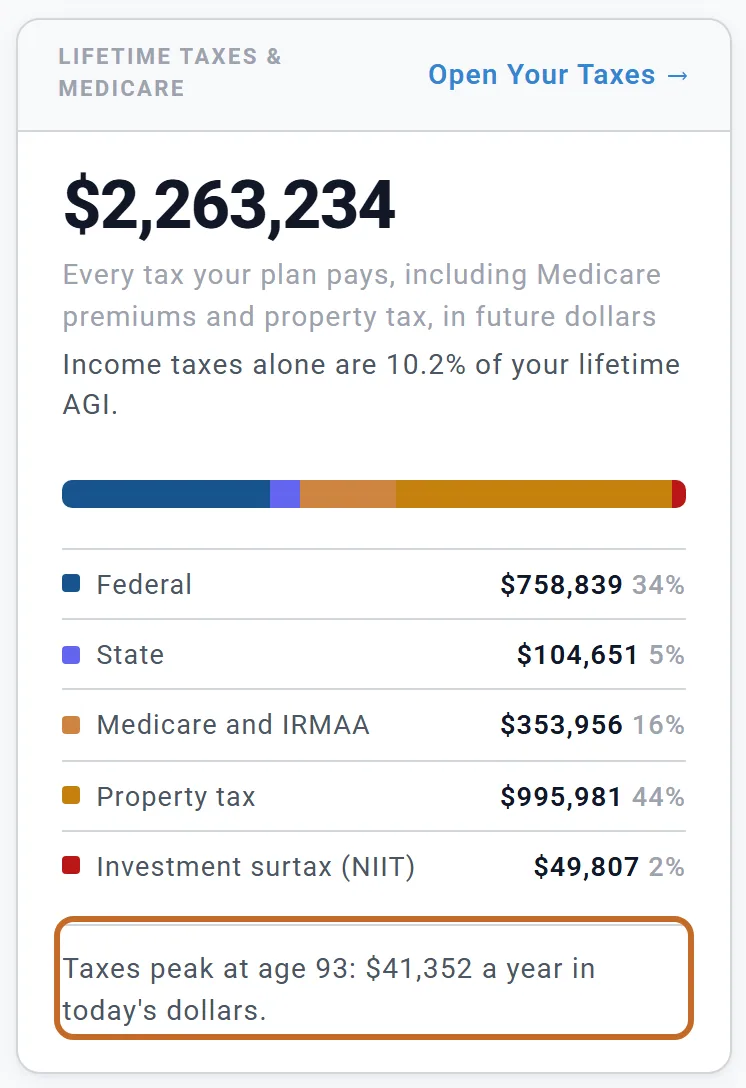
Every tax your plan pays over its life, including Medicare premiums and property tax: the same figure as the top of Your Taxes. A bar and rows split it into Federal, State, Medicare and IRMAA, Property tax, Investment surtax (NIIT) and Other taxes (payroll tax, the 10% early-withdrawal penalty and small amounts).
- "Income taxes alone are 10.2% of your lifetime AGI." divides the income taxes (not property tax or Medicare) by your lifetime income before deductions (adjusted gross income; taxable income outside the US).
- The footer, "Taxes peak at age 93: $41,352 a year in today's dollars.", is always in today's dollars, whatever the switch says.
- Without a state, the card says "Add your state (Location, in your profile) for more accurate taxes."
- Open Your Taxes → opens Your Taxes (see Your Taxes).
Income thresholds US Planner+
Four income limits that cost money once you cross them, each with a status: Crossed, Clear, Not modeled or Not applicable. Every figure comes from your projection, in future dollars (the switch does not change them).
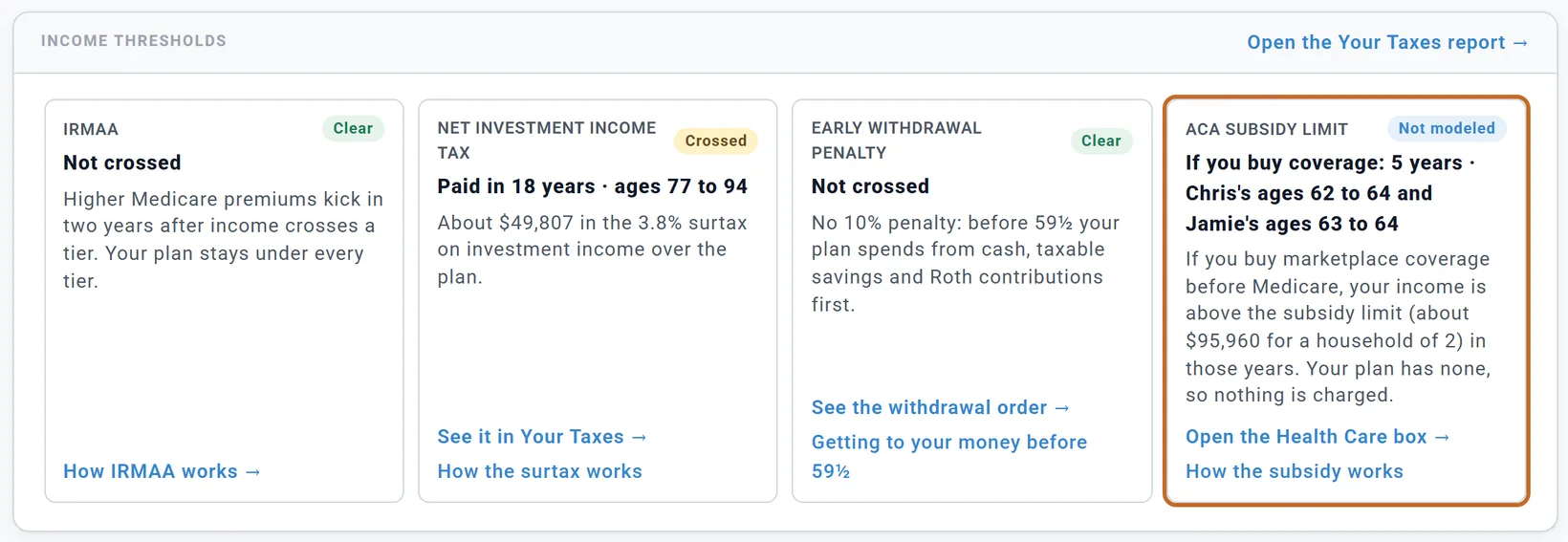
- IRMAA: higher Medicare premiums from income two years earlier. Crossed counts once the plan pays at least $500 extra.
- Net investment income tax: the 3.8% surtax on investment income above the threshold.
- Early withdrawal penalty: the 10% penalty before 59½. Clear means your plan spends from cash, taxable savings and Roth contributions first; "Behind you" once you are both past 59½.
- ACA subsidy limit: in the retired years before 65, yours or your spouse's, income above the limit reduces or ends the marketplace premium credit. Crossed means your plan has marketplace coverage and income goes over the limit; Not modeled means the plan has no marketplace coverage, and the tile says what would happen if you bought it ("If you buy coverage", with the years over the limit, or that income stays under it); Not applicable means nobody is retired before 65. See Retiring before 65.
Each tile links to where to act and to its Learning Library guide. Open the Your Taxes report → opens Your Taxes.
Is the plan filled in?
Plan completeness
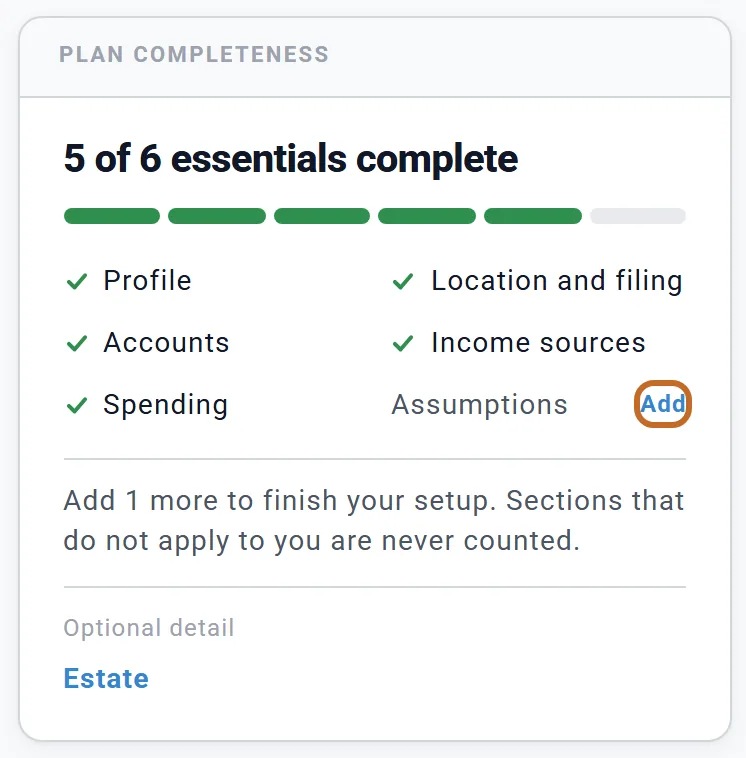
"5 of 6 essentials complete", a checklist, and Add beside each one still open. It checks whether you changed the starting values, not whether your numbers are right, so keeping a default on purpose still reads as open. That is fine: Chris and Jamie kept the default returns and inflation, so Assumptions stays open.
| Essential | Ticked when |
|---|---|
| Profile | Your name or birth date is changed from the starting one, or a spouse is included. |
| Location and filing | A state is chosen (or a country other than the US). The state is under Location in your profile box; your filing status is in the Taxes box. |
| Accounts | You have entered any account. |
| Income sources | One of these boxes is on and counted: Social Security (either of you), a government pension, a Pension or Defined Benefit Pension, Retirement Income, an Annuity, a One-Time Benefit, Other Income, or Employment Income. |
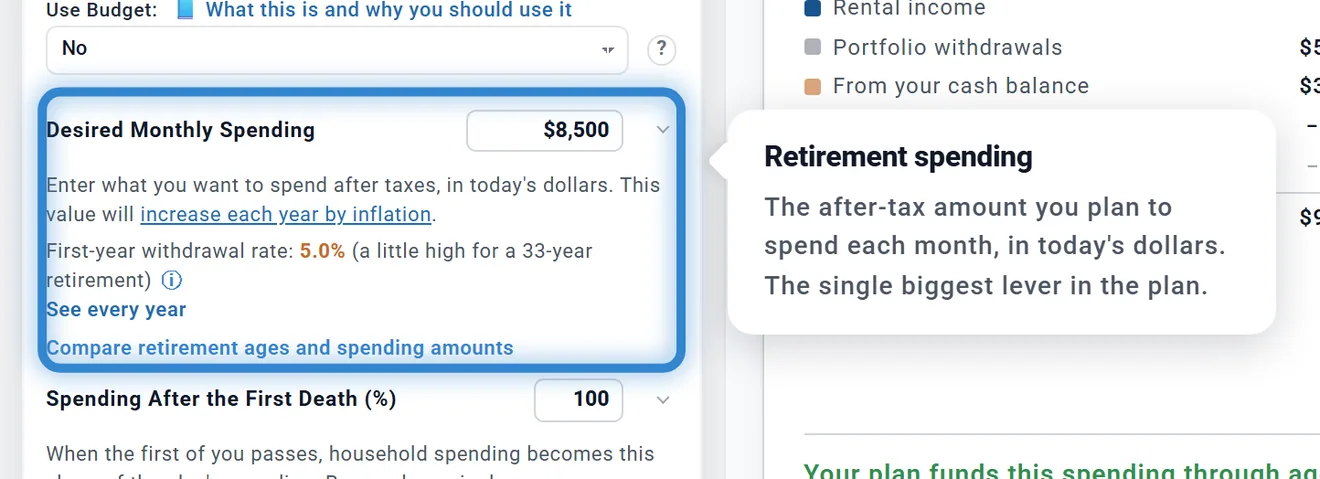
| Spending | Desired Monthly Spending is changed from $5,800, another spending mode is chosen, or a budget is linked. |
| Assumptions | Inflation, the stock return, the bond return or the stock share is changed from 3.2%, 8%, 4% or 75%, or another allocation method is chosen. |
- Add opens the Dashboard with the box outlined (Accounts opens Accounts & Assets). Use ← Summary in the trail to come back.
- "Optional detail" links are never counted: Estate opens the Estate tab (see The Estate tab), and Interest and dividends, shown only when you enter those amounts yourself, opens a small dialog on the Summary (see Questions people ask).
- When all six are done, the card shrinks to "Your plan setup is complete".
Key assumptions
The six inputs every number on the page depends on, each with the value your plan uses: Investment returns, Inflation, Retirement age, Plan ends, Social Security starts (when payments start in the projection, each person at their own age) and Retirement spending (with a linked budget, the budget's amount at retirement). It is the quickest way to check that the plan says what you think it says.

Click a chip and you stay on the Summary: the box that holds it opens in the left column with the control outlined and a short note. Where do I edit these? → outlines your profile box.
What to do next
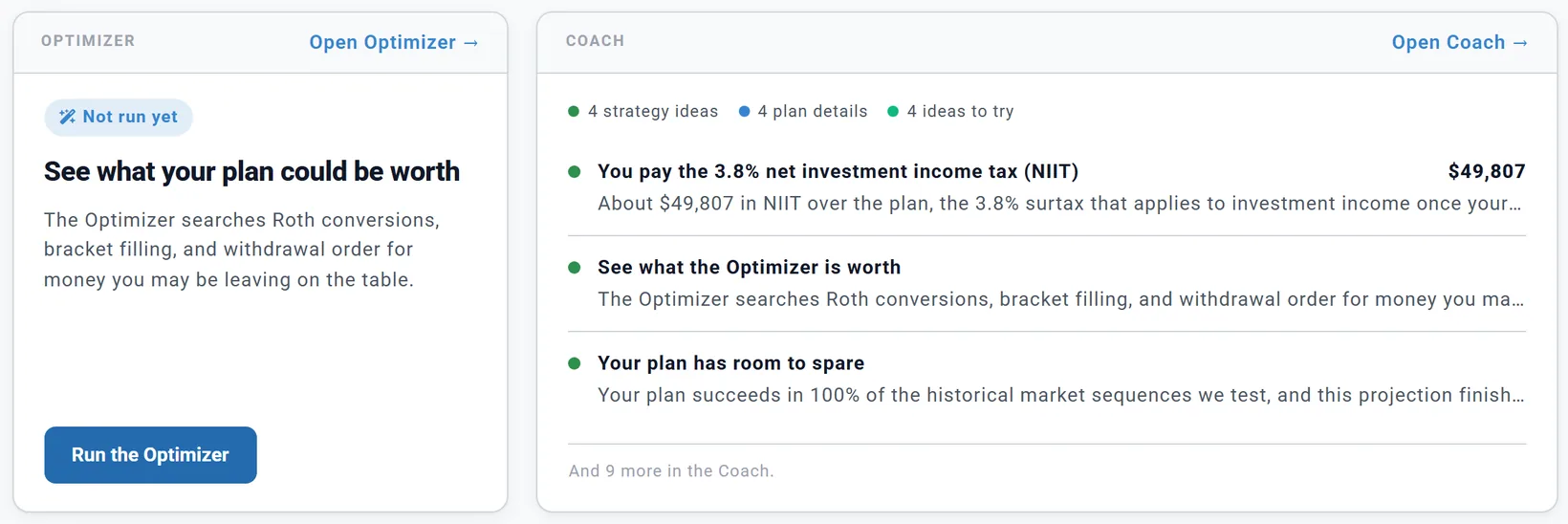
Coach Planner+
A count of the open suggestions by kind, then the top three. Click a suggestion to open the Coach with it selected, or Open Coach → to open it at the top. The dots: red for a risk, purple for a key date, green for a strategy idea, blue for a plan detail, teal for an idea to try. See The Coach.
Optimizer Planner+
Before you run it: "Not run yet" and Run the Optimizer. After you apply its changes, one sentence compares your plan with and without them (in future dollars, worked out again whenever your plan changes). If you change your plan after a run, it says so and offers Re-run the Optimizer. The card needs Planner+; the Optimizer tab itself does not. See The Optimizer.
Upcoming milestones
The next five events in your plan, automatic ones included (retirement, Social Security, Medicare, required minimums, 59½ (no more early-withdrawal penalty), sales, your own milestones), each with the age of the person it is about, the month and year, and how far away it is. The Social Security, Medicare and required-minimum markers open their Learning Library guide; a retirement marker opens that person's profile box. See all milestones → opens the Dashboard's Portfolio chart, where milestones are flags along the bottom. See Milestones.
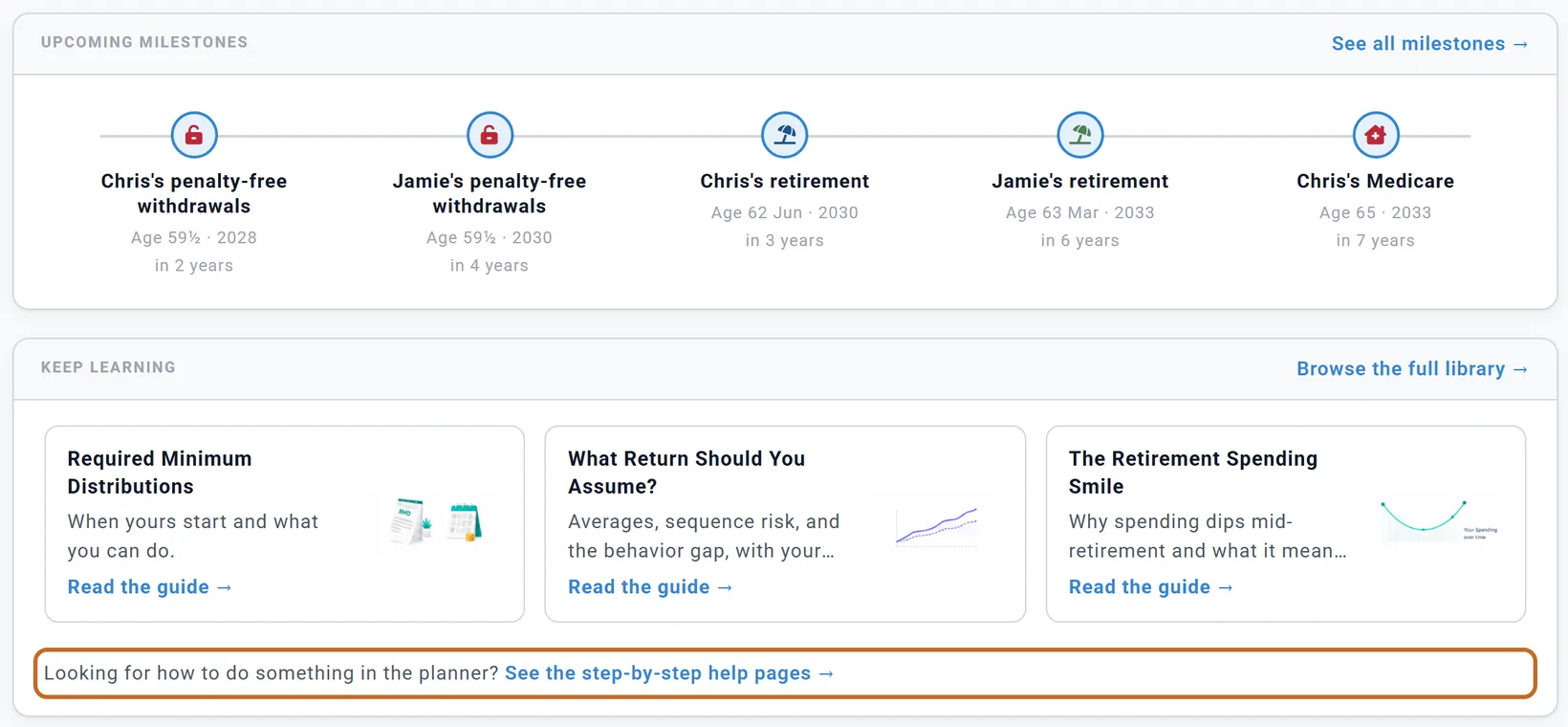
Keep learning
Three Learning Library guides picked for your plan (IRMAA if you pay it, Spending Guardrails if your Chance of Success is under 75%, How Do You Stack Up? if you are below the median, then Required Minimum Distributions, What Return Should You Assume? and The Retirement Spending Smile). Browse the full library → opens the library. Under them, See the step-by-step help pages → opens these pages in a new tab.
The Coach Planner+
The Coach lists what is worth a look in your plan: risks, dates coming up, ideas that could save money, details that would make the plan more accurate, and questions to try. It reads your projection, your last Chance of Success result, your accounts and the Optimizer's state; it never changes your plan.
Open it with Review your top opportunities → in the verdict, a suggestion or Open Coach → on the Coach card, or a link in some Learning Library guides.
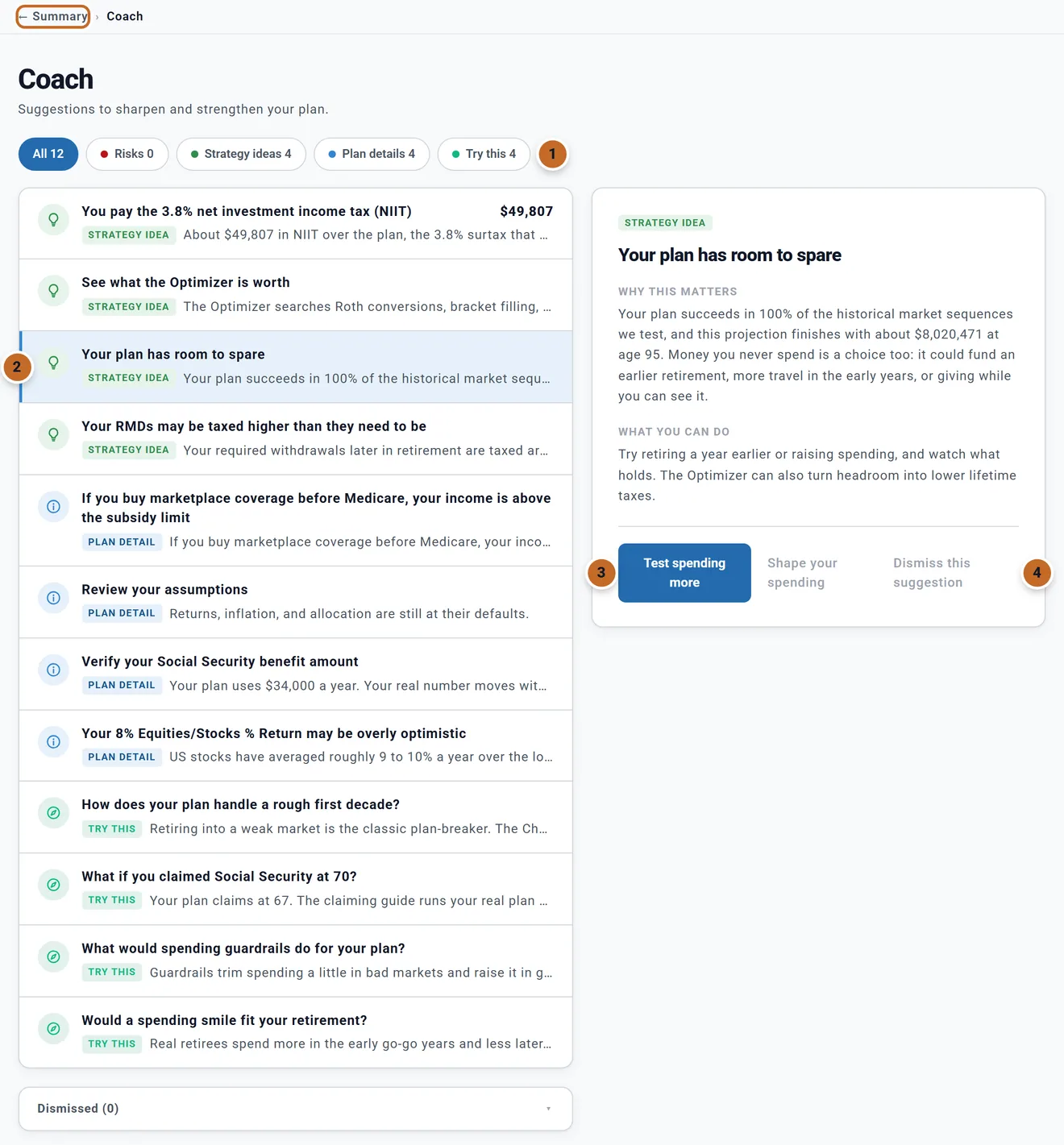
- Filter chips with counts: All, Risks, Key dates (when there are some), Strategy ideas, Plan details and Try this (when there are some).
- The list: risks first, then key dates, strategy ideas, plan details and ideas to try; inside each group the biggest dollar amount comes first.
- The button under What you can do takes you where the change is made: a box in the left column (the Dashboard opens with the box outlined), a tab such as Accounts & Assets, the Optimizer or Chance of Success, Your Taxes, or a Learning Library guide. Nothing changes until you change it there. Some suggestions also have a Learning Library link.
- Dismiss this suggestion hides it (see below).
On narrow windows the details open under the selected suggestion instead of beside it.
What the Coach looks at
| Kind | Examples |
|---|---|
| Risk | Your plan runs out of money, or finishes with little to spare; your Chance of Success is under 70%; working-year spending above take-home pay; a planned purchase short on cash; tax alerts such as the ACA subsidy limit when your plan has marketplace coverage. |
| Key date | Required minimums starting within three years; your Social Security claim within six months; and, in the US, your Medicare enrollment window, reaching 59½ (no more 10% penalty) if you retired early, and catch-up contributions at 50 and from 60 to 63. |
| Strategy idea | Low-tax years for Roth conversions, the net investment income tax, required minimums taxed higher than needed, room to spare, a lot of cash on the sidelines, saving and drawing down at the same time, running the Optimizer. |
| Plan detail | The Plan completeness items, old account balances, a spouse in the plan but filing Single, optimistic assumptions (including the default 8% stock return), checking your Social Security amount once a year, the ACA subsidy limit when your plan has no marketplace coverage. |
| Try this | Claiming Social Security at 70, a rough first decade, a spending smile, spending guardrails, a mortgage that runs into retirement. |
Key dates follow the Primary's birth date only: a spouse's 65th birthday does not raise a Medicare item.
Dismissing and restoring
Dismiss this suggestion moves it to Dismissed (1) at the bottom. Click that line to see the list; Restore brings a suggestion back.

- Dismissals belong to your account, not to one plan. A dismissed suggestion is hidden in every plan, on every device.
- A dismissal hides the kind of suggestion, not its numbers. Dismiss "Your plan runs out of money at age 88" and it stays hidden if the plan later runs out at 80. So dismiss ideas you have weighed, not risks.
- Three reminders come back on their own: old account balances (after 90 days), checking your Social Security amount and your home value (after a year).
- A dismissal hides it in the Coach and on the Coach card only. The Income thresholds card and the alerts under the Dashboard chart still show the same tax facts.
With nothing open, the Coach says "Nothing needs your attention".
Financial Wellness Planner+
The Financial wellness card counts how many of your rated measures are strong ("4 of 9 rated metrics are strong" for Chris and Jamie), with up to six tiles. Click it, or Open Wellness →, for the full view. There is no single score: each measure is rated on its own.
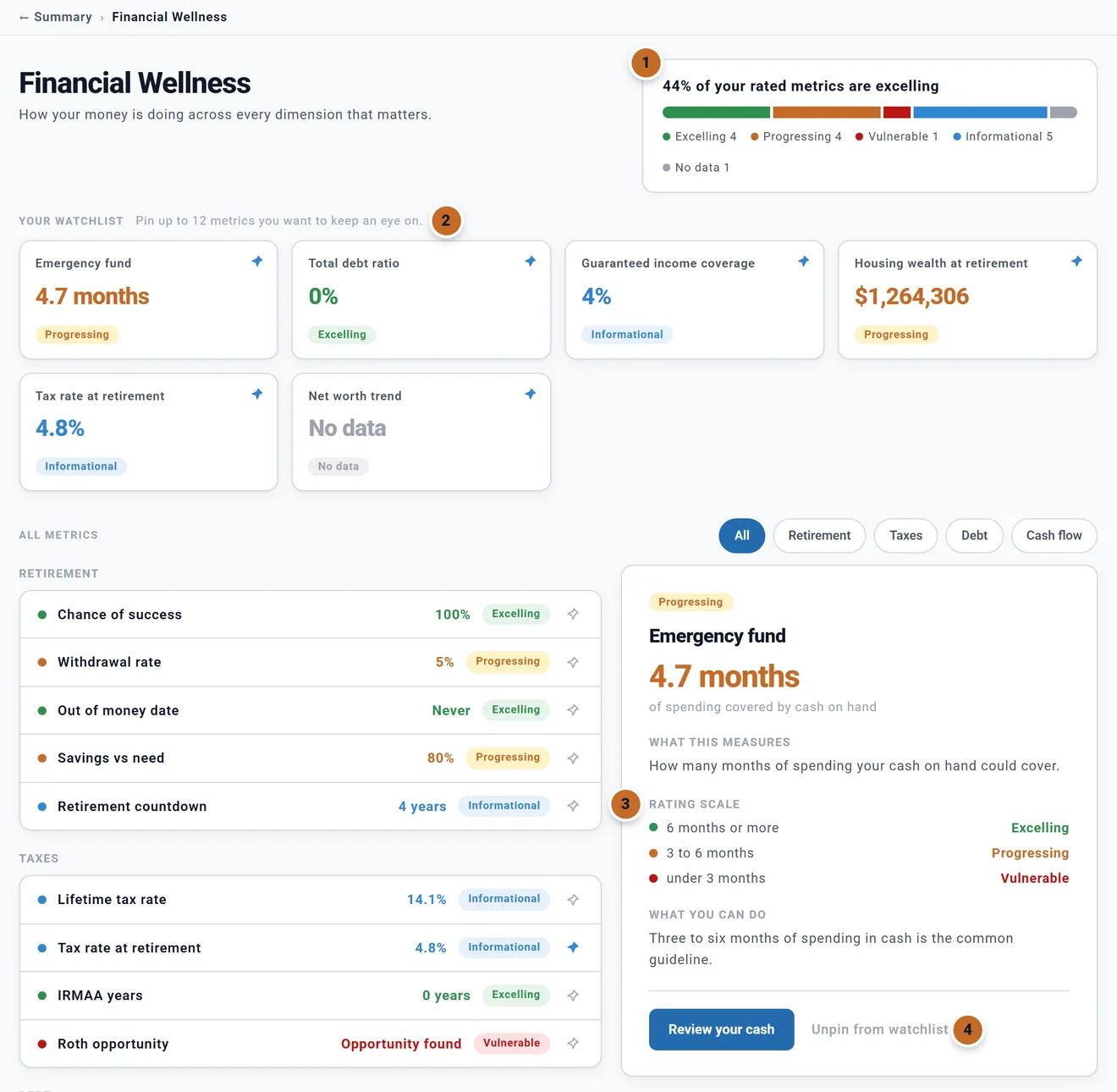
- The headline: the share of your rated measures that are excelling, and a count of each rating: Excelling, Progressing, Vulnerable, Informational (shown, not rated) and No data (the plan lacks what it needs).
- Your watchlist: the tiles also on the card. Pin up to 12; pinning a 13th drops the oldest. The watchlist is kept with the plan, so each plan can have its own. Pinning alone does not save the plan; the watchlist goes with its next save.
- Select a measure for its value, What this measures, the Rating scale, What you can do, a button to act and sometimes a Learning Library link.
- Pin to watchlist or Unpin from watchlist.
The 15 measures, under All metrics:
- Retirement: Chance of success, Withdrawal rate (judged against the length of your own retirement), Out of money date, Savings vs need, Retirement countdown.
- Taxes: Lifetime tax rate, Tax rate at retirement, IRMAA years, Roth opportunity.
- Debt: Total debt ratio, Debt freedom date.
- Cash flow: Emergency fund, Guaranteed income coverage, Housing wealth at retirement, Net worth trend.
Chance of success reads No data until Chance of Success has run for your current plan (opening the Summary runs it). A Vulnerable withdrawal rate, emergency fund or debt ratio also appears in the Coach.
Future or today's dollars on the Summary
The Summary's switch is the same one as on the Dashboard: changing it here changes it everywhere (see Today's dollars or future dollars). On the Summary it changes three cards: Projected net worth, Retirement cash flow and Lifetime taxes & Medicare. In today's dollars Chris and Jamie's first retired year shows their $8,500 a month of spending, and their lifetime taxes read $1,115,483 instead of $2,263,234.
These do not follow it:
- Net worth today (it is today) and Chance of success (a percentage).
- The verdict's "still in your name" sentence and the "Taxes peak at age" line: always today's dollars, and they say so.
- The Income thresholds amounts, the Coach's amounts and the Optimizer card: always future dollars.
Getting back: the trail under the header
When a card, a Coach button or another link takes you somewhere, a trail appears under the header, for example "← Summary › Coach". Click the step with the arrow to go back.
It remembers each step. From the Coach, Test lower returns opens the Dashboard and the trail reads "Summary › ← Coach › Dashboard"; ← Coach reopens the Coach with the same suggestion selected.

- Clicking a tab at the top or an item in the left menu starts afresh: the trail goes away.
- Inside the Learning Library, an open guide adds a step: "← Summary › Learning Library › the guide".
- With more than three steps, the oldest fold into "…". The trail lasts for this visit only.
- Key assumptions chips keep you on the Summary, so they add no trail.
The Learning Library and these help pages
Two places to read, for two kinds of question:
- The Learning Library explains retirement ideas (required minimums, IRMAA, when to claim Social Security, guardrails) using your own plan's numbers. It opens inside the Summary: from Learning Library in the left menu, the Learning Library tile at the top of the Summary, or a Keep learning guide. It is open to every account, Preview included.
- These help pages show how to do things in the planner. They open from the Help pages tile at the top of the Summary and the line under Keep learning (both in a new browser tab), and from Help in the left menu.
The Summary links into the library from many places: Keep learning, How you compare, the Social Security and required-minimum milestone markers, the Income thresholds tiles ("How IRMAA works", "How the surtax works"), Coach suggestions ("Learn about IRMAA", "Open the claiming guide") and Financial Wellness measures. Guides that are about US rules (IRMAA, When to Claim Social Security, How Do You Stack Up?, Health Insurance Before Medicare, Getting to Your Money Before 59½) are not offered outside the US. Health Insurance Before Medicare is offered while one of you is under 65, and Getting to Your Money Before 59½ while one of you is under 59½.
Most of the library only reads your plan, but three articles can change it:
- The Retirement Spending Smile holds the live Spending Smile adjuster from your Dashboard, with its on/off switch and presets. What you change there is your plan's own Spending Smile (see The Spending Smile).
- When to Claim Social Security: picking an age in its chart changes nothing, but Apply age 67 to my plan (with the age you picked) sets your claiming age.
- Spending Guardrails: Apply Balanced to my plan, or Turn on with Balanced while guardrails are off, sets the style you picked (see Spending Guardrails).
To see what the planner includes and what it leaves out, read the Learning Library article What ReadyAimRetire Models.
On a Preview account
On a Preview account six cards are blurred and cannot be clicked, with their titles still readable: Lifetime taxes & Medicare, Optimizer, Coach, Income thresholds (US), Financial wellness and Progress. One message sits over them, "Unlock your full retirement picture", with a button to Planner+.
Open on Preview: the verdict, Chance of success, Net worth today, Projected net worth, Retirement cash flow, How you compare, Plan completeness (and its dialog), Key assumptions, Upcoming milestones, Keep learning, the Learning Library and the help links.
- Review your top opportunities → still opens the Coach, but its list is blurred under "Unlock your Coach".
- Financial Wellness cannot be opened (its card is locked).
- Some links from open cards lead to Planner+ screens: Retirement cash flow's See details → (the Income chart), and Your Taxes, which shows its top figures and blurs the rest (see Your Taxes).
- The Optimizer card is locked; the Optimizer tab is not.
See also Preview accounts and Planner+.
Outside the United States
- How you compare and Income thresholds are US-only and do not appear; Progress then fills two columns. The cards are set up when the page loads, so after changing your country, reload the page.
- The tax card is called Lifetime taxes ("Every tax your plan pays, including property tax"); its state row reads Provincial in Canada and Regional elsewhere.
- The government benefit is named for your country (for example CPP & OAS in Canada, State Pension in the UK) in Retirement cash flow and Key assumptions.
- The Optimizer card and Coach leave out Roth conversions. The US-only Coach items (Medicare window, 59½, catch-ups, Social Security claiming, filing status) do not appear; Canada gets "RRIF minimum withdrawals begin in about N years". IRMAA years reads No data in Financial Wellness.
- Amounts use your country's currency symbol.
Questions people ask
"The verdict changed but I changed nothing."
The wording rotates each week; the level (on track, close, needs attention) moves only when your numbers do.
"I kept the defaults on purpose. Why is Assumptions still open?"
Plan completeness checks whether you changed the starting values, not whether they are right. Leaving one open is fine. The Coach's "Your 8% Equities/Stocks % Return may be overly optimistic" appears for most plans for the same reason: 8% is the starting value.
"Where do I set my state?"
Under Location in your profile box (the box with your name). Your filing status is in the Taxes box.
"Should I fill in Interest and dividends?"
Usually not. US and Canadian plans work out interest and dividends from your taxable accounts' balances (From account balances under Investment Income, in the Taxes box's Advanced Tax Modeling). In that mode the item already counts as done, and the Coach does not ask for it. Type amounts only if you choose Enter annual amounts; then they are what the plan uses.
"I dismissed a risk and it never came back."
Dismissals hide a kind of suggestion in every plan, whatever its numbers. Open Dismissed (1) at the bottom of the Coach and choose Restore.
"Why are the two growth figures different?"
Net worth today compares with your latest earlier Progress Point; Progress compares with your first.
"The Coach has no Medicare date for my spouse."
Key dates follow the Primary's birth date only.
"Is 'Income taxes alone are X%' my tax rate?"
It is your lifetime income taxes divided by your lifetime income before deductions, without property tax and Medicare premiums. For your tax picture year by year, see Your Taxes.