



 Continue with Google
What Charts & Data is for
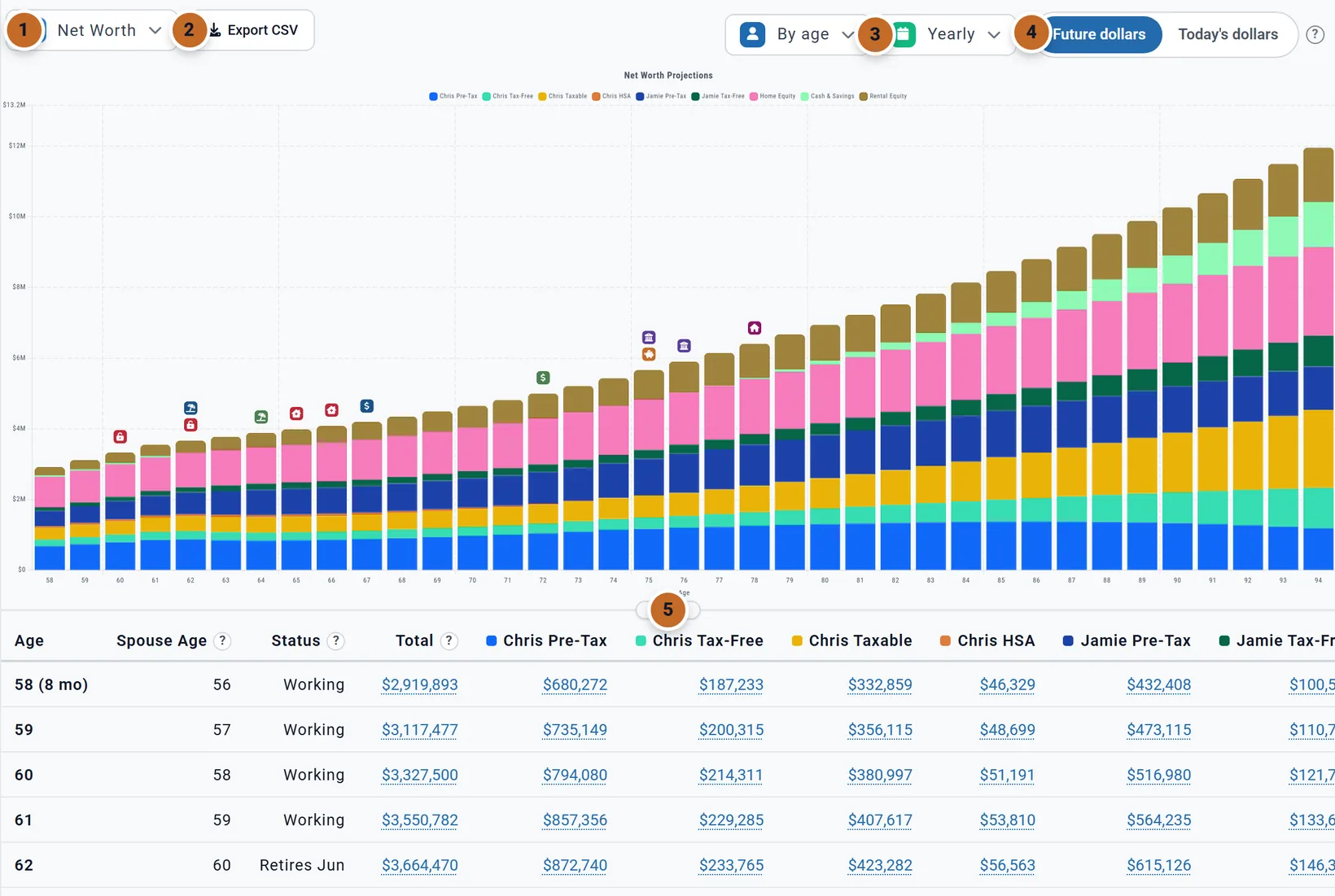
Charts & Data shows each Dashboard chart with the numbers behind it underneath, and explains where many of those numbers come from. Use it when you want to check a figure, read an exact year, or take the numbers into a spreadsheet. Planner+
- It is a tab at the top of the app, and an item in the left menu.
- It shows the same projection as the Dashboard: your plan month by month at the returns and inflation you set. It never shows Chance of Success.
- The first time you open it in a browser it shows Net Worth. After that it opens on the last chart you picked in that browser.
- Change a setting in the panel on the left and the chart and its table update together.
Before you dig in, the usual reasons a number looks wrong (which dollars, a short year, whose age) are in If a number looks wrong, check these first.
Pick a chart
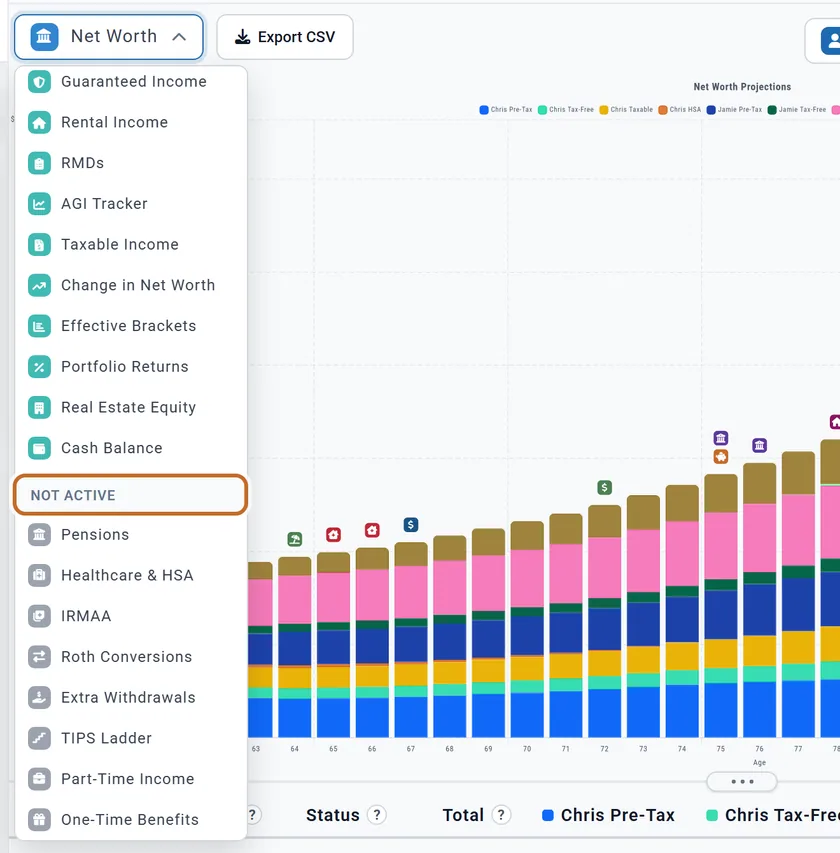
The first dropdown lists every Dashboard chart, under the same names, in three groups:
- Main: the Dashboard's tabs, from Portfolio to What If. Budget is always here; without a linked budget it says "No Budget Selected".
- More charts: the charts in the Dashboard's More menu that your plan can draw.
- Not active: charts your plan cannot draw yet, with a grey icon. The Dashboard leaves them out of More; here you can still pick one, and it shows its empty message or "Nothing to show for this plan."
For Chris and Jamie, eight charts are not active: Pensions, Healthcare & HSA, IRMAA, Roth Conversions, Extra Withdrawals, TIPS Ladder, Part-Time Income and One-Time Benefits. Turn a box on and its chart moves up into More charts. What each chart shows is on The Dashboard charts.
The toolbar
- Export CSV downloads the table (see Export CSV).
- On the Taxes chart only, View your Tax Overview opens Your Taxes on the Summary (see Your Taxes).
- On the right, By age or By year, Yearly or Monthly, and Future dollars or Today's dollars, with a ? that explains the dollars. They are the same settings as the choices above the Dashboard chart: change one here and the Dashboard follows, and the other way round. They are explained in Today's dollars and future dollars, By age or By year and Monthly or yearly.
- A few charts add their own choice to the toolbar, as on the Dashboard: Pre-tax or After tax on Income, Per bucket or Per account on Withdrawals, and whose savings on Contributions. The Taxes chart keeps its View: dropdown above the chart.
Reading the table
The table is built from the chart above it: one row for each bar or point, one column for each part of the chart, with the legend's colour beside its name. So it always has the chart's dollars, years and months.

- The first column names the period: Age, Year, Plan year (Contributions) or Tax year, as the chart's axis does.
- A short year says so: "58 (8 mo)". Point at it to read "This row covers 8 months, not a full year". See Years run from birthday to birthday.
- Spouse Age (for a couple) is your spouse's age in the row's first month. It is blank once your spouse's Plan End has passed.
- Status reads Working, Retired, or "Retires" and a month in the row where retirement starts. Chris retires in June at 62, so that row reads "Retires Jun". For a couple it follows the Primary's retirement, and a table that starts at retirement (Withdrawals, Taxes) has no Status column.
- A part that is $0 all the way is left out of the table, as it is from the chart. Jamie has no taxable account, so there is no Jamie Taxable column.
- A blank cell means the chart has no point there; it is not $0. A negative amount is red.
- A wide table scrolls sideways; the first column stays in place.
Columns only the table has
Some tables carry extra columns that the chart does not draw. They are never added into the Total, they are always in the CSV, and a column for something your plan does not have is not shown.

| Chart | Extra columns |
|---|---|
| Every chart with years or months | Spouse Age and Status (see above). |
| Net Worth | "Chris total" and "Jamie total": each person's own accounts. Cash, your home and rental, other assets and debts belong to you both and are not split. |
| Withdrawals | For a couple, in Per bucket: what was drawn from each person's pre-tax, tax-free, taxable and HSA accounts ("Chris Pre-Tax" and so on). |
| Taxes | Effective Tax Rate (income tax ÷ AGI), and one column per federal bracket (10% Bracket and up): the income taxed in that bracket, not the tax. |
| Income | Gross Income, and Roth Conversions (not cash) when you convert. |
| Spending | Smile adjustment, while the Spending Smile is on (not when a linked budget sets your spending). |
| Allocations by Account | % Stocks and % Bonds of your invested accounts (cash left out). |
| Portfolio Returns | Inflation over the same twelve months. |
| Real Estate Equity | Home Value and Rental Value, before their loans. |
| Cash Balance | Added to Cash, Spent from Cash and Interest: with the balance, they show every change in your cash. |
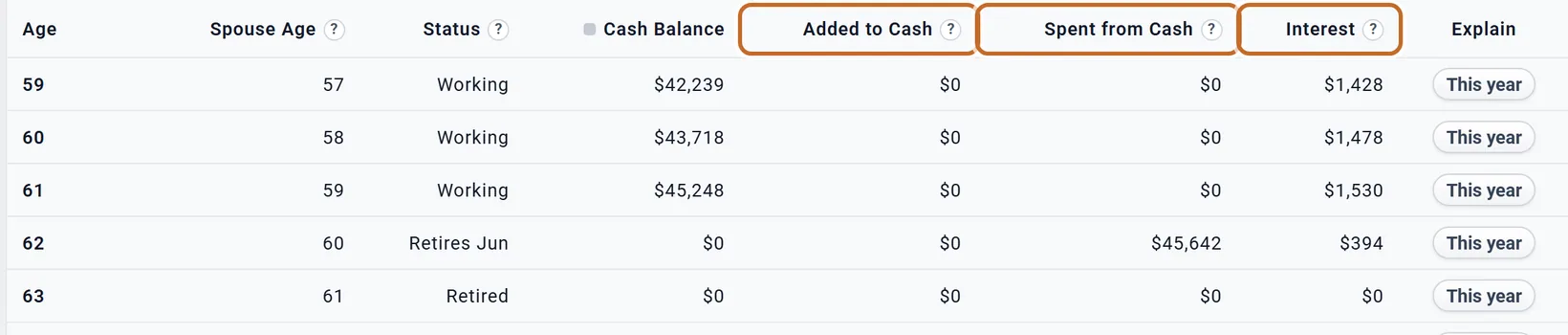
Chris and Jamie start the year at 62 with $45,248 of cash. They spend $45,642 of it and it earns $394 of interest, which leaves $0 at the end of the year.
When there is a Total
A Total column appears when a table has at least two money columns that are parts of one whole, such as the buckets of your portfolio or the bands of your taxes. It never adds in:
- lines drawn beside the parts: a floor, a threshold, a benchmark, a balance beside yearly amounts, or a result such as Taxable Income or the change in net worth;
- percentages;
- the columns only the table has.
So Cash Balance, AGI Tracker, Portfolio Returns, Account % and What If have no Total. The ? beside Total says what that chart's Total adds up; the most surprising ones are explained in What a Total includes.
The chart and the table together
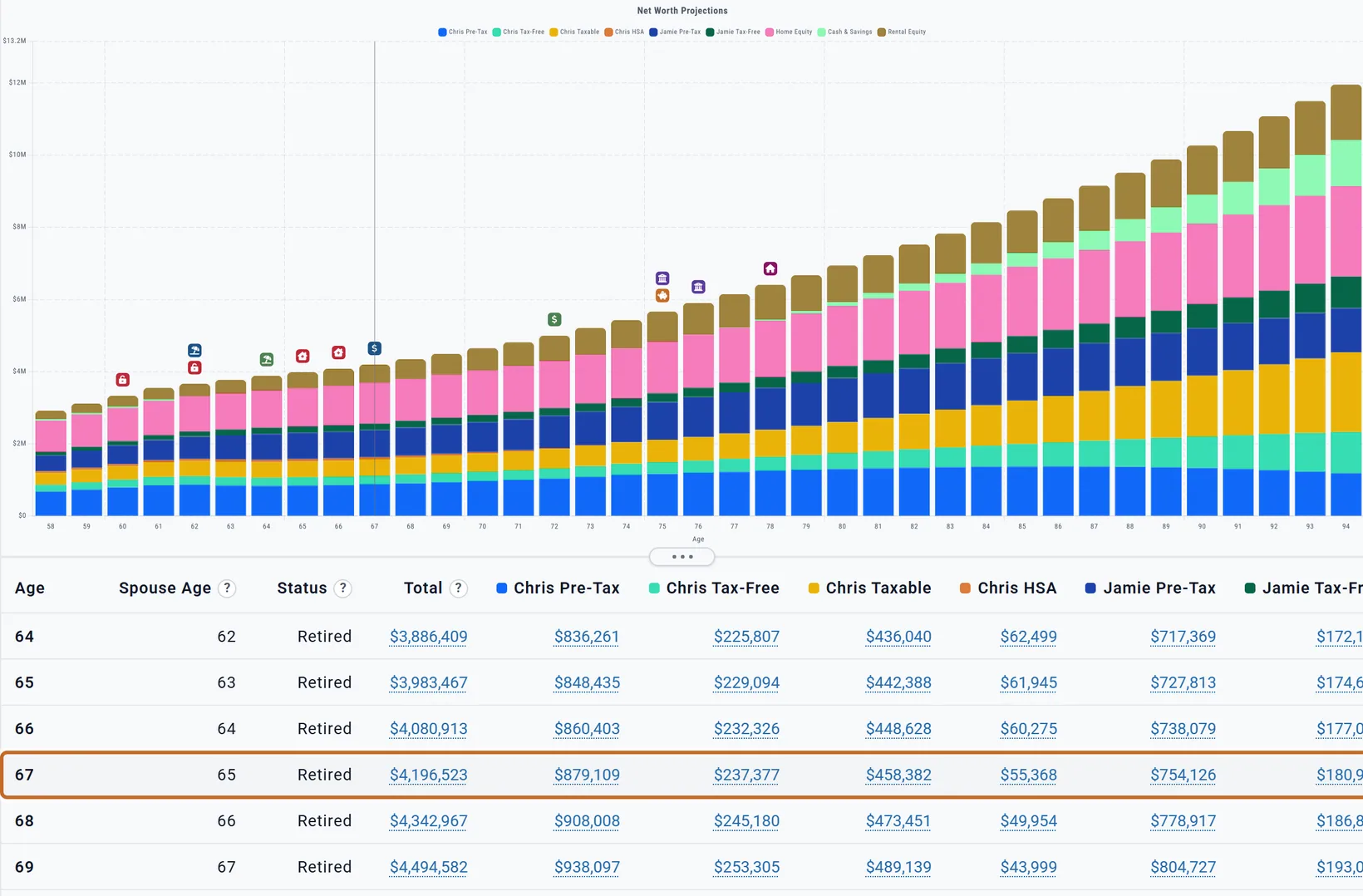
- Point at a row and a thin grey line marks that year on the chart. Point at the chart and the matching row is shaded. The table does not scroll to it.
- The divider between them (its hover text says "Drag to resize the chart and table") gives the chart or the table more room. You can also click it and use the up and down arrow keys. The chart keeps at least 180 pixels. The height you choose is kept in this browser.
- The legend at the top of the chart works as on the Dashboard: a click on a name hides that part of the chart. The table and Export CSV still show every part.
Figures that explain themselves
On many tables the figures are underlined. Click one to see how it was worked out, in a window of its own:
- At the top, the figure itself, always the same as the cell you clicked, and small labels saying which row (Age 62), which months (Jun 2030 to May 2031), the view (Per bucket) and which dollars.
- Below, the working: lists that add up line by line ("+ From Cash $47,151 ... = Total $116,134"), what your plan does not have ("Not in this plan"), and the order or rules that applied.
- How this works opens a short explanation under a section.
- At the foot, short definitions and links, such as Open the Withdrawal Planner or a Learning Library article.
Press Esc, click the x or click outside it to close it.
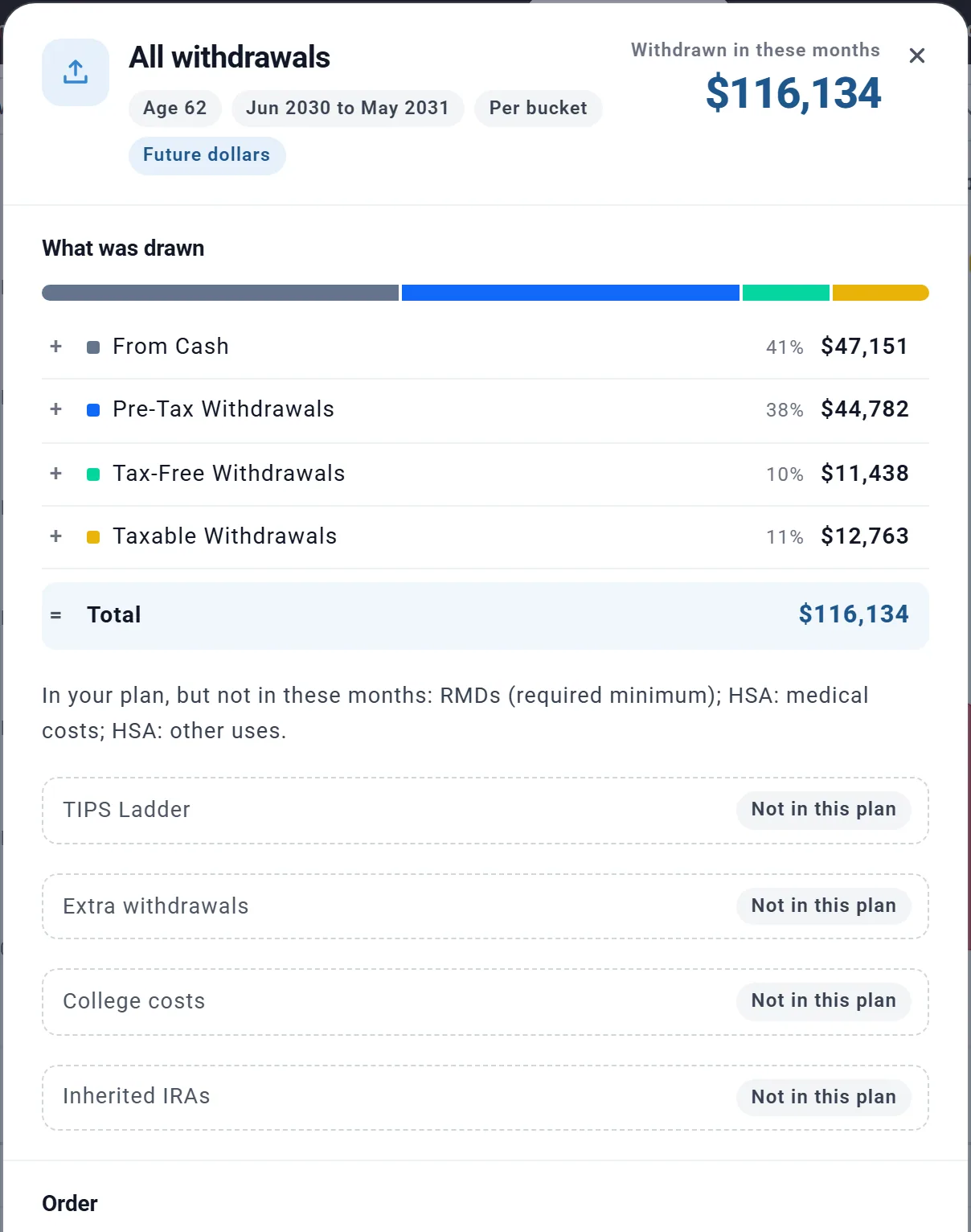
Figures explain themselves on Portfolio, Net Worth, All Accounts, Withdrawals, RMDs, Spending, Contributions, Investment Growth, Change in Net Worth, Portfolio Returns, Social Security, Guaranteed Income, Pensions, Healthcare & HSA, IRMAA, Roth Conversions and Real Estate Equity (the tables on The Dashboard charts say "figures explained"). On the other charts, use This year.
This year: money in and out
The last column, Explain, has a This year button on each row (This month on a monthly row). It shows that row's money from start to finish:
- Money in: each income, then Gross income.
- After-tax income: the taxes paid, including a refund or a bill when the tax year was settled in that row.
- Spending: what was spent, beside your target.
- Cash: the cash at the start, what came in and went out, the interest, and the cash at the end, which is also the figure at the top right.
- Then any savings and money moved, the tax year's settlement, a sale, and what happened that year (for Chris at 62, "Chris's retirement begins at age 62").
A short row says so at the top ("8 months, the plan's first year"). A year in which someone retires or dies is shown in two parts. At the foot, Tax Details for these months opens the same months' tax.
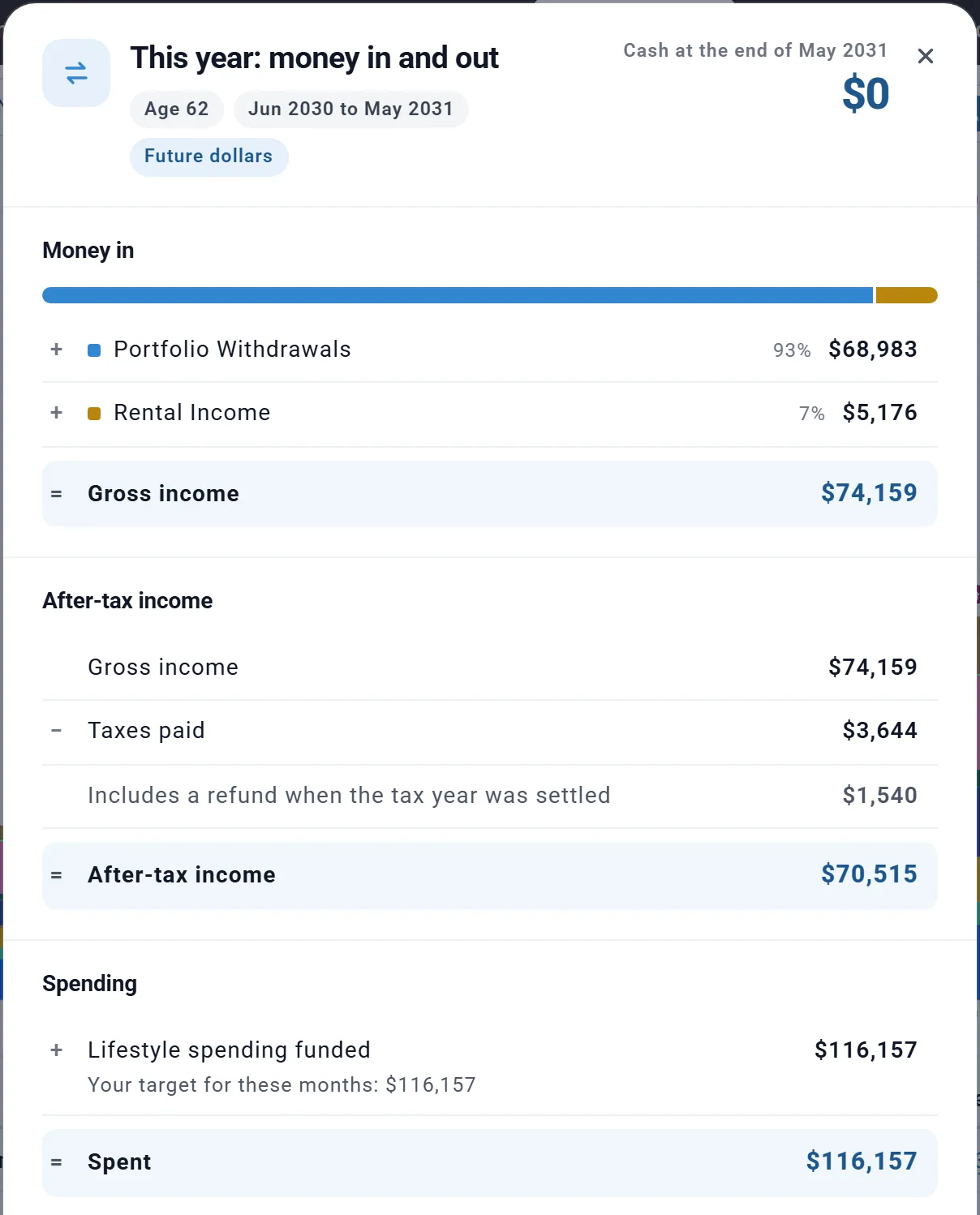
Chris and Jamie take in $74,159 at 62, pay $3,644 of tax and spend $116,157, so the other $45,642 comes from their cash, which is empty by May 2031. What If and Effective Brackets have no Explain column.
Tax Details on four tables
The Taxes, AGI Tracker, IRMAA and Taxable Income tables have a Tax Details column. Each row has a Tax Details button, or No Tax Paid in a year with no tax. A row the details cannot cover, such as a working year without Employment Income, has no button: Chris and Jamie's start at 62. The window it opens is described in Tax Details: how one year's tax was worked out.

What a column means
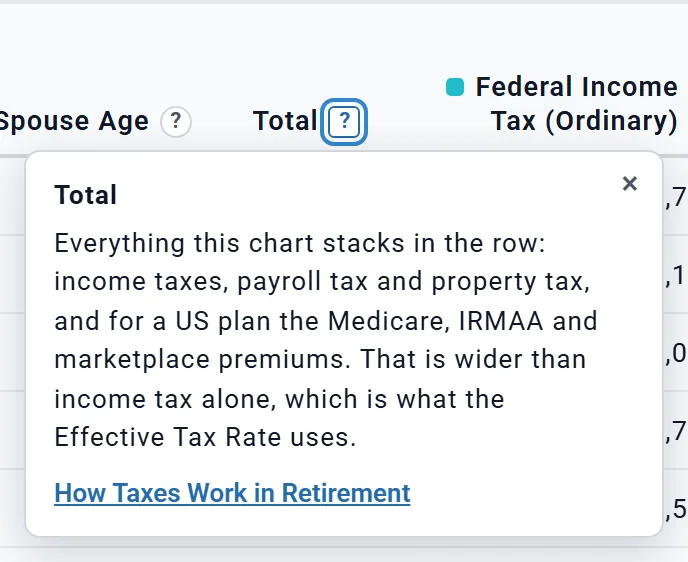
A ? after a column's name opens a short definition beside it. Press Esc, click the x or click elsewhere to close it.
Some definitions end with a Learning Library button, such as How Taxes Work in Retirement, IRMAA and Medicare Surcharges or Required Minimum Distributions. It opens that article on the Summary tab.
Monthly view
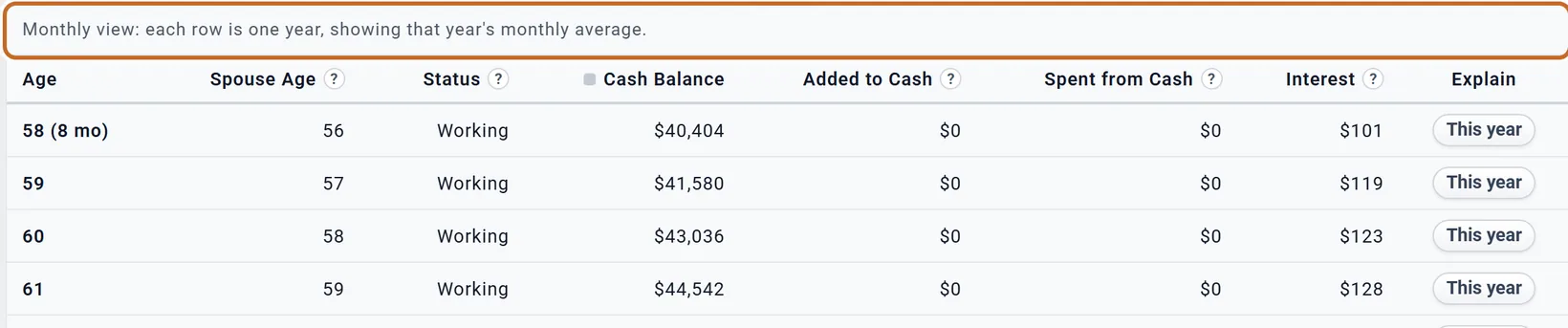
In Monthly most tables show one row a month, with an Age and a Month column ("58", "Oct") and a This month button. Some charts still work in years, and their table keeps one row a year with a line above it saying what each row holds:
- "Monthly view: each row is one year, showing that year's monthly average." (Budget, Cash Balance, Real Estate Equity)
- "Monthly view: each row is one year, shown as its monthly average (a short first or last year over its own months)." (Extra Withdrawals, Guaranteed Income, Healthcare & HSA, Investment Growth, One-Time Benefits, Part-Time Income, Pensions, Rental Income)
- "Monthly view: each value is an annualised figure (a yearly rate), not one month's amount." (Taxable Income, which does show a row a month)
Account % and What If always show a row a month.
Export CSV
Export CSV downloads the table on screen as a CSV file, which Excel, Numbers and Google Sheets open.
- The file name starts with report- and uses the chart's name inside the app, which is not always the name you see: Net Worth is report-accounts.csv, Income report-portfolioWithdrawals.csv and Spending report-afterTaxSpending.csv.
- The columns are the table's, in the same order, including the columns only the table has. The buttons (This year, Tax Details) are left out.
- The numbers are whole numbers with a minus sign when negative, without dollar signs or commas; percentages keep one decimal. The first column is the plain age or year, without "(8 mo)".
- The view is the one on screen: today's or future dollars, By age or By year, monthly or yearly rows.
The start of Chris and Jamie's Net Worth file:
| Age | Spouse Age | Status | Total | Chris Pre-Tax | ... | Chris total | Jamie total |
|---|---|---|---|---|---|---|---|
| 58 | 56 | Working | 2919893 | 680272 | ... | 1246693 | 533005 |
| 59 | 57 | Working | 3117477 | 735149 | ... | 1340278 | 583889 |
The button is greyed out when there is nothing to export ("Nothing to export for this chart yet"), for example on Tax Flow. On Cash Flow it saves the every-year table (see Cash Flow).
Charts with no table
- The Taxes chart's Tax Flow view shows money flowing, not a value per year, so the table says "This chart does not have a tabular form." Its figures are explained in The main charts. Cash Flow is a flow too, but its table is the every-year Cash Flow table: a row a year of income, one-time inflows, living expenses, one-time costs, taxes, saving from pay and the net cash flow.
- Budget needs a linked budget, and a chart under Not active may have nothing to show.
- What If has one column for each version it tests ("Current (Age 62)" is your plan), a row a month, and no Total or Explain.
- Effective Brackets has a row for each kind of income (Category), not for each year.
On a Preview account
Portfolio works fully on a Preview account: its chart, its table, the figures that explain themselves, This year and Export CSV. Every other chart is part of Planner+: Planner+
- the chart is blurred behind "Unlock Your Full Retirement Plan";
- the table under it is blurred too, and you cannot click into it: no figures, no This year, no Tax Details;
- Export CSV is greyed out ("Included with Planner+").
The chart picker, the dropdowns and the dollars buttons still work, so you can see which charts there are.


Questions people have asked
| What they asked | Answer |
|---|---|
| "Can I export my numbers to Excel?" | Yes, one chart at a time: Export CSV, then open the file in Excel. See above. |
| "Where did this number come from?" | Click it if it is underlined, or use This year on its row. See above. |
| "Why is there no Total on this table?" | Its columns are not parts of one whole. See above. |
| "Why does the first row say (8 mo)?" | The plan starts this month, so the first year is short. Years run from birthday to birthday. |
| "I chose Monthly but the table still has one row a year." | That chart works in years; the line above the table says so. See above. |
| "Where is the Chance of Success in these tables?" | It is not here: these tables are the one projection. See The projection and Chance of Success. |