



 Continue with Google
Where the charts are
The Dashboard has a chart for nearly every part of your plan. This page lists them all: what each one shows, the choices it offers, and what you switch on to see it.
- The charts are on the Dashboard, in the row of tabs above the chart: Portfolio, Net Worth, Withdrawals, Taxes, Income, Spending, Cash Flow, Budget and What If.
- Budget is there only while a budget is linked to your plan (see Link your budget to your plan).
- More opens 25 more charts in five groups, split by thin lines. Some are listed only when your plan has what they draw (see Why a chart is missing from More).
- When you sign in, the Dashboard opens on Portfolio. If you switch off the thing the chart on screen draws, it goes back to Portfolio.
- Summary cards, Learning Library articles, Your Taxes and the withdrawal rate readout also open a chart for you.
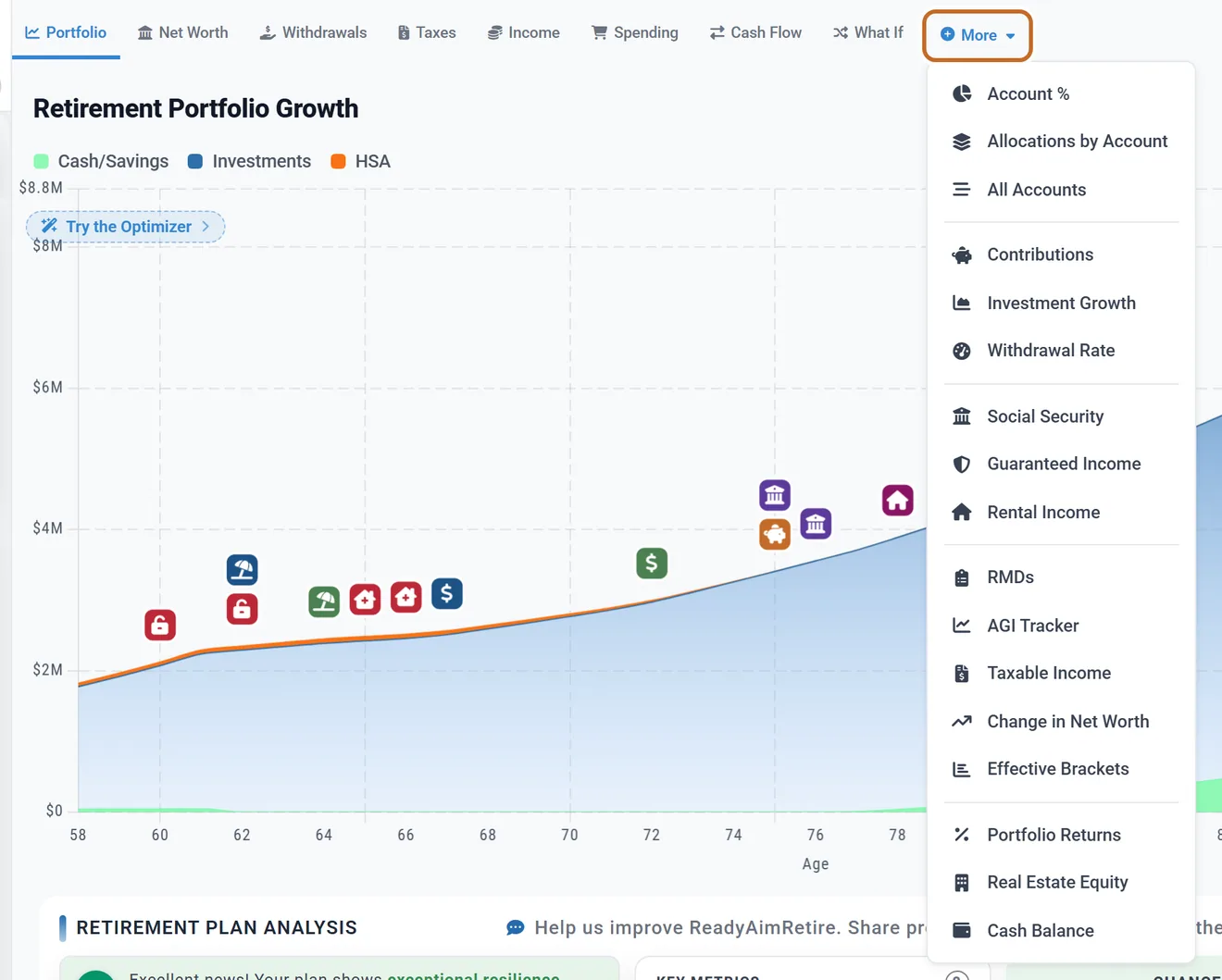
Every chart shows one projection of your plan, at the returns and inflation you set. To see how your plan does through market history, use Chance of Success (see Why it differs from the Dashboard).
The controls above each chart
A chart's choices sit in a row of buttons above it: beside the title when there is room, otherwise on a row of their own under the title. Each choice is one click.

Only when that row is wider than the chart, in a narrow window, do the choices fold into Display at the top right. A chart with more choices folds sooner, so in the same window one chart can show its row while another shows Display. Point at Display to open it, or click it to keep it open; close it with its x, with Esc, or by clicking elsewhere.
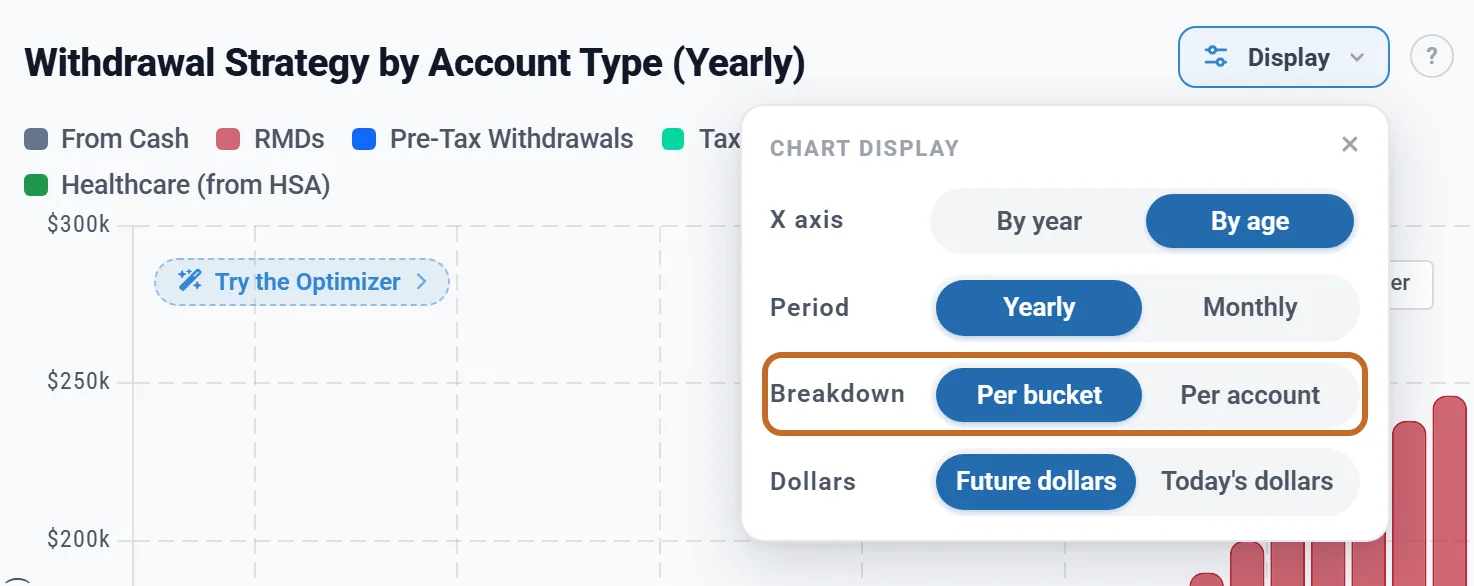
- Most charts have three choices: By year or By age, Yearly or Monthly, and Future dollars or Today's dollars (under Display they are the rows X axis, Period and Dollars). They are explained in Reading your results (By age or By year, Monthly or yearly).
- Some charts add a choice of their own: What if, Person, Amounts, Breakdown or Earned income. The tables below say which.
- The ? at the end of the choices explains future and today's dollars. It is on every chart with a dollars choice.
- In Monthly, a few charts still draw one bar a year. Budget, Cash Balance and Real Estate Equity show the year's average; Extra Withdrawals, Guaranteed Income, Healthcare & HSA, Investment Growth, One-Time Benefits, Part-Time Income, Pensions and Rental Income show a month's amount. Taxable Income shows each month at a yearly rate.
- A Try the Optimizer button sits at the top left of most charts (once you use the Optimizer, it says whether its plan is on). It opens the Optimizer: see The Optimizer.
Which choices are kept, and where: Which display choices are remembered. A chart's own rows (Breakdown, Amounts, Earned income and Contributions' Person) are kept in this browser.
Reading any chart
- Legend. The title, any note under it, and the legend sit at the top left. Click a name in the legend to hide or show that part of the chart (except on the Taxes chart's Tax Amounts and Bracket Fill views).
- Point at a bar to read it: the months it covers, both ages ("Chris 67 | Jamie 65"), each part, and usually a Total. A short first or last year says so on Net Worth, Allocations by Account, Spending and Withdrawals ("Partial year (8 months)"): see Years run from birthday to birthday.
- Event badges. Small icons above the bars mark events: each of you retiring, Social Security or a pension starting, Medicare, required minimum distributions, a mortgage paid off, a property bought or sold, your own milestones, and more. Point at the bar under a badge to read it. Cash Flow, Tax Flow and Effective Brackets have none.
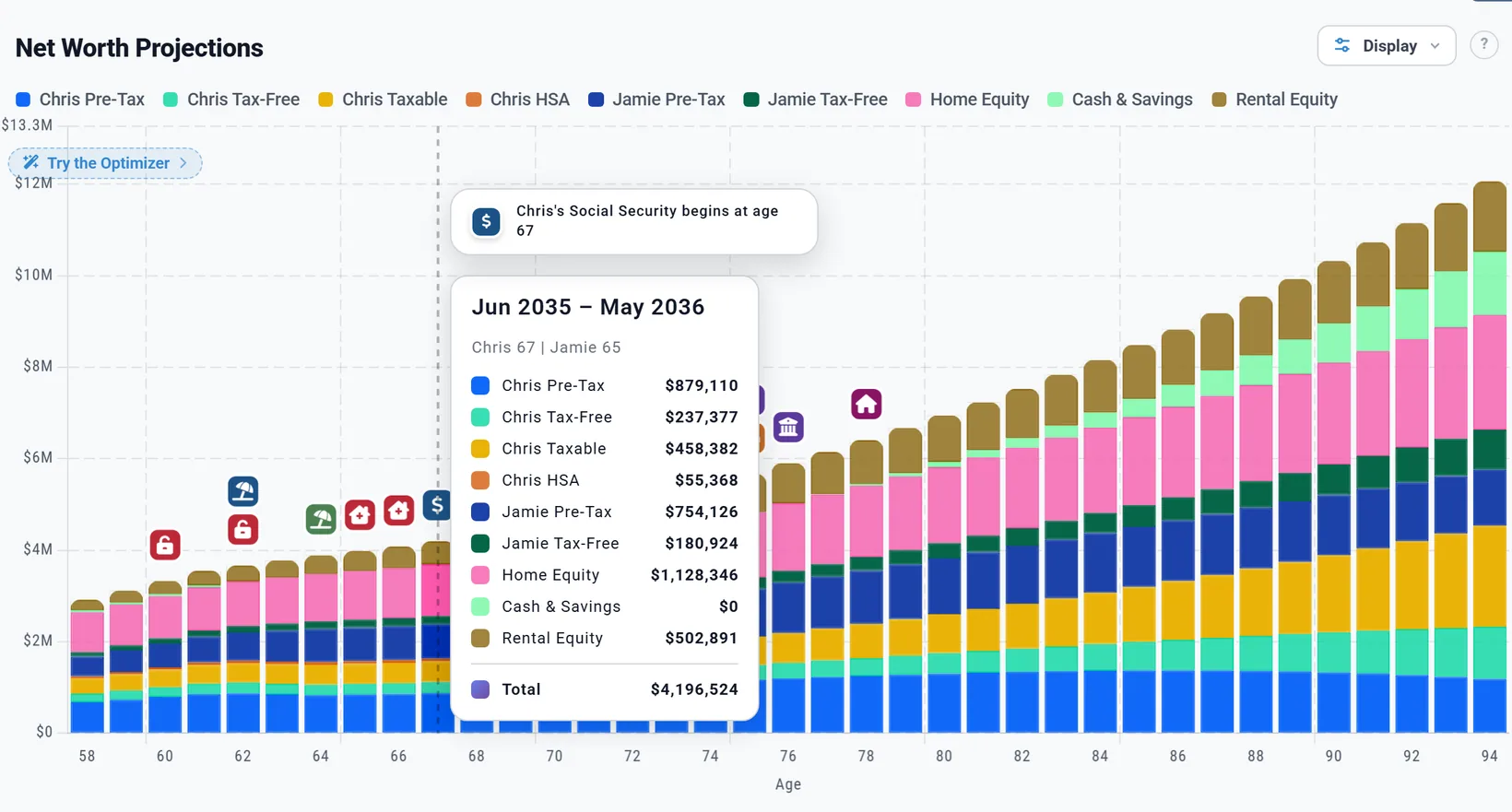
- Click a bar to show that year in the summary panel on the right (see See one year in detail). Cash Flow and Tax Flow have their own age slider instead, which moves with the panel's.
- Below the chart, Retirement Plan Analysis sums up your plan. Social Security and Withdrawal Rate show their own analysis panel there instead; Cash Flow and Effective Brackets show neither.
- Buttons on a chart take you to the matching tool: Open Withdrawal Planner on Withdrawals, Open Contribution Planner on Contributions, Open the Your Taxes report on Taxes, and on Portfolio Spending Smile on while your Spending Smile is on (see Open the adjuster).
- An empty chart shows "Nothing to chart yet" with a Show me where button. The switches it needs are in the Add box (see Why a chart is missing), whatever the card's steps call them.
Below the chart: Retirement Plan Analysis
Under most Dashboard charts sits Retirement Plan Analysis: your plan summed up in a row of boxes, with tabs above it when your plan has more to show. It is not under Social Security and Withdrawal Rate (each has its own analysis panel there), Cash Flow or Effective Brackets.
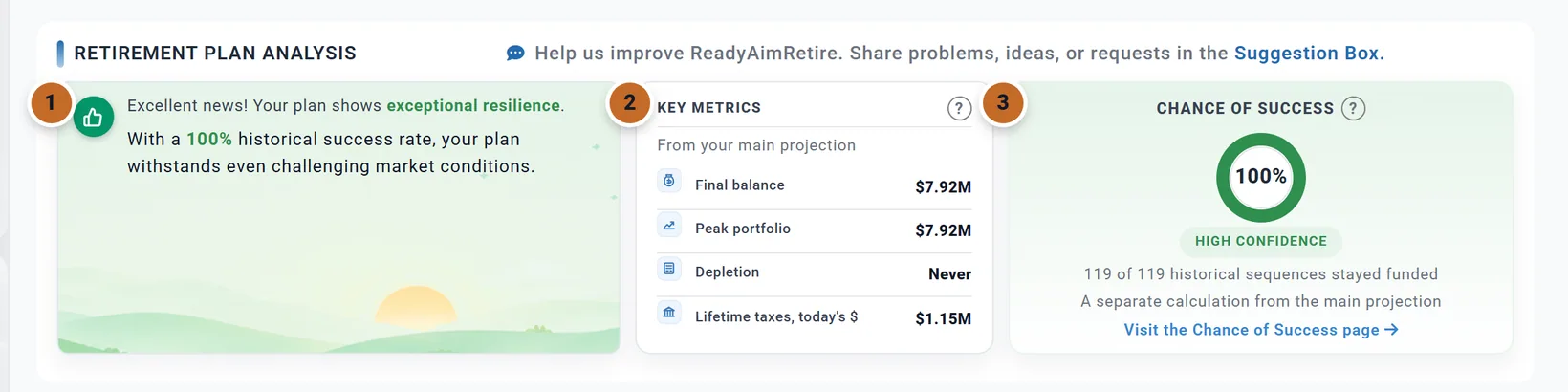
- Your plan in a sentence. The box's colour and message come from the projection and Chance of Success together: green with a thumbs up or a tick when the money lasts and most historical sequences stay funded, amber when one of them falls short, red when both do. Until Chance of Success has run it reads "Analyzing your plan...". It can also list a few tax alerts, such as "Net investment income tax" with an amount; Learn more (or the underlined words on a narrower window) explains each one and offers the next step, such as the Optimizer.
- Key Metrics, "From your main projection": Final balance and Peak portfolio (your accounts, cash and HSA, in future dollars, without your home), Depletion (how long the money lasts after retirement in this projection, or "Never") and Lifetime taxes, today's $ (the same figure as the Summary's Lifetime Taxes card). Point at a figure for its hover text; the ? explains them.
- Chance of Success: how many historical market sequences stayed funded, with Visit the Chance of Success page.
On a very wide window (about 2250 pixels or more) a fourth box, Retirement Timeline, adds the time until retirement, the years in retirement, the retirement age and the Plan End age. Below 1200 pixels the Key Metrics box is left out. A plan with Roth conversions also gets View Roth Conversion Report under the boxes.
Purchases, Sales and Refinances
A plan that buys, sells or refinances a property or asset gets a tab for each, with the count:
- Purchases (1) lists each planned purchase: when, the cost, the yearly expenses and income, and a status, "Planned" or "Insufficient Funds" when the plan's cash cannot pay it (point at it to see the cash available and the shortfall). When a purchase cannot be paid, this tab opens by itself.
- Sales (1) lists each planned sale: the sale value, the taxable gain, the tax on the gain and the net proceeds, with the total proceeds.
- Refinances (1) lists each refinance: the new balance, rate and payment, any cash out and the closing costs.

How to plan a purchase, sale or refinance: Buy, refinance or borrow against a property.
The adjuster tabs
Four settings can be shaped age by age, and while one is on, its own tab appears here so you can drag it beside the chart:
- Allocation Adjuster: your stock and bond mix by age, with Adjust over time chosen for your mix (see On a smaller window).
- Equity Returns Adjuster: the stock return by age, with Adjust Over Time chosen in Investment Returns.
- Spending Smile: your spending by age, while the Spending Smile is on (see Open the adjuster on any screen).
- Salary Adjuster: your salary for each working year, in today's dollars, with Adjust chosen for the salary in Employment Income (see Your salary). Drag a point (in $1,000 steps), click an age to type an amount, or start from Presets, such as Steady raises (+2%/yr) or Step down mid-way. When both of you have Employment Income, choose whose salary to shape.
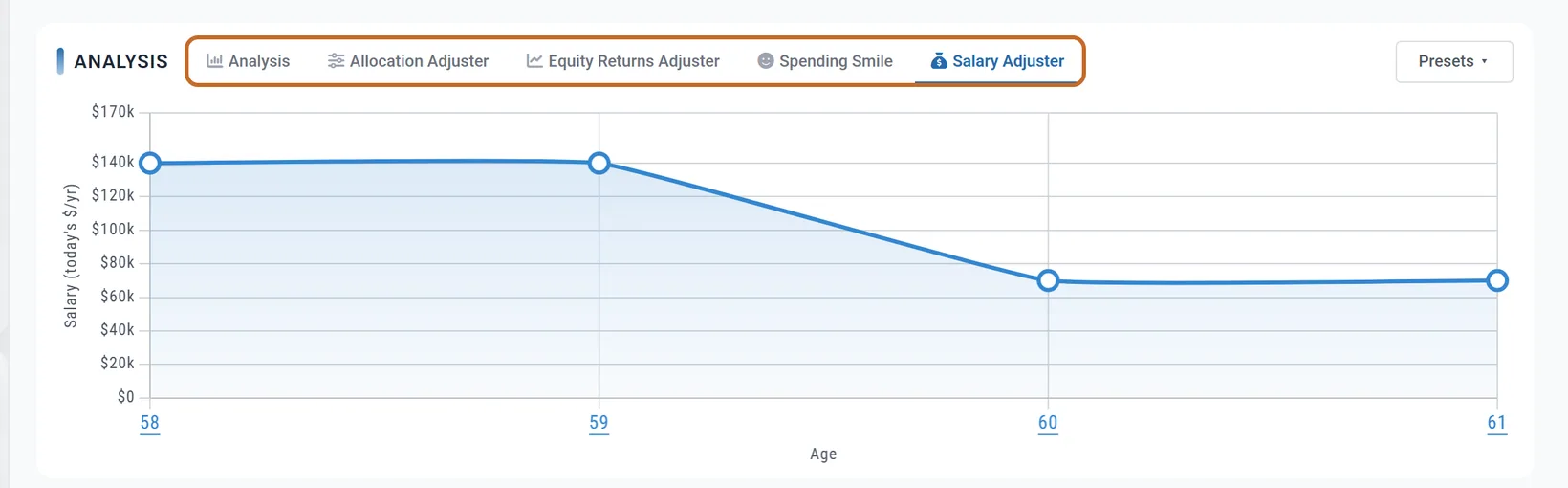
With a tab like this showing, the section's title shortens to "Analysis". The tabs appear only while your browser window is at least 1200 pixels wide and 800 high; the app never opens one on a smaller window. There, use the button in the box instead, such as Open Salary Adjuster or Open Spending Smile Adjuster, or make the window larger or zoom the page out.
The summary panel beside the chart
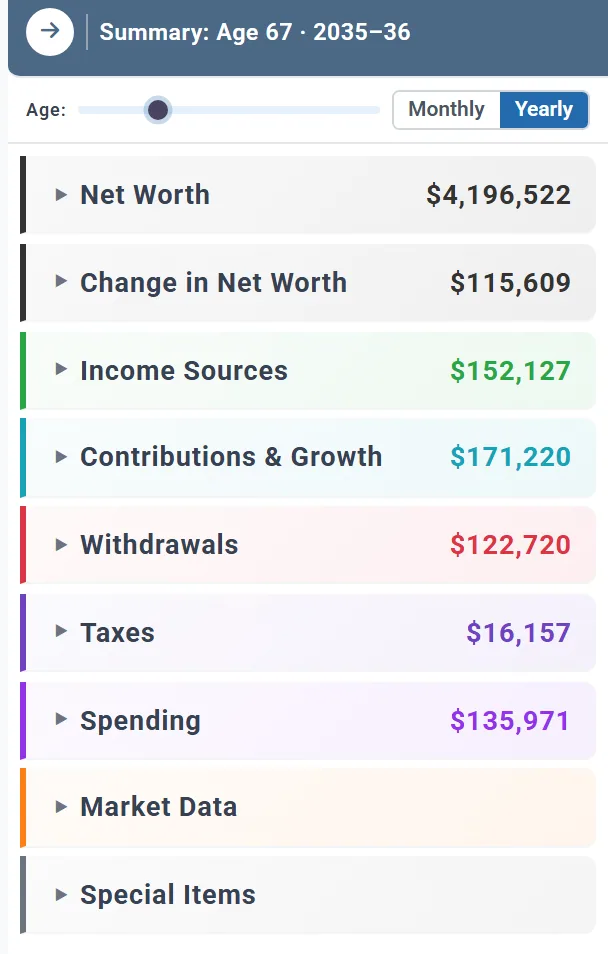
The panel on the right of the chart lists every number for one year (or month). How to open it, fill it by clicking a bar and move it with its slider is in See one year in detail. Also worth knowing:
- It starts closed. The arrow at its top left (Hide Summary Data) closes it again.
- Its title names the age and the years: "Summary: Age 67 · 2035–36" on Portfolio, without "Summary:" on the other charts, "2044 · Age 74" By year, and "Age 58, October 2026" in Monthly.
- The sections, each with its total: Net Worth, Change in Net Worth, Income Sources, Contributions & Growth, Withdrawals, Taxes, Spending, Market Data (returns, your mix and inflation, as percentages) and Special Items (retirement status, your ages, required distributions, Roth conversions). A section with nothing in that year is left out: Chris and Jamie's year at 58 has no Withdrawals or Spending.
- With a linked budget, the panel ends with your budget's Income, Taxes and Spending instead of the Spending section.
- Some lines have a note when you point at them.
- The panel's own Monthly / Yearly is kept in this browser. Which lines are open is kept with your plan the next time it saves after a change.
The main charts
The tabs above the chart. Unless a row says otherwise, a chart starts this month and its Display has the usual three rows. Every chart except Portfolio is part of Planner+. Planner+
| Chart | What it shows | Shown | On Charts & Data |
|---|---|---|---|
| Portfolio | Your savings: Cash/Savings, Investments (your pre-tax, tax-free and taxable accounts, inherited IRAs too) and HSA, stacked. A yearly point is the year's closing balance. A dashed Cash Safety Net line shows your cash minimums, if you set any. Your home is not in it. | Always | Table; figures explained |
| Net Worth | Everything you own less what you owe: each person's Pre-Tax, Tax-Free, Taxable and HSA, Cash & Savings, Home Equity, Rental Equity, other assets, and Liabilities below zero. A bar is the balance at the end of its year. | Always | Table; figures explained |
| Withdrawals | What is taken each year and from where: From Cash, RMDs, Pre-Tax, Tax-Free and Taxable Withdrawals, HSA, Roth conversions and more, each only when used. Starts at retirement (or the first month money is drawn). Display adds Breakdown: Per bucket or Per account (a band per account). Button: Open Withdrawal Planner. | Always | Table; figures explained |
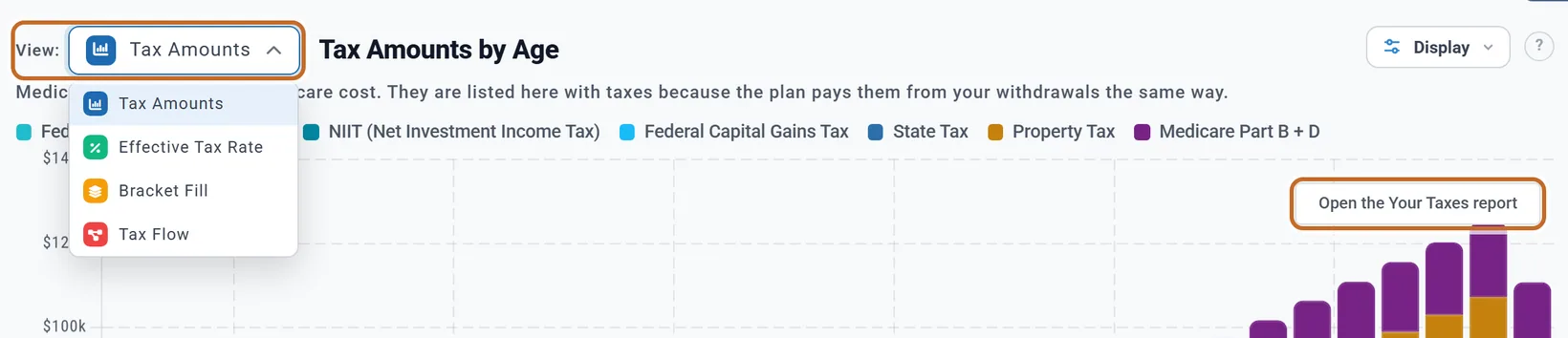
| Taxes | View: at the top left picks one of four views (below). Starts at retirement, or at your first paycheck with Employment Income on. By year groups the bars by tax year. Button: Open the Your Taxes report (see Your Taxes). | Always | Table; Tax Details on each row |
| Income | Where each year's income comes from: each account drawn on (by name), Social Security for each of you, pensions, annuities, rent, Retirement Income, Other Income and pay. Display adds Amounts: Pre-tax or After tax (US). After tax takes off federal, state and payroll taxes, not Medicare premiums, IRMAA or the tax on Roth conversions. | Always | Table |
| Spending | Your yearly spending, plus the costs beside it when your plan has them: Medicare premiums (US, from 65), milestone expenses, life insurance premiums, employer, retiree and COBRA premiums, HSA contributions. In Monthly Expenses mode, if the plan cannot pay all of your target, a dashed red Actually funded line shows what it paid. | Always | Table; figures explained |
| Cash Flow | One month as a flow, from each income through taxes to spending and savings, with the sum across the top: total income, less taxes, is after tax, less spending. Its own row of choices (no Display): Monthly or Annual (the whole year), Chart, Table or Every year (a table of every year), the dollars, and Export CSV, which saves the view on screen. | Always | The every-year table |
| Budget | Your linked budget's categories, each growing with its own inflation rate. | While a budget is linked | Table |
| What If | Your portfolio under several versions of one setting; your plan is the thick line. Display has What if and the dollars (no X axis or Period). | Always | Table (no Explain column) |
The Taxes chart's four views
- Tax Amounts: each tax as a band. The Total is wider than income tax: property tax, payroll tax and, in the US, Medicare premiums and IRMAA are bands too (the note under the title says why).
- Effective Tax Rate: one bar a year, federal and state income tax as a share of your adjusted gross income (AGI).
- Bracket Fill US: how much of each year's taxable income falls in each federal bracket. Like Tax Amounts, it starts with your working years when your plan models your pay.
- Tax Flow: one year's income flowing through the deduction and the brackets to federal income tax, then to the other taxes (state tax and Medicare premiums) and what you keep, with the same totals as the boxes above it, its own age slider and Flow, Block and Brackets (Flow chart, Block chart and Bracket summary on a very wide screen). Always in future dollars.
What If
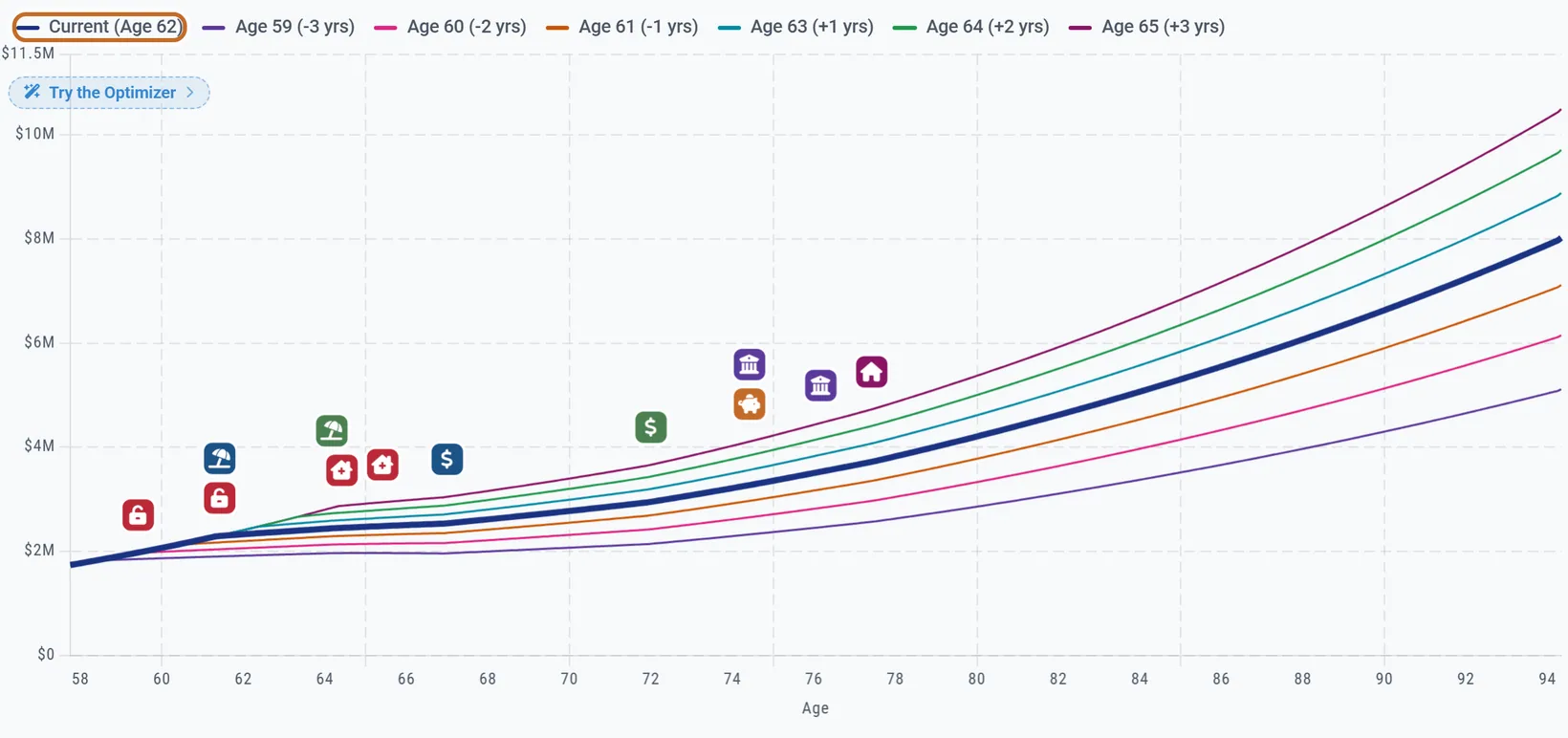
Choose a test in What if under Display. Testing never changes or saves your plan, and the chart is blank for a moment while it runs.
- Test Retirement Ages: your retirement age, 3 years either side.
- Test SS Claiming Ages (with Social Security on): the Primary claiming at ages from 62 to 70 (see Compare claiming ages).
- Test Spending Levels: your spending from 15% less to 15% more.
- Test Return Rates: your stock return, 3 points either side.
- Test Inflation Rates: inflation from 1% to 7%.
Reading Cash Flow and Tax Flow
Two views draw one month or one year as money flowing from left to right, instead of bars over the years. Neither has a ? in the app, so here is how to read them.
Cash Flow
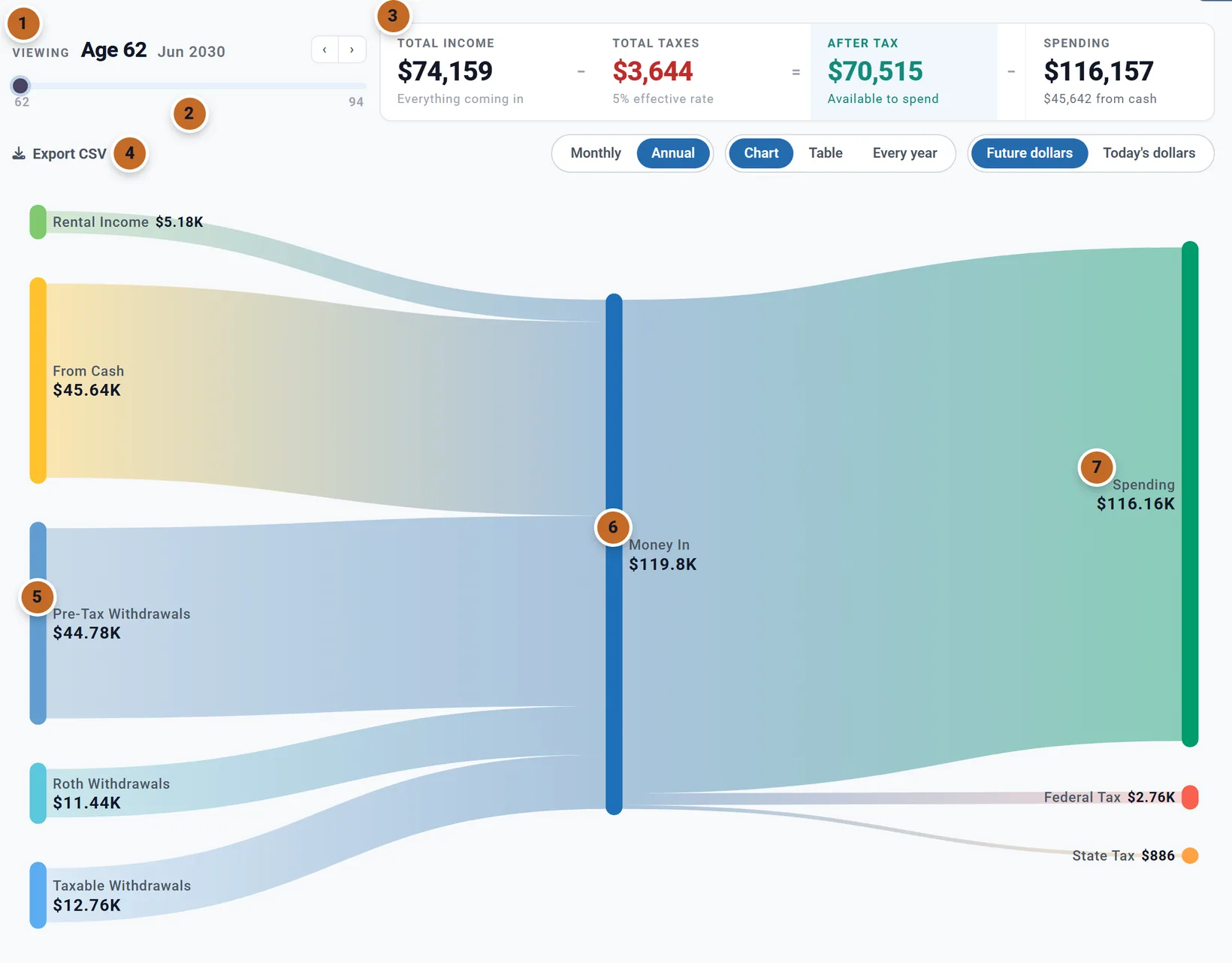
- Which month. "Viewing" names the month on screen; the arrows step a month at a time, or a whole year at a time when Annual is on.
- The slider runs from your first month of retirement (your first paycheck if Employment Income is on) to the end of your plan, a month per step (a year per step in Annual). It moves with the summary panel's slider, and the other way round.
- The sum across the top: total income (income only: cash and sale proceeds are not income), less total taxes with the effective rate, is after tax, less spending. Under Spending: what was left to savings, how much came from cash, how much was over income, or "Breaks even".
- The choices: Export CSV (the month or year on screen, as cash-flow-age-62-jun-annual.csv and so on), Monthly or Annual (the whole year the month is in, short at the start and end of the plan), Chart, Table or Every year (see below), and the dollars. With a linked budget, Categories or Line items splits your spending. These are kept in this browser.
- Left: where the money came from. Each income, each kind of withdrawal, and From Cash when cash paid part of it.
- Middle: Total Income, called Money In when cash or other money that is not income flows in too.
- Right: where it went. Spending, each tax, Medicare premiums, savings and more, and Added to Cash for what was left over. The two sides always add up to the same amount.
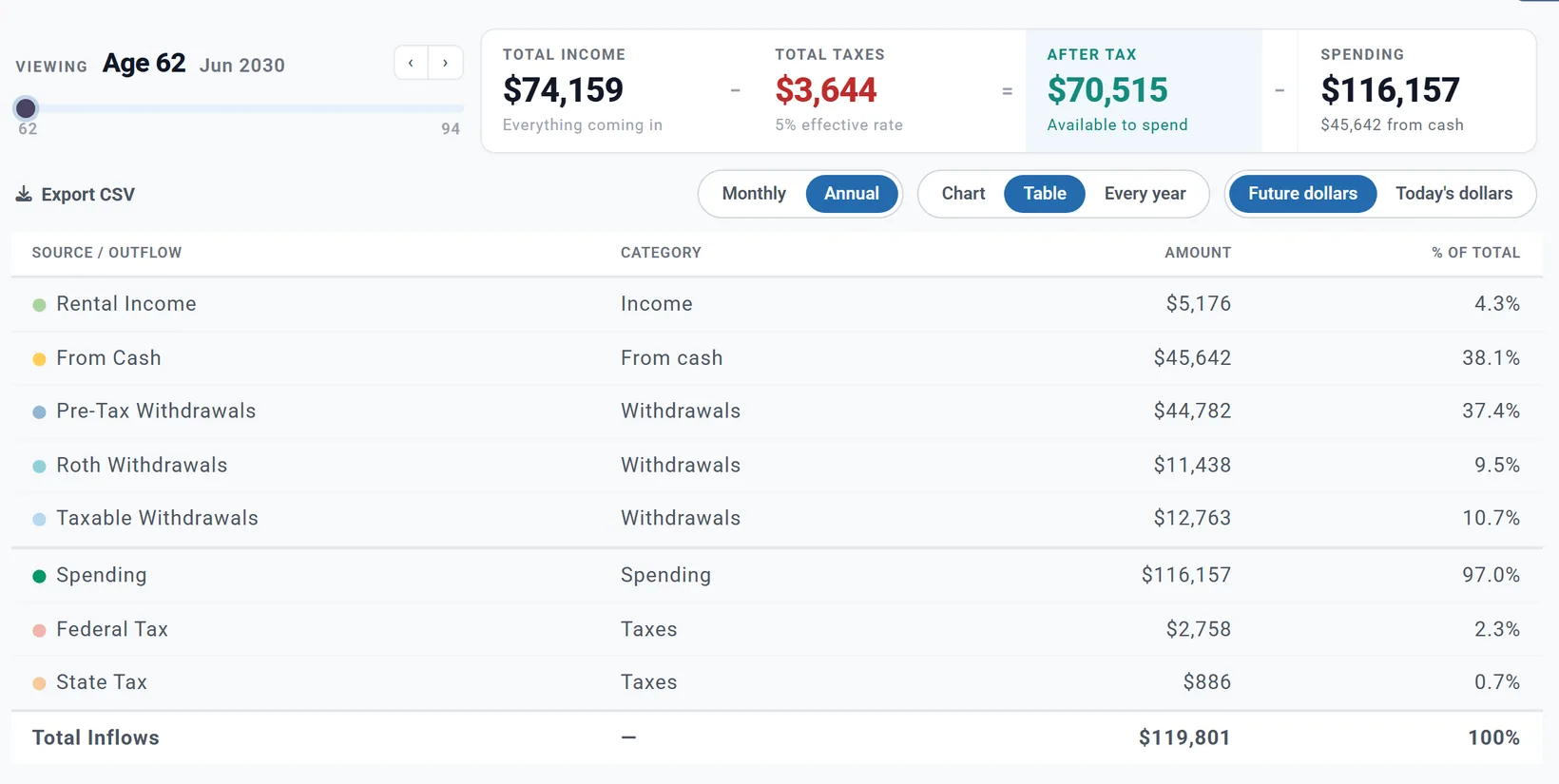
For Chris and Jamie's first year of retirement, $74,159 of income and $45,642 of cash pay $116,157 of spending and $3,644 of tax. In working years with Employment Income on, the left side shows your pay, and what the plan does not track in detail is Living Costs. Point at a flow to see its amount and its share of the total.
Every year. Every year shows your cash flow over the whole plan in one table, a row a year (by age or by year, as the other charts): Income (pay, Social Security, pensions, annuities, other income and rent), One-time inflows (a sale, life insurance, a loan, a one-time benefit), Living expenses, One-time costs (milestones, college, Extra Withdrawals, gifts to charity), Taxes, Saved from pay, and Net cash flow: below zero, what your savings paid that year. Required withdrawals and Portfolio (end of year) are there for reference and are not in the net. Money moved between your own accounts, such as required withdrawals you did not spend and were reinvested, or cash swept into an investment account, is not cash flow and is left out. The table starts where the chart does: your first paycheck with Employment Income on, else your retirement. Monthly and Annual go away while it shows, and Export CSV saves the table. Charts & Data shows the same table under the Cash Flow chart.
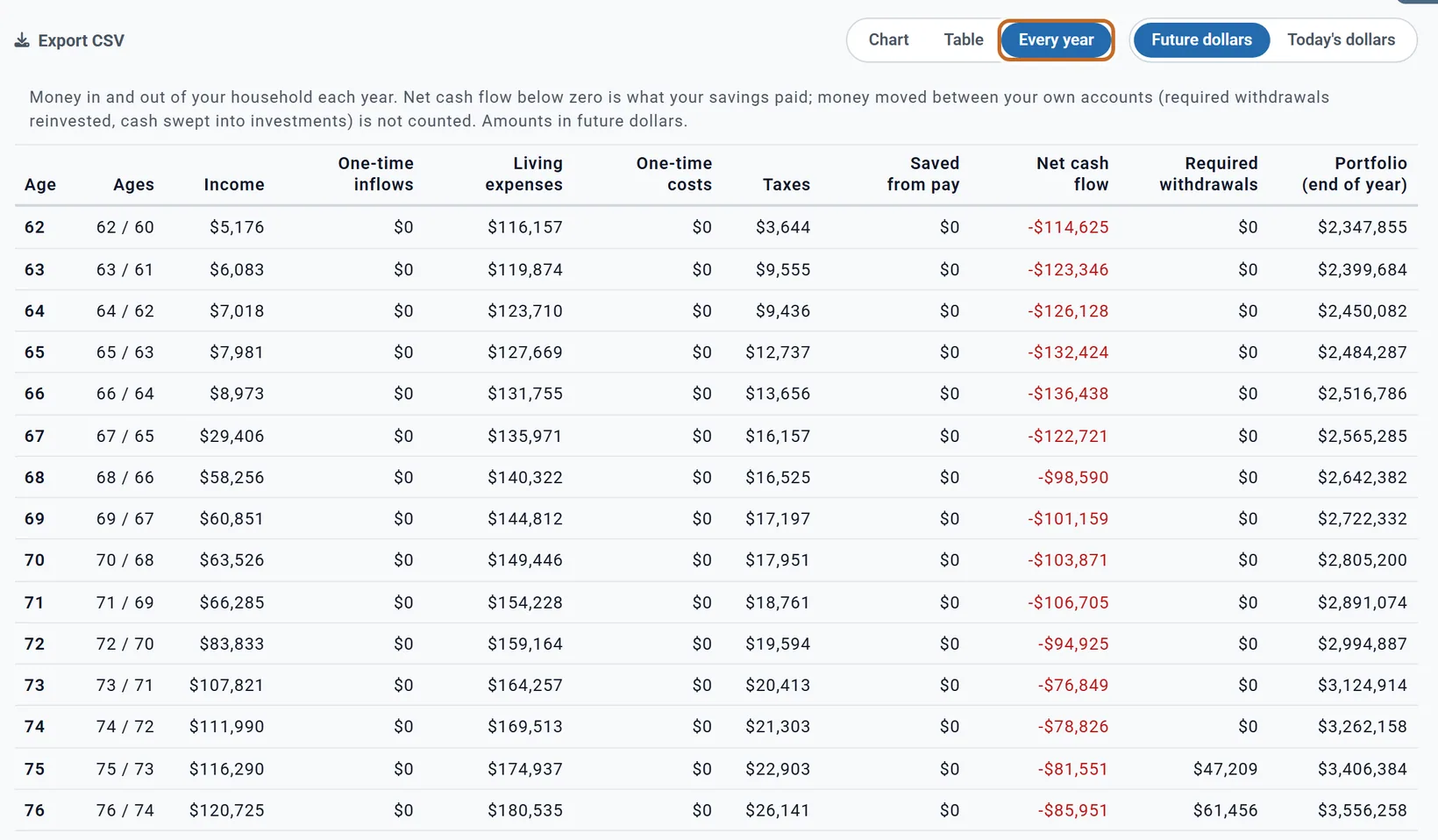
Withdrawals are not income in this table: they are what pays a net cash flow below zero. In Chris and Jamie's first year, the $114,625 their savings paid is the $45,642 from cash plus $68,983 of withdrawals ($44,782 pre-tax, $11,438 Roth and $12,763 taxable) in the Annual view of the same year.
Tax Flow
Tax Flow is a view of the Taxes chart: choose Tax Flow in View:. It follows one year's income through the deduction and the brackets to what you keep. It is always in future dollars.
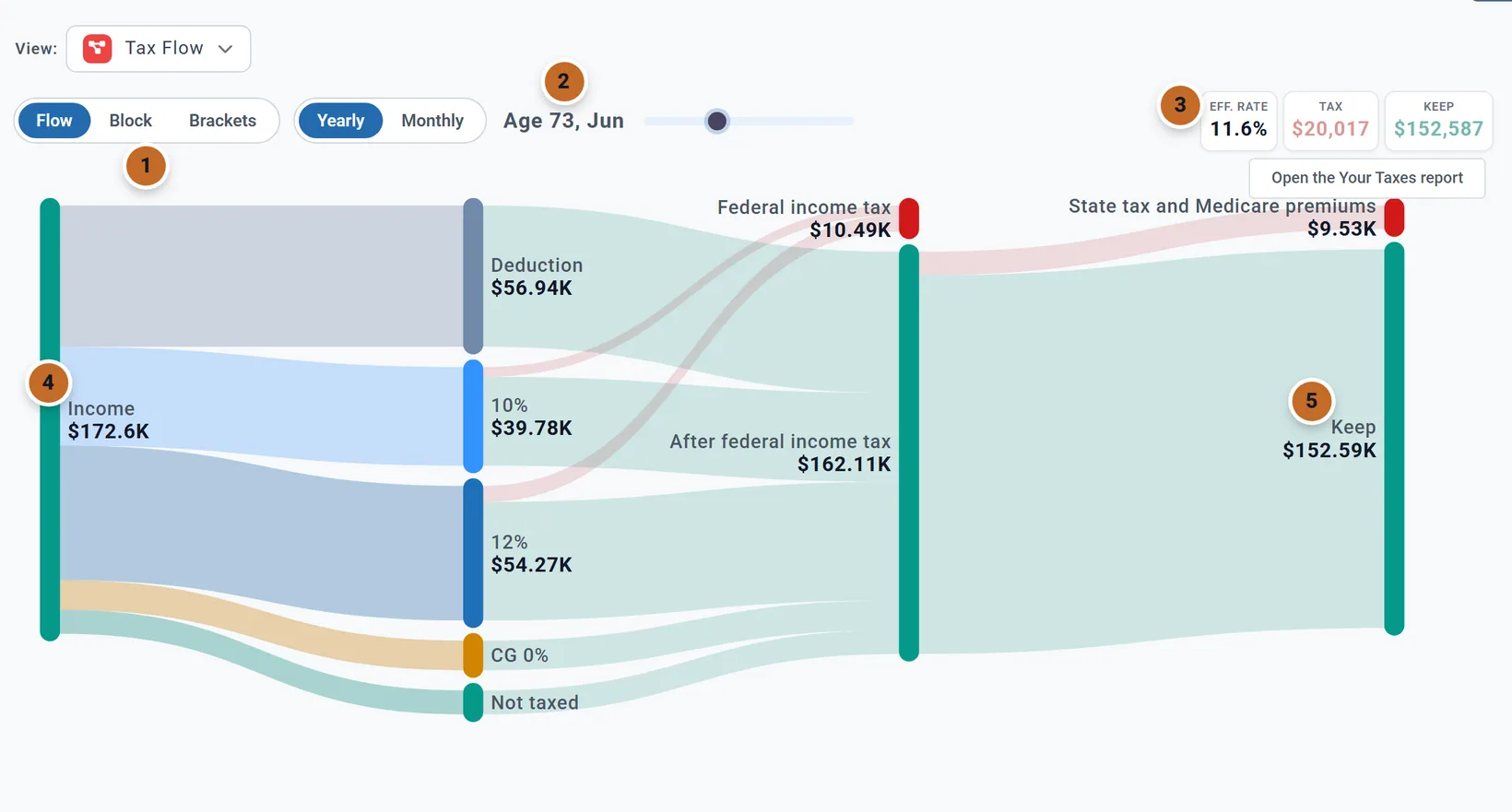
- Flow, Block or Brackets (on a very wide window, Flow chart, Block chart and Bracket summary), and Yearly or Monthly.
- The age and month on screen, with its own slider, which moves with the summary panel's.
- Three boxes: the effective rate (all the tax as a share of the income), the total tax, and what you keep. Point at each for what it holds.
- Income splits into the part your deduction covers, the parts taxed in each bracket (capital gains have their own, such as "CG 0%") and Not taxed (for example Roth withdrawals and the untaxed part of Social Security). The brackets flow into Federal income tax and what is left after it.
- Then the other taxes in the total (here "State tax and Medicare premiums"), and Keep: income less all the tax. The tax nodes add up to the total tax box, and Keep equals the keep box.
Brackets shows the same as a table: each bracket's amount, rate, tax owed and what you keep, then the other taxes and the total with the effective rate. To compare years, use the Taxes chart's other views or Your Taxes.
More: your accounts and saving
The first two groups in More. All are always listed and all are part of Planner+. Planner+
| Chart | What it shows | Shown | On Charts & Data |
|---|---|---|---|
| Account % | The share of your investments in Pre-Tax, Tax-Free and Taxable accounts, month by month, both of you together. Its title is "Account Types Breakdown": tax buckets, not stocks and bonds. No Display. | Always | Table |
| Allocations by Account | Stocks and bonds in each bucket ("Stocks: Pre-Tax", "Bonds: Pre-Tax" and so on), plus Cash, from your stock and bond mix (or a bucket's own mix). | Always | Table |
| All Accounts | One band per account, by name, plus Cash. Accounts in the same tax bucket share growth and withdrawals. | Always | Table; figures explained |
| Contributions | What the plan puts into each account, from today until the last deposit, with employer matches on top. The bars are plan years ("Plan year 1" is the next twelve months), not ages. Display adds Person: All or one of you. Button: Open Contribution Planner (see Saving before you retire). | Always | Table; figures explained |
| Investment Growth | Each year's growth: Pre-Tax, Roth, Taxable, HSA and inherited IRA growth, and Interest on Cash. Display adds Person: Combined or one of you. | Always | Table; figures explained |
| Withdrawal Rate | The share of your savings your plan uses each year of retirement (and, in lighter bars, working years that already draw on savings), against a dashed 4% guideline and a Sustainable for the years left line, with its analysis panel below. Display has X axis only. See Your withdrawal rate. | Always | Table |
More: income
The third group. Each is listed while one of the switches named in "Shown" is on in the Add box (or, for rent, while you have a rental). Planner+. Planner+
| Chart | What it shows | Shown | On Charts & Data |
|---|---|---|---|
| Social Security US | Each of your benefits by year, named for each of you (for example "Social Security (Chris)", and "Spousal benefit (Jamie)" for a spousal top-up), with the Social Security Analysis panel below. See See it in your results. | Social Security or Social Security (Spouse) | Table; figures explained |
| Guaranteed Income | Social Security, pensions, annuities and Other Income, without your pay. When your plan has pay, Display adds Earned income: Guaranteed only or With earned income (salary, Retirement Income, and Other Income taxed as Wages or bonus). | Social Security, a pension, an annuity, Other Income 1 or 2, or a government pension | Table; figures explained |
| Pensions | Each pension, with your government pension (Social Security, CPP and OAS, or the State Pension) beside it. See Pensions and annuities. | Pension 1 or Pension 2, a spouse pension, or a defined benefit pension | Table; figures explained |
| Rental Income | All your rentals together: Gross Rent, Expenses and Net Income side by side. Expenses include a linked mortgage's payment, so Net Income can be small or below zero while the loan runs. | A rental on Accounts & Assets | Table |
| Healthcare & HSA US | Health costs each year by who pays (the HSA or your other accounts), premiums, any premium tax credit, and your HSA balance as a line. See Where to see your health costs. | HSA (Health Savings Account) or Health Care | Table; figures explained |
More: taxes and withdrawals
The fourth group. Planner+. Planner+
| Chart | What it shows | Shown | On Charts & Data |
|---|---|---|---|
| RMDs | Required minimum distributions each year, split by person when both of you have one, and withdrawals from inherited IRAs. See Required minimums. | Apply RMDs on (Retirement Spending box; on to start) | Table; figures explained |
| IRMAA US | Base Medicare and the IRMAA Surcharge each year. To see the thresholds before you reach them, use AGI Tracker. | When your plan pays a surcharge in some year | Table; figures explained; Tax Details |
| Roth Conversions US | Each year's conversion, what reaches the Roth account when tax is withheld, and the tax as a line. Bars are calendar years; By age labels each with the age you turn that year. Display has no Period. See Roth conversions and tax strategy. | Roth Conversions | Table; figures explained |
| AGI Tracker | Your Adjusted Gross Income, with dashed lines for the 22%, 24% and 32% brackets and IRMAA Tier 1 and 2 near it (US). Each line is that year's threshold, rising with inflation. An IRMAA line tests a year's income for the surcharge charged two years later, so those lines start two years before anyone in the plan is on Medicare and stop two years before the plan ends. In Today's dollars a year's AGI and its lines are divided by the same inflation factor (December's, as on that year's tax return), so a year above a line in one view is above it in the other. | Always | Table; Tax Details |
| Taxable Income | What your taxable income is made of each year (wages, capital gains, pre-tax withdrawals, RMDs, interest and dividends, other), the standard deduction below zero, and a Taxable Income line. In Monthly each month is shown at a yearly rate. | Always | Table; Tax Details |
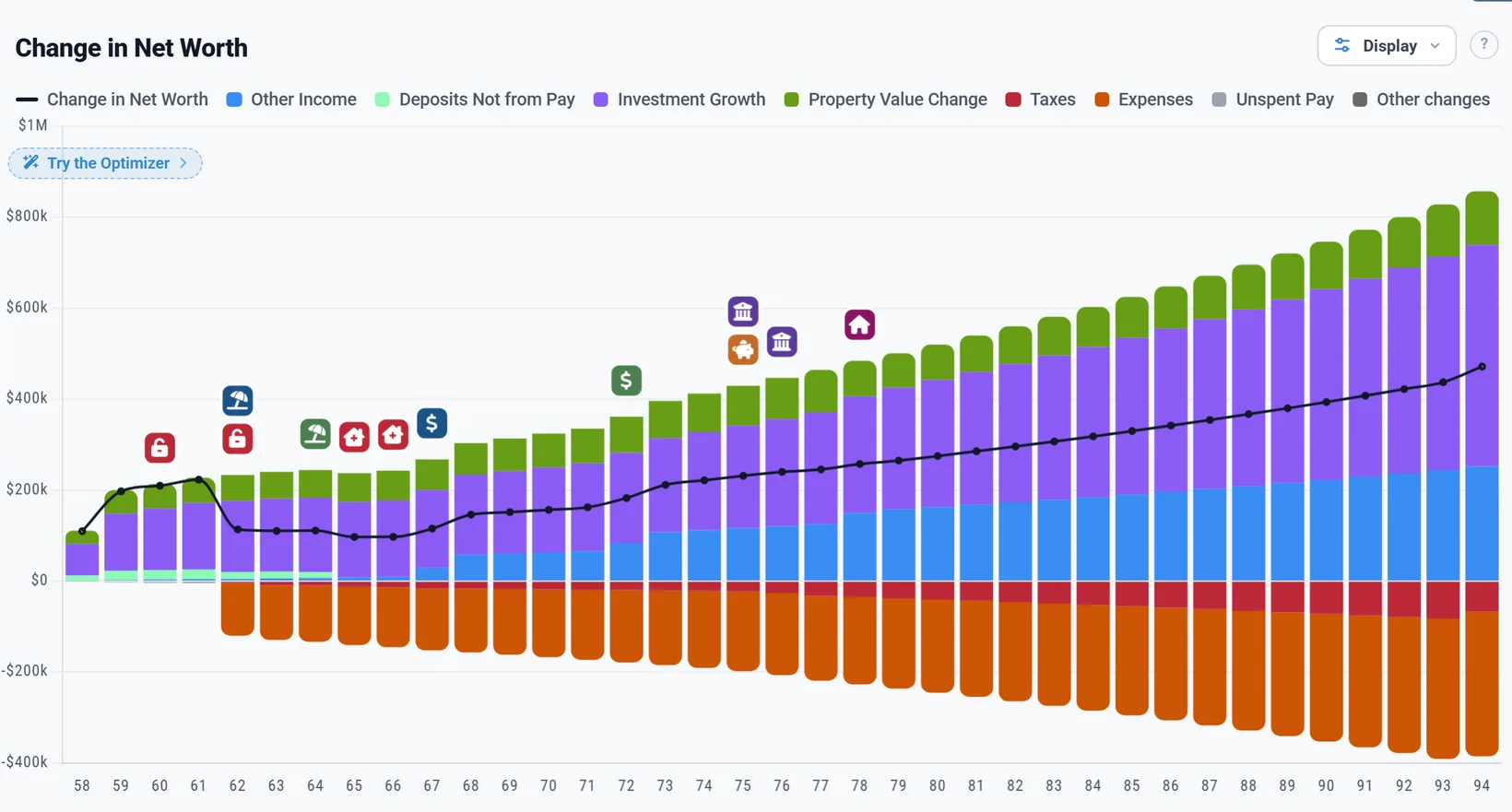
| Change in Net Worth | What moved your net worth each year: growth, property values, income and deposits above zero, taxes and expenses below, and the year's Change in Net Worth as a line. | Always | Table; figures explained |
| Effective Brackets | Your whole plan's income by kind (for example Retirement Income, Ordinary Investment, LTCG Income, Tax-Free), each bar split into Net Income and Tax Paid with its tax rate above, and the Per-Source Tax Rate table below (tax here is federal, state and local income tax). No Display: View under the chart picks Lifetime or one year. | Always | Table (no Explain column) |
| Extra Withdrawals | Each extra withdrawal by its card's name: what was actually drawn, in the years it was drawn. | Extra Withdrawals | Table |
| TIPS Ladder US | Each ladder's yearly payouts, your total withdrawals with the ladder included, and the ladder's value as a line. Display has no Period. | TIPS Ladder 1 or TIPS Ladder 2 | Table |
More: everything else
The last group. Planner+. Planner+
| Chart | What it shows | Shown | On Charts & Data |
|---|---|---|---|
| Portfolio Returns | Your portfolio's return each year beside Equity Only, Bonds Only and a 60/40 Benchmark, for complete 12-month periods only (a short first or last year is left out). Display has X axis only. | Always | Table; figures explained |
| Part-Time Income | Your Retirement Income 1 and Retirement Income 2 boxes, under those names. Each box runs on the ages of whoever earns it (Who earns it; the Primary unless you choose your spouse; see Part-time, gig or consulting work). | Retirement Income 1 or Retirement Income 2 | Table |
| Real Estate Equity | Home Equity and Rental Property Equity: each property's value less its mortgage, all properties together. | A home or a rental on Accounts & Assets | Table; figures explained |
| One-Time Benefits | Each one-time benefit in the year it arrives. | One-Time Benefits | Table |
| Cash Balance | Your cash over time, with a dashed Safety Net Floor when a cash account has a minimum balance (see Keep a minimum in cash). | Always | Table |
Why a chart is missing from More
Twelve charts in More are always listed. The others appear only while your plan has what they draw: the "Shown" column in the tables above. Most need a switch in the Add box, near the bottom of the settings panel (see Social Security and other income for how the Add box works).
- Switch a box off, or mark it not counted for this plan (see Leave something out of one plan), and its chart leaves More. If that chart was on screen, the Dashboard goes back to Portfolio.
- IRMAA comes and goes with your plan: it is listed only while the projection pays a surcharge. It stays while you are looking at it.
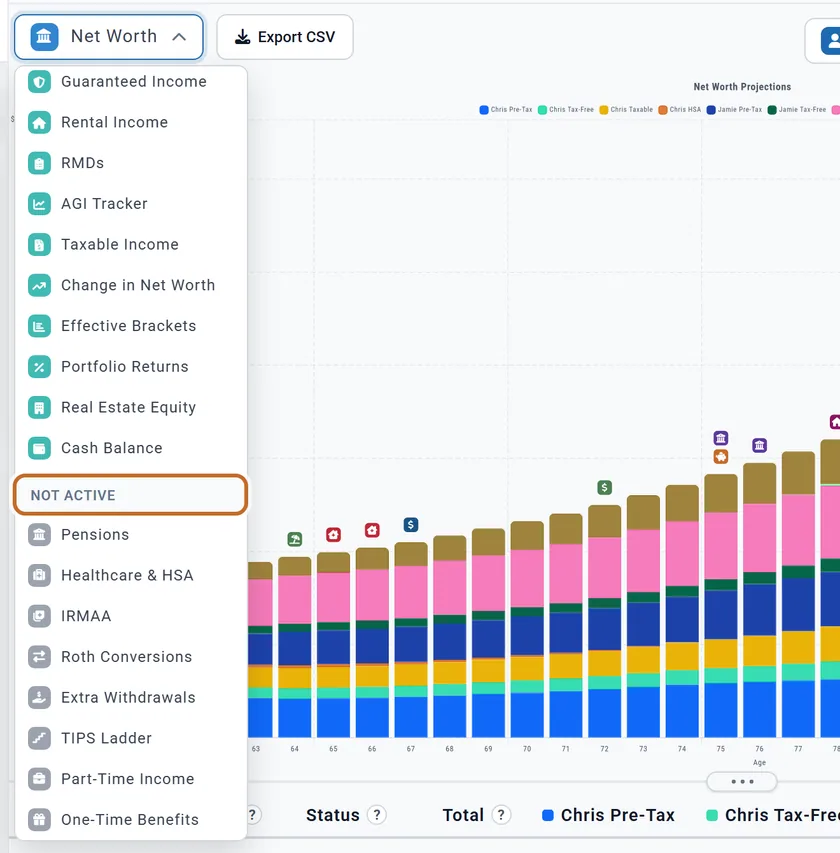
- On Charts & Data, the chart picker lists every chart; the ones your plan cannot draw are grey, under Not active.
Each chart's numbers on Charts & Data
Every Dashboard chart is also on Charts & Data, under the same name, with its table of numbers underneath. The picker groups them as Main, More charts and Not active. The table follows the chart's choices, and Export CSV downloads it (see Charts & Data). Planner+
What the last column of the tables above means:
- Table: each row has This year (or This month) in its Explain column, which shows that year's money in and out.
- Figures explained: the figures in the table are links too. Click one to see how it was worked out.
- Tax Details: a button on each row opens how that year's tax was worked out (see Tax Details).
- No table: Cash Flow and the Taxes chart's Tax Flow view are flows, not values per year. Use Cash Flow's own Export CSV.
Planner+
On a Preview account, Portfolio is the one chart you can read. The others are part of Planner+: you can open any of them, but it is drawn blurred, so you see its shape and not its numbers. Pointing at a bar shows nothing, and Display is hidden. Charts & Data works the same way. Planner+

The Budget chart needs a linked budget, and linking a budget to your plan is part of Planner+ too.
Other countries
The charts work the same way in Canada and the UK, with these differences. CanadaUK
- No Social Security chart in More. Your CPP and OAS, or State Pension, are on Guaranteed Income and on Pensions (listed once you also have a pension).
- RMDs is called RRIF Min in Canada (its switch is Apply RRIF). A UK plan has no such chart.
- US only: IRMAA, Roth Conversions, TIPS Ladder, Healthcare & HSA, and the Income chart's Pre-tax / After tax choice.
- Bucket names follow your country: Registered, Tax-Free and Non-Registered in Canada; Pension/SIPP, ISA and GIA in the UK.
- Taxes: Canada adds bands such as Provincial Tax, OAS Recovery Tax and CPP + EI; the UK has Income Tax, Capital Gains Tax and National Insurance. On a UK plan, By year means the tax year from 6 April (labelled like 2031/32).
- US brackets: AGI Tracker draws no bracket or IRMAA lines outside the US, and the Taxes chart's View offers Bracket Fill only on a US plan (it is built on US federal brackets). Use Your Taxes instead.
- On a UK plan the Income chart shows one Portfolio Withdrawals band instead of one per account.
- Titles use your currency, such as "(Today's Pounds)".
Questions people have asked
| What they asked | Answer |
|---|---|
| "Can I see my withdrawal rate as a percentage, year by year?" | More, then Withdrawal Rate. What the rate counts. |
| "Why does Guaranteed Income show my bonus but not my salary?" | The chart leaves pay out. Choose With earned income under Display. A bonus entered as Other Income moves there too once its tax treatment is Wages or bonus (see A bonus or stock pay while you work). |
| "I can't find the Pensions (or Roth, or Extra Withdrawals) chart." | It is listed only while its box is on. See above. |
| "I want to see when IRMAA surcharges kick in." | IRMAA appears once your plan pays one. Before that, AGI Tracker shows your income against the IRMAA tiers, from two years before Medicare starts (a year's income sets the premium two years later). |
| "Where are the numbers behind this chart?" | On Charts & Data, under the same name. See above. |
| "The chart says my money lasts, but Chance of Success is not 100%." | The charts show one projection; Chance of Success replays market history. Why they differ. |