



 Continue with Google
The Budget tab at a glance
The Budget tab is where you list your spending line by line and see how it changes over the years. This page is a tour of the tab itself. How to time a row, and how a budget sets your plan's spending, are on Spending and your budget.
Open Budget at the top of the screen, or in the left menu. The page is called Monthly Budget.
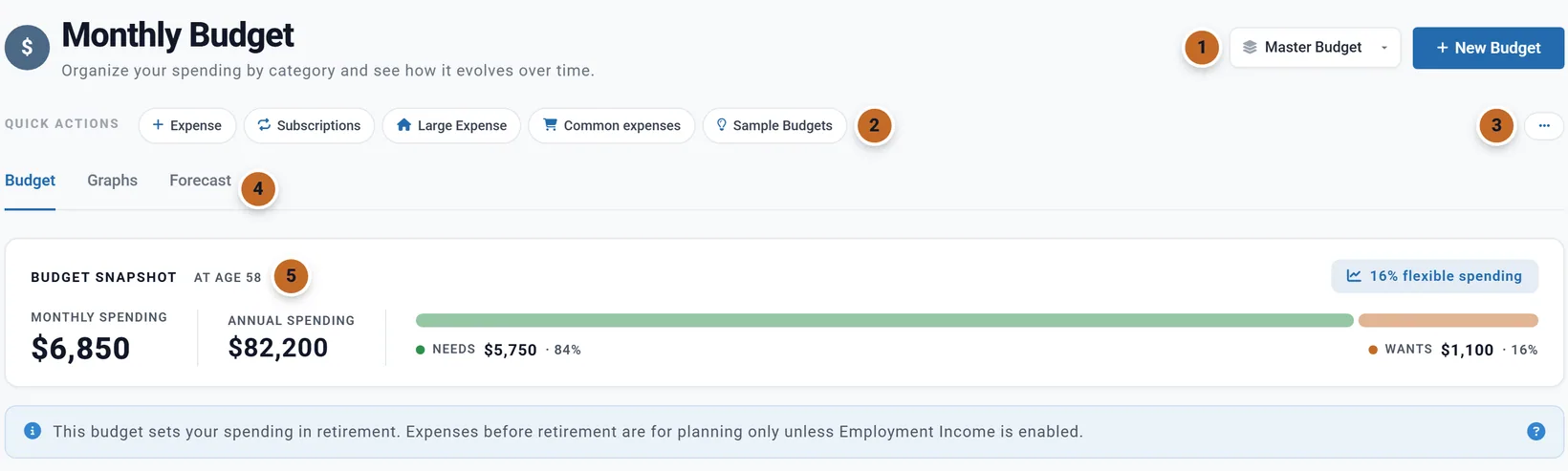
- Which budget. The selector shows your Master Budget and any named budgets; New Budget makes another (see Named budgets).
- Quick Actions add rows (see Quick Actions and Sample Budgets).
- The "..." button holds Restore previous budget and Clear all expenses (see Undo).
- Three views: Budget (your rows), Graphs and Forecast.
- The Budget Snapshot: your budget at your age today. It stays in view on all three.
Below the snapshot, the Budget view lists your rows by category, then Milestone expenses (when you have any), Add New Category and the Budget Summary with Export Report. Every change saves as you make it: there is no Save button.
The Budget Snapshot and the totals
Every total on the tab is for your age today. A row that has not started yet, or has ended, is greyed out and left out of the totals. Chris and Jamie's snapshot says "at age 58": $6,850 a month, $82,200 a year. Their travel, boat and COBRA rows start at 62, so they are not in it yet.
- Monthly Spending and Annual Spending (twelve times the month).
- A bar split into Needs, Wants and Splurge, with each one's amount and share. A type with nothing in it today is left off: Chris and Jamie's boat is their only Splurge.
- 16% flexible spending: the share that is Wants and Splurge, the part you could cut if your plan needs it.
- If no row is paid at your age today, the snapshot is not shown.
The same "at your age today" rule gives each category its total ("Healthcare Total (at age 58)") and the Budget Summary at the bottom of the list, which repeats the snapshot's numbers. The amount beside a budget in Use Budget is this total too. To see what you will spend at each age, use the Forecast.
Categories and rows
Each category is a box of rows.
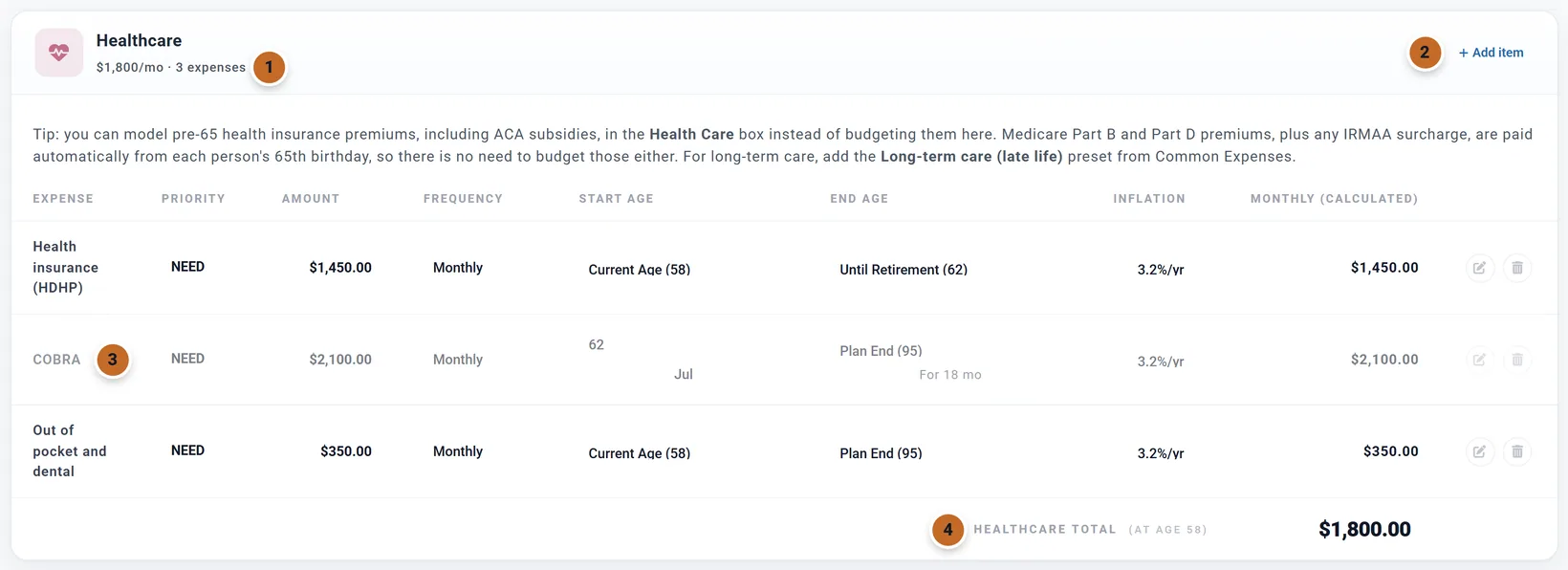
- The header: the category's monthly total today and how many rows it has. Click the arrow to fold the box. Expand all and Collapse all above the list fold every box; the planner remembers which are folded, for each budget, in this browser.
- Add item opens a new row in this category.
- A greyed row is not paid at your age today. COBRA starts at 62.
- The category total at your age today.
- Change a row in place. Click its Priority, Amount, Frequency, ages or Inflation to change it. Amount is what you pay each time; Monthly (calculated) is worked out from it. The pencil opens the whole row.
- The bin deletes a row at once, without asking. It cannot be undone.
- In US plans the Healthcare category has a note: Medicare premiums are charged for you, health insurance before 65 can go in the Health Care box, and long-term care has a ready-made row (see What to include). US
- A row marked Synced from Accounts follows a loan on Accounts & Assets: its amount and end change with the loan (see What to include, and what the planner adds for you).
Add or delete a category
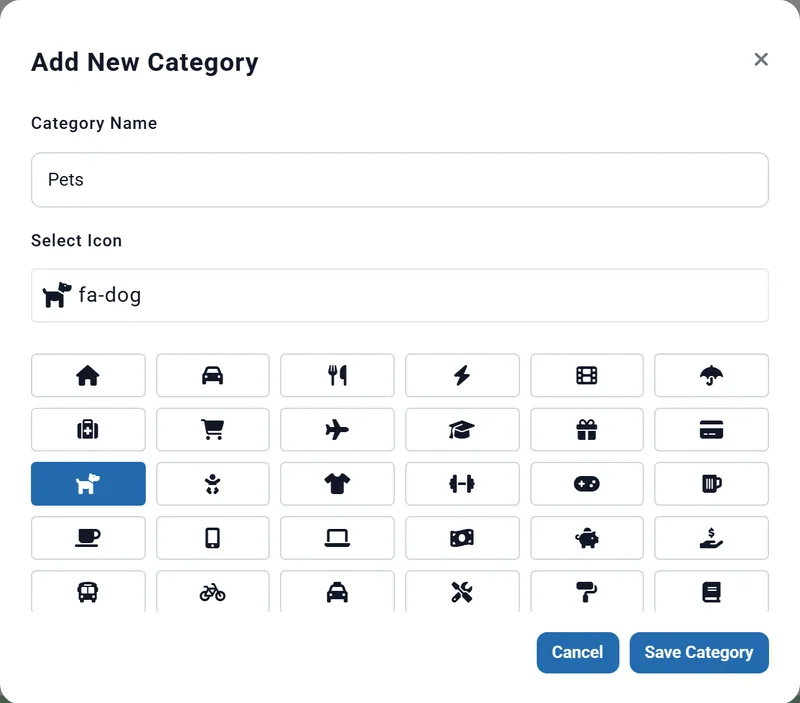
Add New Category, below the last category, asks for a Category Name and an icon (Select Icon), then Save Category. A name you already have is refused. The new category goes at the end, empty.
An empty category shows No expenses and a Delete Category button. A category with rows cannot be deleted: delete its rows, or move them by changing Category in each row, first. A category cannot be renamed.
The expense dialog
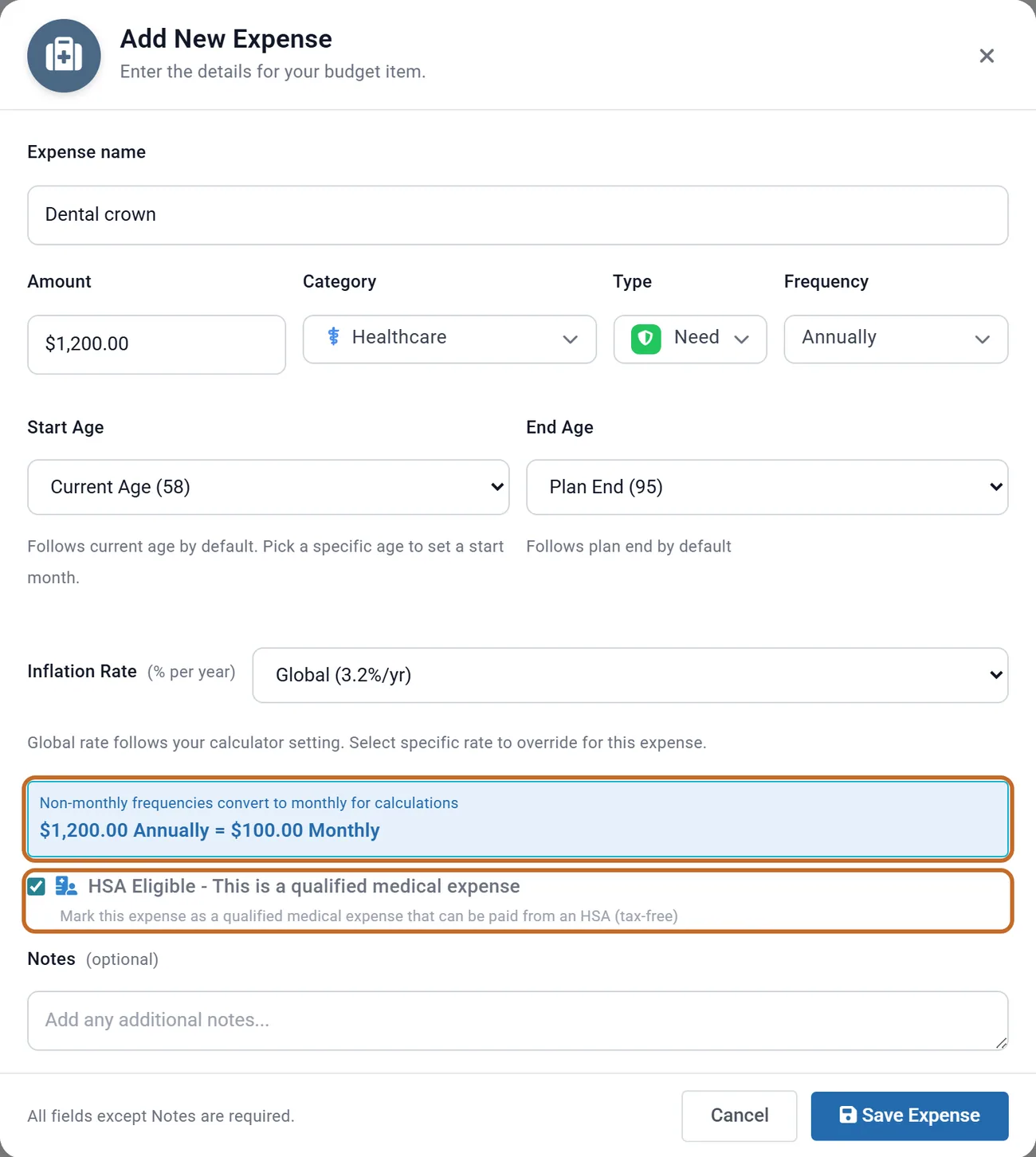
Expense in Quick Actions opens Add New Expense; Add item opens the same dialog with its category chosen, and the pencil opens Edit Expense. Every field but Notes (optional) is needed.
- Type: Need (to start with), Want or Splurge.
- Frequency: Monthly, Quarterly, Semi-Annually, Annually, Weekly, Bi-Weekly, or Custom (every so many days, weeks, months or years). Enter what you pay each time; the dialog shows the monthly figure: "$1,200.00 Annually = $100.00 Monthly". A weekly amount counts 52 times a year.
- Start Age and End Age, with a month or a set time: see When a row starts and stops.
- Inflation Rate: Global (3.2%/yr), your plan's own rate, or a rate for this row (0% for a payment that never rises).
- HSA Eligible - This is a qualified medical expense: see the next section.
HSA Eligible: medical costs your HSA can pay
Tick HSA Eligible - This is a qualified medical expense on a row your health savings account could pay: out-of-pocket costs, dental, prescriptions. US
It changes your plan only with the HSA box set to use your budget. In the HSA (Health Savings Account) box, switch on Use HSA for Healthcare Expenses and set Healthcare Expense Source to From Budget Categories. The box then shows HSA-Eligible Expenses from Budget: the monthly total of your ticked rows.
- From your retirement, the HSA pays the ticked rows, tax-free, while it has money.
- They are part of your spending, not added to it. What the HSA pays, your other accounts do not have to.
- With your budget linked, the HSA follows each ticked row's own ages. With no budget linked, it pays the total of every ticked row in the budget open on the Budget tab, each month from retirement, raised at the box's Healthcare Inflation %.
- With no ticked rows, the HSA pays nothing toward your budget; it still pays Medicare premiums from 65 (see Your HSA).
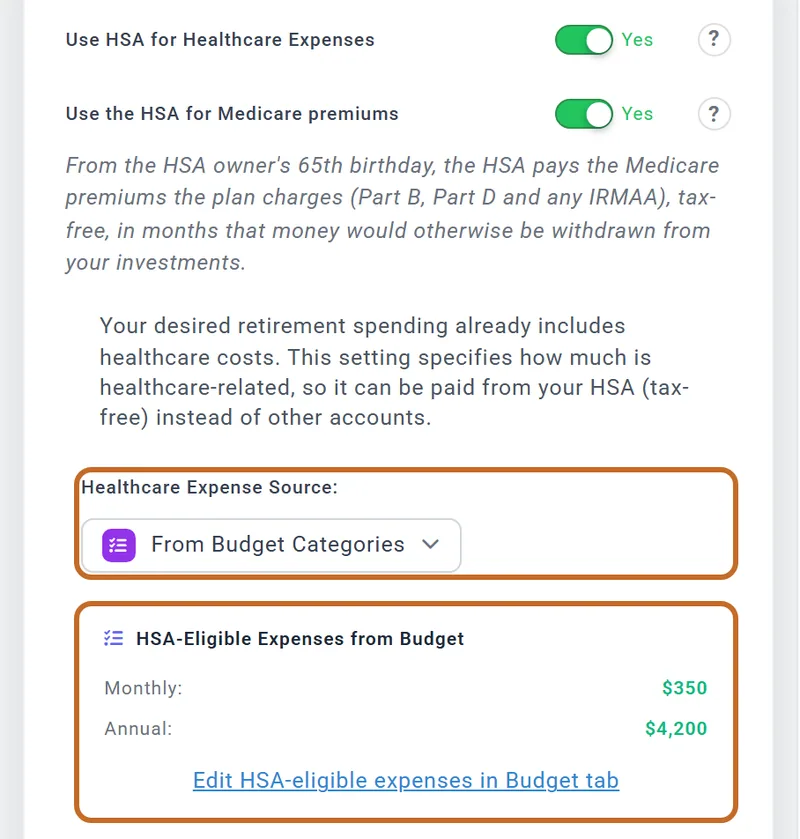
Chris and Jamie tick their $350 a month of out-of-pocket and dental costs. With the HSA box on From Budget Categories, Chris's HSA pays that $350 a month, in today's dollars, from June 2030, when Chris retires, until the HSA runs out at 73: about $46,000 in today's dollars, that their other accounts do not have to find.
- When it is ticked for you: a new expense in Healthcare, whether you choose it as the Category or use Add item in the Healthcare category. Rows added from Subscriptions, Large Expense, Common expenses or a sample are never ticked. Check the box yourself on any other row the HSA can pay.
- The tick does nothing outside a US plan or without the HSA box.
Quick Actions: add rows fast
Each of these opens a list. Set the amount on a line and click Add: the row is added and saved at once. Done closes the list.
| Button | What it adds |
|---|---|
| Expense | One row, through the expense dialog. |
| Subscriptions | Quick Add Subscriptions: streaming, music, apps and the like, with a search and Filter by category. Each is a monthly row from your age today to Plan End, at your plan's inflation, usually as a Want. A name already in your budget is refused. |
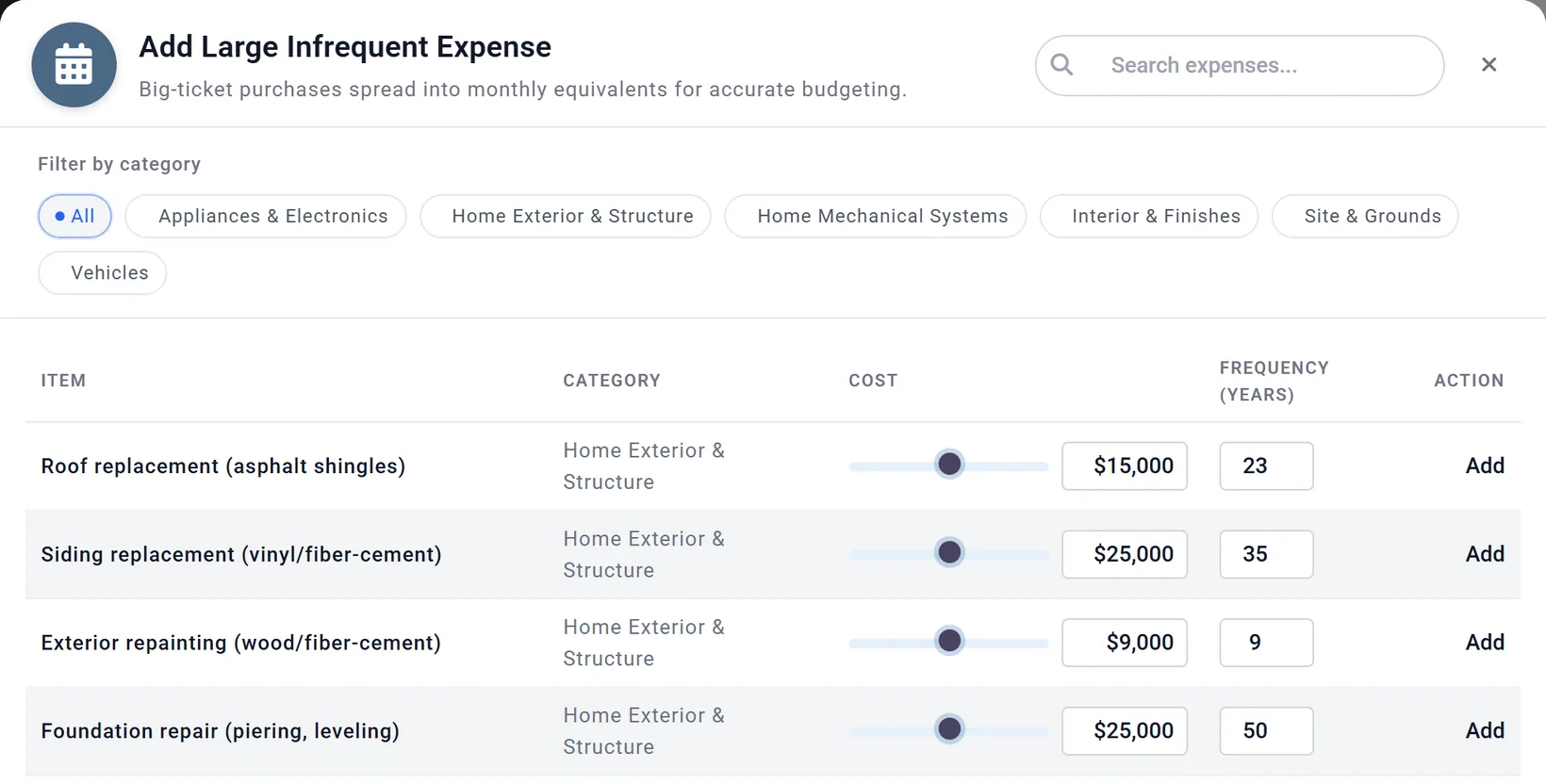
| Large Expense | Add Large Infrequent Expense: a big cost that comes back every so many years, with its Cost and Frequency (Years). It is spread into a monthly amount: a $15,000 roof every 23 years is $54.35 a month. The row starts at your age today, a fixed age, and runs to Plan End, in a category such as "Home Exterior & Structure". |
| Common expenses | Add Common Monthly Expense: everyday costs with an estimated Monthly Cost, from your age today to Plan End. Long-term care (late life) is different: $7,500 a month for the last three years of your plan (from 92 for Chris and Jamie), rising 5% a year (see What to add yourself). |
| Sample Budgets | A whole budget: see the next section. |
Sample Budgets
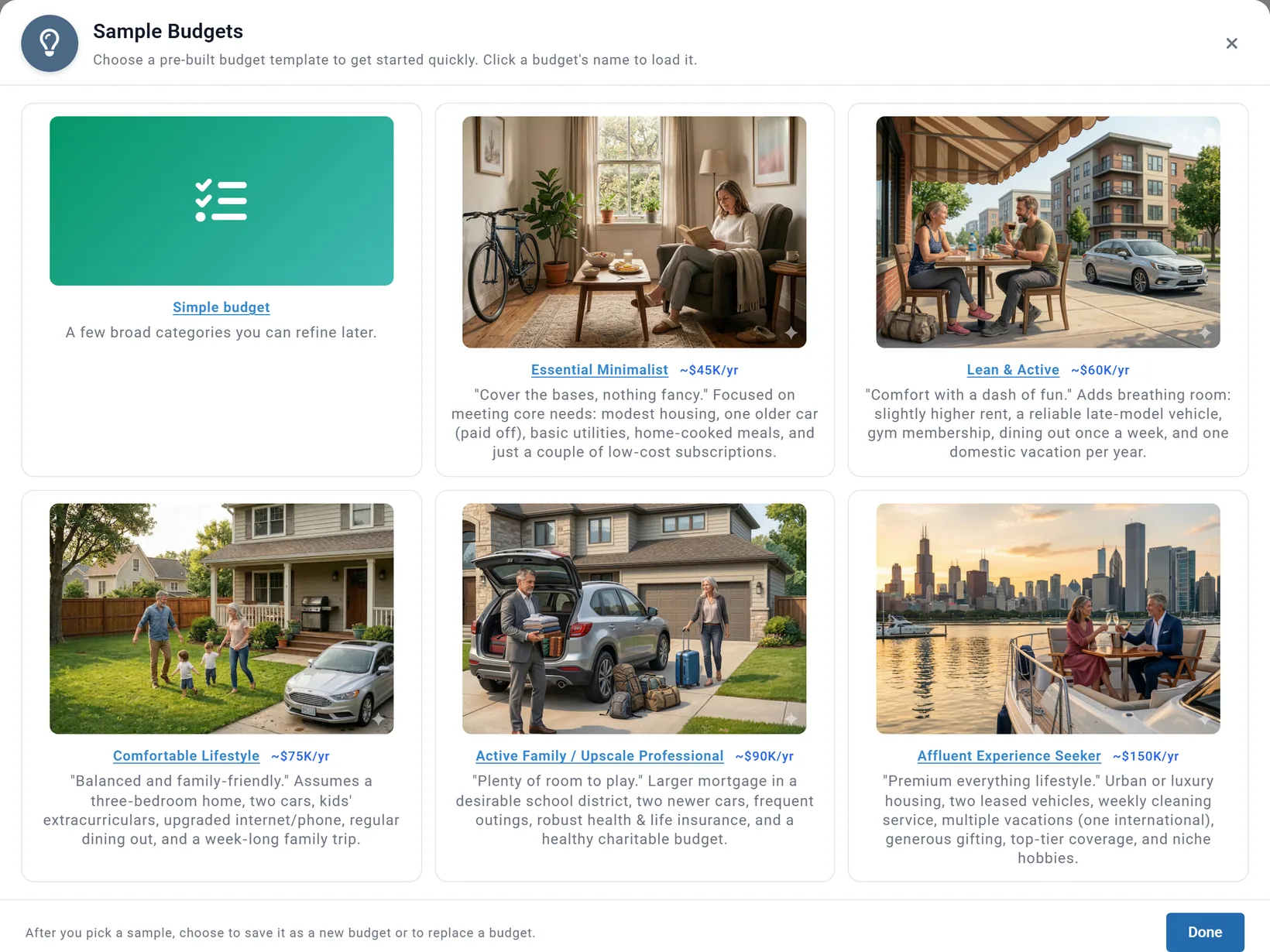
Sample Budgets offers six ready-made budgets to start from: Simple budget and five lifestyles from Essential Minimalist to Affluent Experience Seeker. Click a name to load it.
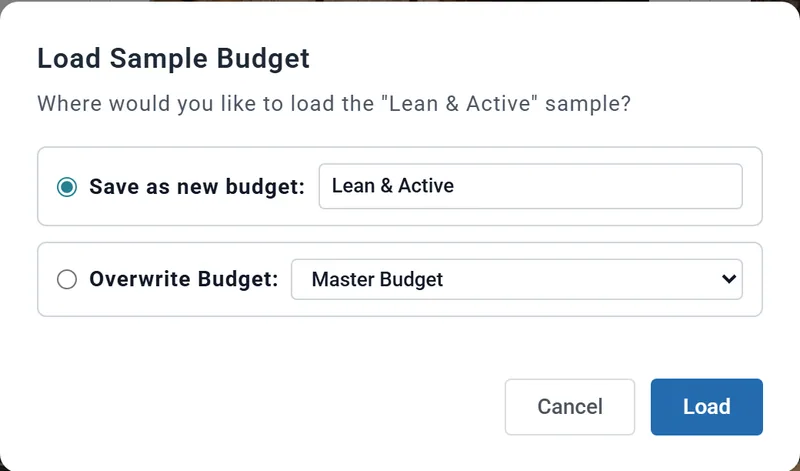
Signed in, your budget is not replaced unless you choose to. Load Sample Budget asks where the sample goes:
- Save as new budget: (chosen to start with): the sample becomes a new named budget, under the name you give it, and opens. The budget you had stays as it was.
- Overwrite Budget: replaces your Master Budget or a named budget with the sample: its rows and its categories (the nine standard ones; categories you added go). Restore previous budget can put the budget on screen back (see Undo).
Every sample row runs from your age today to Plan End, and none of them is tied to your retirement. Change the ages of the rows that will stop or start when you retire (see Spending while you are still working).
Graphs: your budget by category over the years
Graphs draws one bar for each age, from today to Plan End, split by category.
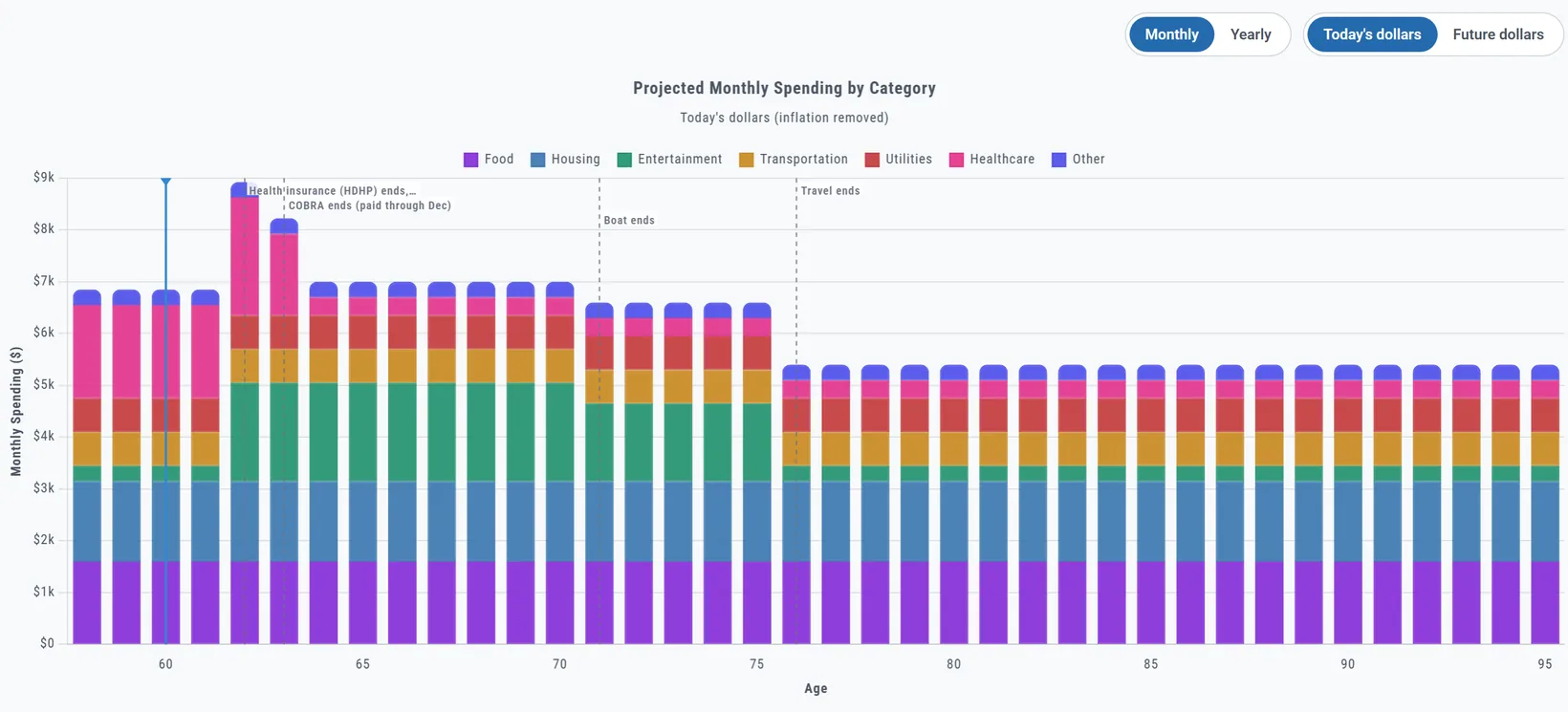
- Monthly or Yearly, and Today's dollars or Future dollars. The tab opens on Monthly and Today's dollars, and goes back to them when you reload the page. The dollars switch is shared with the Forecast.
- Dashed lines name the biggest changes, such as "Boat ends" at 71.
- Hover over a bar for each category and the total. Click a category in the legend to hide it.
- The chart shows the whole budget, before retirement too. It is the budget, not what your plan spends: for that, see Where to see your spending.
Where your money goes
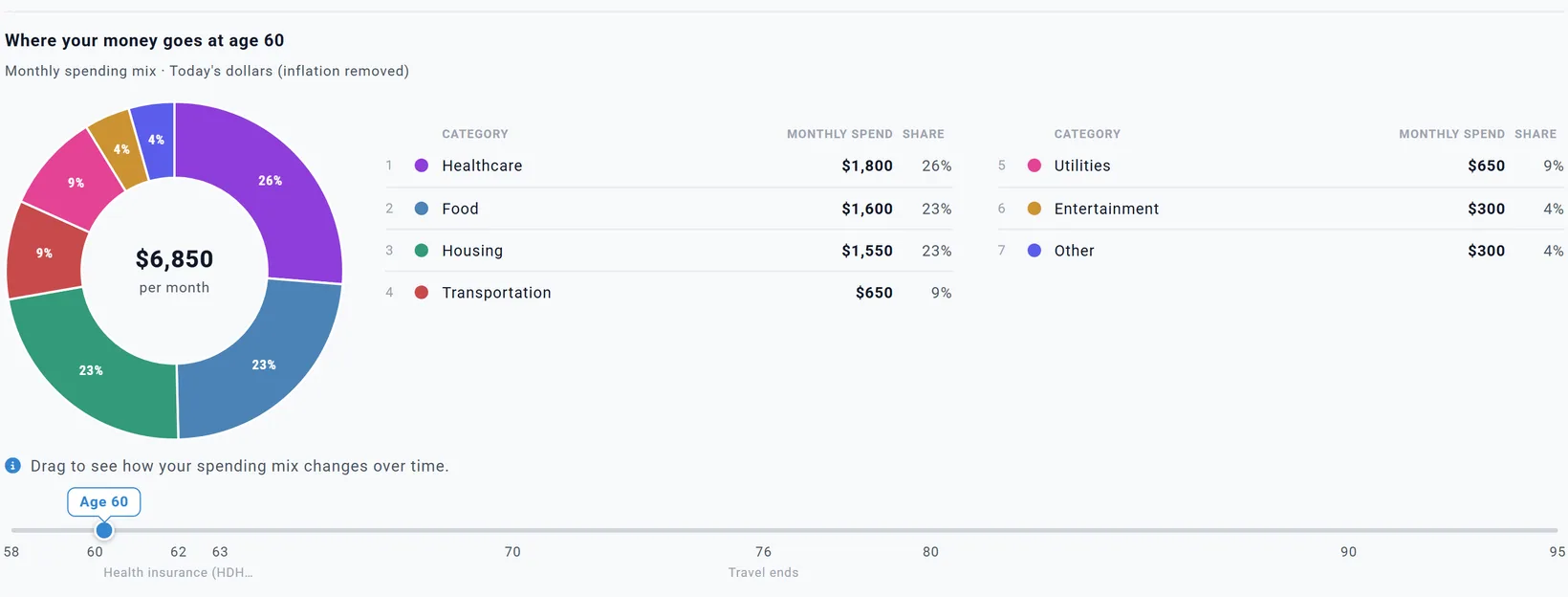
Under the chart, a ring shows one age: each category's share, the total in the middle, and a ranked list of Monthly spend and Share. It starts at your age today. Click a bar, or drag the age slider, to choose another age; the slider marks your retirement, the decades and the biggest changes.
Forecast: what you will spend at each age
Forecast is a table with one row for each age, from today to Plan End: Needs, Wants, Splurge, Total Monthly Spending, Total Annual and Changes. A band marks your retirement. These are after-tax amounts, in today's or future dollars.
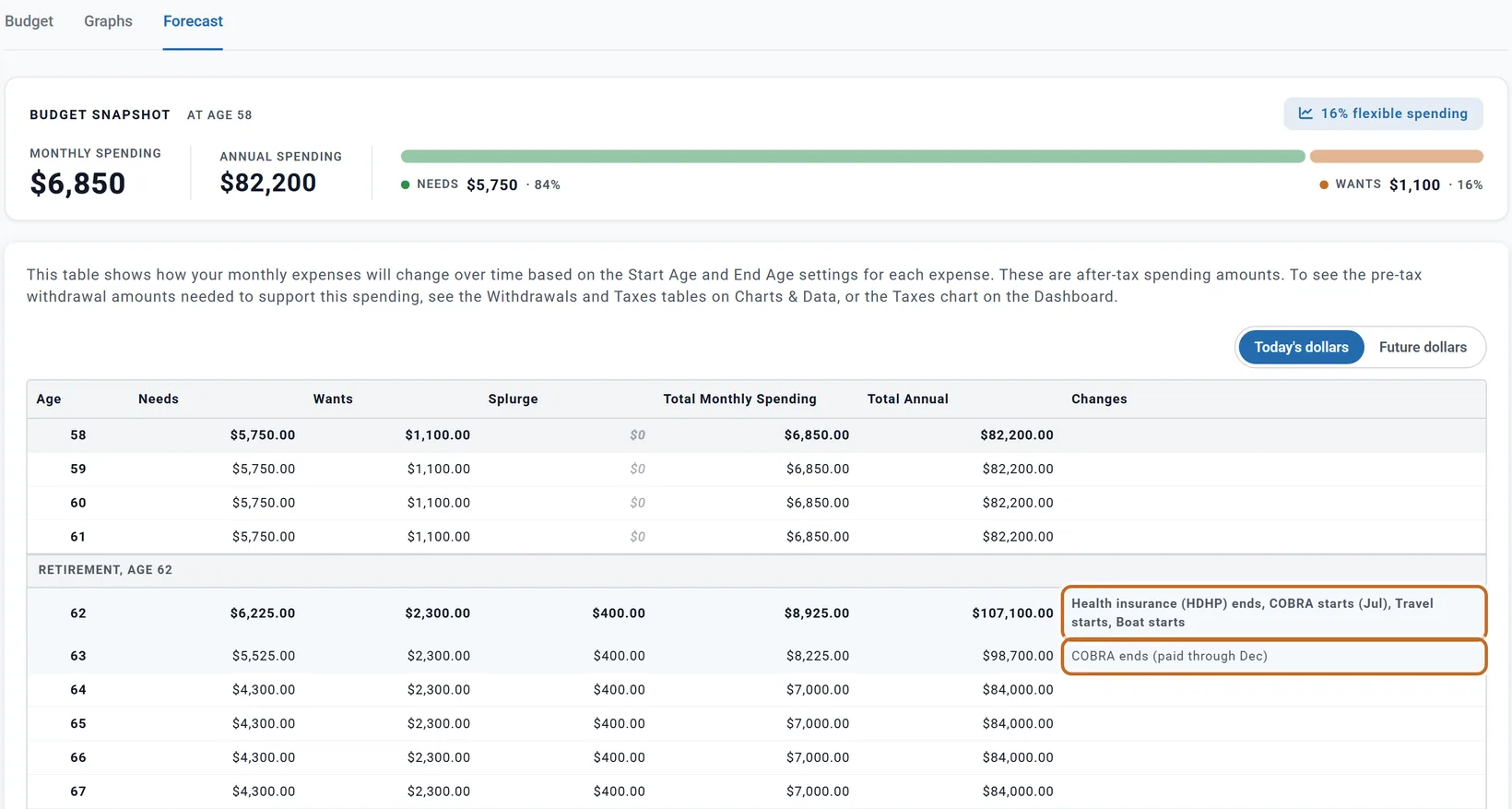
- A row that covers part of a year shows its monthly average for that year. Chris's 18 months of COBRA start in July, after Chris's June birthday: 11 months fall in the year Chris is 62 and 7 in the year Chris is 63. So the total is $8,925 a month at 62 and $8,225 at 63, then $7,000 from 64.
- Changes names what starts and stops, with the month when a row has one. "Ends" appears in the first year without the row: the boat runs to 70, so "Boat ends" is at 71.
- From 71 Chris and Jamie's total drops to $6,600 a month, and from 76, the first year without travel, to $5,400.
- The Forecast raises rows once a year, on your birthday; your plan raises them every month. So the Forecast and the Dashboard's Spending chart can differ a little.
Milestone expenses
When your plan has milestone costs, the Budget view lists them under Milestone expenses: "Timing decided in the simulation, so these are not counted in the age-by-age budget totals."

- From the Milestones box: a milestone's Add an expense action, such as Chris and Jamie's care for Jamie from 85 (see Make a milestone change your plan). Change it in the Milestones box.
- Budget expense: a row of this budget that starts when a condition milestone happens (see Budget rows on a milestone). A budget can have five of these; starting a row this way needs Planner+. Planner+
- Neither kind is counted in the snapshot, the totals or the Forecast. Your plan still pays them, in the month the milestone happens; for a condition, each market history in Chance of Success decides when that is.
Undo: Restore previous budget and Clear all
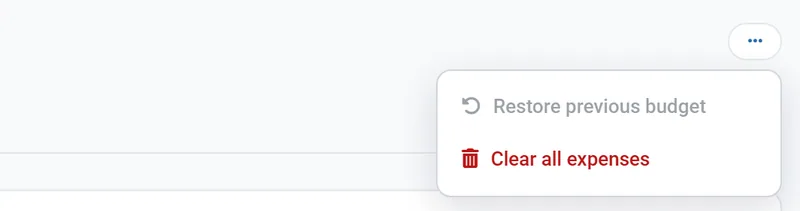
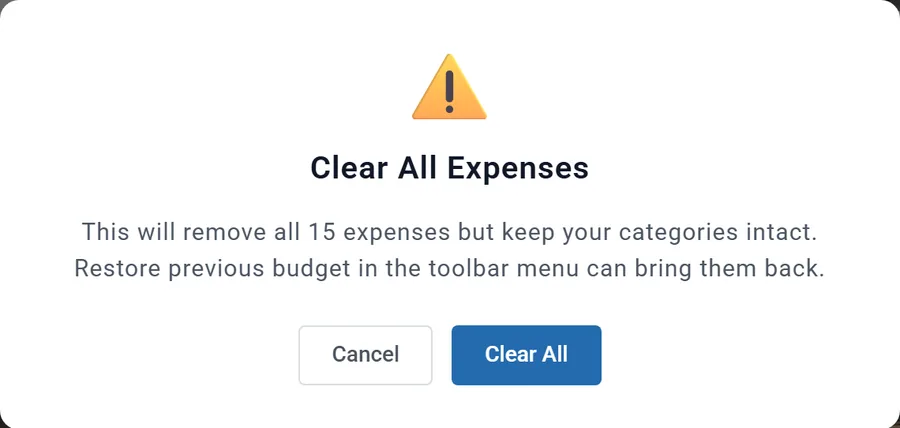
- Clear all expenses removes every row of the budget on screen and keeps its categories. It asks first.
- Restore previous budget puts back the rows and categories from before the last Clear all, or before a sample overwrote the budget on screen. It is greyed out until one of those happens. After a Clear all of Chris and Jamie's budget, it brought back all 15 rows: "Previous budget restored."
Export Report
Export Report, in the Budget Summary at the bottom of the Budget view, downloads the budget on screen as a spreadsheet file (CSV), named after the budget and the date, such as "Master-Budget-20261018.csv".

- One line per row, grouped by category: Category, Expense, Amount, Frequency, Type, Start Age, End Age, Inflation %, Monthly Equivalent and Notes. Inflation % is the rate itself: a Global row shows your plan's 3.20.
- Ages are written as numbers. A Start Age of 0 means Current Age; -2 means At Retirement (or, as an End Age, Until Retirement); Plan End is written out. A row's month, or a set time such as COBRA's 18 months, is not in the file, and neither is HSA Eligible.
- The two totals at the end add every row, at any age. Chris and Jamie's file says "Total Monthly Budget" $10,550, not the $6,850 on screen at 58, because it includes the COBRA, travel and boat rows that start at 62.
Named budgets
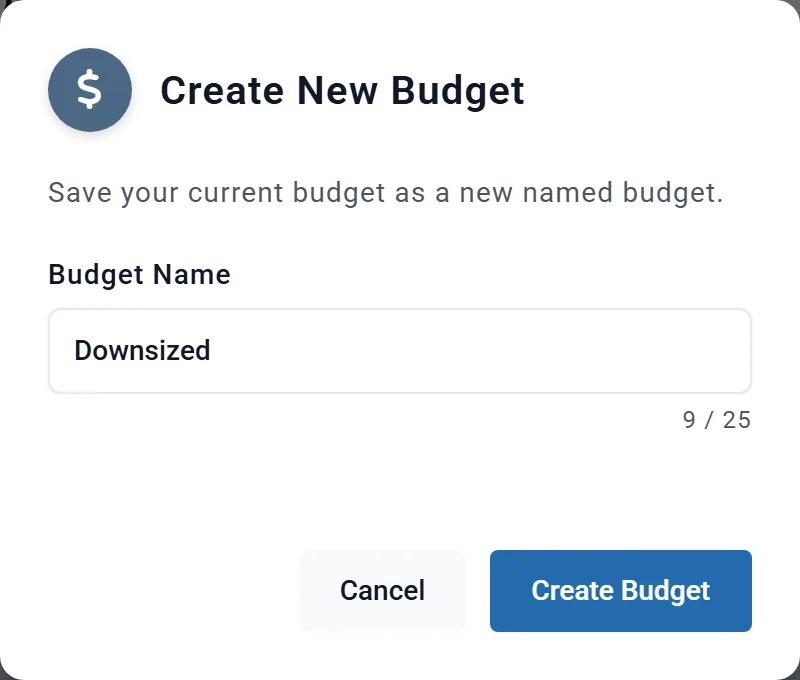
Your budgets belong to you, not to one plan: the Master Budget plus any named budgets. To keep a second budget, for example spending after downsizing:
- With the budget to copy on screen, click New Budget.
- Give it a Budget Name (up to 25 characters) and click Create Budget. It starts as a copy of the budget on screen, and opens.
- Change its rows. A bar above the Quick Actions says "Editing budget:" and its name.
- To go back, choose Master Budget in the selector, or Stop Editing in that bar. The named budget stays as you left it.
- A named budget changes a plan only when that plan links it in Use Budget. To give one what-if plan different spending, see Different spending in a what-if.
- Rename or delete named budgets on My Plan & Budgets, under My Monthly Budgets. The Master Budget is not listed there and cannot be deleted. To share a budget, see Share a budget.
On a Preview account
On a Preview account the Budget tab works in full: you can build budgets, use every view and Quick Action, and your budgets are saved. Three things need Planner+: Planner+
- linking a budget to your plan in Use Budget (see Link your budget to your plan);
- starting a row when a condition milestone happens ("Milestone-timed expenses are a Planner+ feature.");
- the Budget and Spending charts on the Dashboard.
Without signing in, the tab shows a sample budget, kept only in your browser, and changing a row asks you to sign in.
What to know
- Budget ages are the Primary's. For a cost on your spouse's age, see Costs on your spouse's age.
- The snapshot and every total are for your age today. The Forecast shows the years ahead.
- The bin cannot be undone, and Restore previous budget works once, in one browser.
- A category cannot be renamed, and one with rows cannot be deleted.
- The Budget tab's views raise rows once a year; your plan raises them every month.