


 Continue with Google
What the Spending Smile does
Most plans assume you spend the same amount every year of retirement, raised only for inflation. Research by David Blanchett (Morningstar, 2013) found that many retirees spend less, after inflation, through the middle of retirement, then more again late in life as health and care costs grow. Drawn on a chart, the curve dips and rises: a smile.
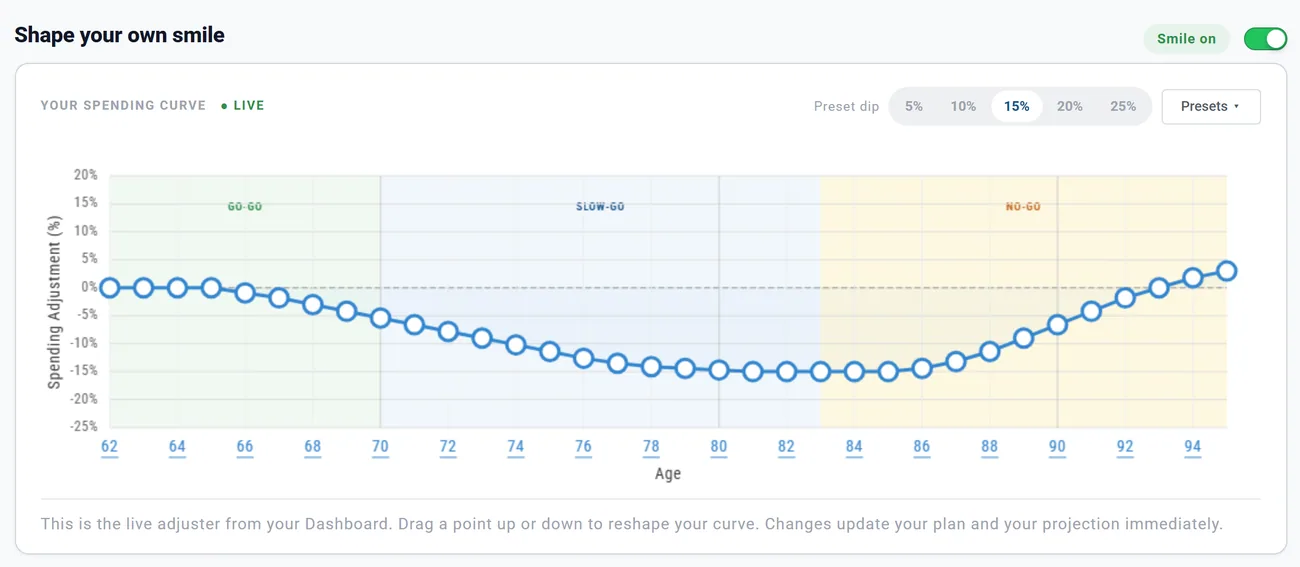
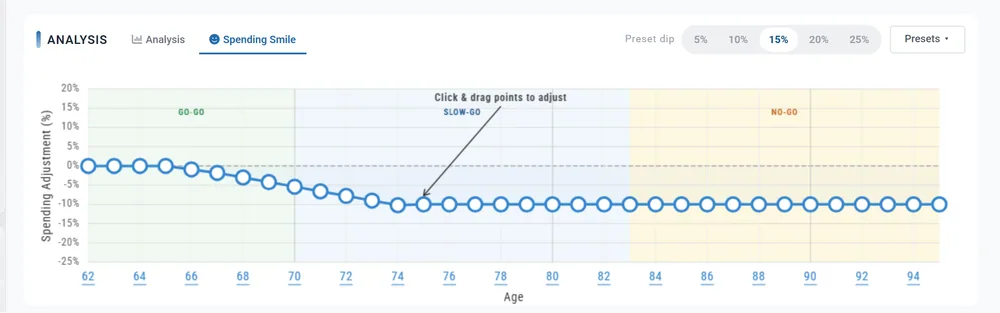
The Spending Smile lets your plan spend that way. For each year of retirement you set a percentage: that year's spending is raised or lowered by it, on top of inflation. 0% means no change. With the 15% preset, Chris and Jamie's $8,500 a month (in today's dollars) stays $8,500 until 65, eases to $7,531 at 75 and $7,225 from 81 to 85, then climbs back to $8,653 at 94.
It is off unless you switch it on. For the research and the three phases of retirement, read The Retirement Spending Smile in the Learning Library.
Switch it on
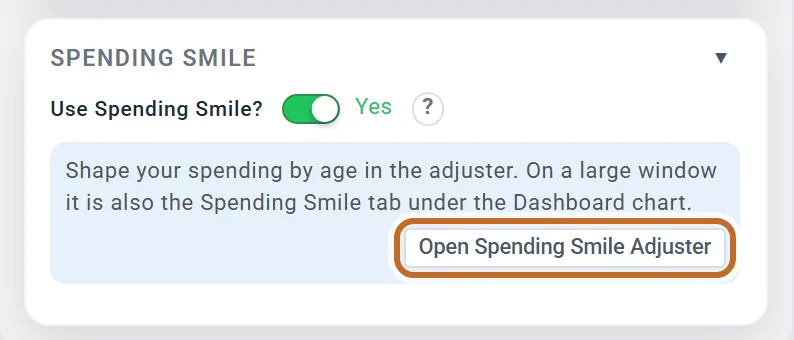
- In the Retirement Spending box, open the Spending Smile section.
- Switch Use Spending Smile? to Yes.
The "?" beside the switch opens About the Spending Smile. While the Smile is on, the section shows Open Spending Smile Adjuster (see Open the adjuster on any screen).
Your plan recalculates. On a large window the Dashboard then opens the Spending Smile tab under the chart and points at it:
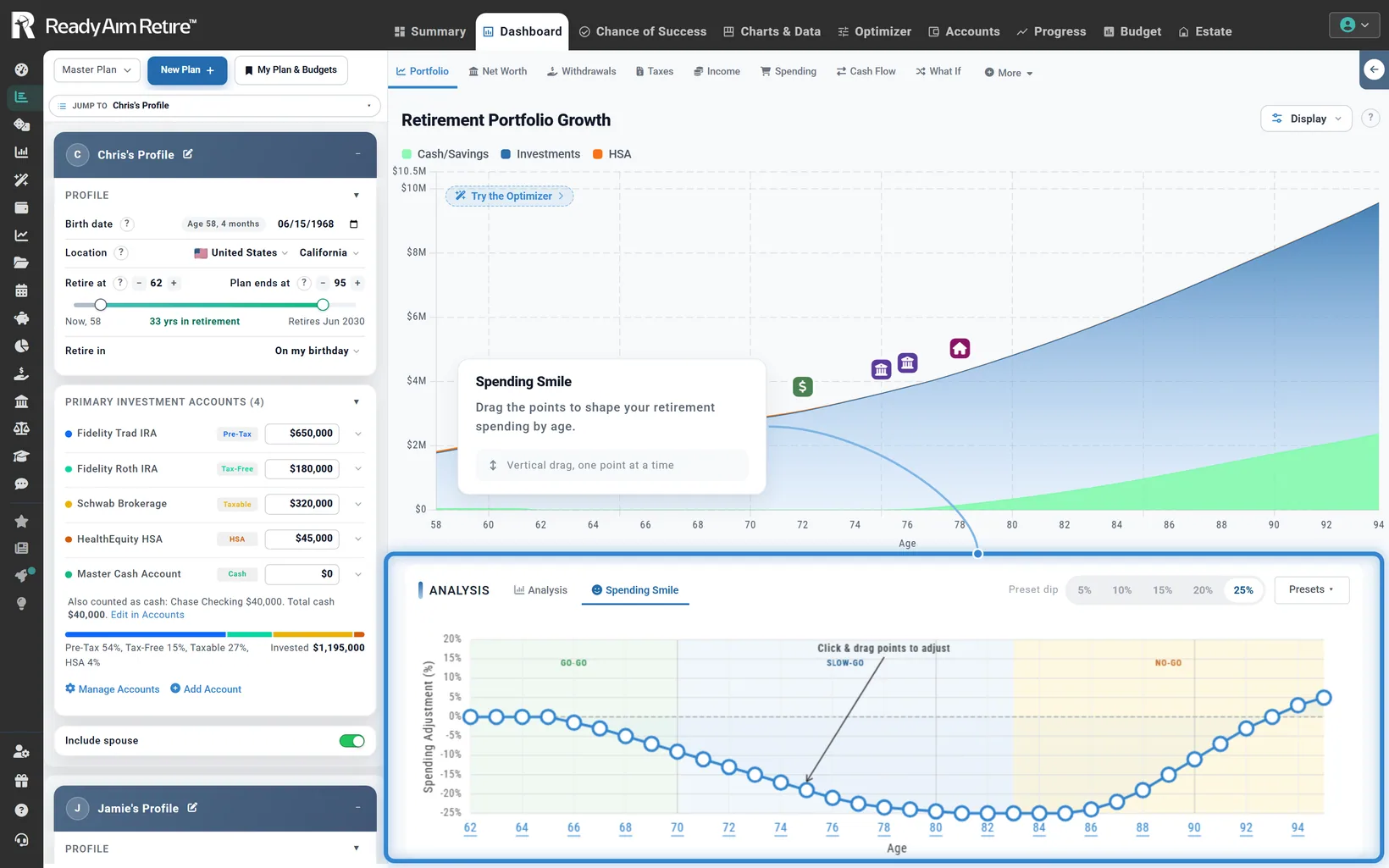
- The first curve is the 25% preset, the deepest of the five, unless your plan already has a curve. If you are unsure, pick 10% or 15% (see Start from a preset).
- Switching it off puts every year back to flat spending. Your curve is kept for the next time you switch it on.
Open the adjuster on any screen
The adjuster is the curve you shape. Where you find it depends on the size of your browser window:
- A large window (at least 1200 by 800 pixels inside the browser): the Spending Smile tab, beside Analysis in the section under the Dashboard chart.
- A smaller window, such as most laptops: there is no tab. Choose Open Spending Smile Adjuster in the box. The same adjuster opens in its own window over the page: drag its title bar to move it, turn Opacity: down to see the chart behind it, and close it with the x. To get the tab instead, make the window larger or zoom the page out (Ctrl and minus; on a Mac, Cmd and minus).
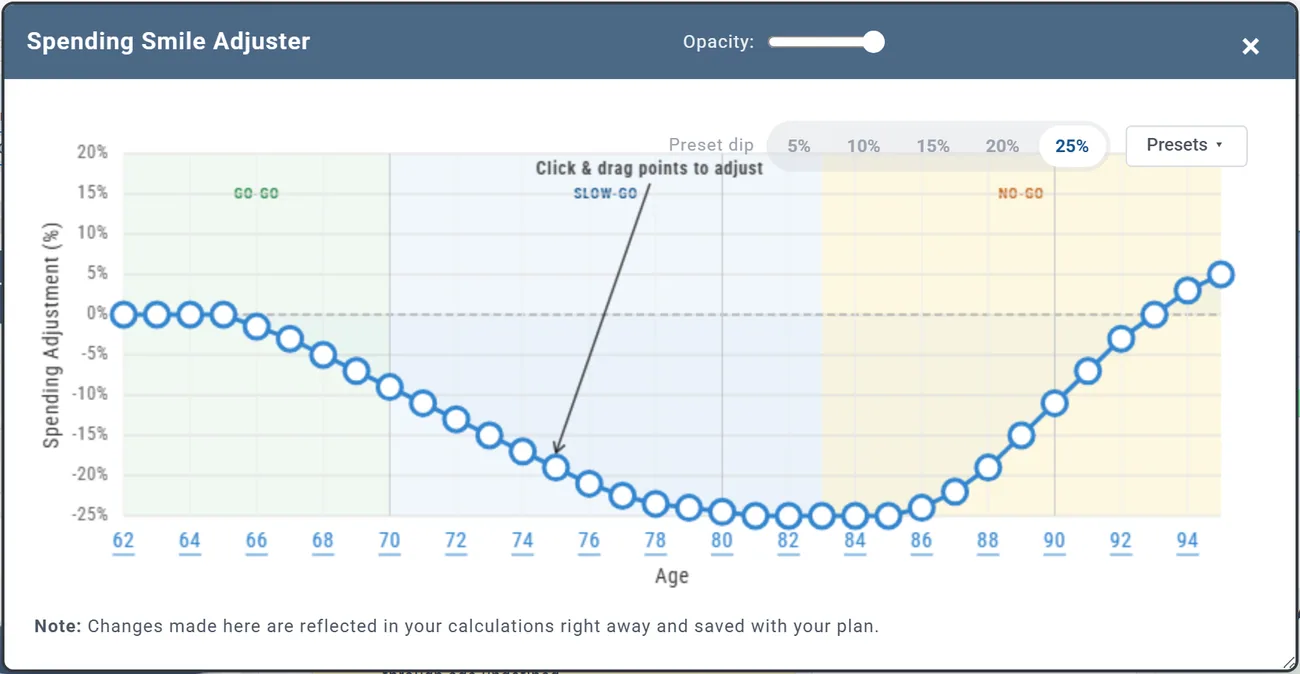
Changes apply as you make them and save with your plan, wherever you make them. Two more ways in:
- The Spending Smile on pill at the top right of the Portfolio chart reminds you the curve is shaping your plan. Click it to open the adjuster.
- The Learning Library article The Retirement Spending Smile has a live copy of the adjuster under Shape your own smile, with its own on and off switch. It works on any window size, and what you change there changes your plan.
Read the adjuster
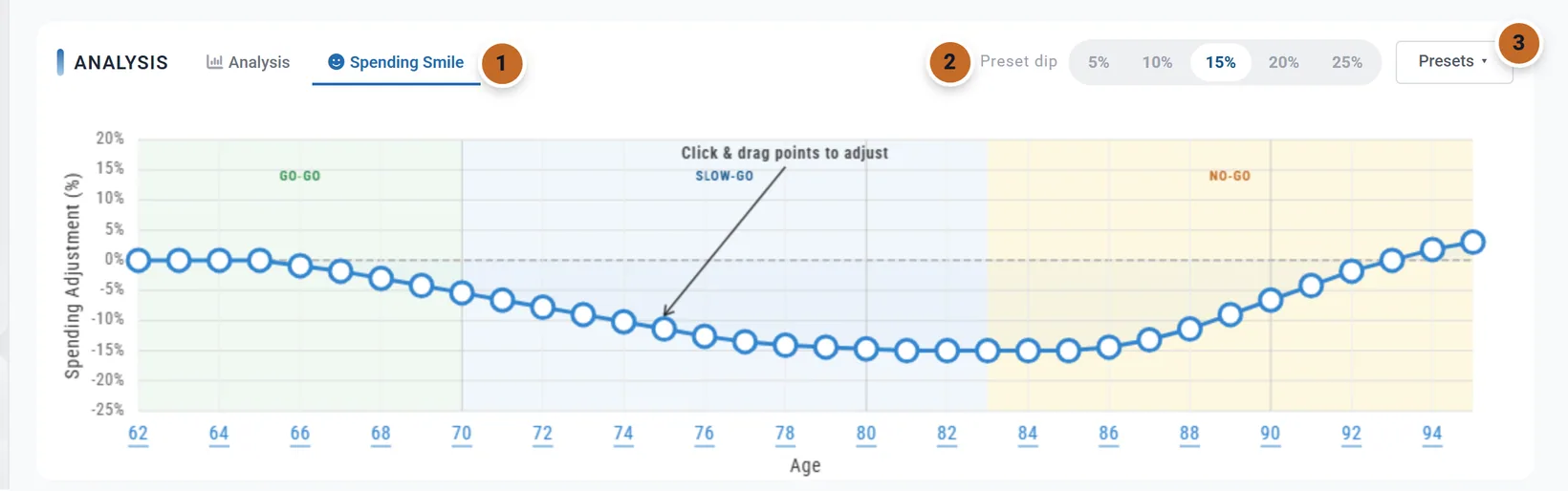
- The Spending Smile tab (large windows only).
- Preset dip: one click picks a preset.
- Presets: every preset, your own presets and Save Current.
- Along the bottom: ages, from your retirement age to your Plan End. They are the Primary's ages, and each year's change starts in the Primary's birthday month (June for Chris).
- Up the side: Spending Adjustment (%), from -25% to +20%. The dashed 0% line is flat spending.
- The shaded bands (GO-GO, SLOW-GO, NO-GO) split your retirement into roughly its first quarter, the middle and the last third. They are a guide only and change nothing.
Start from a preset
The five Preset dip pills match the first five presets in the Presets list. Each caps the dip at its percentage; the 25% shape follows the research most closely and is the boldest assumption. The Learning Library's advice: if you are unsure, start gentle, with 10% or 15%.
| Preset | Chris and Jamie at 75 | At 83 | At 94 |
|---|---|---|---|
| Smile off | $8,500 | $8,500 | $8,500 |
| 5% Max Reduction | $8,177 | $8,075 | $8,551 |
| 10% Max Reduction | $7,854 | $7,650 | $8,602 |
| 15% Max Reduction | $7,531 | $7,225 | $8,653 |
| 20% Max Reduction | $7,208 | $6,800 | $8,704 |
| 25% Max Reduction | $6,885 | $6,375 | $8,755 |
| Early Travel | $7,854 | $7,650 | $8,602 |
- The presets are drawn on ages 65 to 95, not on years since you retired. Before 65 they change nothing; the dip starts at 66, is deepest from 81 to 85, is back to 0% at 93 and a little above it at 94 and 95. Chris retires at 62, so the first four years stay flat. Someone retiring at 70 starts partway into the dip.
- Early Travel adds 10% at ages 65 to 70 (Chris and Jamie: $9,350 a month), then follows the 10% dip.
- A preset replaces the whole curve, including any points you moved.
Shape it yourself
Drag a point up or down. That age and every later age move by the same amount, so the shape after it is kept; earlier ages stay where they are. The value shows above the point while you drag, and your plan recalculates as you go. No year can go below -25% or above +20%.
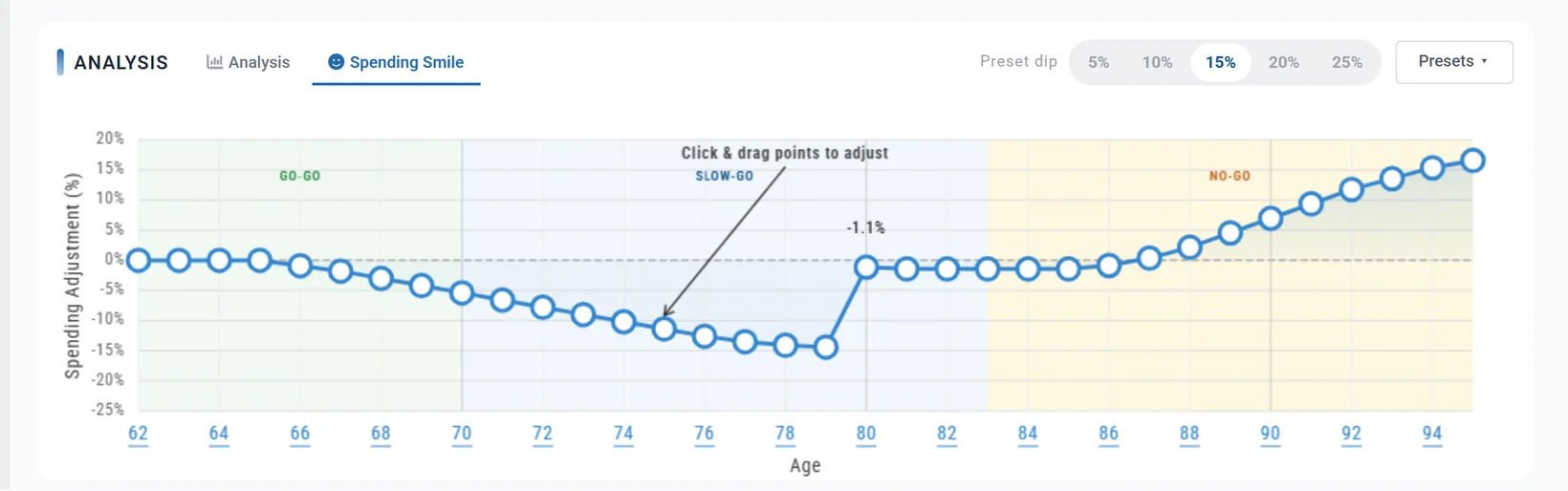
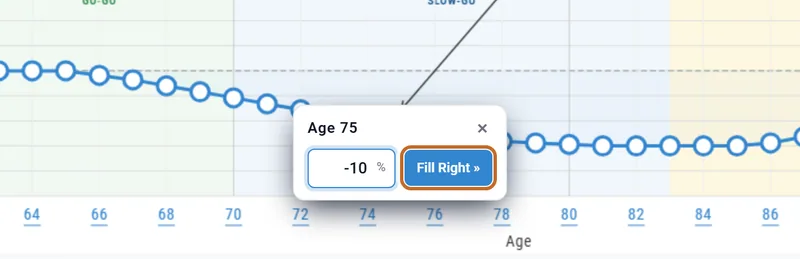
Set an exact value: click an age number under the curve. A small box opens for that age:
- Type a percentage from -25 to 20. It applies to that age only, as you type.
- Fill Right » sets that age and every later age to the same value.
- Press Enter, or the x, to close it.
There is no undo. To start again, pick a preset.
Save your own preset
- Shape the curve, then open Presets and choose Save Current.
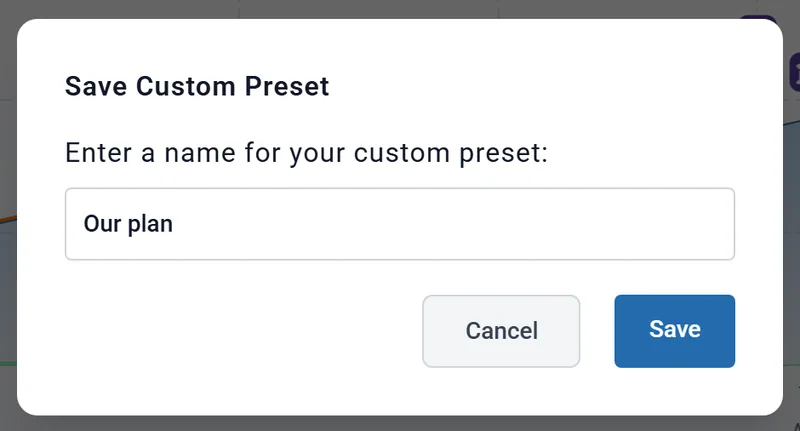
- Type a name under Save Custom Preset and choose Save.
- Your preset now heads the list with a star. Pick it in any plan to use that exact curve.
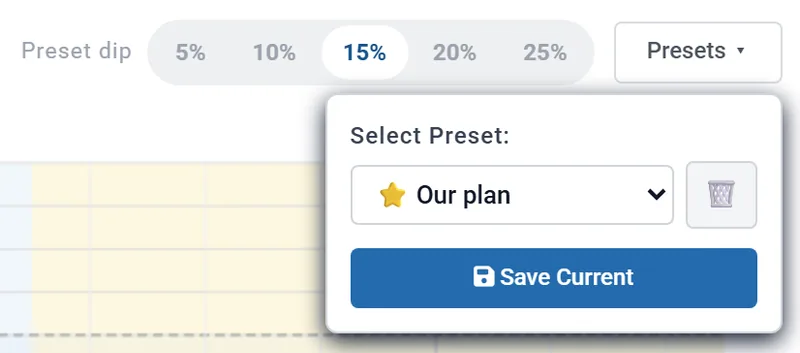
- To delete one, choose the trash button beside the list, then Delete beside its name. It goes at once, with no undo.
- Your presets belong to your account, not to one plan: they appear in every plan, on any device. In Privacy Mode they stay on this device (see What changes while it is on).
What it changes in your plan
The curve shapes the spending your plan sets for retirement, in all three spending modes (see The three spending modes):
- Monthly Expenses: your Desired Monthly Spending.
- Monthly Income: your monthly withdrawal. With 10%, Chris and Jamie's $5,800 a month (in today's dollars) is $5,591 at 70.
- Using the 4% Rule: the amount the rule sets at retirement. With 10%, $6,552 a month becomes $6,316 at 70 and $5,897 at 82.
It shapes your everyday living costs only: Medicare premiums and milestone expenses are separate and are not shaped. It has no effect before you retire.
See it on the Spending chart Planner+. With 15%, Chris and Jamie's bars ease down through their 70s and climb again from 86:
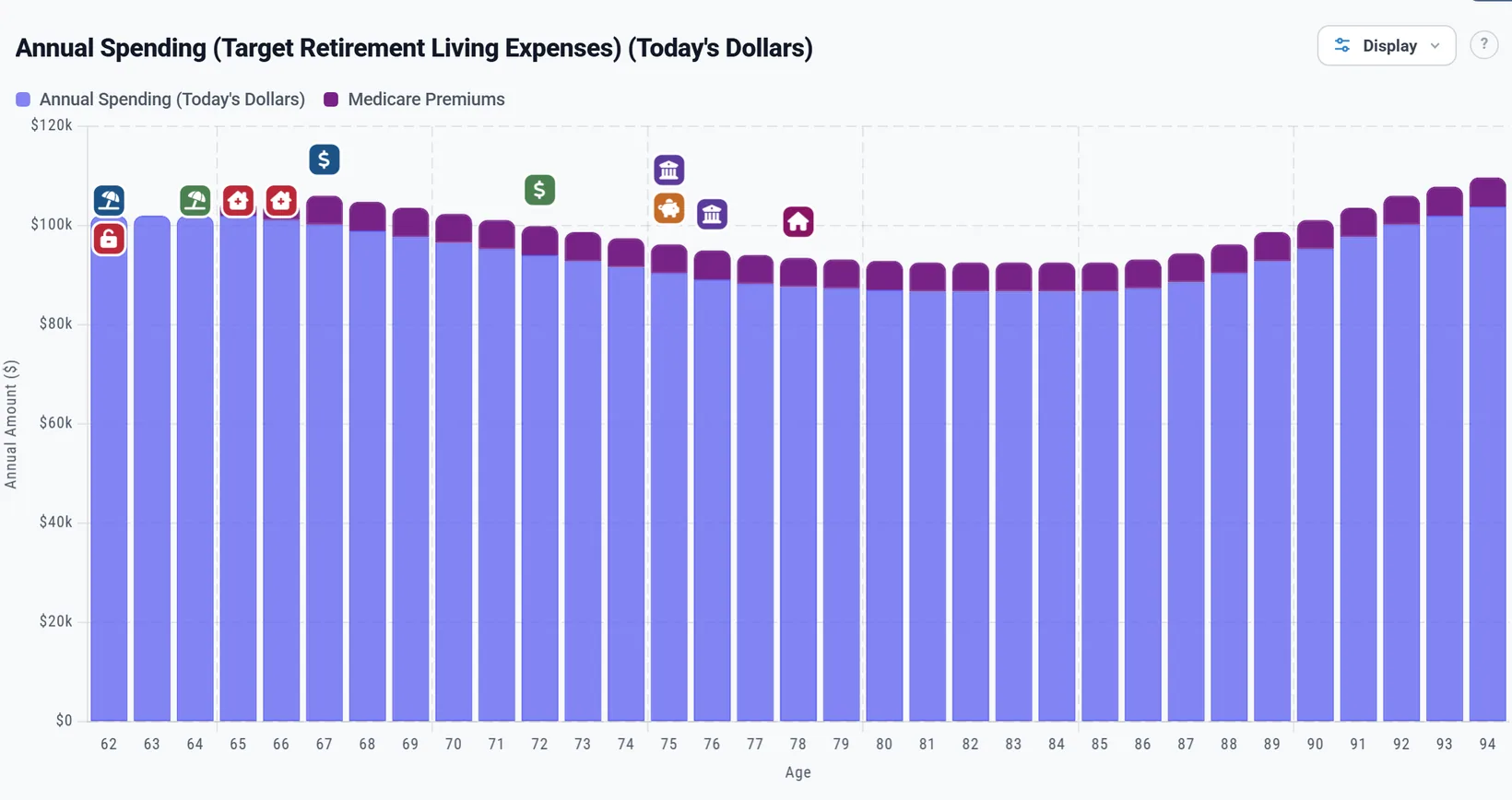
Spending less in the middle years leaves more invested. With 15%, Chris and Jamie spend about $269,000 less over their retirement and have about $316,000 more at the end of the plan, both in today's dollars.
With a budget, guardrails, milestones and a spouse
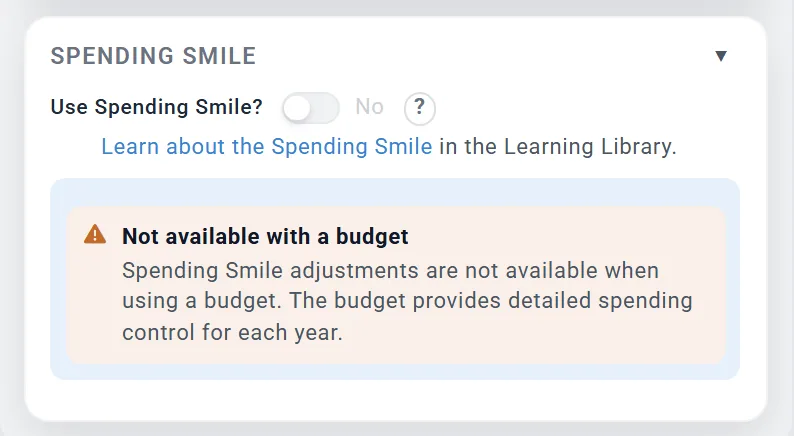
A linked budget. A budget already sets each year's spending, so the Smile is not available while one is linked with Use Budget. Linking switches it off and greys it out; unlinking does not switch it back on. To shape a budget over time, give its rows start and end ages (see Link your budget to your plan).
- Spending Guardrails start from the smile-shaped amount each year, and their floor and ceiling are measured from it (see Spending Guardrails).
- A milestone that reduces spending multiplies with the curve: a 10% cut in a year the curve is at -15% leaves about 76.5% of the flat amount (see Make a milestone change your plan).
- Survivor years. If your spouse's Plan End is later than yours, the extra years after your own Plan End keep the curve's last value. Spending After the First Death (%) applies on top (see If one of you dies first).
When your ages change
The curve always runs from your retirement age to your Plan End. When you move either one, every age still in your plan keeps its value and the plan fills in any new ages:
- If you have opened the adjuster since the page loaded, new ages copy the value of the nearest age. Moving Chris's retirement from 62 to 60 gives 60 and 61 the value at 62; moving the Plan End from 95 to 97 gives 96 and 97 the value at 95.
- Otherwise new ages take the 25% preset's value for that age.
Either way, open the adjuster afterwards and check the ends of the curve.
Signed out, and Planner+
- The Spending Smile does not need Planner+. The Spending chart, where you see its effect, does. Planner+
- If you are not signed in, you can switch it on and pick a Preset dip. Dragging a point, clicking an age or Open Spending Smile Adjuster asks you to create an account or sign in.
What to know
- Each plan has its own curve, and its own on or off setting. Your saved presets are shared by all your plans.
- One curve covers the household, on the Primary's ages. There is no separate curve for a spouse.
- The presets follow ages 65 to 95 whatever your retirement age; shape the curve yourself if your retirement starts much earlier or later.
- The curve changes each whole year of age; it does not change spending within a year.