



 Continue with Google
The three spending modes
Your spending is the biggest number in your plan. This page covers how the planner uses it, how to build it line by line on the Budget tab, and how to time costs that start, stop or happen once.
The Retirement Spending box has a Mode with three choices:
- Monthly Expenses (the starting choice, and the one most people want): enter what you want to spend each month. Each month the planner adds up your other income (Social Security, pensions, rent and the rest), works out the tax, and takes only the gap from your savings. Cash above your minimum balances is spent first. Only this mode can use a budget.
- Monthly Income: enter a set withdrawal before tax, Monthly Withdrawal (Pre-Tax). Tax comes out of it. Your other income reduces the withdrawal, unless you tick Make withdrawals in addition to other income.
- Using the 4% Rule: in your first retirement month the plan takes a share of your investments (% of Portfolio to Withdraw, 4 to start with) and keeps that amount, rising with inflation, every month after. Social Security and other income are spent on top of it.
In every mode, retirement spending begins in the Primary's retirement month (the month set by Retire at and Retire in in the first profile).
After tax, in today's dollars
- After tax. Desired Monthly Spending is what you get to spend. The planner withdraws extra to pay the income tax, and, in the US, the Medicare premiums it charges from 65.
- In today's dollars. Enter what your spending would cost now. The planner raises it every month by your plan's Inflation % (in Returns and Allocations). Do not add inflation yourself.
Budget rows work the same way. A row whose Inflation Rate is Global (shown with your plan's rate, such as Global (3.2%/yr)) is in today's dollars and grows with your plan's inflation. A row with its own rate grows at that rate, and a row at 0% stays fixed, like a fixed loan payment.
How much can I spend? When can I retire?
The Retirement Spending box can work the question the other way round: with everything else in your plan as it is, how much could you spend each month, and what changes if you retire sooner or later?
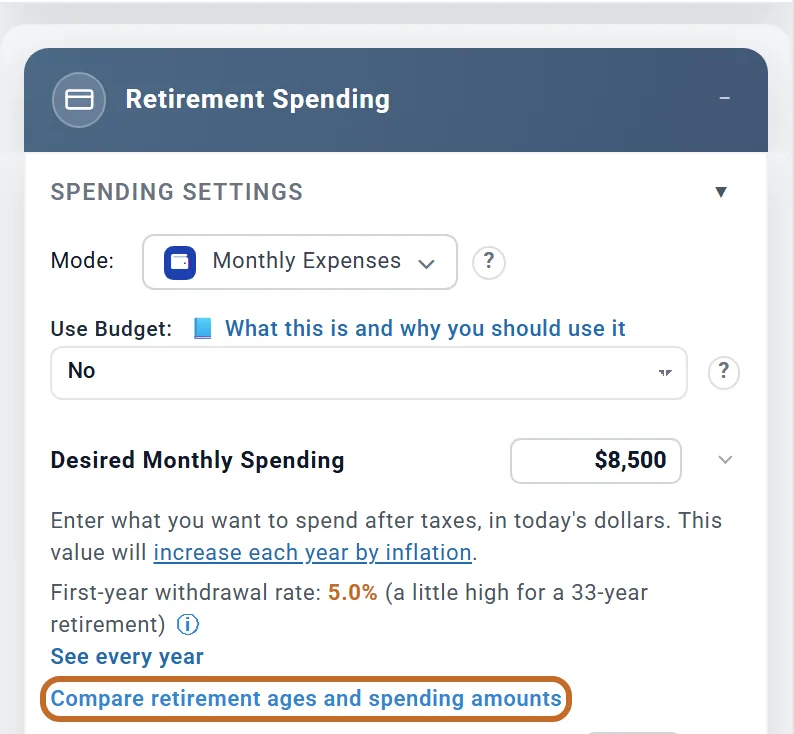
- Leave Mode on Monthly Expenses, with Use Budget on No, enter a monthly amount.
- Under Desired Monthly Spending and its withdrawal rate, choose Compare retirement ages and spending amounts.
A window, Retirement Ages and Spending, fills in one row at a time, your plan's own age first. It takes a few seconds. Nothing in your plan changes unless you choose a row.
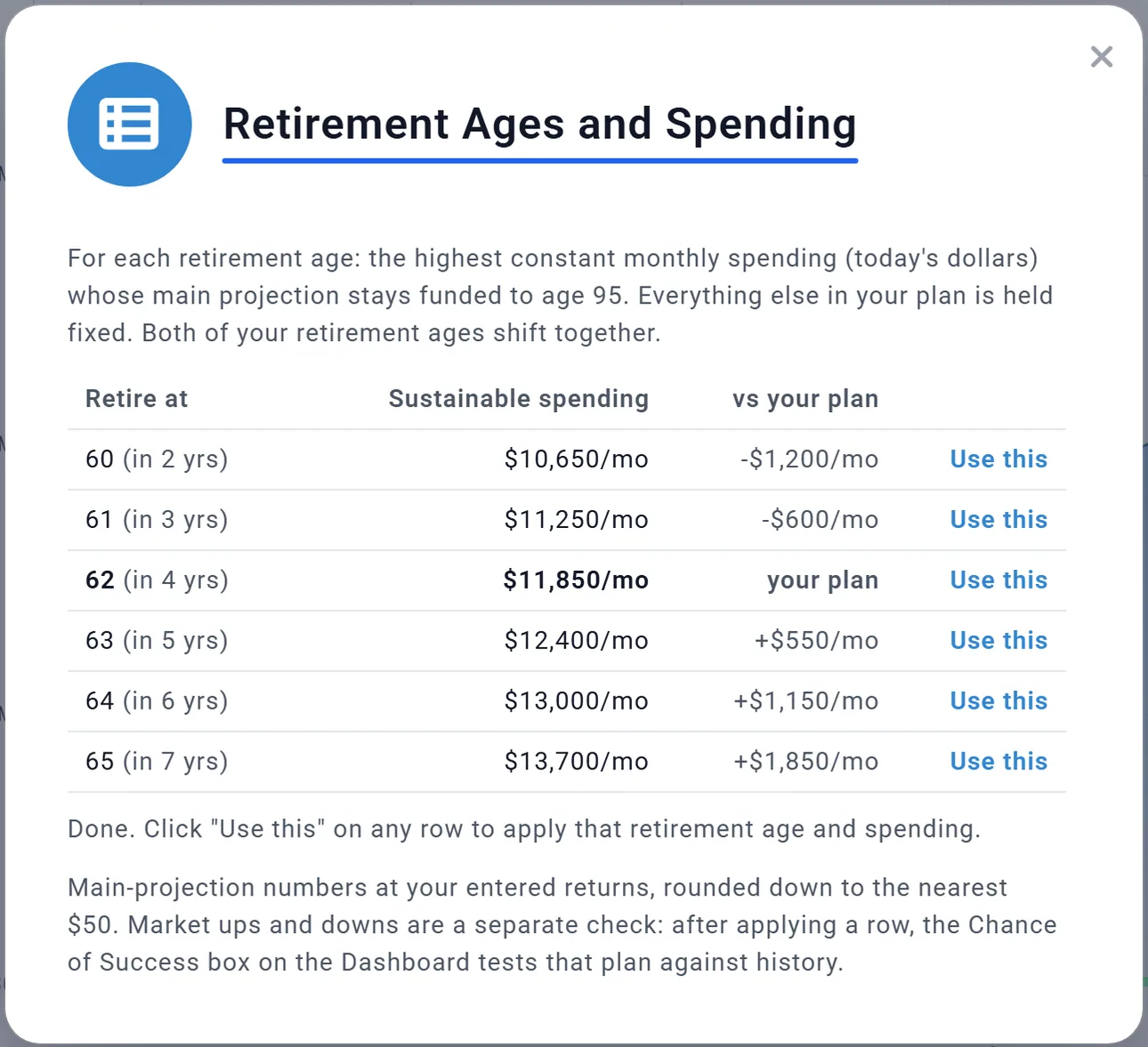
- One row for each retirement age, from two years before your plan's Retire at to three years after, leaving out any age you have already reached.
- Sustainable spending is the most you could spend every month, in today's dollars, without your plan's projection running out of money before the end of your plan (95 for Chris and Jamie, or the end of the longer life when your spouse has a later Plan End). Everything else in the plan stays as it is. The amount is rounded down to the nearest $50.
- vs your plan compares each row with the row for your own retirement age.
- For a couple, both retirement ages move together. On the 60 row Chris retires at 60 and Jamie at 61: two years sooner for each of them.
- Use this sets Retire at (both of yours, for a couple) and Desired Monthly Spending to that row, closes the window and runs the plan again. There is no undo: to go back, set the two again yourself.
Chris and Jamie plan to spend $8,500 a month and retire at 62. The table says that plan could carry $11,850 a month. Retiring two years sooner it could carry $10,650; working to 65, $13,700. Each extra year of work is worth about $550 to $700 a month for the rest of their retirement.
- It works in Monthly Expenses only, with no budget linked and Spending Guardrails off. A budget or guardrails set your spending year by year, so there is no single amount to solve for. While either is on, the link is not shown.
- Already retired? There are no future ages to compare, and the window says so.
- To keep your spending and change your saving instead, use How much do I need to save? in the Retirement Contributions box. It has its own Compare retirement ages, where only the Primary's age changes (see How much do I need to save?).
What to include, and what the planner adds for you
- Include your home's costs: the mortgage payment, property tax, insurance and upkeep. The planner does not take your home's mortgage or property tax out of your money by itself.
- Leave out a rental's mortgage: it is paid from the rent.
- Leave out Medicare Part B, Part D and IRMAA (US): the planner charges them for you from 65. Include supplemental coverage, dental and out-of-pocket costs. Health care costs has the details. US
- Leave out marketplace and COBRA premiums if you model them in the Health Care box.
Loan payments from Accounts & Assets
A loan on your home, a car or another asset can become a budget row: the Budget tab shows it under Suggestions from your linked accounts, or offers Add to Budget? when you save the loan. Nothing is added unless you choose it. Such a row is marked Synced from Accounts: its amount and end follow the loan, and it does not grow with inflation.
Build a budget on the Budget tab
A budget lists your spending line by line. Open the Budget tab at the top of the screen.
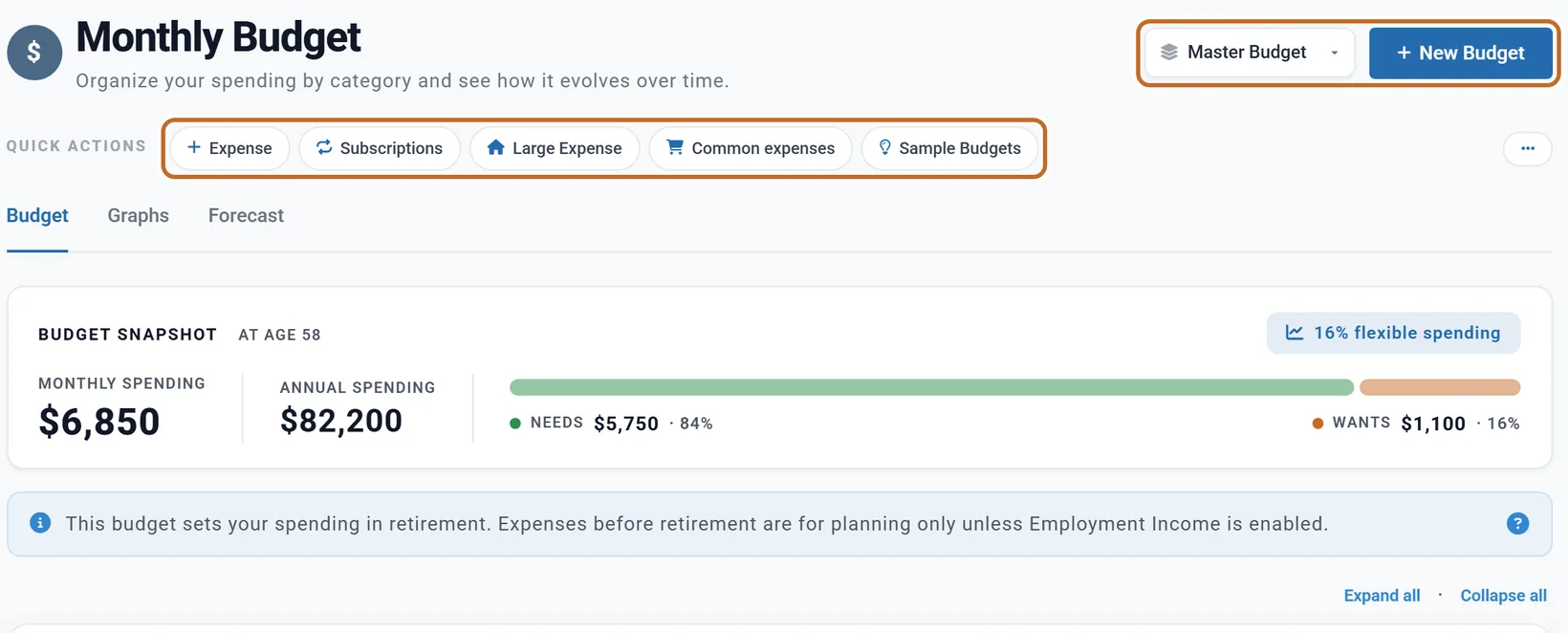
- Add rows with the buttons under Quick Actions: Expense for one line, Common expenses for ready-made lines, Sample Budgets for a whole starting budget. Click any value in a row to change it.
- Enter what you pay each time and choose how often (Frequency). An annual $1,200 is counted as $100 a month.
- Each row is a Need, a Want or a Splurge (Type). The snapshot shows the split.
- The totals at the top are for your age today. Chris and Jamie's budget shows $6,850 a month at 58; rows that start at retirement are not in it yet.
- Changes save as you go.
Your Master Budget and named budgets
Budgets belong to you, not to one plan: a Master Budget plus any named budgets, chosen in the selector at the top right. Editing a budget changes every plan that uses it.
- New Budget makes a copy of the budget on screen, under a new name, and opens it.
- To go back to your Master Budget, choose Master Budget in the selector, or Stop Editing beside the budget's name. The budget you were editing stays as it was saved.
Everything else on the tab (the snapshot, Graphs and Forecast, Quick Actions and samples, HSA Eligible rows, undo and Export Report) is in The Budget tab.
Link your budget to your plan
A budget changes nothing until it is linked to your plan. The Budget tab warns you while nothing is linked.
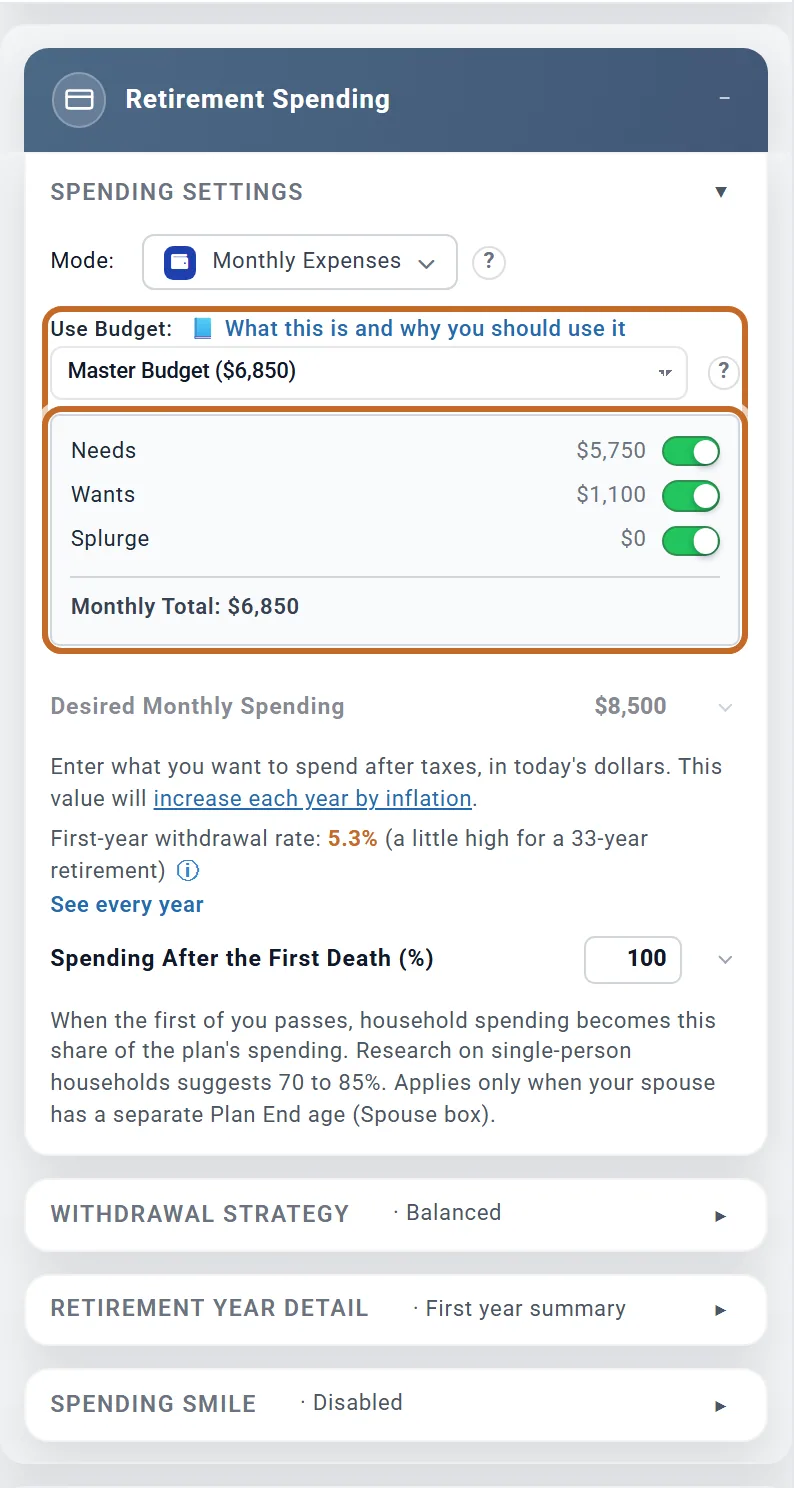
- In the Retirement Spending box, leave Mode on Monthly Expenses.
- In Use Budget, choose your budget. The amount beside its name is its total at your age today. Planner+
Your budget's rows now set each month's spending, by age. Desired Monthly Spending is greyed out, and kept for when you unlink. Three switches appear: Needs, Wants and Splurge (below).
- The link belongs to the plan. A new plan started fresh has no budget linked.
- To unlink, choose No.
When a row starts and stops
Every budget row has a Start Age and an End Age, on the Primary's ages. A year of age runs from a birthday to the month before the next.
An End Age includes that whole year
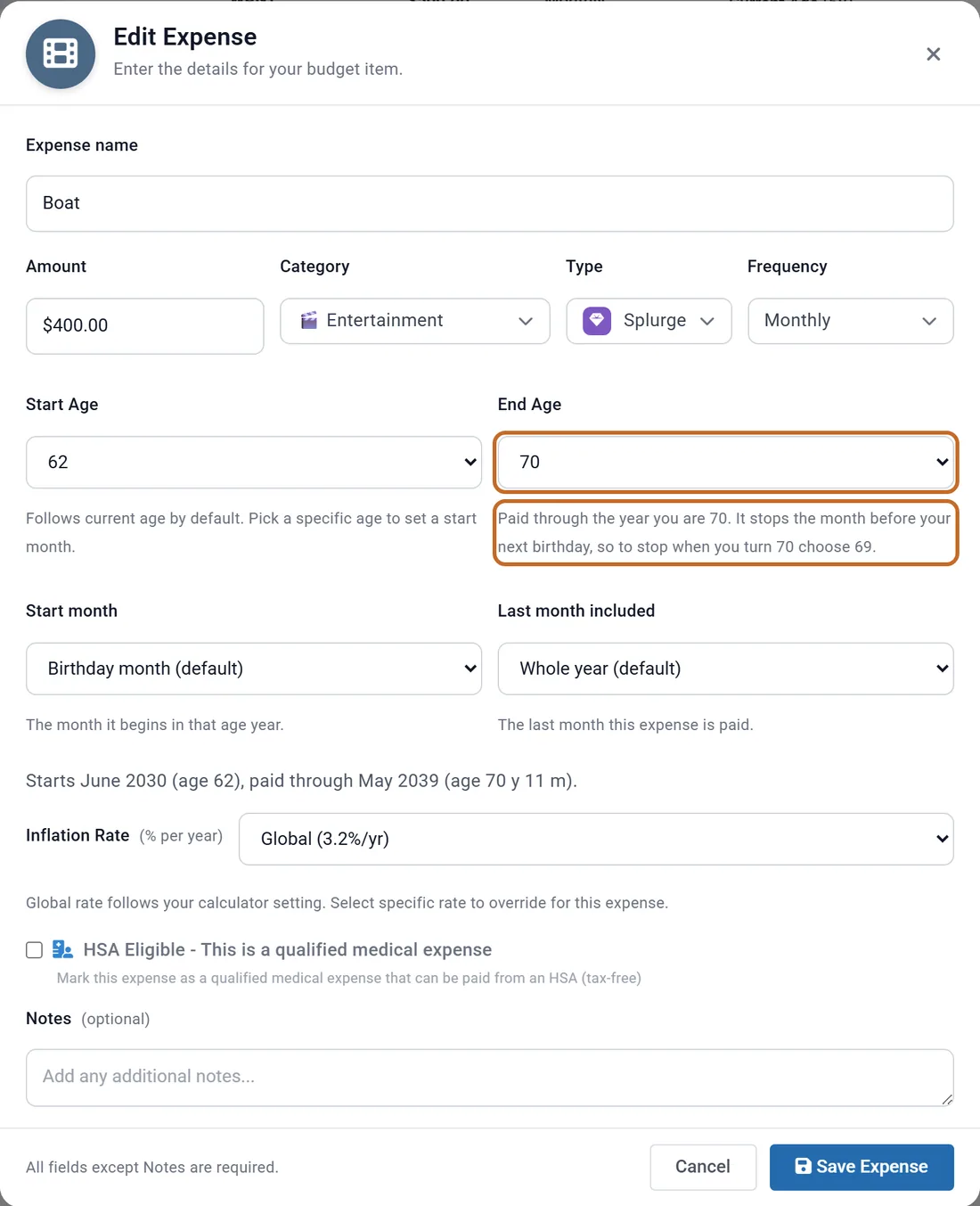
A row that ends at 70 is paid through the year you are 70, and stops the month before your 71st birthday. To stop when you turn 70, choose 69. The dialog says so under End Age.
Chris and Jamie's $400-a-month boat runs from 62 to 70: it leaves their spending the month Chris turns 71.
Starting and stopping with retirement
- At Retirement (62) starts in the retirement month.
- Until Retirement (62) stops the month before it: its last year is 61, although it shows the retirement age.
- Current Age (58) and Plan End (95) follow your age and plan end as they change.
A month, or a set time
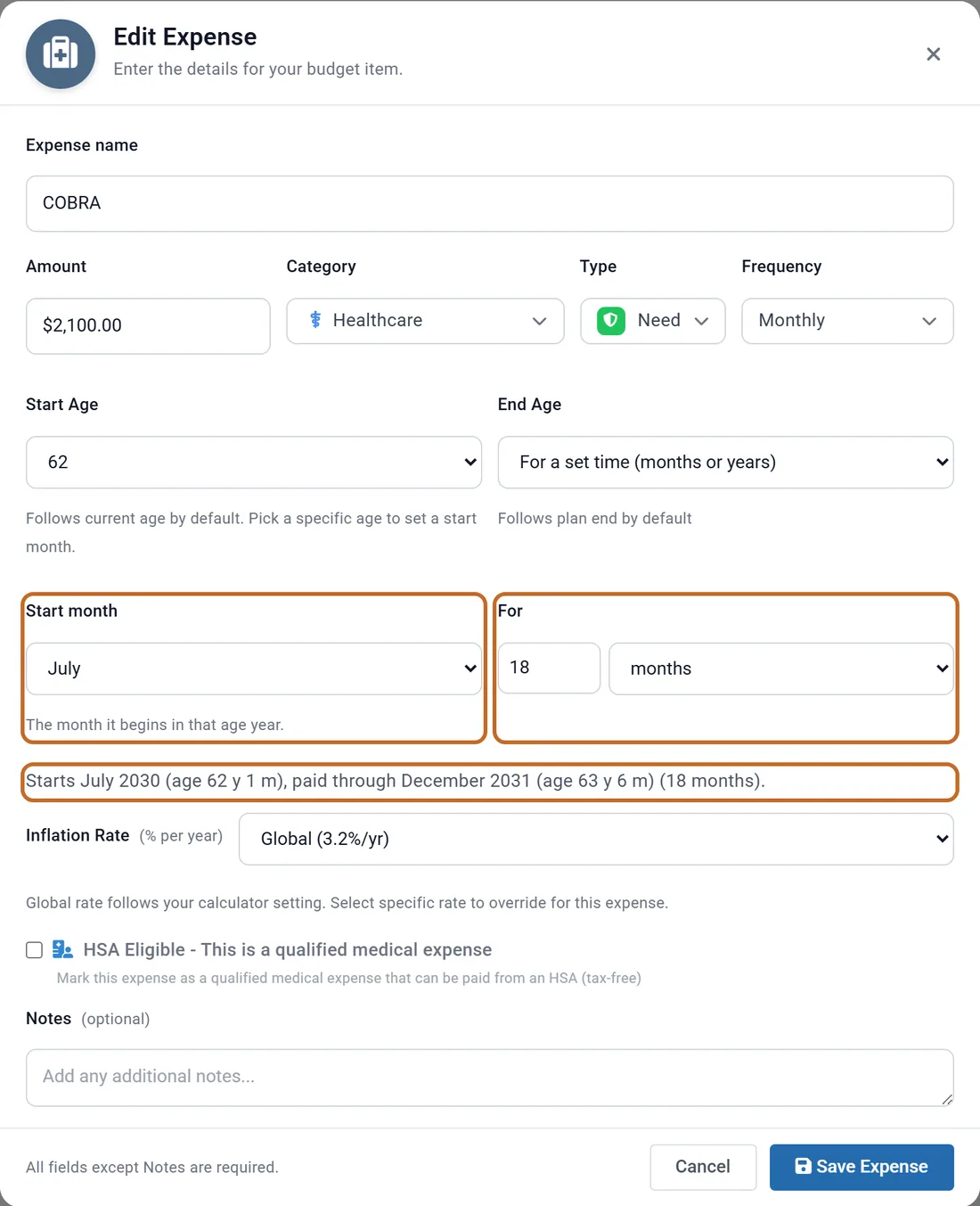
Choose a number for Start Age and the dialog offers Start month; choose a number for End Age and it offers Last month included. For a cost that runs a fixed length, choose For a set time (months or years) as the end.
Chris's COBRA starts at 62 in July and runs for 18 months. The dialog reads it back: "Starts July 2030 (age 62 y 1 m), paid through December 2031 (age 63 y 6 m) (18 months)."
A month means the first time that month comes round at or after the birthday. An annual amount over a short window is paid only in the months it covers.
Costs on your spouse's age
Budget rows run on the Primary's ages. To tie a cost to your spouse's age, use a milestone:
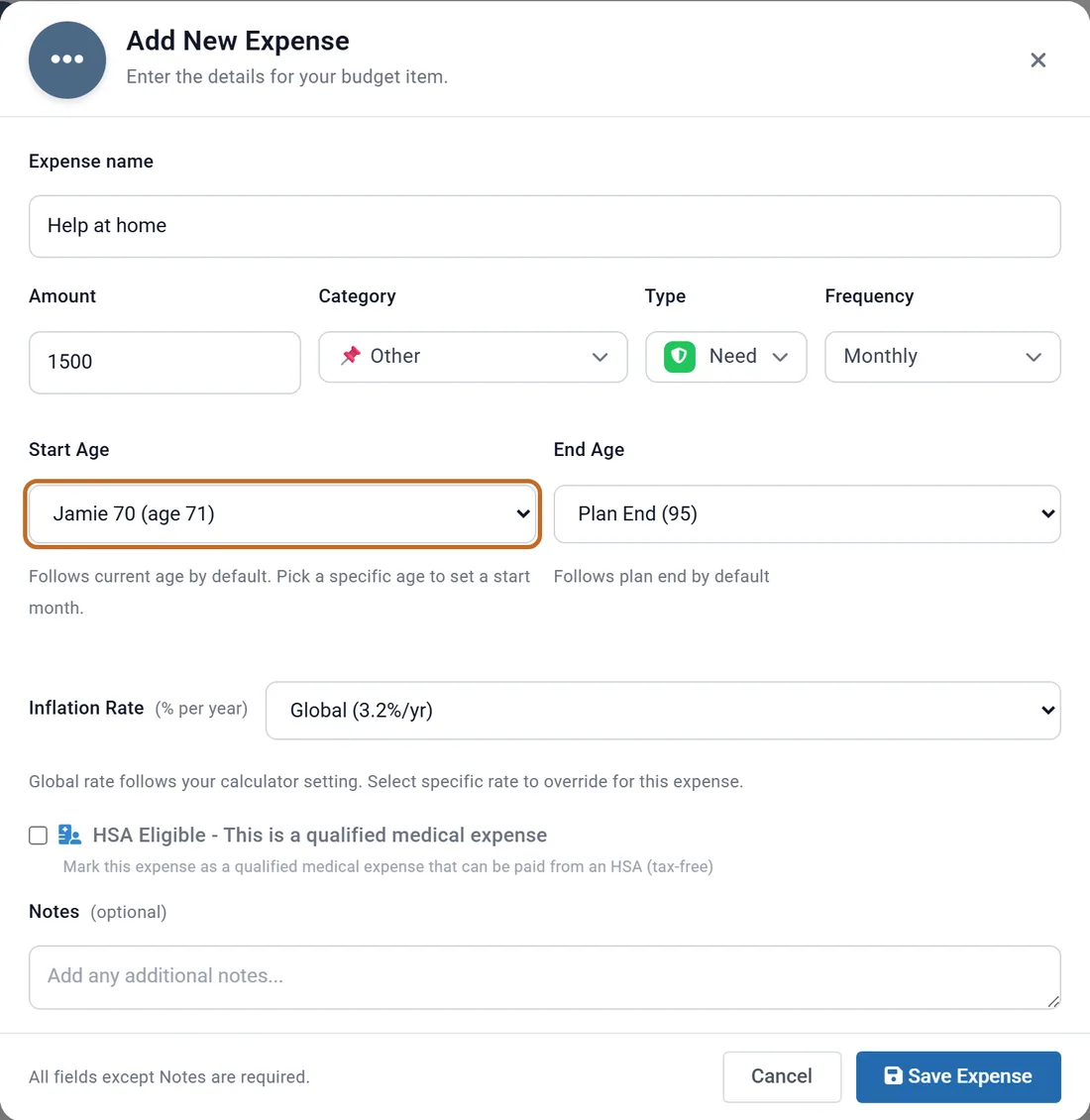
- In the Milestones box, add a milestone At an age, with Whose age set to Spouse. Chris and Jamie added "Jamie 70".
- In the budget row, choose that milestone as the Start Age.
The list shows the Primary's age at that moment, so "Jamie 70" appears as Jamie 70 (age 71): Jamie turns 70 when Chris is 71. The row starts in Jamie's birthday month, and moves if you change the milestone.
One-time and occasional costs
Three tools can add a cost for a year or a few years. They differ mainly in whose age they use.
| Tool | Amount | Whose age | Best for |
|---|---|---|---|
| A budget row for a few months or a year | Today's dollars, grows with inflation | The Primary's (or a milestone on your spouse's) | Costs that are part of your spending. Needs a linked budget. |
| A milestone with Add an expense | Today's dollars, grows with inflation | Either person's | A cost at a life event, once or for some years, such as care late in life. Planner+ |
| Extra Withdrawals | Today's dollars, grows with inflation, or fixed dollars (a switch on each card) | The Primary's | A set amount taken from savings, or from one named account, at an age. |
Long-term care, on your spouse's age
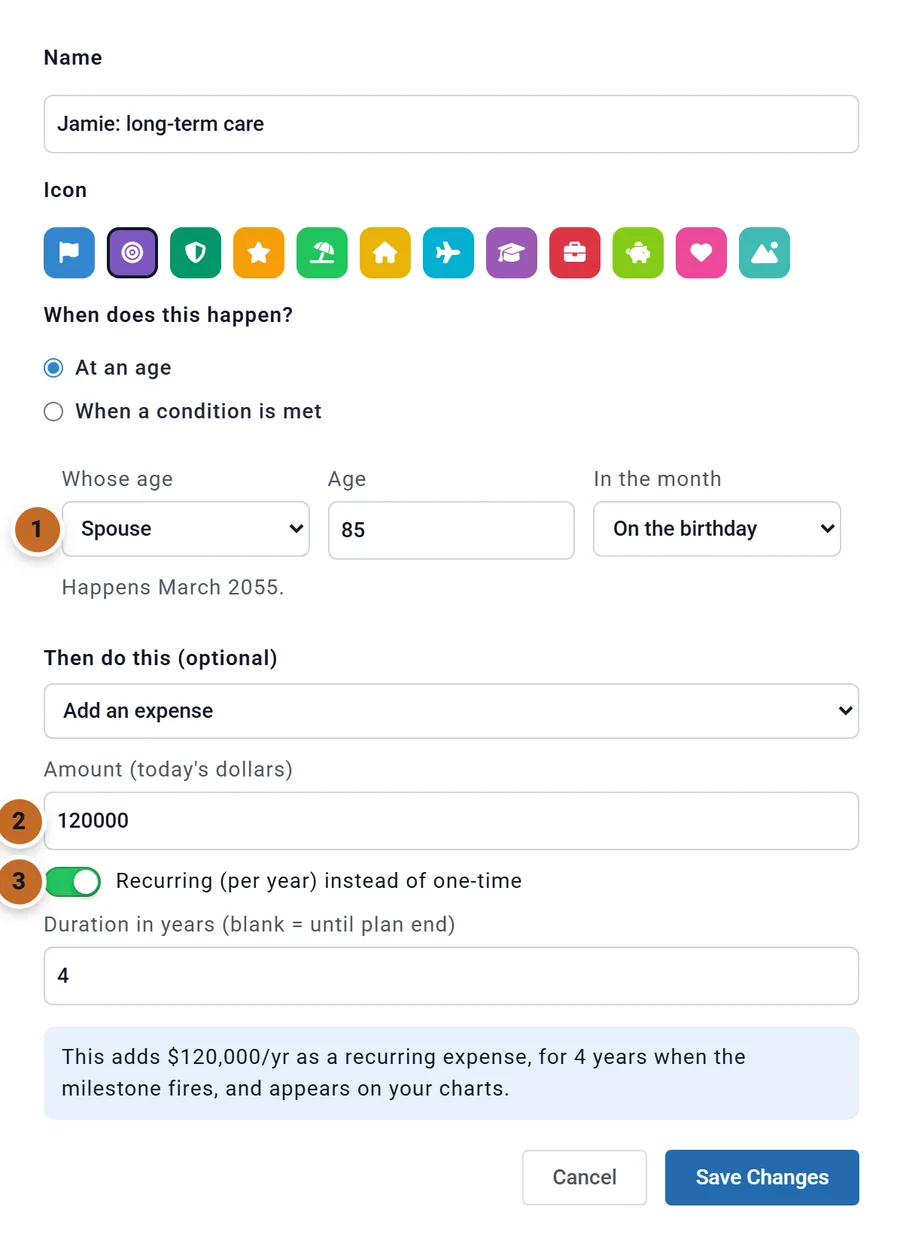
Chris and Jamie plan for care for Jamie from 85, for four years: a milestone on Jamie's age 85 with Add an expense of $120,000 in today's dollars, Recurring (per year) instead of one-time, for 4 years. The plan charges $120,000 a year in today's dollars for each of those years.
A one-time milestone expense the plan cannot afford is skipped, not half-paid.
A new car
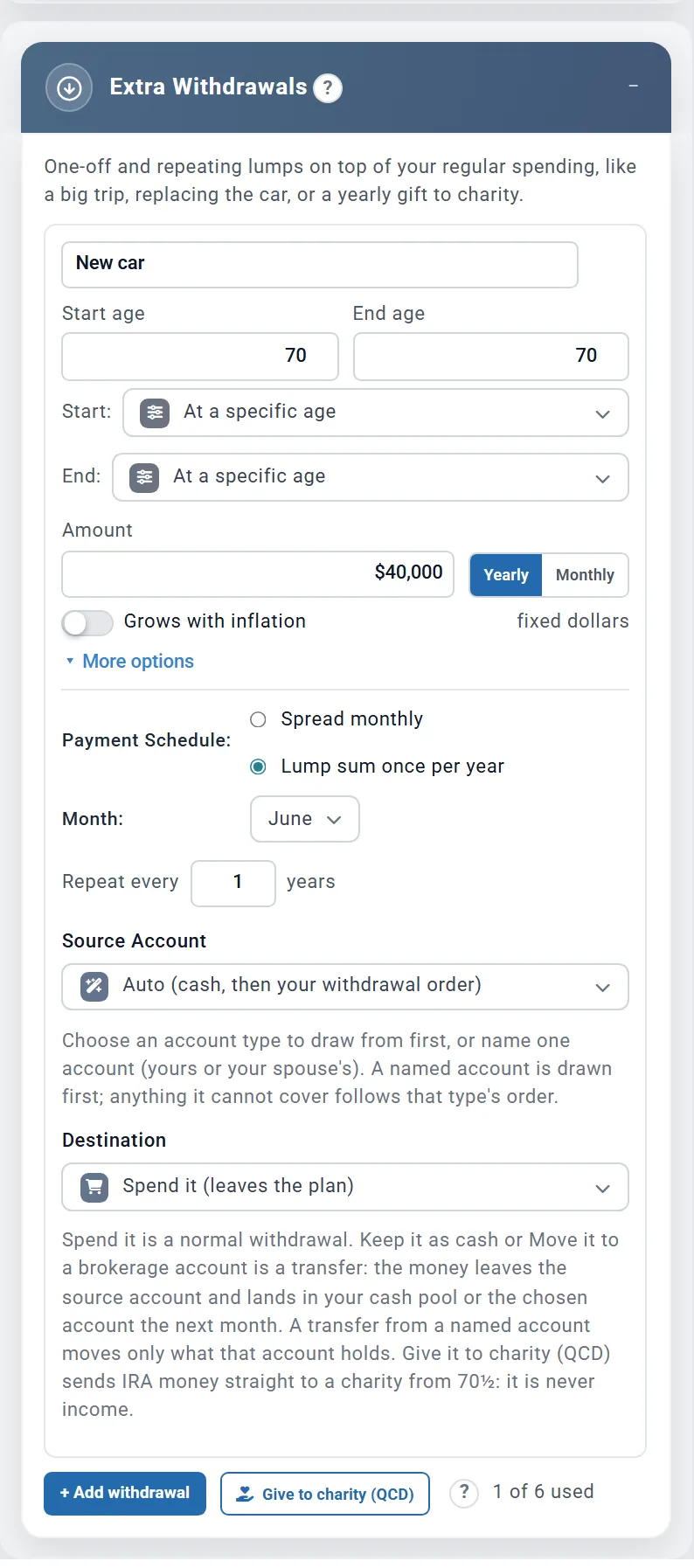
An Extra Withdrawals card takes $40,000 in June of the year Chris turns 70 (Lump sum once per year, Month June). Its Grows with inflation is off, so it is $40,000 in 2038 money, about $27,700 in today's dollars. Switched on, as on a new card, the $40,000 is in today's dollars and the plan pays about $57,800 in 2038.
For a car every seven years, set the end age later and Repeat every to 7 (under More options, with Lump sum once per year): the withdrawal comes at the start age, then every seven years until the end age.
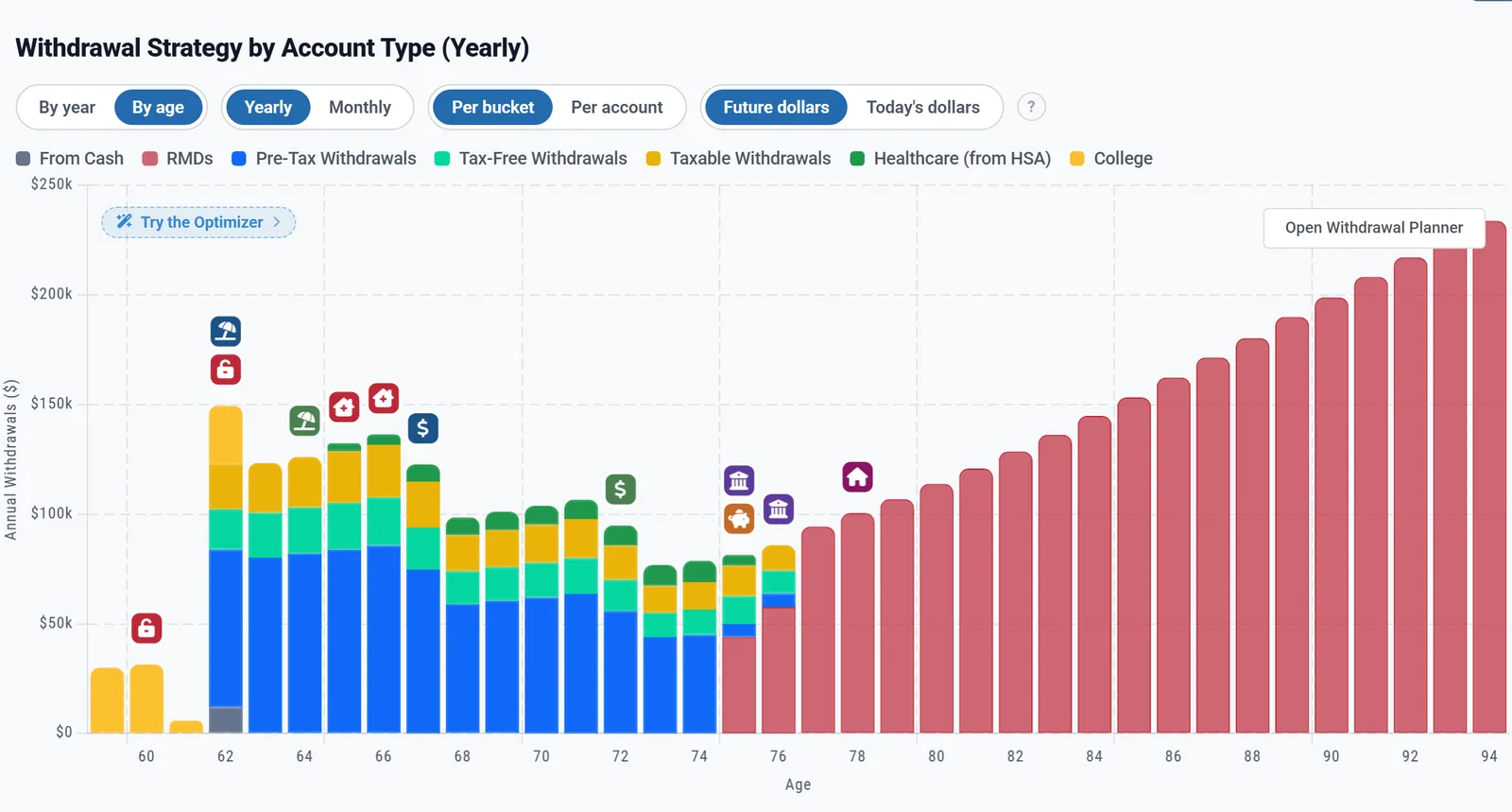
Extra Withdrawals show on the Withdrawals chart and their own chart in the More menu, not on the Spending chart.
Giving to charity from an IRA (QCD)
From 70½, a US plan can give straight from an IRA to a charity as a qualified charitable distribution (QCD): the gift is never income, and it counts toward your required minimum distribution. In the Extra Withdrawals box, choose Give to charity (QCD) beside + Add withdrawal and type the yearly amount. Like every Extra Withdrawal, a QCD is paid on top of your spending, so a gift that is also in your budget is counted twice: take it out of the budget when you move it to a QCD.
All the ways to plan a gift, the QCD rules, and where your gifts show: Giving to charity.
College costs
Tuition and other college costs have their own boxes, one for each student: College Child 1, College Child 2 and College Child 3, in the Add box under Expenses. The plan pays them from your savings, on top of your living costs, in the years you set, before or after you retire.
- Switch on College Child 1.
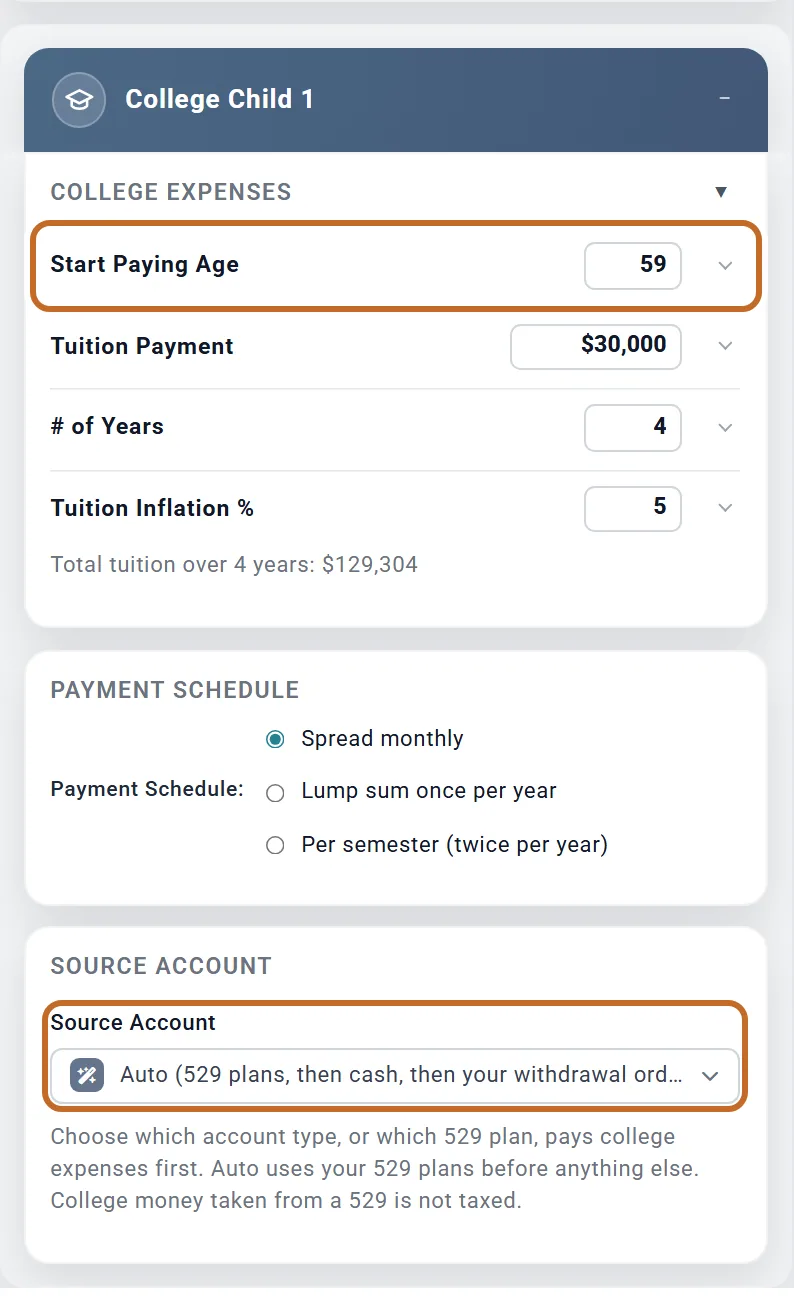
- Set Start Paying Age: the Primary's age in the first year of college, not the student's. A new box starts at 50, so check it first: an age you have passed pays nothing.
- Enter the Tuition Payment: the cost of the first year, in that year's dollars.
- Set # of Years and the Tuition Inflation %, the yearly rise in the cost (5 to start). The line under them gives the total, such as "Total tuition over 4 years: $129,304".
- Choose the Payment Schedule: Spread monthly, Lump sum once per year in a Month, or Per semester (twice per year), half in the Fall Month and half in the Spring Month.
- Choose the Source Account (below).
- Each college year is a year of the Primary's age, from one birthday to the next. A month you choose is the first time that month comes round after the birthday.
- The tuition inflation starts in the second year. Nothing raises the amount for the years before college starts: for a student starting in ten years, enter today's cost raised by ten years of tuition inflation.
Which money pays
- Auto uses every 529 plan first, then your cash above your minimum balances, then your pre-tax, tax-free and taxable accounts in your withdrawal order (with the Proportional strategy, in proportion to their balances). Your HSA is used last, when it is open to other costs. By balance does the same with every kind of account in proportion to its balance, whatever your strategy.
- Taxable Accounts First, Pre-Tax Accounts First or Tax-Free (Roth) First start with that kind of account, then the others, then cash. A 529 is a taxable account, so with Taxable Accounts First it pays only its share of your taxable accounts: Chris and Jamie's paid $4,737 of the first $30,000.
- A 529 by name (each 529 plan on Accounts & Assets is listed, such as 529: 529 Plan) is used first; the rest comes from your taxable accounts first.
Chris and Jamie have a $60,000 529 plan, and their student starts college the year Chris turns 59, at $30,000 a year for four years: $30,000, $31,500, $33,075 and $34,729. On Auto the 529 pays the first two years and $5,882 of the third: $67,382 with its growth. Their cash pays the rest of that year, $27,193, and $7,958 of the last year. The remaining $26,770 of the last year, after Chris retires, comes from their accounts by balance (their strategy is Proportional): $17,376 from pre-tax, $4,957 from taxable and $4,437 from tax-free.
How college money is taxed US
- Money a College box takes from a 529 is not taxed. A 529 is added on Accounts & Assets as a 529 Education Plan, under Taxable Accounts (adding an account needs Planner+).
- Money from other accounts is taxed as any withdrawal from them is: income tax on pre-tax money, tax on the gains in a taxable account.
- College costs paid from an IRA before 59½ owe no 10% penalty. From a 401(k) or 403(b) they do.
- A 529 also counts among your taxable accounts, so your regular withdrawals in retirement can draw on it too. Those draws are taxed like a brokerage account's.
Outside the US there is no 529 rule. In Canada a RESP is drawn like any Non-Registered account, and the box says so. Canada
College costs show on the Withdrawals chart as College (the part paid from your accounts), on the Cash Flow chart, and in the Retirement Year Detail as Less: College Costs (see The lines between After-Tax Income and Total Spending). They are not on the Spending chart, which shows your living costs.
Spending while you are still working
- Without Employment Income, the planner assumes your pay covers your costs until you retire. Budget rows before retirement show on the Budget tab but change nothing in the plan.
- With Employment Income on, working-year costs count: your budget's rows for those ages, or, with no budget, your Desired Monthly Spending. They are paid from your pay, and any shortfall is drawn from savings unless you switch off Fund shortfalls from savings.
A clean way to plan both: one row with Until Retirement for your working years, another with At Retirement for retirement. Chris and Jamie's health insurance before retirement is $1,450 a month; it is in their budget's total today, but not in the plan's spending, because Employment Income is off.
Needs, Wants and Splurge
With a budget linked, the Retirement Spending box shows three switches, Needs, Wants and Splurge, each with its monthly amount at your age today. Switch one off to run the plan without those rows: for example, to see whether the plan works on needs alone.
Chris and Jamie's spending in retirement is $7,000 a month in today's dollars. With Splurge off, the boat leaves it and it is $6,600. The switches are saved with the plan, and do not change the budget itself.
The Spending Smile
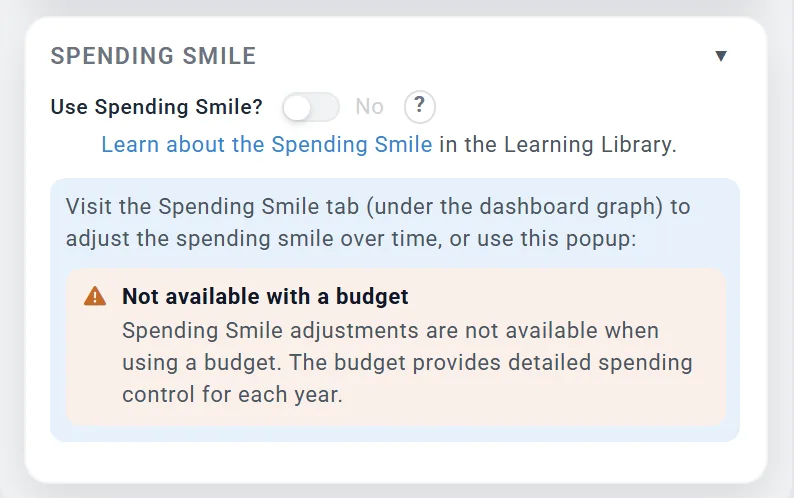
Research finds that many retirees spend less through the middle of retirement and more late in life. The Spending Smile section of the box can shape your spending that way: switch on Use Spending Smile?, then shape the curve with Open Spending Smile Adjuster in the box, or, on a large window, in the Spending Smile tab under the Dashboard chart. It is off to start with. The Spending Smile page covers the presets, shaping the curve and what it changes.
A budget already sets each year's spending, so the Smile is not available while a budget is linked. Linking a budget switches it off, and unlinking does not switch it back on.
Where to see your spending
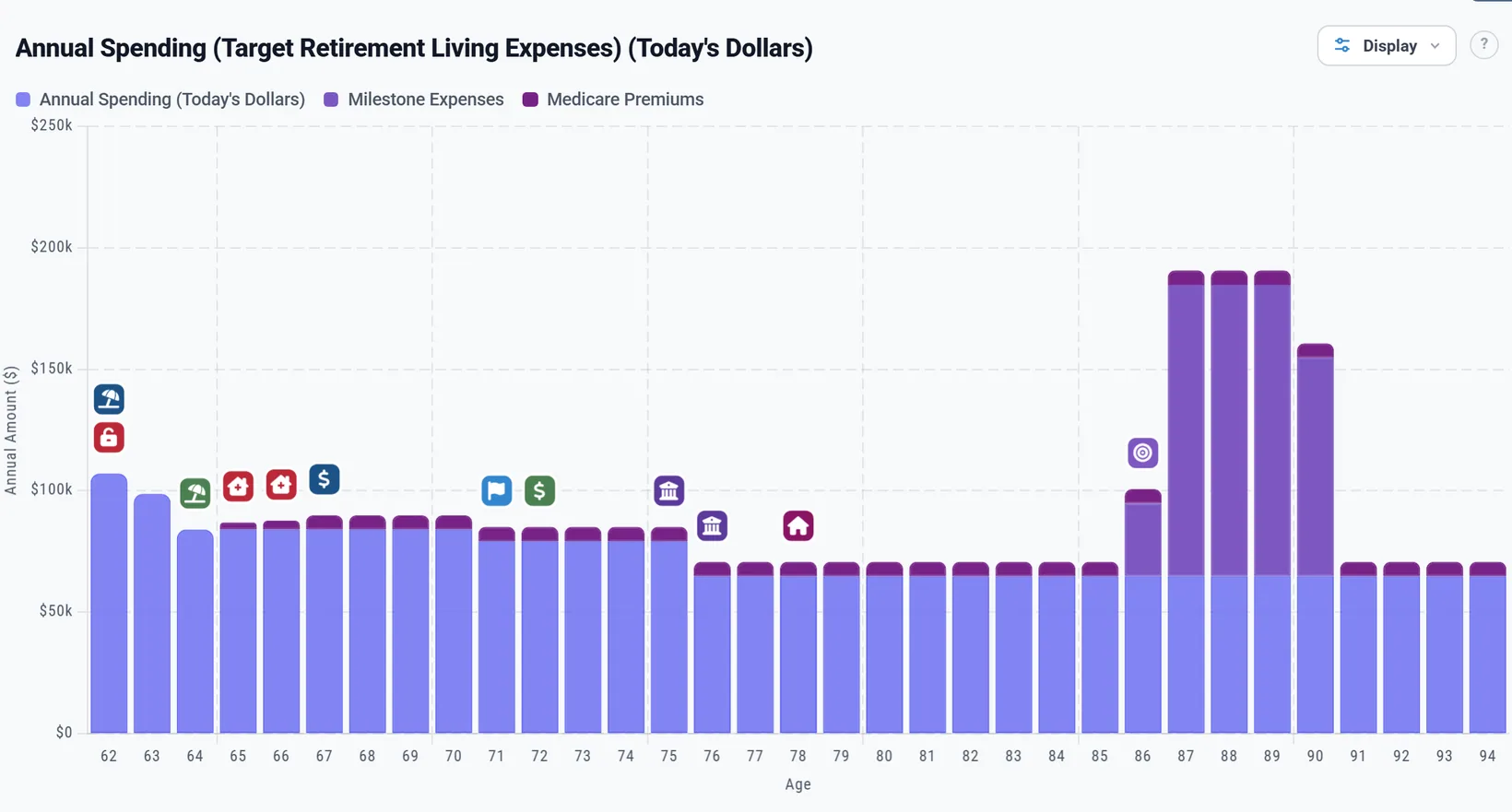
The Spending chart on the Dashboard shows what the plan spends each year. In today's dollars, Chris and Jamie's year at 62 is taller with COBRA, the line steps down when the boat and travel end, and the long-term care shows as Milestone Expenses in the years Jamie is 85 to 88.
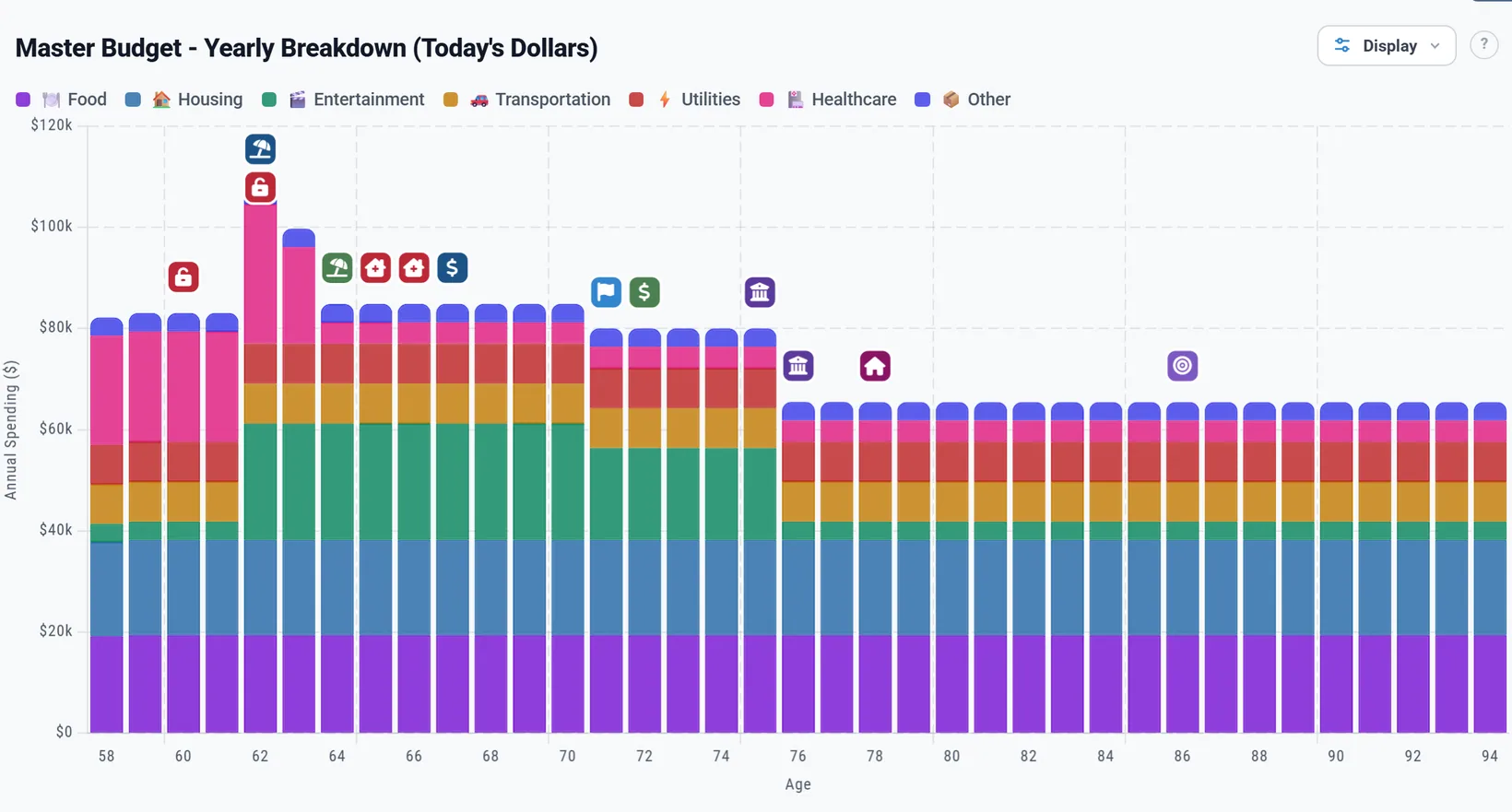
The Budget chart draws your budget's rows by category, including the years before you retire. It shows the whole budget: the Needs, Wants and Splurge switches do not change it.
Reading one retirement year: the Retirement Year Detail
The Retirement Spending box ends with Retirement Year Detail: one year of your retirement, line by line. What came in, the tax, and what the money paid for. It is there in every spending mode.
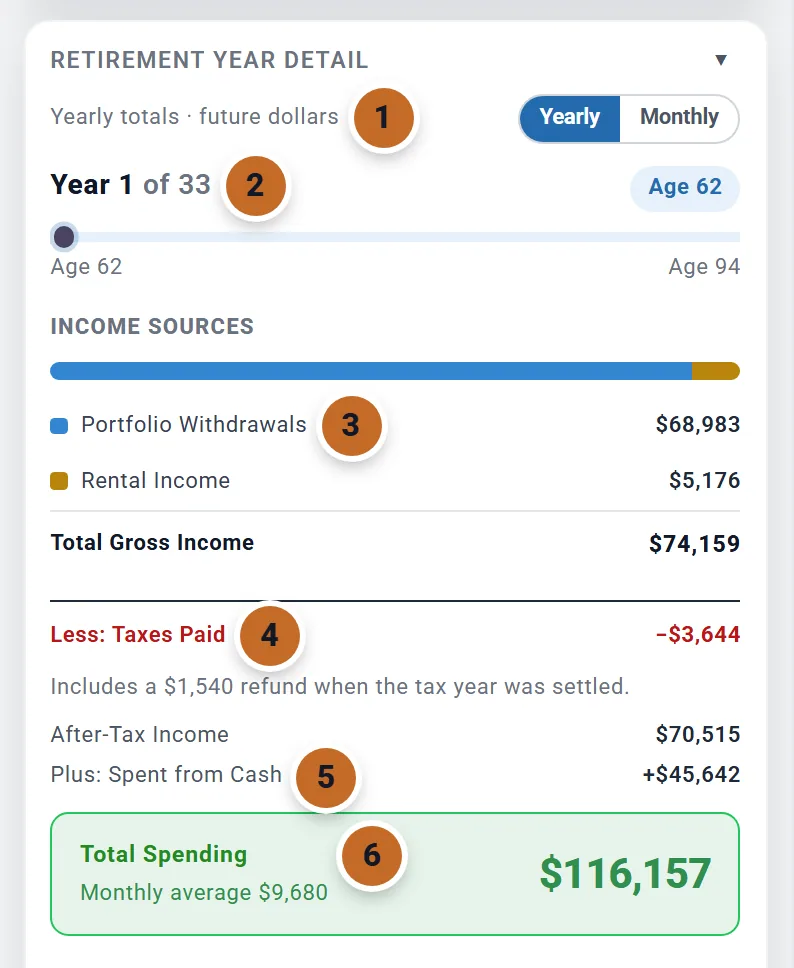
- The view. Yearly totals or Monthly averages, in future or today's dollars. The dollars follow the choice above the Dashboard chart (see Today's dollars and future dollars).
- The year. Year 1 of 33, with the Primary's age at its start. Drag the slider, or use the ‹ and › arrows beside the age, to move from year to year.
- Income. One row for each source of money, Portfolio Withdrawals first, then Total Gross Income.
- Less: Taxes Paid, with a note under it when part of the tax needs explaining.
- The lines between. After-Tax Income, then anything else the year's money did. The last is the cash line: Plus: Spent from Cash when cash paid part of the year, Less: Added to Cash when money was left over.
- Total Spending: what the plan spent on your living costs that year, with the other period under it (the monthly average, or the yearly total).
- Year 1 starts in your first month of retirement (set by Retire at and Retire in), and each year is the 12 months from there. The last year can be shorter.
- The summary panel can move it. The Age slider in the panel beside the Dashboard chart moves the Year Detail to the same year (see See one year in detail).
How the lines add up
Portfolio Withdrawals are not on top of the other rows. They are one of the income rows, inside Total Gross Income. Each month the planner counts your other income, spends cash above your minimums, and withdraws from your accounts only what your spending and its tax still need (see The order, every month). So the column reads from the top down to Total Spending, with nothing left out:
- Chris and Jamie's first year: $68,983 of withdrawals plus $5,176 of rent is $74,159 of gross income. Less $3,644 of tax, that leaves $70,515. Add the $45,642 spent from cash, and the year's spending is $116,157, about $9,680 a month.
- Turned around, the withdrawal is the gap: $116,157 of spending plus $3,644 of tax, less $5,176 of rent and $45,642 of cash, is the $68,983 withdrawn.
- In today's dollars the same year's Total Spending is $102,000: 12 times the $8,500 they typed.
- In Monthly Income mode, too, your other income reduces the withdrawal, unless you tick Make withdrawals in addition to other income: only then is the withdrawal on top of your other income (see The three spending modes).
What Taxes Paid holds
- The year's income tax, federal and state, and payroll tax on any salary.
- In the US, the Medicare premiums the planner charges from 65 (Part B, Part D and any IRMAA), and a marketplace premium after its credit if you model one in the Health Care box. In the year Chris turns 70, $8,585 of Chris and Jamie's $17,951 of Taxes Paid is Medicare premiums. US
- Not the tax on a Roth conversion when it is withheld from the converted money: a note under the line says so.
- Notes explain the rest, such as "Includes a $1,540 refund when the tax year was settled." on Chris and Jamie's first year. A year that ends with a net refund reads Plus: Tax Refund.
The lines between After-Tax Income and Total Spending
Each line shows only in a year it moved money. In a year with none, After-Tax Income is left out and the last line is called After-Tax Spending.
| Line | What it is |
|---|---|
| Less: Saved from Pay | Contributions from a salary that is still paid (Employment Income). |
| Less: Cash Benefits Invested | A lump sum from the One-Time Benefits box: it is a row of income (Cash Benefits), then goes into your investment accounts instead of being spent. |
| Less: Moved to Brokerage | Money moved to a taxable account: an Extra Withdrawal sent there, required minimums reinvested, or new cash invested (Cash that builds up). |
| Plus: Sale Proceeds | A planned sale, after selling costs and any loan payoff. |
| Plus: Life Insurance Payout and other payouts | Money paid into your cash that is not income: a life insurance payout, a refinance, HELOC or reverse mortgage draw. |
| Less: College Costs, Less: Extra Withdrawals Spent, Less: Premiums and Milestone Expenses, Less: HSA Contributions | Costs paid beside your living costs, so they are not in Total Spending. The premiums here are life insurance and temporary health coverage (COBRA and the like), not Medicare. |
| Less: Given to Charity (QCD) | IRA money given straight to a charity (a QCD): it is in the withdrawals above and never in Taxes Paid. |
| Plus: Bills the Plan Could Not Pay | After the money has run out: tax, premiums or property costs left unpaid. |
| Plus: Spent from Cash or Less: Added to Cash | The balance: what the year did to your cash. A move under $25 is not shown. |
When cash builds up
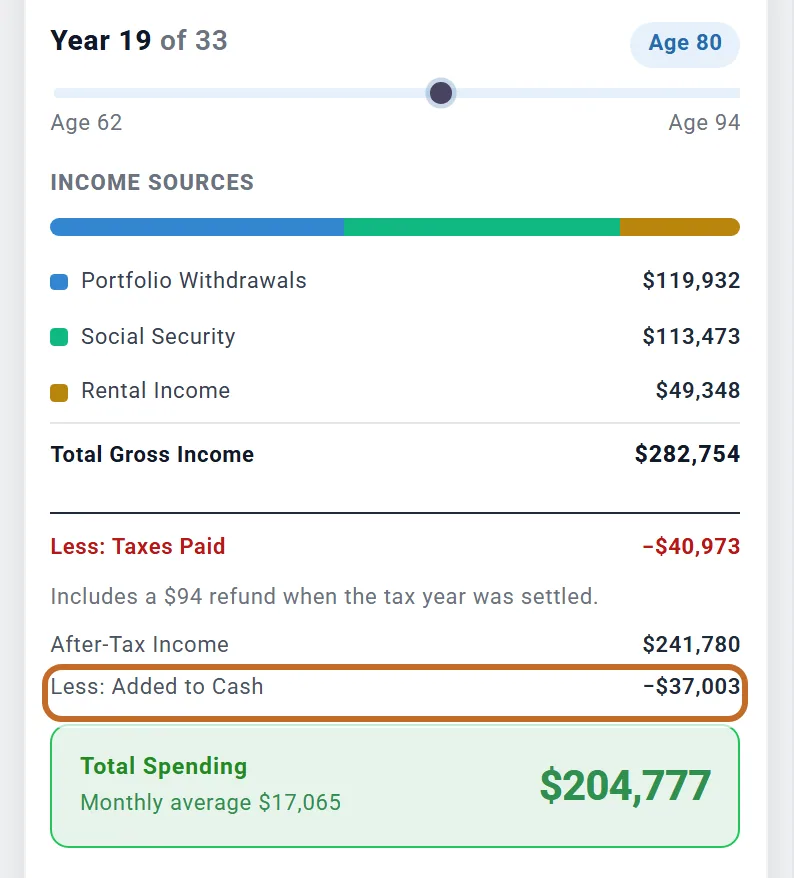
Drag to the year Chris turns 80. Required minimums take more from the pre-tax accounts than the year needs, so part of the $119,932 of withdrawals is not spent: Less: Added to Cash shows the $37,003 left over. From 76 their plan adds to cash every year (see Required minimums, and the money you do not spend).
A year that runs short
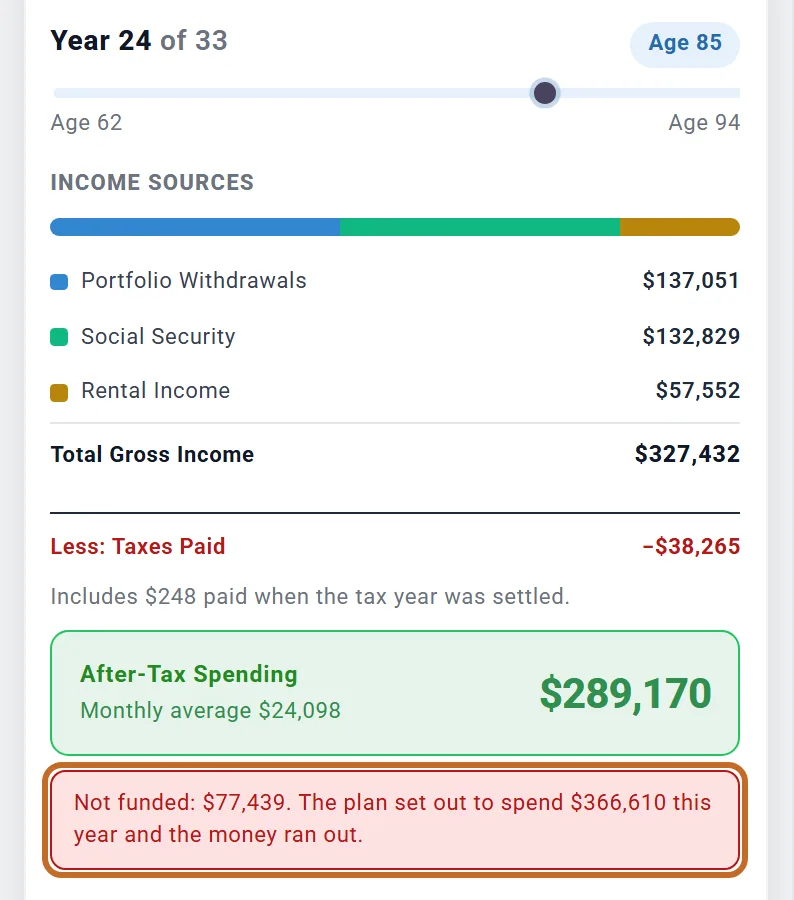
In Monthly Expenses mode, a year the plan cannot pay in full ends with a red Not funded line: how much of what it set out to spend went unpaid.
With Chris and Jamie's spending raised to $13,000 a month, for this picture only, the money runs out at 85. That year the last $137,051 of their savings is withdrawn and the plan spends $289,170: "Not funded: $77,439. The plan set out to spend $366,610 this year and the money ran out." By 87 there is no Portfolio Withdrawals row at all: only Social Security and the rent pay.
The last line is always what was really spent, never the target.
Also in the section
- With Employment Income paying a salary before you retire, Year 1 starts with a First Working Year card: salary, wage taxes and contributions.
- With Using the 4% Rule, Year 1 has a 4% Rule Calculation card: your portfolio at retirement, the percentage, and the withdrawal it gives.
- Under the lines, Withdrawal Information gives your retirement age and, in the US and Canada, when required minimums start.
- To see how one year's tax was worked out, open Tax Details (see Tax Details: how one year's tax was worked out).
What to know
- Spending, budgets, milestones and Extra Withdrawals work the same in every country. Leaving out Medicare applies to US plans only.
- Desired Monthly Spending can go down to $1,000 a month, not lower.
- Large Expense spreads a big cost that recurs (a roof every 20 years) into a monthly amount. For a single cost, use one of the tools above.
- The Budget tab's own screens raise rows once a year, on your birthday; the plan raises them every month. Small differences between the Forecast and the Spending chart come from this.
- A budget row has no "whose age" choice of its own: use a milestone on your spouse's age, as above.