



 Continue with Google
What the Optimizer does
The Optimizer tries many ways of taking money out of your accounts in retirement, and shows you the one that leaves you best off. It changes nothing in your plan unless you choose to apply a result.
Open it with the Optimizer tab at the top of the planner, or Optimizer in the left menu. It has two sub-tabs: Optimizer, the search this page is about, and Roth Conversions and Bracket Filling, where the strategy you apply lives (see Roth conversions and tax strategy). Outside the US, and on a US plan with no Roth account, the second sub-tab is called Bracket Filling.
On a US plan with a Roth account, every strategy it tests is a mix of three choices: US
- A withdrawal order. All seven: Balanced and the six fixed orders, such as taxable first, then pre-tax, then tax-free (see The order of your investment accounts).
- Roth conversions. None; filling your income each year up to a line (the top of the 12%, 22% or 24% tax bracket, the first Medicare surcharge (IRMAA) threshold, the investment-income tax (NIIT) threshold if you have investment income, the edge of the 0% capital gains rate if you have gains, or an income limit of its own); or a fixed amount each year, over several age windows.
- Extra pre-tax withdrawals that fill a tax bracket in low-income years, moved to cash or to your brokerage account. The Optimizer calls them "extra withdrawals to cash".
Then it fine-tunes the best one: a custom split of your withdrawals between your taxable, pre-tax and tax-free accounts (a refined mix), where the extra withdrawals are deposited, and whether the tax on conversions is paid from cash or withheld from the conversion.
Every strategy is your own plan run through the same calculation as the Dashboard, with your accounts, income, spending and taxes. Only the withdrawal order, the Roth conversion settings and the tax-strategy settings differ (in Canada, also pension income splitting).
How it picks the winner
- With The strongest portfolio, a strategy that runs out of money sooner than your current plan can never win. If your plan runs out, the strategy that lasts longest wins. After that, the one with the most Portfolio at plan end, after tax.
- Portfolio at plan end, after tax adds up your cash and every pre-tax, Roth and taxable account, both of you, in the plan's last month, counting pre-tax money after the tax still owed on it, at your Estate tab's Tax-Deferred Rate (25% unless you change it; the card names the rate). Your HSA and real estate are not in it.
- Lifetime taxes adds every month's tax: federal, state, payroll, Medicare surcharges and the tax on conversions. It leaves out property tax, which no strategy changes, so it is lower than the lifetime taxes on the Summary.
- A strategy is only called a winner if it beats your current plan by at least $5,000 and by at least 0.25% of your portfolio at plan end (1% of lifetime taxes with The lowest taxes along the way), or makes your money last longer. Otherwise you see Already optimal.
- It uses one projection, with the returns and inflation you entered, the same every year. It ranks in future dollars; the figures are shown in future or today's dollars, as you pick at the top right of the tab (see Read the winning strategy). To see how a strategy holds up in bad markets, check Chance of Success after you apply it.
Before you run it
- Try it in a copy. Planner+ Make a what-if plan with New Plan and Plan Type Copy of Master Plan (see Make a what-if plan), open it, and run and apply the Optimizer there. Your Master Plan stays as it was, and Compare Plans shows the two side by side (see Compare plans side by side). Copy of Master Plan copies your saved Master Plan.
- On a Preview account, which has one plan, read the Your plan today column of the Apply dialog before you confirm (see Apply a strategy), and write it down or take a screenshot. Those are the settings you would set back.
- Look at your Chance of Success first, so you have a "before" number to compare with after you apply. Visiting it between the search and Apply does not clear the result.
- Retiring before 65 and buying marketplace coverage? US Turn marketplace coverage on in the Health Care box first. The Optimizer then keeps your income under the subsidy limit in the years before Medicare (only income-limit strategies can; fixed amounts cannot). The panel's Health insurance before 65 note says whether it is on, with Open the Health Care box. It shows when either of you retires before 65.
- Leave your plan alone while it runs. A change to the plan clears the result, and you start again.
Run a search
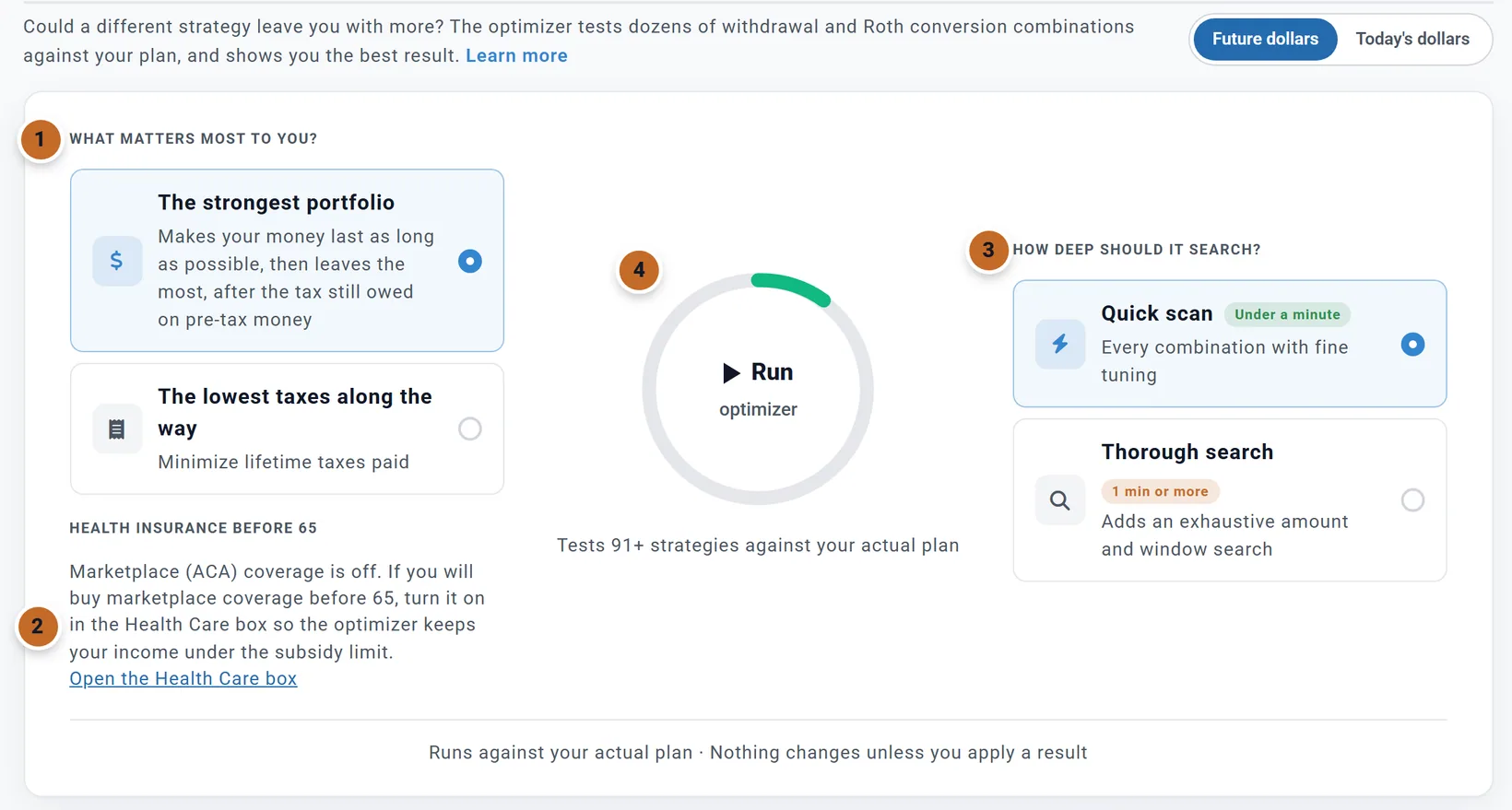
- Under What matters most to you? choose The strongest portfolio (the default: makes your money last as long as possible, then leaves the most, after the tax still owed on pre-tax money) or The lowest taxes along the way.
- Read the Health insurance before 65 note if you see one (see Before you run it).
- Under How deep should it search? choose Quick scan (the default) or Thorough search, which adds a wider search of amounts and age windows. Only US plans with a Roth account have this choice; others see What it tests instead (see Outside the US, and plans without a Roth account).
- Choose Run. The line under it says how many strategies it starts with; the fine tuning adds more.
The choices are labelled Under a minute (Quick scan) and 1 min or more (Thorough search). On Chris and Jamie's plan, a Quick scan tested 238 strategies in about 20 seconds, and a Thorough search tested 851 in about a minute. The wider search can find a better strategy: their Thorough search's winner came out $830,492 ahead, against $708,887 for the Quick scan's (see The strategy, the tiles and the goal).
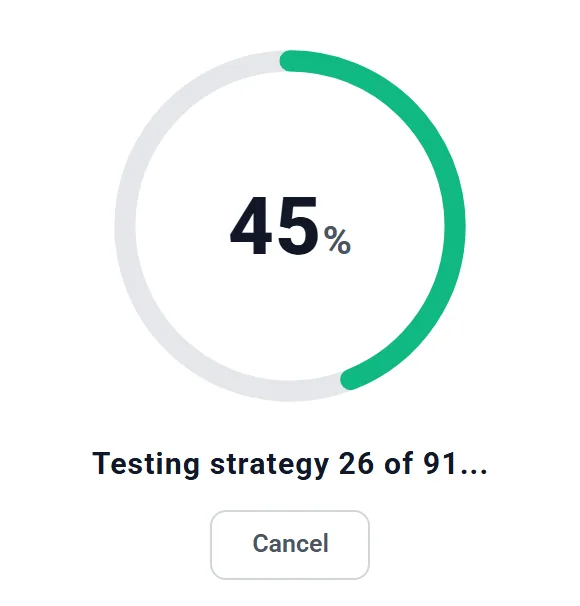
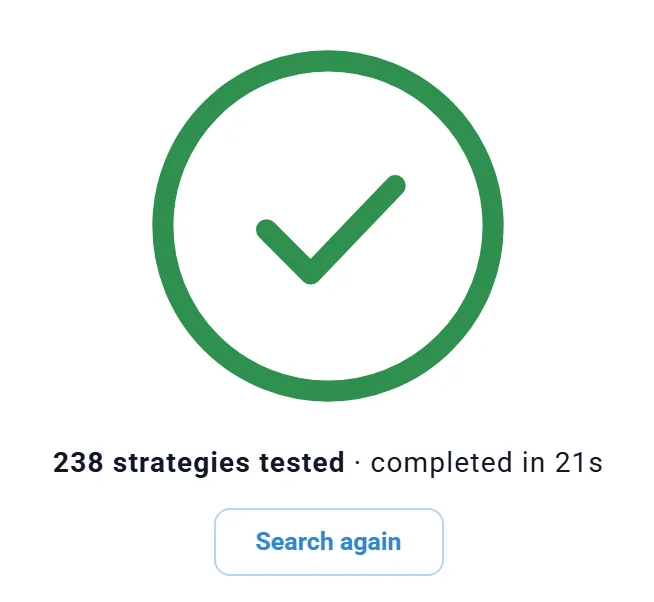
- While it runs, a ring shows how far it has got, and a line such as "Testing strategy 26 of 91..." (later "Refining", "Fine tuning" and so on). Cancel stops it and shows what it found so far, marked "The search was cancelled; the results below are partial."
- You can switch to another tab while it runs. It keeps going, and the result is waiting when you come back.
- The result stays only while the page is open. Reloading the page, switching plans, or changing anything in your plan clears it, and the panel shows Run again. Your goal and depth go back to the defaults when you reload.
Read the winning strategy
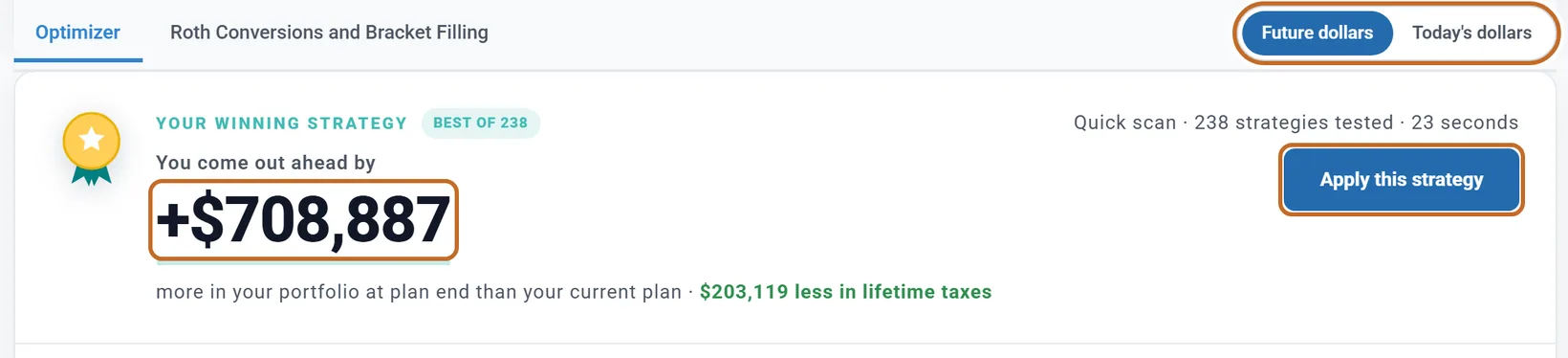
The big number is what the winner gains on your goal. For Chris and Jamie, the winning strategy ends with $708,887 more in their portfolio at plan end, after tax, than their current plan, and pays $203,119 less tax over their lifetime.
- On the right, a line says how the search ran (depth, strategies tested and seconds), and Apply this strategy opens the Apply dialog (see Apply a strategy).
- Future dollars or Today's dollars switches every figure on the card, the charts and the table of every strategy. The tab has one such choice, at the right of the line at the top of the Optimizer; once you scroll down, it stays at the right end of the row with the Optimizer tab (ringed above). It is the same choice as the Dashboard's. The ranking itself always uses future dollars.
The headline changes when the winner does not gain on your goal. In a spending mode such as Monthly Income or Using the 4% Rule, the refined mix is chosen for the spending it pays for, so the winner can end with less in the portfolio and lead instead with "Your plan funds" and the extra lifetime spending. When your plan and the winner both run out of money, it leads with "Your money lasts" and how many years longer.
The strategy, the tiles and the goal
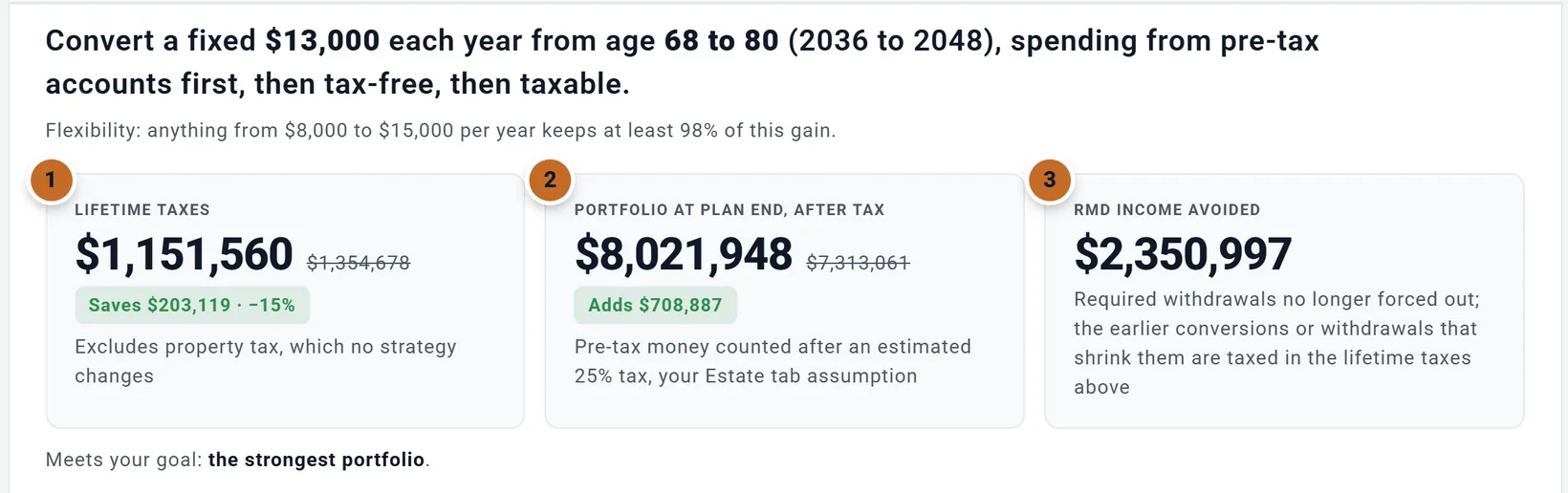
- The sentence says the strategy in plain words: here, convert a fixed $13,000 each year from 68 to 80 (2036 to 2048), spending from pre-tax accounts first, then tax-free, then taxable. The ages are the primary's (Chris's), and each is the age reached during that calendar year.
- Flexibility: appears for a fixed-amount or income-limit winner when nearby values do almost as well. For Chris and Jamie: "anything from $8,000 to $15,000 per year keeps at least 98% of this gain."
- Includes a refined withdrawal mix: appears when the fine tuning found a split of your withdrawals between your taxable, pre-tax and tax-free accounts that does better than the winning order on its own. It names the split as three percentages and says what the mix adds on its own. The winner then follows that split instead of an order. The Quick scan winner shown here has none. Chris and Jamie's Thorough search found a different winner, a fixed $43,000 a year from 63 to 84, spending from taxable accounts first, then pre-tax, then tax-free, and refined it: "Includes a refined withdrawal mix: 55% Taxable / 45% Pre-Tax / 0% Tax-Free. On its own it leaves about $64,166 more in your portfolio at plan end than the winning order alone."
- The tiles show the winner's figure large and your current plan's struck through: (1) Lifetime taxes, (2) Portfolio at plan end, after tax, and (3) RMD income avoided, required withdrawals that no longer have to come out (the tax on the conversions that shrink them is already in lifetime taxes). Two more appear when they matter: Money lasts until, when either plan runs out of money, and Lifetime spending, when strategies differ in what they pay for.
- The goal note says whether the winner meets your goal, and what it costs on the other measure when it costs something: with The lowest taxes along the way, a winner that ends with less in your portfolio adds a line such as "Each $1.00 of tax saved costs about $X of your portfolio at plan end." With that goal, Chris and Jamie's winner paid $486,543 less tax and also ended with $118,406 more, so the note read only "Meets your goal: lowest lifetime taxes." A pill shows when Medicare surcharges go up or down.
The charts
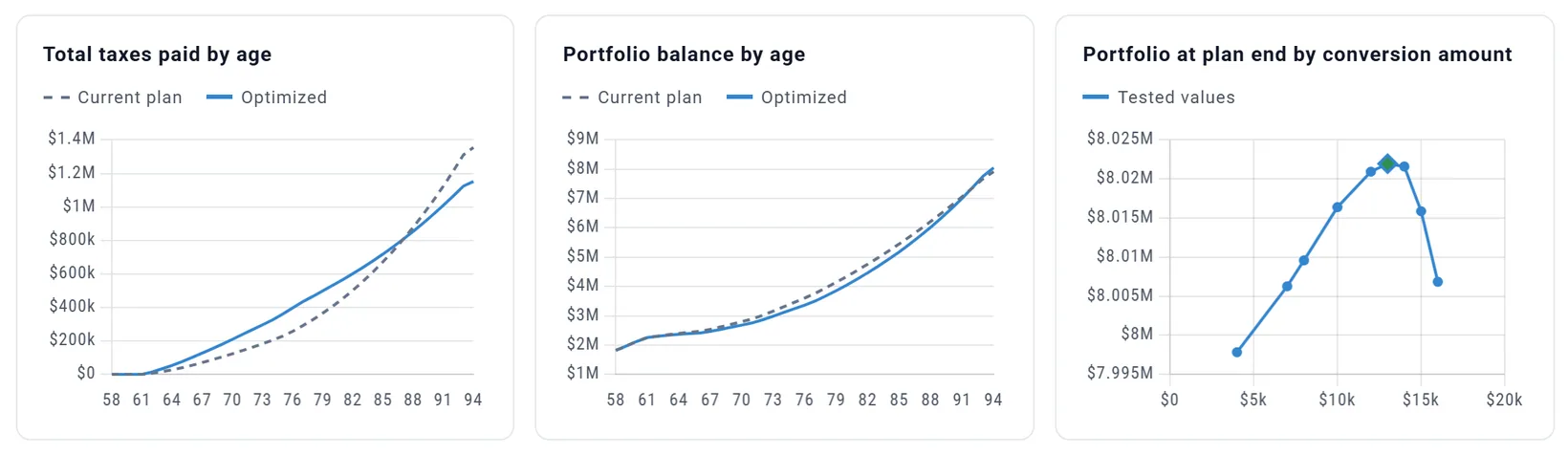
- Total taxes paid by age: tax paid so far, at each age. With the winner, Chris and Jamie have paid more tax until about 87, and less in total by the end of the plan.
- Portfolio balance by age: the whole balance before tax, not the after-tax figure on the tile.
- For a fixed-amount or income-limit winner, a third chart shows each amount it tried (Tested values) and what it left at plan end.
What changes
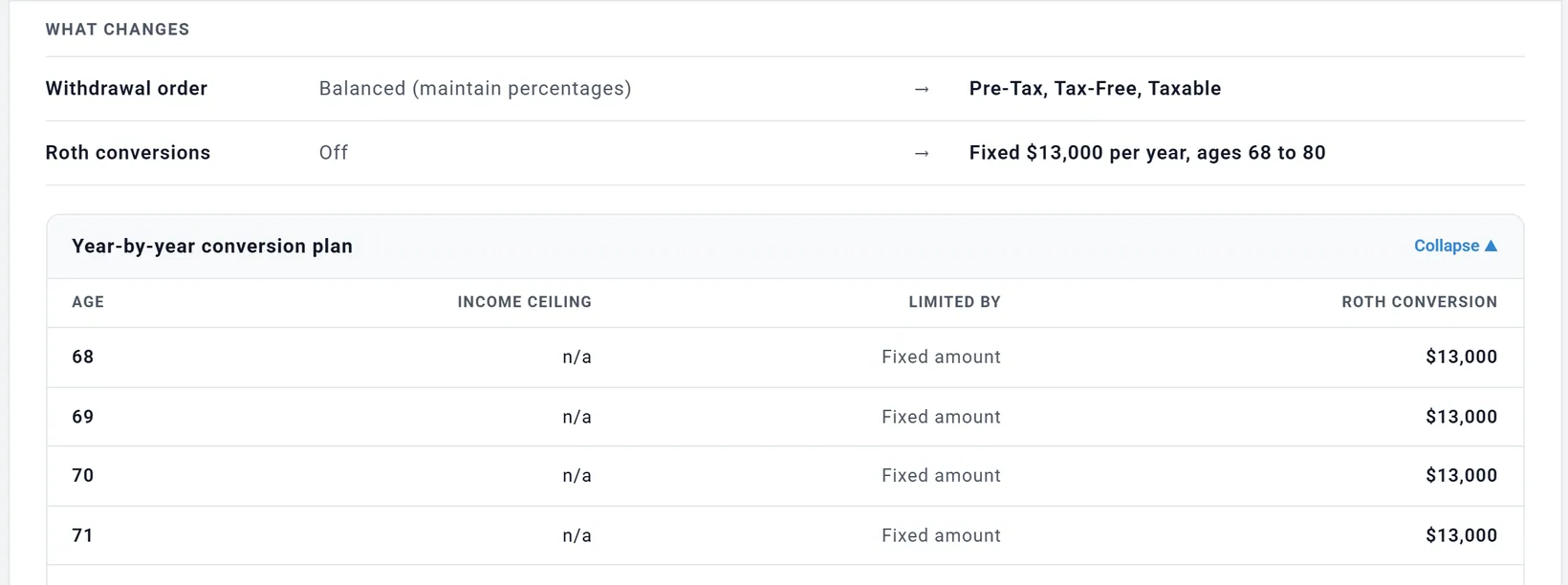
What changes lists each setting the winner would change, from your plan today to the winner. With a refined mix, the Withdrawal order row reads Custom Mix with its percentages. Other rows you may see: Conversion tax paid from, Income ceiling, Extra withdrawals to cash (or to your brokerage account), and in Canada Pension income splitting. The Year-by-year conversion plan shows each year's conversion and what limits it. Collapse ▲ folds it away.
Nothing changes until you apply
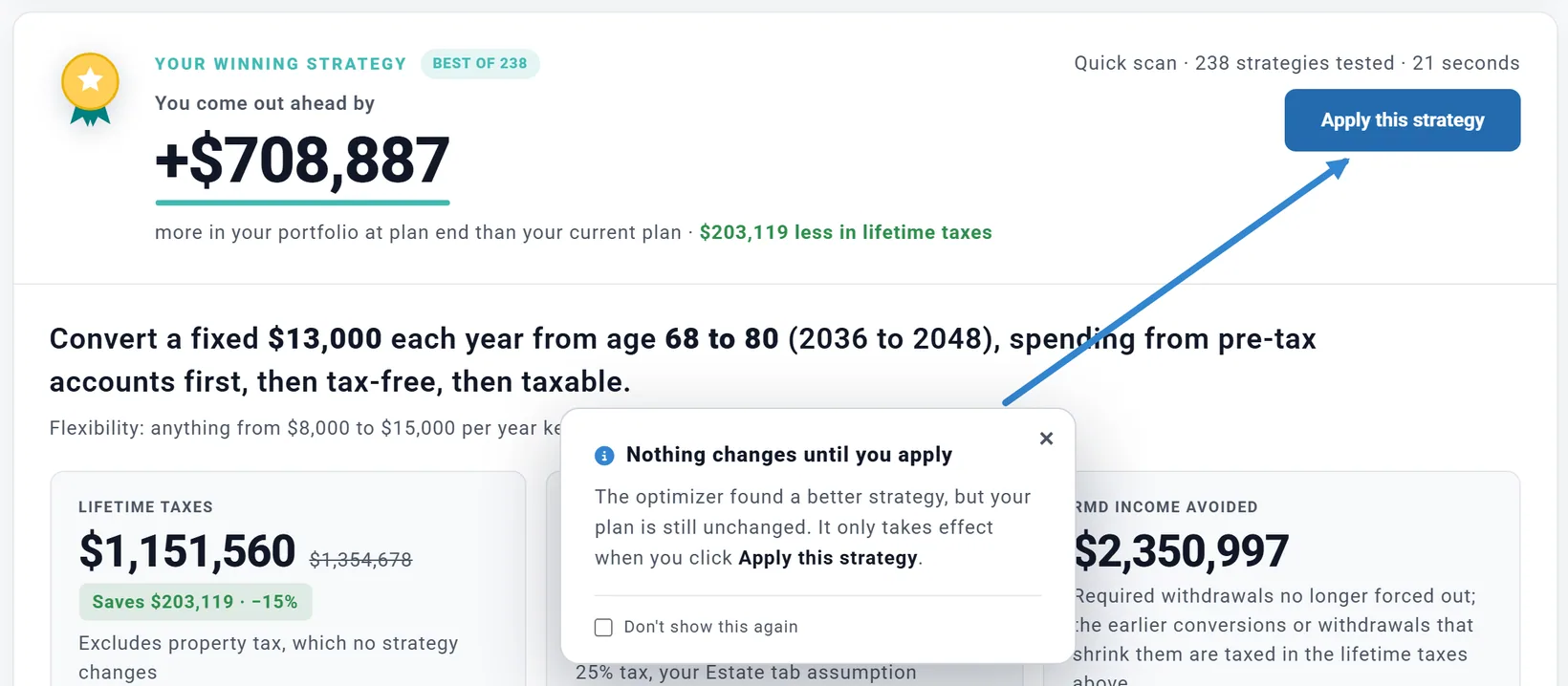
When a winner appears, a card points at Apply this strategy to remind you that your plan has not changed yet. Close it, or tick Don't show this again.
Every strategy it tested
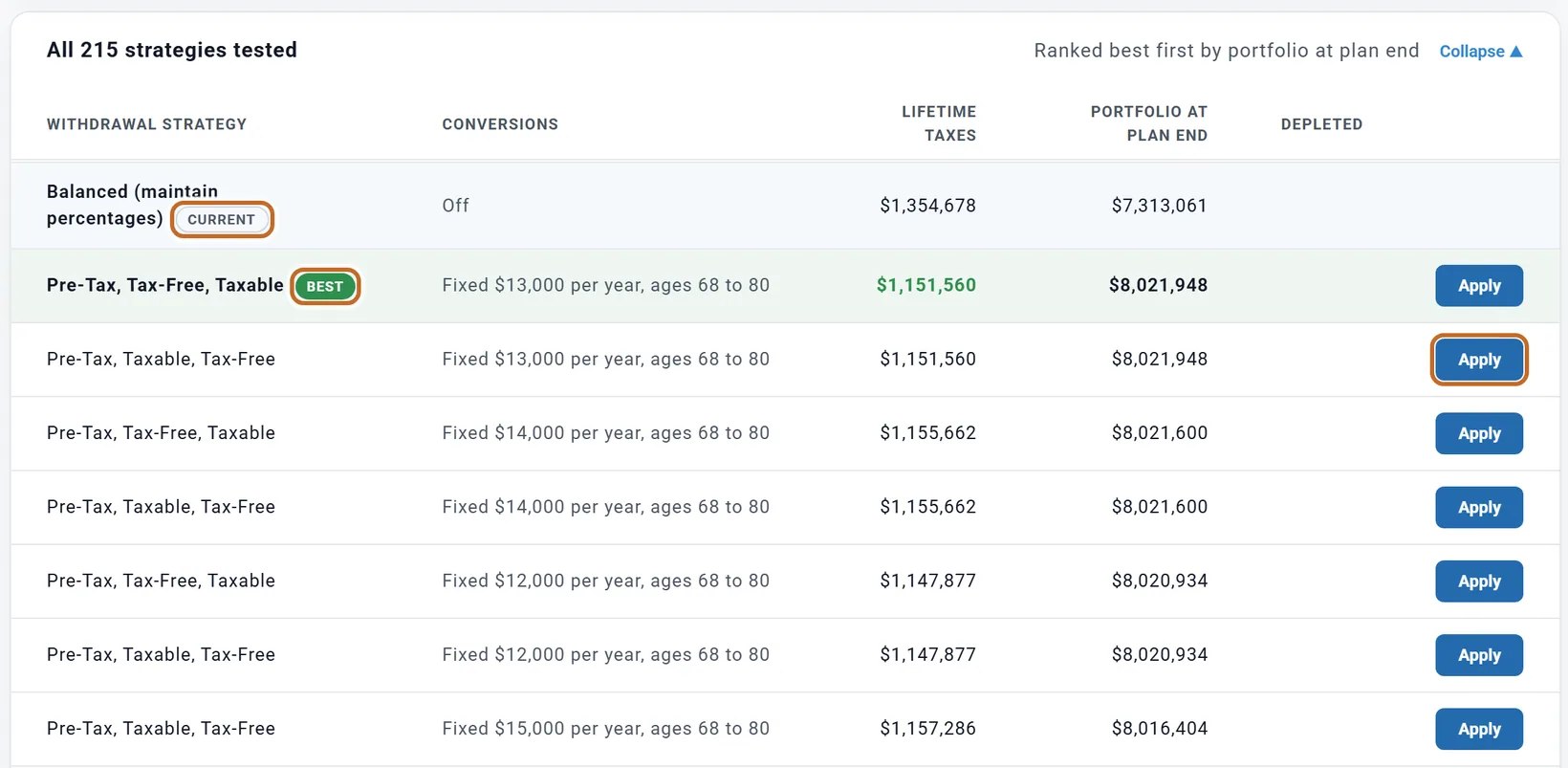
- The table lists the strategies best first by your goal. Click Lifetime taxes or Portfolio at plan end to sort by it. Depleted shows the age the money runs out, if it does.
- Your plan is marked CURRENT, the winner BEST. Strategies that would read and score the same are shown once, and the count in the card's header also includes the fine-tuning runs, so the table can list fewer (215 of 238 here).
- Different strategies can tie. Here the row under BEST, Pre-Tax, Taxable, Tax-Free with the same $13,000 a year, scores exactly the same as the winner.
- When the winner has a refined mix, the BEST row shows it before the mix, so its numbers are not the card's. Chris and Jamie's winner has no mix, so its row and the card agree ($8,021,948).
- Each row's Apply opens the same dialog. It applies that strategy exactly as tested, without a refined mix, which belongs to the winner only.
- Strategies that run out of money sooner than your plan are listed after the others and can never be the winner.
When your plan is already near-optimal
If no strategy clears the bar (see How it picks the winner), the card says Already optimal and "Your current setup is already near-optimal.", then either "No tested combination beat your current plan." or how much the best one would add, "which is within the model's error margin." Under YOUR CURRENT PLAN it lists your withdrawal order, Roth conversions and extra withdrawals.
That is the usual answer after you apply a winner: Chris and Jamie's plan, searched again after applying, tested 200 strategies and said "No tested combination beat your current plan."
One-click suggestions on the card
After the search, the Optimizer tries the result once more with one thing done the other way US:
- The tax on conversions paid from cash instead of withheld from the conversion, or the reverse (only when the result converts, and paying from cash needs cash): Pay the tax from cash or Withhold from the conversion.
- The extra withdrawals deposited to your brokerage account instead of cash, or the reverse (needs a brokerage account): Use brokerage deposits or Use cash deposits; or extra withdrawals turned on when the result has none: Use extra withdrawals.
A suggestion shows only when it is clearly better (at least $5,000 and 0.5% more on your goal, paying for the same spending), as a line such as "Paying the conversion tax from cash instead of withholding it from the conversion would add about $X to your portfolio at plan end." Chris and Jamie's search for The strongest portfolio offered none: neither change cleared the bar. With The lowest taxes along the way it offered Pay the tax from cash: "Paying the conversion tax from cash instead of withholding it from the conversion would trim about $5,506 of lifetime taxes, and add about $197,420 to your portfolio at plan end."
- On a winner card, the button adds the choice to the winning strategy and changes nothing yet: the line then says "Added to this strategy: it takes effect when you apply it.", and the Apply dialog lists it.
- On an Already optimal card, an extra-withdrawals suggestion (Use brokerage deposits, Use cash deposits or Use extra withdrawals) changes your plan straight away, with no dialog, and the button reads Applied. The conversion-tax suggestion shows on a winner card only.
Apply a strategy
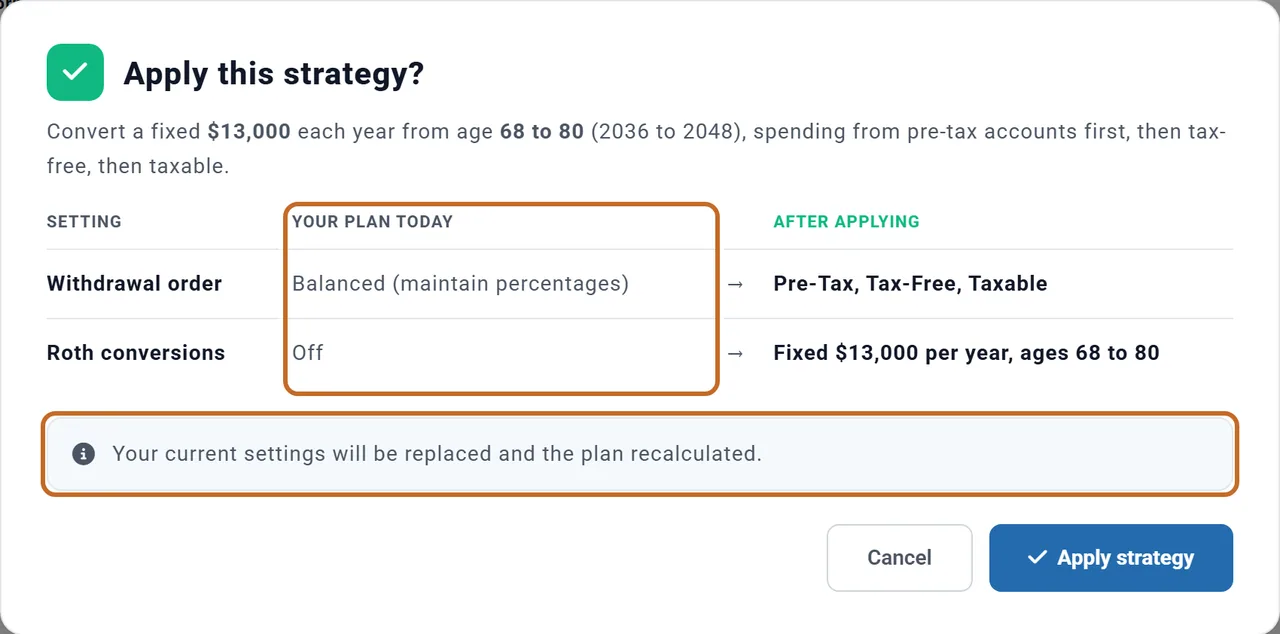
- Choose Apply this strategy, or Apply on a row of the table.
- Read Apply this strategy?: the strategy in words, and a table of each setting with Your plan today and After applying. Note the Your plan today column if you may want to go back.
- Choose Apply strategy, or Cancel (or click outside the dialog) to leave your plan as it is.
On a US plan with a Roth account, Apply writes, all at once:
- Roth conversions: on or off, fixed amount or fill to a limit, the ages, the amount or limit, and how the tax is paid. If the winner has no conversions, your own conversions are turned off. If your plan had no Roth Conversions box, Apply adds it; the box then says "Managed in the Optimizer".
- The tax-strategy settings: the income limit and its constraints, and whether extra withdrawals are made and where they go.
- The withdrawal order. With a refined mix, your withdrawal strategy becomes Custom Mix with its percentages, and your withdrawals switch from Simple to Advanced. Without one, the winner's order replaces yours and Simple stays Simple.
- In Canada, for a couple: Apply pension income splitting (Canada) in the Taxes box, on or off. Canada
For Chris and Jamie, Apply turned on Roth conversions of $13,000 a year from 68 to 80, with the tax withheld from the conversion, and set their withdrawal order to Pre-Tax, Tax-Free, Taxable; their withdrawals stayed in Simple. It also wrote the tax-strategy settings, with extra withdrawals off. Nothing else in the plan moved.
Apply never changes your spending, ages, income, contributions, accounts and balances, returns and inflation, the cash choices (Spend cash first, Hold cash in reserve, Custom amounts), minimum balances, cash that builds up in retirement, the account order within a bucket, your RMD choices, the Extra Withdrawals box or Health Care.
After you apply, the plan is recalculated and saved, and you land on the Roth Conversions and Bracket Filling sub-tab, where the applied strategy can be adjusted (see Roth conversions and tax strategy). Outside the US, a winner that only changes the withdrawal order leaves you on the Optimizer. The winner card is gone, because your plan has changed: the Optimizer sub-tab shows Run again.
Going back to your old settings
There is no undo button and no switch to turn an applied strategy off.
- If you applied in a copy, choose your original plan in the plan bar (see Switch between plans). Delete the copy on My Saved Plans if you do not want it.
- Otherwise, set each setting back by hand, using the Your plan today column you noted.
| Setting in the dialog | Where to set it back |
|---|---|
| Roth conversions, Conversion tax paid from | Optimizer, Roth Conversions and Bracket Filling: ROTH CONVERSIONS (None, Fixed amount or Fill to the limit) with the ages and the amount or limit, and PAY THE CONVERSION TAX FROM (The conversion or Cash). |
| Extra withdrawals to cash (or to your brokerage account) | The same sub-tab: the switch on the Extra withdrawals to cash card (called Extra withdrawals, with DEPOSIT TO, when you have a brokerage account). Or Use my strategy instead on the Withdrawal Planner's Tax moves card, which turns them off and keeps Roth conversions. |
| Income ceiling | The same sub-tab: the Fill to the limit settings and Constraints. Apply replaced your constraints too. |
| Withdrawal order | Retirement Spending box, Withdrawal Strategy: in Simple, the Strategy: dropdown; in Advanced, the Withdrawal Planner's Investment accounts card. If Apply set a Custom Mix and you were in Simple before, choose Simple again, then check Strategy: (see Simple or Advanced). |
| Pension income splitting Canada | Taxes box, Apply pension income splitting (Canada). |
Once you have set back everything Apply turned on (the withdrawal order, conversions and extra withdrawals), the plan no longer counts as optimized: the Dashboard pill reads Try the Optimizer again and the Summary card Not run yet. Changing only some of them, or adjusting a fill level or an amount, keeps the plan optimized (see Keeping it up to date).
Check Chance of Success after applying
The Optimizer judges every strategy on one projection, with your returns the same every year. Chance of Success replays real market history instead (see Why it differs from the Dashboard). After you apply, open the Chance of Success tab and compare it with the number you noted before.
- The winner card has no market test of its own.
- Compare Plans does not include Chance of Success: open each plan's tab to compare.
- Small differences between strategies are within the model's error margin. Treat close calls as ties, and pick the one that is simpler to live with.
Keeping it up to date
The search result is not saved, but what you applied is, with a record that the plan was optimized. Each plan keeps its own record. Three places show it.
The Dashboard pill
At the top left of the Dashboard chart (not on the Taxes or Cash Flow charts):
- Try the Optimizer: no strategy applied yet, or everything Apply turned on has been set back.
- Optimized plan: On: a strategy is applied, and nothing has changed since.
- Optimized plan: Update: your plan changed after you applied. When Chris and Jamie raised their spending by $100 a month, the pill turned to Update.
- Optimized plan: Off: only on plans switched off by an older version of the planner.
Clicking the pill opens the Optimizer box in the settings panel (adding it if needed), not the tab.
The Optimizer box
Add it from Add, Tax Planning, Optimizer, or with the pill. Its status reads Not run, On · up to date or On · needs update. With a strategy applied it shows what the Optimizer's changes are worth, for Chris and Jamie "+$708.9K more after-tax estate with the Optimizer's changes than without them" and "Also $203.1K less in lifetime taxes." (the first is the same measure the card calls portfolio at plan end, after tax), and under Your plan uses the Roth conversions, extra withdrawals and withdrawal order the plan uses now. Run the Optimizer (or Re-run) and Edit Roth & bracket filling open the tab; they do not start a search.
The Summary card
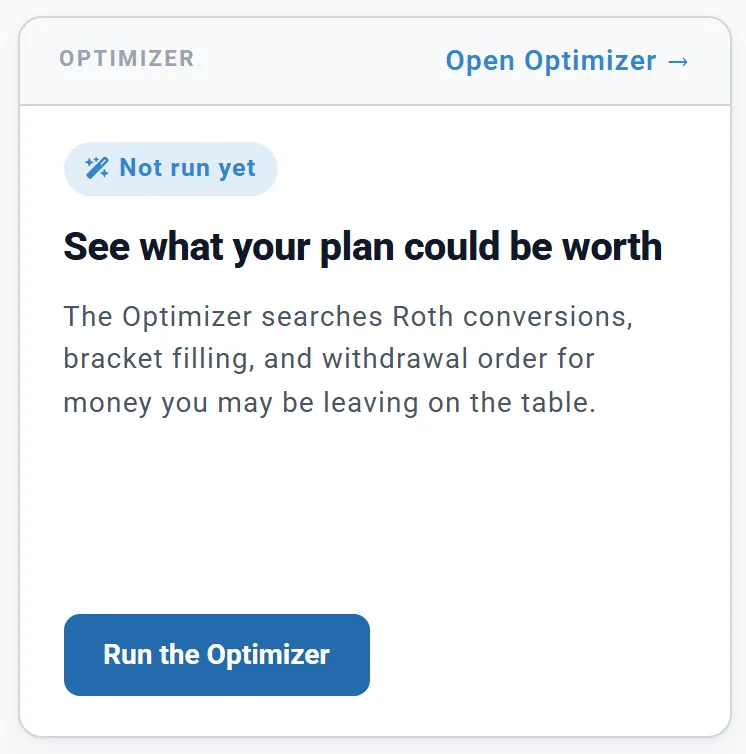
The Optimizer card on the Summary tab says Not run yet until you apply a strategy. Then it shows Optimized plan: On, the gain in future dollars and the strategy in words. When your plan has changed it shows Optimized plan: Update available with what the last run found, and Re-run the Optimizer.
On a Preview account this card is blurred.
When it needs an update
Any change to your plan after you apply makes it out of date: spending, ages, accounts, returns, a box you add, and so on. Changes to the Optimizer's own settings (conversions, extra withdrawals, the withdrawal order) and to display choices do not. To bring it up to date, run the Optimizer again and apply the new winner. A search that ends Already optimal also marks it up to date.
Outside the US, and plans without a Roth account
| Plan | What the Optimizer tests |
|---|---|
| US, with a Roth account | Everything on this page, with the Quick scan or Thorough search choice and the health insurance note. |
| US, no Roth account | Every withdrawal order, with extra pre-tax withdrawals that fill the 12%, 22% or 24% bracket. No Roth conversions, no depth choice and no year-by-year table. A note says so, with Add a Roth account. |
| Canada | Every withdrawal order, with extra RRSP / RRIF withdrawals that fill the 14% or 20.5% federal bracket (once OAS starts, the OAS clawback caps the 20.5% fill), from retirement to age 72 or 80, or in every retirement year. Couples: with and without pension income splitting. |
| UK | Every withdrawal order, with extra pension withdrawals that fill the 20% basic-rate band, or go on toward the higher-rate band, stopping at the £100,000 personal-allowance limit, from retirement to age 67 or 75, or in every retirement year. |
| Australia and other countries | Every withdrawal order. |
Outside the US there are no Roth conversions, no health insurance note and no conversion-tax or "extra withdrawals" suggestions; the panel shows What it tests instead of a depth choice, and the Optimizer box shows Bracket filling and Edit bracket filling.
What the Optimizer does not do
- It does not change your plan's choices. It never tests your retirement age, spending, Social Security claiming age, contributions, investment mix or returns, cash choices, minimum balances, account order within a bucket, HSA use, annuities or giving.
- Its "extra withdrawals" are not the Extra Withdrawals box. The Optimizer's extra withdrawals fill a tax bracket; the Extra Withdrawals box (one-time and yearly withdrawals you plan yourself) is never touched.
- Its "after tax" is a quick estimate. It counts pre-tax money after your Estate tab's Tax-Deferred Rate, one flat rate, while the Estate tab also takes off sale, admin and capital gains costs, so the two figures differ. Its lifetime taxes leave out property tax.
- It uses one projection. Returns and inflation are the same every year, results are in future dollars (Today's dollars changes only the display), and each year's strategy is planned in January from that year's expected income.
- Its results are a snapshot. Only what you apply is saved. A reload, a plan switch or any change to your plan clears the result.
- It has no undo. See Before you run it and Going back to your old settings.
The Optimizer tab, the search, Apply and the suggestions work on every account, including Preview. Making a copy of a plan and Compare Plans need Planner+. Planner+